
Setting VAT up: the rates, the exceptions, and the declarationإعداد الضريبة: النِّسَب والاستثناءات والتصريح
Guide 47 covers what you do with VAT at the end of a period - the closing map and the vouchers it writes. This one covers what has to be true before any of that works: the rates themselves, the items that do not follow the ordinary rate, the registration details, and the declaration you hand to the authorities.
1. VAT Ratio - the rates, and there are three of them
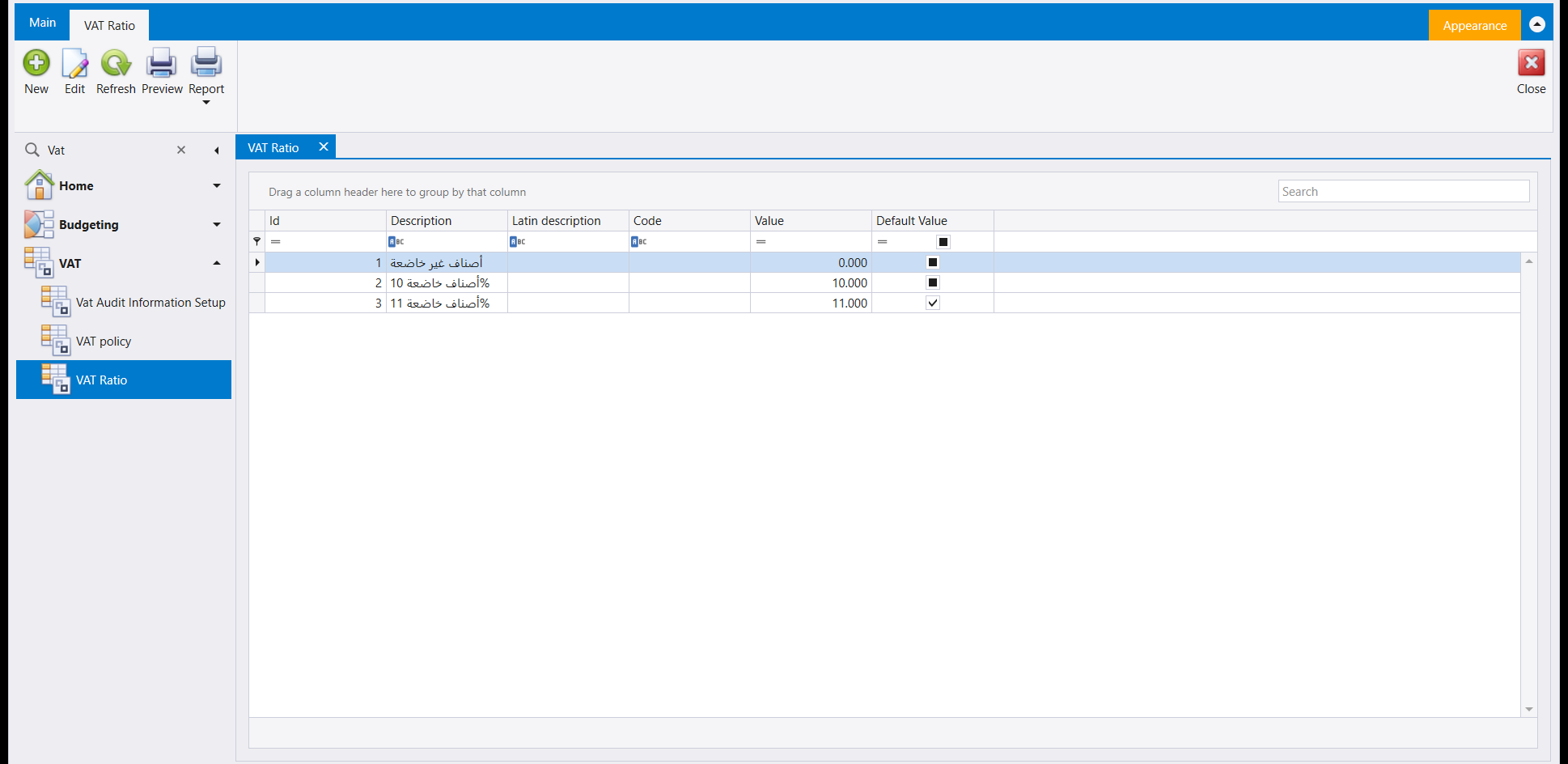
This is the table everything else reads from, and it is worth looking at closely because a rate here is not a yes-or-no. The company in the picture carries three: 0 for items outside VAT, 10 and 11 for the two rates that apply to items inside it.
That matters when you set an item up. It is tempting to think of VAT as "subject or exempt", and the software does not work that way - an item is pointed at one of these rows, so a company running two rates has to point each item at the right one. Getting that wrong is not visible on the item; it is visible months later on the declaration.
Default Value is ticked on exactly one row - the 11 rate in this company. That is the rate a new item gets unless somebody chooses otherwise, so it should be the one most of your items use.
Description is what you will see in the item screens, so write it so a data-entry clerk can pick correctly: "items at 11%" beats "rate 3".
2. VAT policy - the exceptions, dated
Rates change, and when they do you do not want to edit every item by hand. This screen is how you say "these items carry this rate between these dates, for this reason".
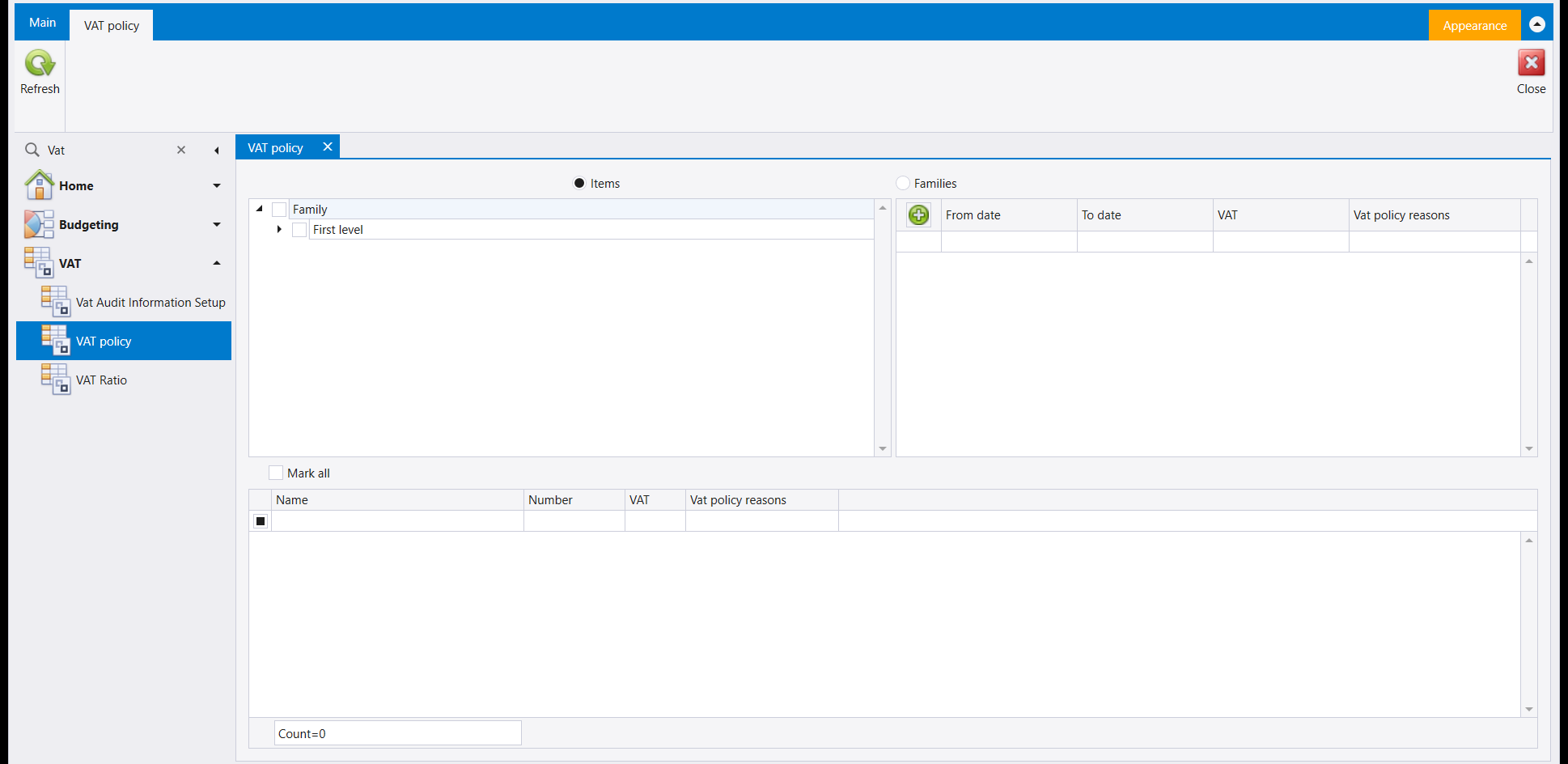
Read it left to right. The Items / Families pair at the top decides what you are selecting - one item at a time, or a whole family in one go. The tree on the left is where you tick them. The grid on the right is the policy itself: From date, To date, the VAT rate it applies, and a Vat policy reasons note saying why.
The dates are the point. A policy with a From and a To date does not need undoing later; it lapses. That is what makes this screen the right place to record a temporary rate change and the item screen the wrong one.
The Count box at the foot tells you how many items your selection actually caught. Look at it before you save - it is the quickest way to notice that a family tick reached far more items than you intended.
Its ribbon has only Refresh and Close, so nothing is created here. You are applying a rate to items that already exist. If the rate itself is missing, add it in VAT Ratio first.
3. Vat Audit Information Setup - who the company is, for the tax authority
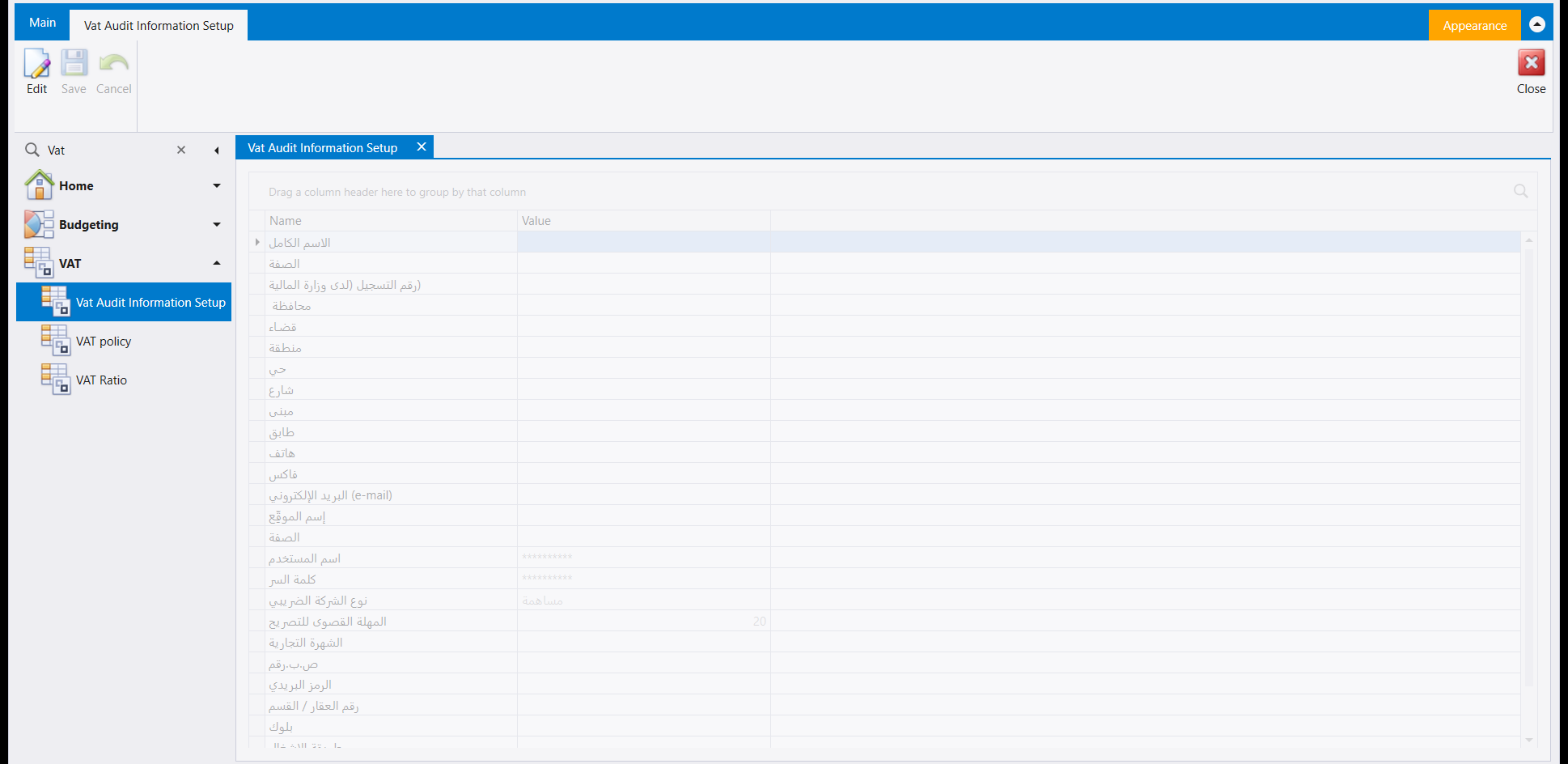
Every field here goes onto what you file. It is a plain list of Name and Value rows - registration number, the full address broken into governorate, district, area, quarter, street, building and floor, the contact details, and the login the filing site knows you by.
Two rows are worth pointing out:
- The user name and password are stored here, shown as asterisks. They are the credentials for the tax authority's own portal, not a Libra login. Whoever maintains this screen is holding a company credential, so treat access to it accordingly.
- The declaration deadline - 20 in the picture - is the number of days you have. It is what makes the reminder in section 4 mean something.
The form is read-only until you press Edit, which is why Save and Cancel are greyed in the picture. That is deliberate: these values are filed with an authority and are not meant to be changed by accident.
4. VAT Declaration - the small screen at the end
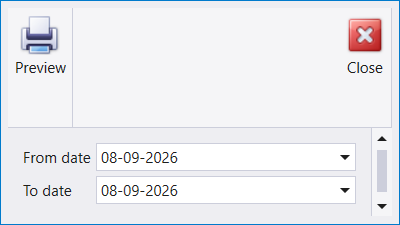
After all of that, the declaration itself is two dates and a Preview. Give it the period, press Preview, and read what the company owes.
It is small because it is only a question. Everything that decides the answer is upstream: the rates in section 1, the exceptions in section 2, the registration details in section 3, and the closing map in guide 47. If a declaration reads wrong, none of the fixing happens on this screen.
Run it before you close the period, not after. The declaration reads your entries; the closing in guide 47 moves them. Looking first means a surprise is still cheap to correct.
يغطّي الدليل ٤٧ ما تفعله بالضريبة في نهاية الفترة - خريطة الإقفال والسندات التي تكتبها. أمّا هذا فيغطّي ما يجب أن يكون صحيحًا قبل أن يعمل أيٌّ من ذلك: النِّسَب نفسها، والأصناف التي لا تتبع النسبة العادية، وبيانات التسجيل، والتصريح الذي تقدّمه للسلطات.
١. VAT Ratio - النِّسَب، وهي ثلاث
هذا هو الجدول الذي يقرأ منه كل ما عداه، ويستحقّ نظرة متأنّية لأنّ النسبة هنا ليست نعم أو لا. فالشركة في الصورة تحمل ثلاثًا: ٠ للأصناف خارج الضريبة، و١٠ و١١ للنسبتين اللتين تنطبقان على الأصناف داخلها.
ويهمّ ذلك حين تعرّف صنفًا. فمن المغري أن تظنّ الضريبة «خاضعًا أو معفى»، والبرنامج لا يعمل هكذا - فالصنف يُشار به إلى أحد هذه السطور، فالشركة التي تعمل بنسبتين عليها أن تشير بكل صنف إلى السطر الصحيح. والخطأ في ذلك لا يظهر على الصنف؛ بل يظهر بعد أشهر على التصريح.
وDefault Value معلَّم على سطر واحد بالضبط - نسبة ١١ في هذه الشركة. وهي النسبة التي يأخذها الصنف الجديد ما لم يختر أحد غيرها، فينبغي أن تكون النسبة التي تستعملها معظم أصنافك.
وDescription هو ما ستراه في شاشات الأصناف، فاكتبه بحيث يستطيع مُدخِل البيانات أن يختار صحيحًا: «أصناف خاضعة ١١٪» خير من «نسبة ٣».
٢. VAT policy - الاستثناءات، مؤرَّخة
تتغيّر النِّسَب، وحين تتغيّر لا تريد أن تعدّل كل صنف يدويًا. وهذه الشاشة هي كيف تقول «هذه الأصناف تحمل هذه النسبة بين هذين التاريخين، لهذا السبب».
اقرأها من اليسار إلى اليمين. فزوج Items / Families في الأعلى يقرّر ما تختاره - صنفًا صنفًا، أو عائلة كاملة دفعة واحدة. والشجرة على اليسار هي حيث تعلّمها. والشبكة على اليمين هي السياسة نفسها: From date وTo date وVAT التي تنطبق، وملاحظة Vat policy reasons تقول لماذا.
والتواريخ هي المقصد. فالسياسة ذات تاريخَي بداية ونهاية لا تحتاج إلى نقض لاحقًا؛ بل تنقضي وحدها. وهذا ما يجعل هذه الشاشة الموضع الصحيح لتسجيل تغيّر مؤقّت في النسبة، وشاشة الصنف الموضع الخاطئ.
وصندوق Count في الأسفل يخبرك كم صنفًا التقط اختيارك فعلًا. انظر إليه قبل أن تحفظ - فهو أسرع طريقة لتنتبه أن تعليم عائلة قد طال أصنافًا أكثر بكثير ممّا قصدت.
شريطها فيه Refresh و Close فقط، فلا يُنشأ هنا شيء. أنت تطبّق نسبة على أصناف موجودة أصلًا. فإن كانت النسبة نفسها ناقصة، فأضفها في VAT Ratio أولًا.
٣. Vat Audit Information Setup - من هي الشركة، لدى دائرة الضريبة
كل حقل هنا يذهب إلى ما تقدّمه. وهي قائمة بسيطة من سطور Name وValue - رقم التسجيل، والعنوان كاملًا مفصّلًا إلى محافظة وقضاء ومنطقة وحي وشارع ومبنى وطابق، وبيانات الاتصال، والحساب الذي يعرفك به موقع التصريح.
وسطران يستحقّان الإشارة:
- اسم المستخدم وكلمة السر محفوظان هنا، معروضين نجومًا. وهما بيانا الدخول إلى بوّابة دائرة الضريبة، لا حساب ليبرا. فمن يتولّى هذه الشاشة يحمل بيان اعتماد للشركة، فعامِل الوصول إليها بما يليق بذلك.
- المهلة القصوى للتصريح - ٢٠ في الصورة - هي عدد الأيام المتاحة لك. وهي ما يجعل للتذكير في القسم الرابع معنى.
النموذج للقراءة فقط حتى تضغط Edit، ولذلك يظهر Save و Cancel مطفأين في الصورة. وهذا مقصود: فهذه القيم تُقدَّم إلى سلطة وليست ممّا يُغيَّر سهوًا.
٤. VAT Declaration - الشاشة الصغيرة في النهاية
بعد كل ذلك، التصريح نفسه تاريخان وزر Preview. أعطه الفترة، واضغط Preview، واقرأ ما على الشركة.
وهو صغير لأنّه سؤال لا أكثر. فكل ما يقرّر الجواب سابق له: النِّسَب في القسم الأول، والاستثناءات في الثاني، وبيانات التسجيل في الثالث، وخريطة الإقفال في الدليل ٤٧. وإن جاء التصريح خاطئًا، فلا شيء من التصحيح يجري على هذه الشاشة.
شغّله قبل أن تقفل الفترة لا بعدها. فالتصريح يقرأ قيودك، والإقفال في الدليل ٤٧ يحرّكها. والنظر أولًا يعني أن المفاجأة لا تزال رخيصة التصحيح.