
How to return goods to a supplier (Alt+X)كيفية إرجاع بضاعة إلى المورّد (Alt+X)
You bought ten litres, three came back damaged, and you are sending them to the supplier. The document for that is Return purchases - and the right way to fill it is from the purchase invoice the goods came on, so that the quantity, the cost and the VAT are copied from that invoice instead of being typed again.
The route is a keyboard shortcut: Alt+X, pressed on the new return. It is the step people miss, because it is a key rather than a button. The whole worked example below - two returns against one invoice - was done on a live screen and every figure was read back afterwards.
1. Open a new return and choose the supplier first
Open Account payable → Return purchases and press New. Type the supplier's number into Supplier; Libra fills in the name, the account and the currency.
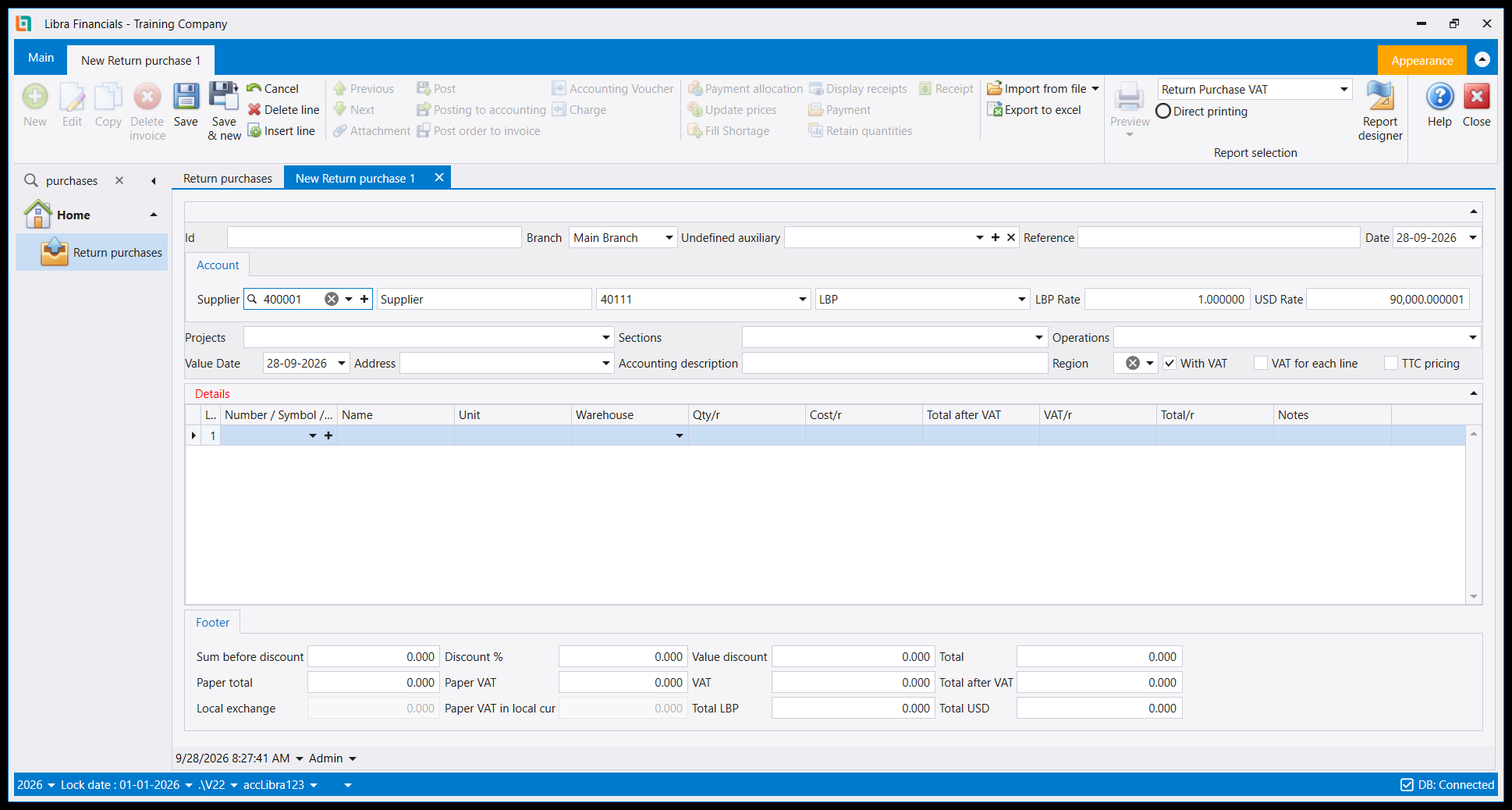
Leave the Details grid empty. The shortcut fills it for you.
2. Press Alt+X
With the new return still open, press Alt+X. A window called Client orders opens, listing the documents you already have from this supplier - its purchase invoices and goods receipts.
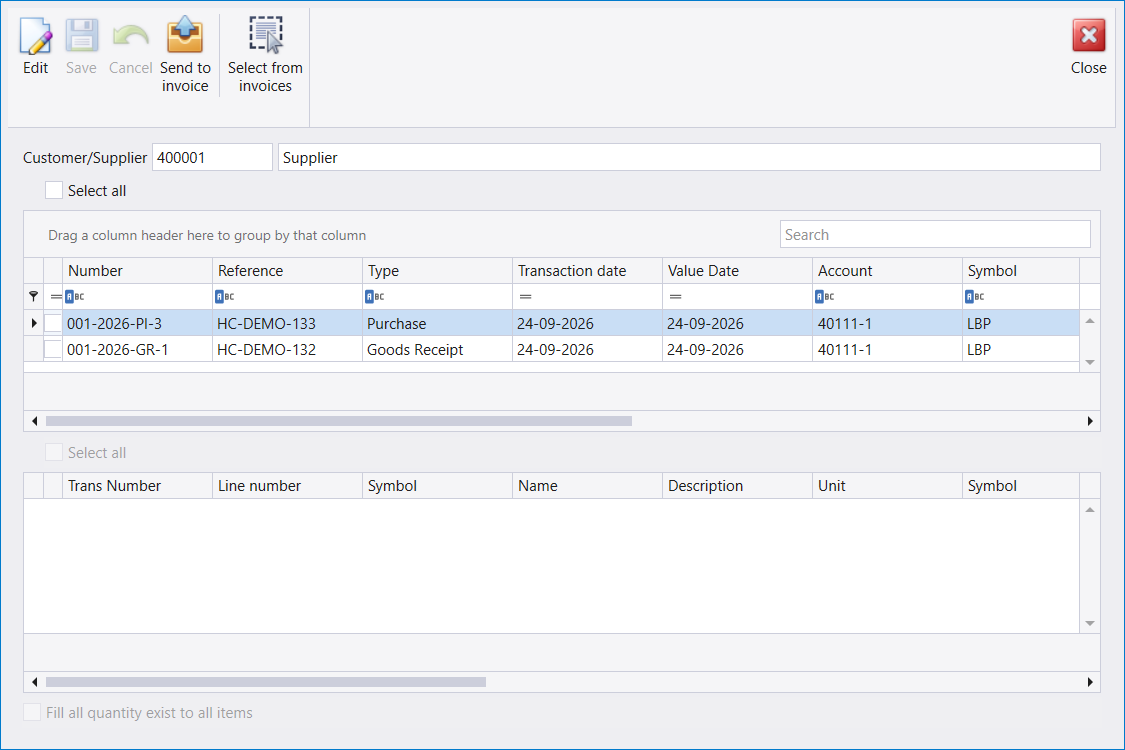
If nothing opens, one of two things is wrong:
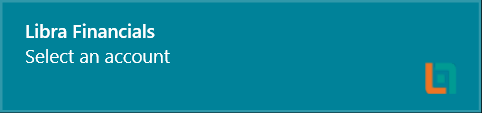
- **A small message, Select an account, appeared in the top-right corner of the screen** for a few seconds, with a beep. You pressed Alt+X before choosing the supplier. Go back to step 1.
- Nothing happened at all. The return has already been saved. Alt+X only works while a document is being written; start a New one.
The first of those looks like this, and it is gone after a few seconds:
3. Pick the invoice, then the quantity to return
- Tick the invoice in the upper list. Its lines appear in the lower list.
- Press Edit at the top left of the window. Save and Cancel light up.
- Tick each line you are returning, and type how many into Qty to deliver.
- Press Save, then Send to invoice.
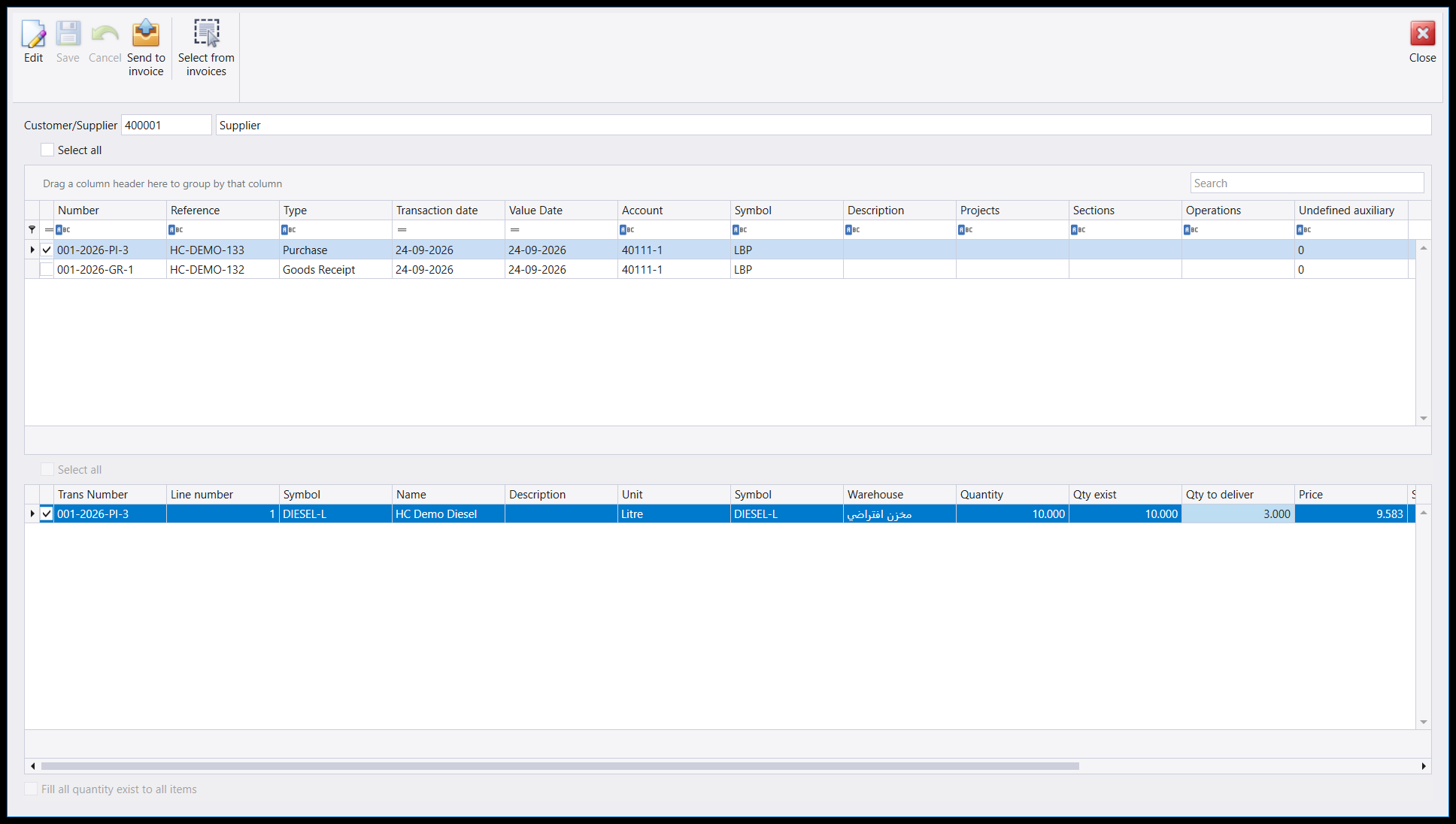
Two columns tell you what you may return:
- Quantity is what the invoice was for.
- Qty exist is what is still returnable - the invoice quantity minus what earlier returns already sent back. On the second return in this example it read
7.000, not10.000.
The Fill all quantity exist to all items box at the bottom fills Qty to deliver with the whole returnable quantity for every ticked line, for when everything is going back.
Asking for more than Qty exist is refused:
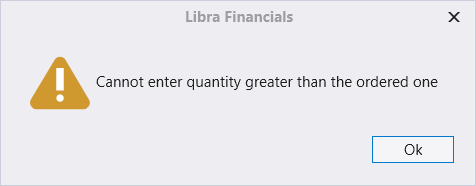
The message says ordered, but the limit is Qty exist. Here 9 was typed against 7 returnable. Press Ok and type a smaller number.
4. Check the line, then save
Send to invoice closes the window and writes the line into your return: the item, the quantity you chose, and the invoice's own cost and VAT.
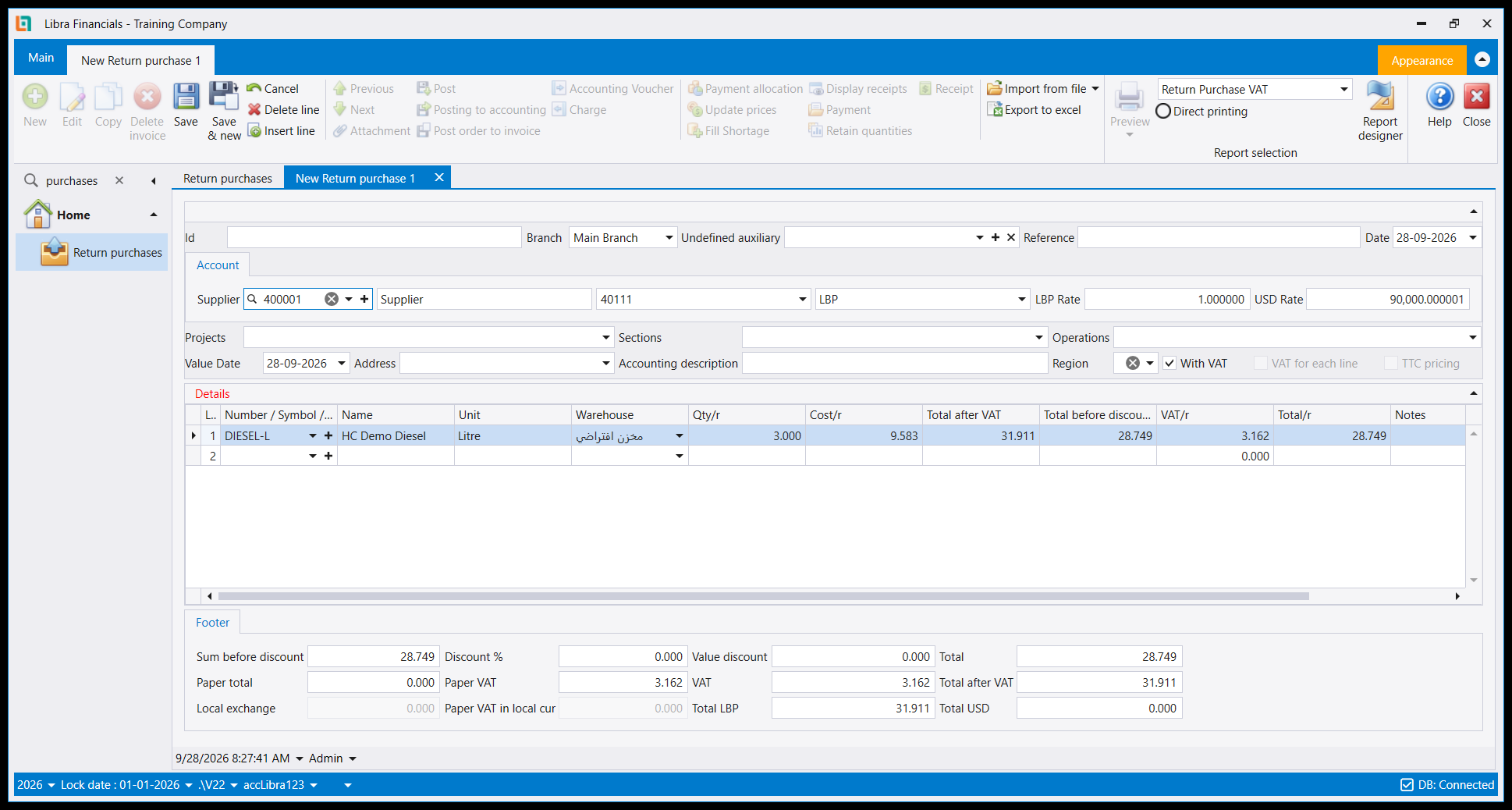
Add a Reference if you have one, then Save (or press F12).
5. Settle it against the invoice - Save pay
Saving opens Payment Installments, which applies the return to what you still owe on that invoice.
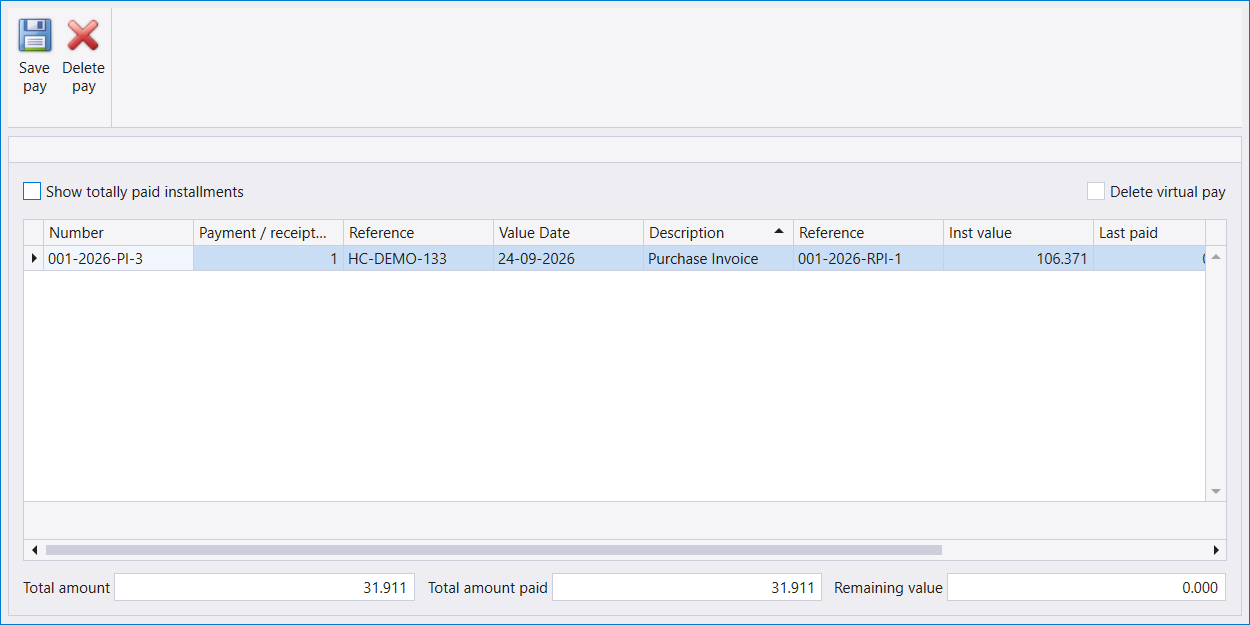
Here the invoice was for 106.371, and this return pays 31.911 of it. Scrolled to the right, the row reads Last paid 0.000 and Remain 74.460 - what is left owing on the invoice. Press Save pay.
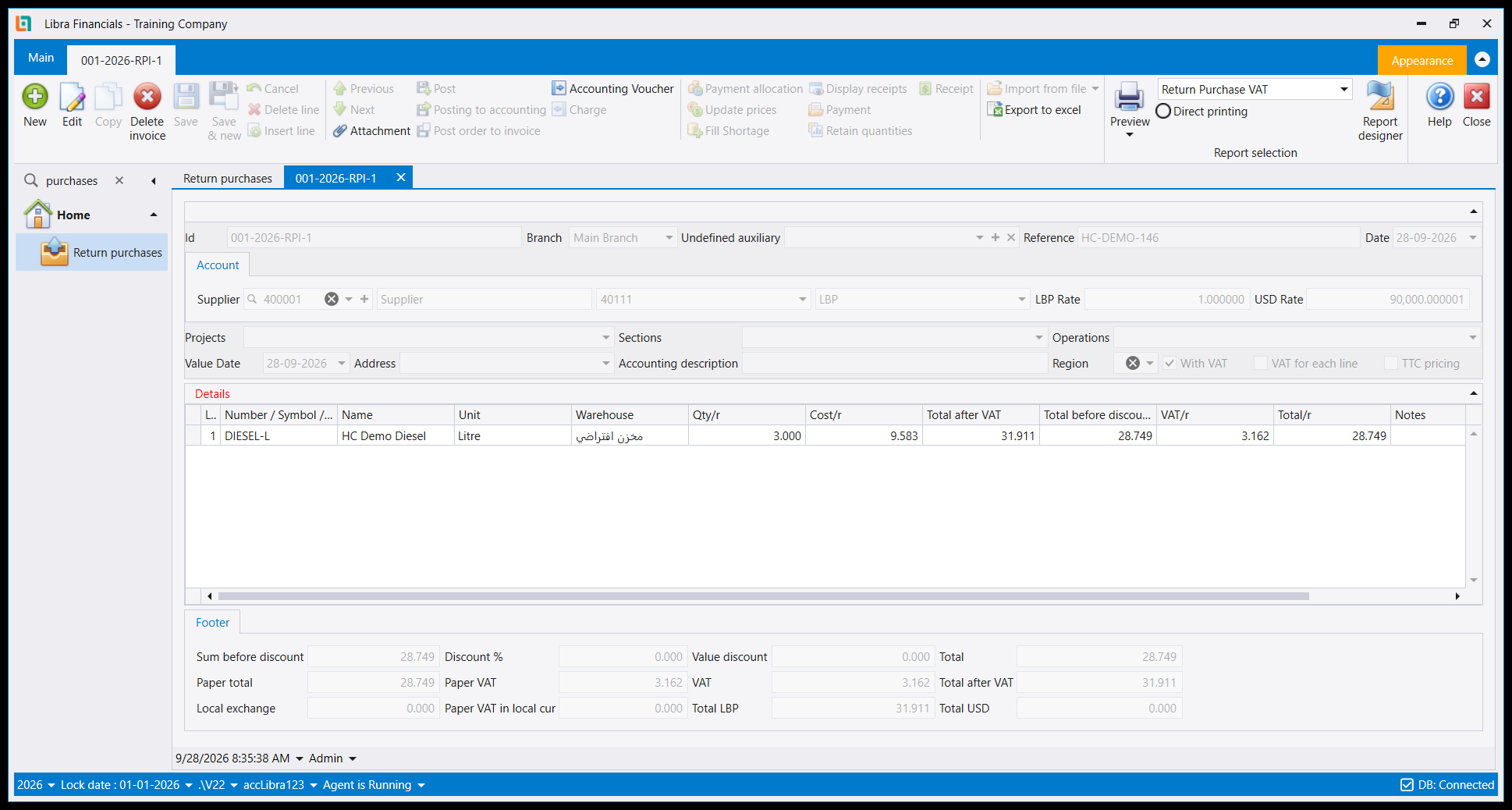
The return takes its number, here 001-2026-RPI-1.
6. What the return changed
Read back after saving:
| Where | Before | After the 3-litre return | After a second, 2-litre return |
|---|---|---|---|
| Stock in the warehouse | 45 | 42 | 40 |
| Owed on the invoice | 106.371 | 74.460 | 53.186 |
- The accounting entry is the purchase invoice run backwards: the supplier's account
40111is debited31.911, and the purchases account60111(28.749) and the VAT account44210(3.162) are credited. - The invoice knows. In the Purchase invoices list, its Inventory status changed from Not delivered, Not Returned to Not delivered, Partially Returned.
- The Relation Matrix draws the chain. Select the invoice in the list and press Relation Matrix: the invoice points to each return made from it.
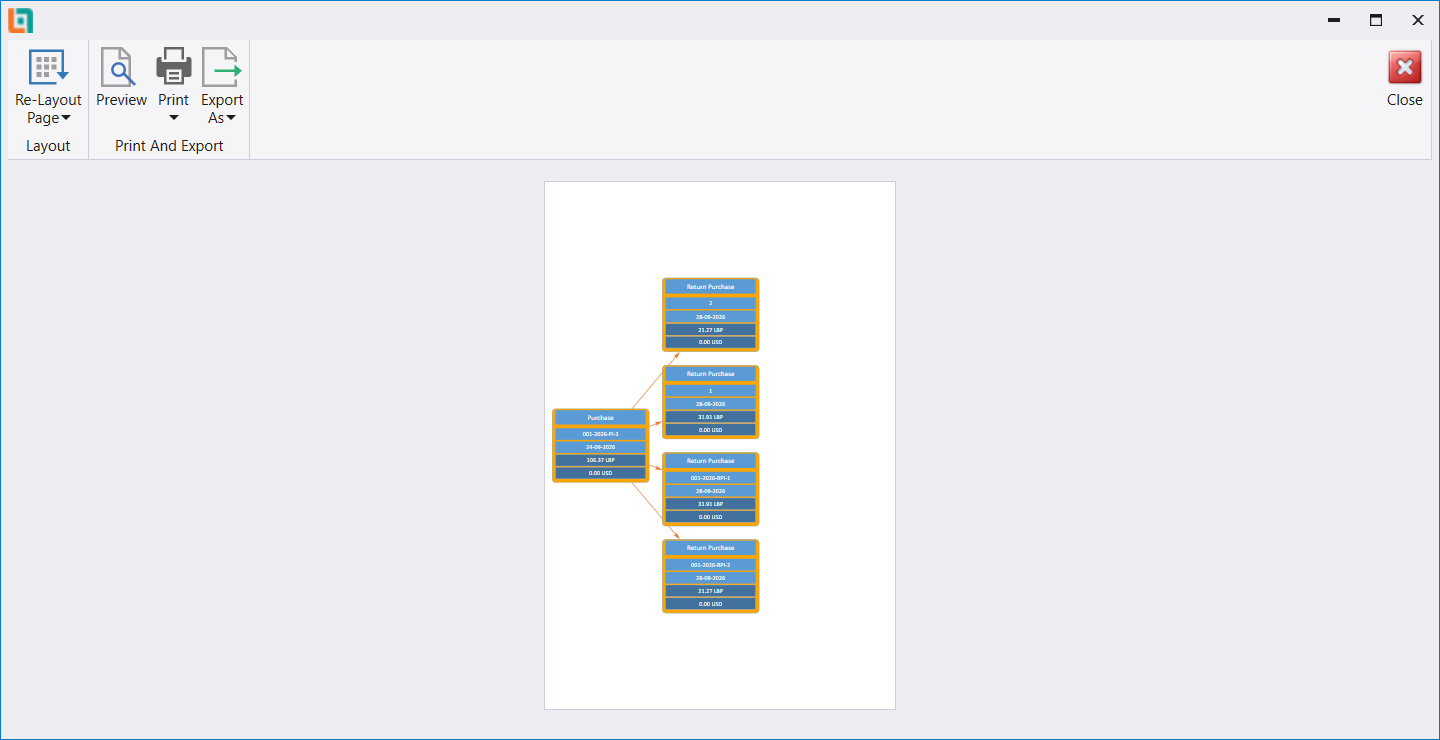
On this screen each return was drawn twice - once under its full number (001-2026-RPI-1) and once under a short number (1) - so two returns show four boxes. The amounts match; count the full numbers.
7. Why not type the lines in by hand?
You can: Purchase orders, receipts and returns shows a return filled in line by line. Alt+X is what ties the return to its invoice, and everything in section 6 comes from that tie - the Qty exist ceiling, the invoice's own cost and VAT, the amount taken off what you owe, the invoice's status line and the Relation Matrix. Use Alt+X whenever the goods came on an invoice you have in Libra.
8. Quick reference
| You see | It means | Do this |
|---|---|---|
| Where do I pick the invoice? | It is a keyboard shortcut | Press Alt+X on the new return |
| Select an account, top right, then nothing | No supplier chosen yet | Choose the supplier, then Alt+X |
| Alt+X does nothing at all | The return is already saved | Press New and start again |
| The lower list's Select all is greyed | Edit not pressed in Client orders | Press Edit first |
| Cannot enter quantity greater than the ordered one | More than Qty exist | Type a smaller quantity |
| Send to invoice is greyed | The lines are not saved yet | Press Save in Client orders |
اشتريت عشرة ليترات، وعادت ثلاثة منها تالفة، وستُرجعها إلى المورّد. المستند لذلك هو Return purchases (مرتجع المشتريات) - والطريقة الصحيحة لتعبئته هي من فاتورة الشراء التي جاءت عليها البضاعة، حتى تُنسخ الكمية والكلفة والضريبة من تلك الفاتورة بدل أن تُكتب من جديد.
الطريق هو اختصار لوحة مفاتيح: Alt+X، يُضغط على المرتجع الجديد. وهي الخطوة التي تفوت الناس، لأنها مفتاح لا زر. المثال الكامل أدناه - مرتجعان على فاتورة واحدة - نُفّذ على شاشة حيّة، وقُرئ كل رقم فيه بعد الحفظ.
١. افتح مرتجعًا جديدًا واختر المورّد أولًا
افتح Account payable ← Return purchases واضغط New. اكتب رقم المورّد في Supplier؛ فيملأ Libra الاسم والحساب والعملة.
اترك شبكة Details فارغة، فالاختصار يملؤها عنك.
٢. اضغط Alt+X
والمرتجع الجديد ما زال مفتوحًا، اضغط Alt+X. تُفتح نافذة اسمها Client orders تسرد المستندات الموجودة لديك من هذا المورّد - فواتير الشراء وأذونات الاستلام.
إن لم يُفتح شيء، فالخلل واحد من اثنين:
- **ظهرت رسالة صغيرة، Select an account، في الزاوية العليا اليمنى من الشاشة** لثوانٍ مع صوت تنبيه. ضغطت Alt+X قبل اختيار المورّد. عُد إلى الخطوة ١.
- لم يحدث شيء إطلاقًا. المرتجع محفوظ سلفًا. لا يعمل Alt+X إلا والمستند قيد الكتابة؛ ابدأ مرتجعًا New.
وهكذا تبدو أولاهما، وتختفي بعد ثوانٍ:
٣. اختر الفاتورة، ثم الكمية المُرجَعة
- ضع علامة على الفاتورة في القائمة العليا. تظهر سطورها في القائمة السفلى.
- اضغط Edit في أعلى يسار النافذة. يُضاء Save وCancel.
- ضع علامة على كل سطر تُرجعه، واكتب الكمية في Qty to deliver.
- اضغط Save، ثم Send to invoice.
عمودان يخبرانك بما يحق لك إرجاعه:
- Quantity هي كمية الفاتورة.
- Qty exist هي ما بقي قابلًا للإرجاع - كمية الفاتورة ناقص ما أرجعته مرتجعات سابقة. في المرتجع الثاني من هذا المثال كانت
7.000لا10.000.
ومربّع Fill all quantity exist to all items في الأسفل يملأ Qty to deliver بكامل الكمية القابلة للإرجاع لكل سطر معلَّم، حين تُرجع كل شيء.
طلب أكثر من Qty exist يُرفض:
تقول الرسالة ordered (المطلوب)، لكن الحدّ هو Qty exist. هنا كُتب 9 والقابل للإرجاع 7. اضغط Ok واكتب رقمًا أصغر.
٤. راجع السطر ثم احفظ
Send to invoice يغلق النافذة ويكتب السطر في المرتجع: الصنف، والكمية التي اخترتها، وكلفة الفاتورة نفسها وضريبتها.
أضف Reference إن وُجد، ثم Save (أو اضغط F12).
٥. سوِّه مع الفاتورة - Save pay
الحفظ يفتح Payment Installments، التي تُطبّق المرتجع على ما بقي عليك من تلك الفاتورة.
كانت الفاتورة بقيمة 106.371، ويسدّد هذا المرتجع 31.911 منها. وبالتمرير إلى اليمين يُقرأ في السطر Last paid 0.000 وRemain 74.460 - أي ما بقي مستحقًا على الفاتورة. اضغط Save pay.
يأخذ المرتجع رقمه، وهو هنا 001-2026-RPI-1.
٦. ما الذي غيّره المرتجع
قُرئ بعد الحفظ:
| أين | قبل | بعد مرتجع ٣ ليترات | بعد مرتجع ثانٍ بليترين |
|---|---|---|---|
| المخزون في المستودع | 45 | 42 | 40 |
| المستحق على الفاتورة | 106.371 | 74.460 | 53.186 |
- القيد المحاسبي هو فاتورة الشراء معكوسة: حساب المورّد
40111مدين بـ31.911، وحساب المشتريات60111(28.749) وحساب الضريبة44210(3.162) دائنان. - الفاتورة تعرف. في قائمة Purchase invoices تغيّرت Inventory status للفاتورة من Not delivered, Not Returned إلى Not delivered, Partially Returned.
- Relation Matrix يرسم السلسلة. اختر الفاتورة في القائمة واضغط Relation Matrix: تشير الفاتورة إلى كل مرتجع صُنع منها.
على هذه الشاشة رُسم كل مرتجع مرتين - مرة برقمه الكامل (001-2026-RPI-1) ومرة برقم قصير (1) - فيظهر المرتجعان في أربعة مربّعات. المبالغ متطابقة؛ عُدّ الأرقام الكاملة.
٧. لماذا لا تكتب السطور يدويًا؟
يمكنك ذلك: يعرض طلبات الشراء وأذونات الاستلام والمرتجعات مرتجعًا مُعبّأ سطرًا سطرًا. Alt+X هو ما يربط المرتجع بفاتورته، وكل ما في القسم ٦ يأتي من هذا الربط - سقف Qty exist، وكلفة الفاتورة نفسها وضريبتها، والمبلغ المخصوم مما عليك، وسطر حالة الفاتورة، وRelation Matrix. استعمل Alt+X كلما جاءت البضاعة على فاتورة موجودة في Libra.
٨. مرجع سريع
| ما تراه | معناه | ما تفعله |
|---|---|---|
| أين أختار الفاتورة؟ | إنه اختصار لوحة مفاتيح | اضغط Alt+X على المرتجع الجديد |
| Select an account في الأعلى يمينًا ثم لا شيء | لم يُختر المورّد بعد | اختر المورّد ثم Alt+X |
| Alt+X لا يفعل شيئًا إطلاقًا | المرتجع محفوظ سلفًا | اضغط New وابدأ من جديد |
| Select all في القائمة السفلى رمادي | لم يُضغط Edit في Client orders | اضغط Edit أولًا |
| Cannot enter quantity greater than the ordered one | أكثر من Qty exist | اكتب كمية أصغر |
| Send to invoice رمادي | السطور لم تُحفظ بعد | اضغط Save في Client orders |