
Checking your books: Audit and Advanced searchمراجعة دفاترك: التدقيق والبحث المتطوّر
Once entries exist, two questions come up over and over. Does anything look wrong? and where is that entry? Libra has a screen for each, both under General ledger, and neither of them changes anything - they only look.
1. Audit: every balance on one page
Open Audit. It lists every account that carries a balance, one row per account and currency - the same account held in two currencies is two rows, because those are two separate balances.
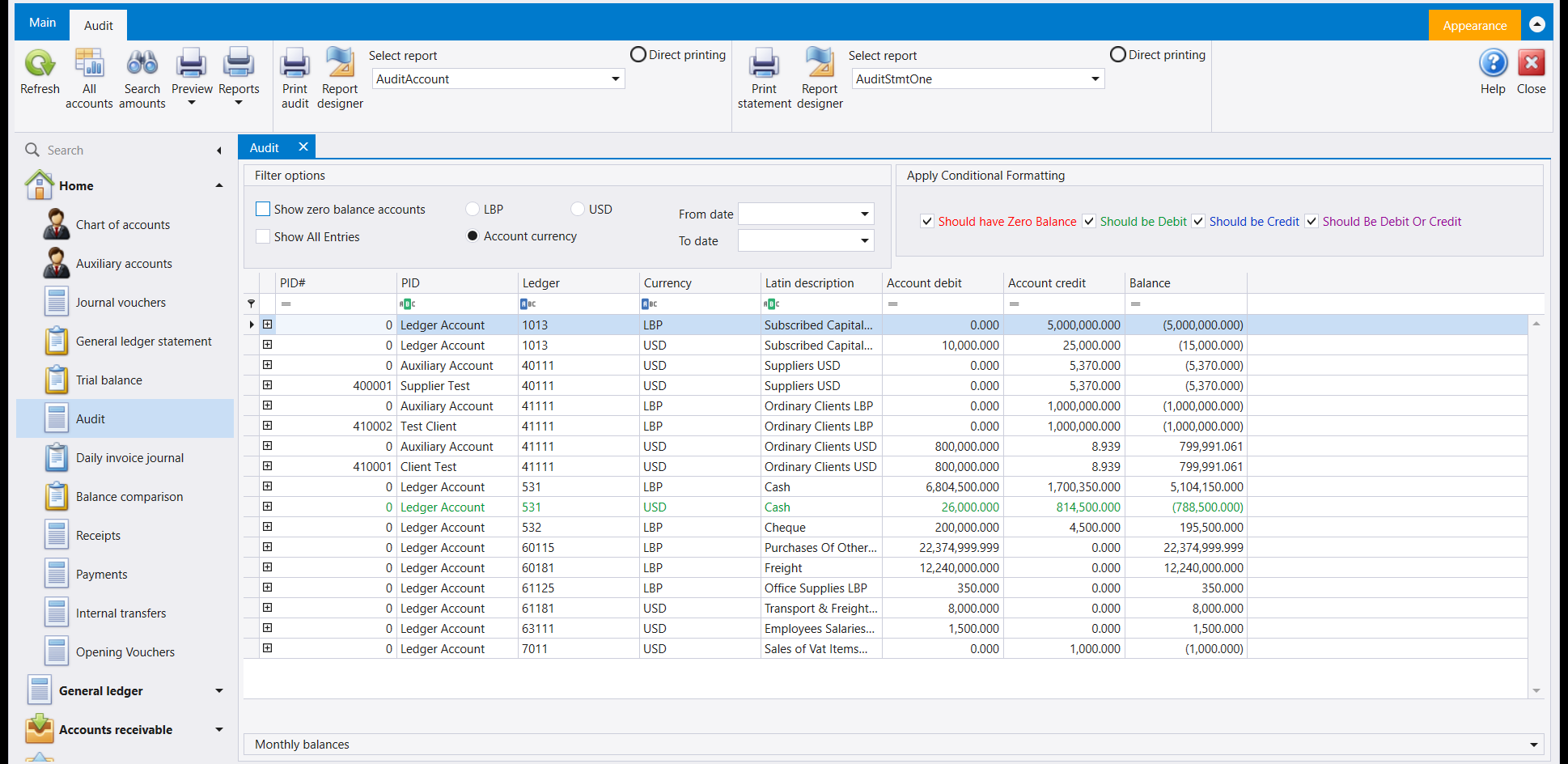
| Column | What it is |
|---|---|
| PID# / PID | The auxiliary record, when the account has them. 0 and Ledger Account means the account's own total; a numbered row is one supplier, client or employee within it. |
| Ledger | The account. |
| Currency | Which of the account's currencies this row is. |
| Latin description | The account's name. |
| Account debit / credit | Everything posted to it on each side. |
| Balance | The difference. A figure in brackets is a credit balance. |
Expand an account's row (▸) and its individual posted entries appear beneath it. Each entry line carries its own Audited tick, so a line can be marked as reviewed right from this screen - not only from the voucher's own ribbon, which carries the same tick.
2. The colours are the point of this screen
The Apply Conditional Formatting panel has four boxes, and each is written in its own colour: Should have Zero Balance, Should be Debit, Should be Credit and Should Be Debit Or Credit. Libra already knows from the chart of accounts which way each account is supposed to lean. Tick a box and every account that breaks that expectation is painted in that colour.
Look at the 531 Cash row in USD in the picture above. It is green - the Should be Debit colour - and its balance reads (788,500,000), which is a credit. A cash account in credit says you have paid out more than ever went in, which cannot be true of a real cash box. Something is missing, or something was posted to the wrong account.
That is how to use this screen: do not read every line, read the coloured ones.
3. Narrowing what you look at
Filter options, top left:
- Show zero balance accounts - off to begin with, so accounts that have settled to nothing stay out of your way. Tick it when you are looking for an account that should have a balance and does not.
- Show All Entries - widens the rows behind each balance.
- LBP / USD / Account currency - Account currency shows each account in the currency it is actually held in. Choose LBP or USD instead to convert everything into one, which is how you compare accounts that are not held in the same money.
- From date / To date - the balances as they stood over a period, rather than as they stand today.
4. Monthly balances: how a balance got that way
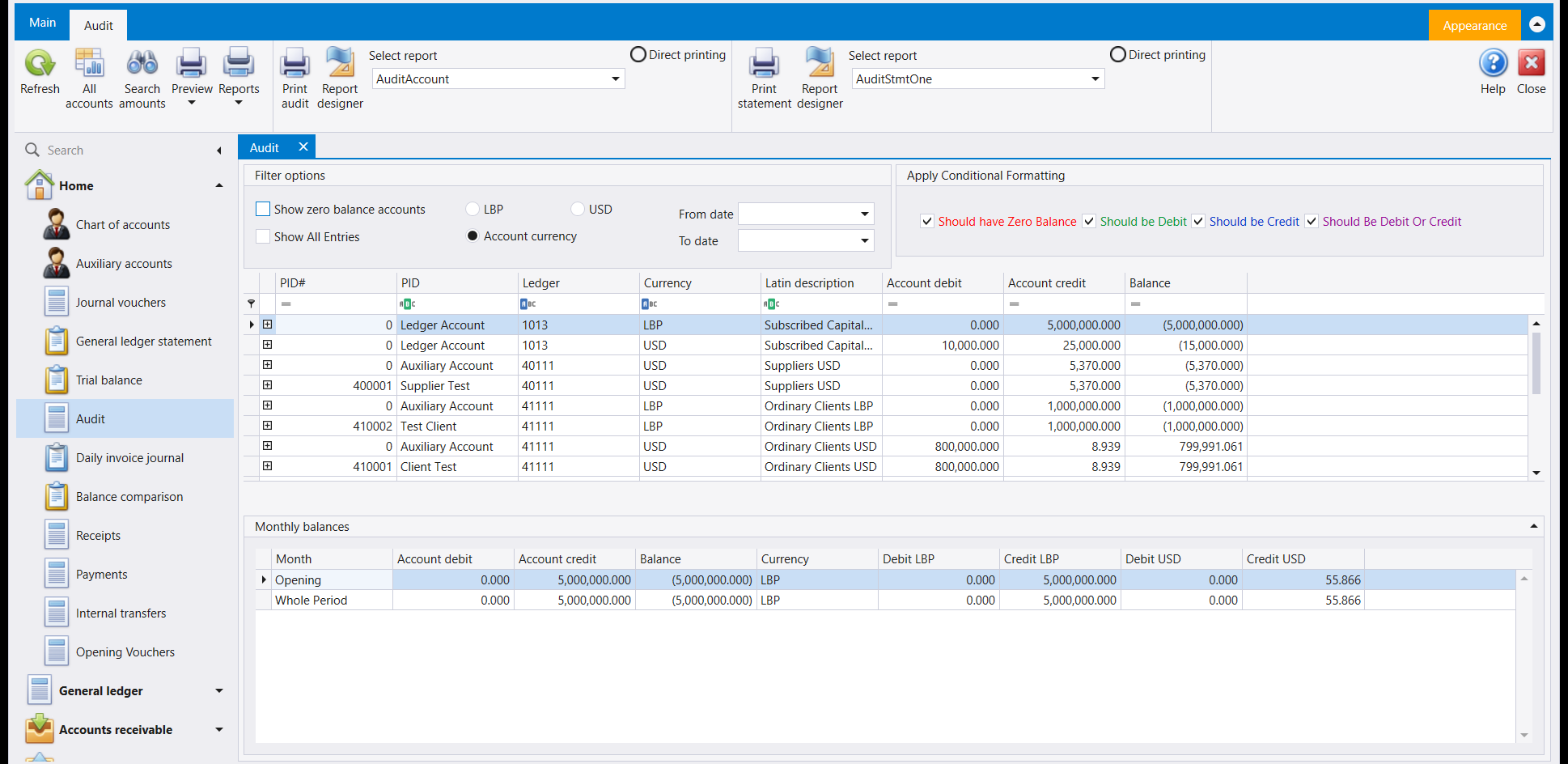
Select an account in the grid and open Monthly balances at the bottom. It breaks that one account down over time - an Opening line, a line per month with movement, First, Second and Third Quarter rollups sitting alongside the monthly ones, and Whole Period - in the account's own currency and in both company currencies.
This is the follow-up question to a colour. The grid tells you this account looks wrong; the monthly breakdown tells you when it went wrong, which is usually enough to find the entry.
5. Advanced search: finding one entry
Open Advanced search. Fill in what you know, leave the rest empty, and press Search.
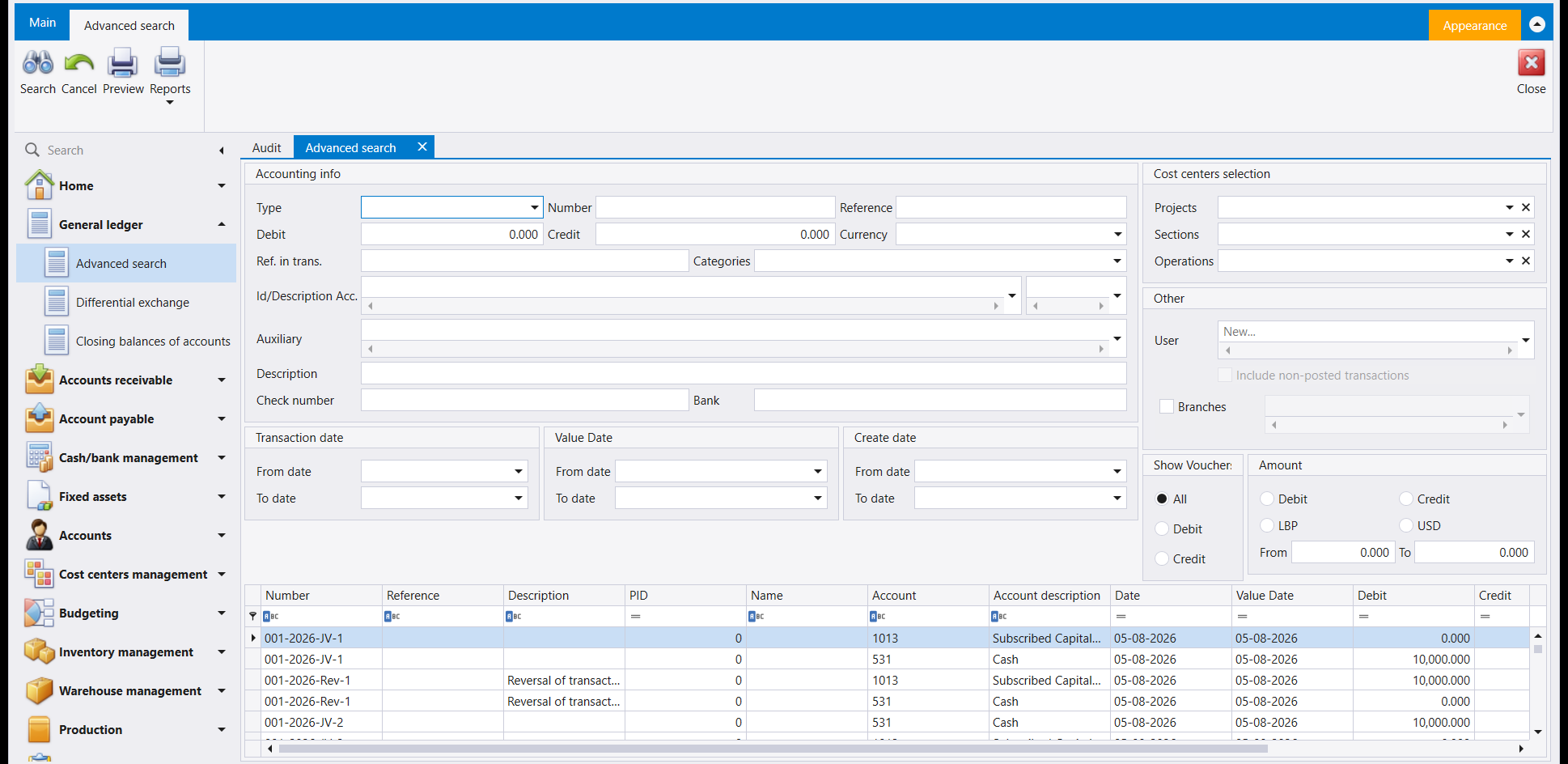
It searches lines, not vouchers. Each result row is one line of one voucher, so an entry that touched three accounts appears three times - once per account, with that line's own debit or credit. That is what makes it useful: you can search for the account, not just for the document.
What you can search on:
- Accounting info - Type, Number, Reference, an exact Debit or Credit amount, Currency, the account and Auxiliary pickers, Description, Check number and Bank.
- Three separate date ranges, and they are not the same question. Transaction date is the date the entry belongs to; Value Date is when a cheque falls due; Create date is the day somebody typed it. Looking for "what did we enter last Tuesday" is a Create date search.
- Cost centers selection - Projects, Sections and Operations.
- Show Voucher / Amount - restrict to debits only, credits only, one currency, or an amount between two figures.
Searching on a cheque number is often the fastest route. If a customer rings about a cheque, the Check number box finds every line it appears on in one step.
6. Which screen for which question
| You want to | Use |
|---|---|
| Find out whether anything is wrong, without knowing what | Audit |
| Find an entry you already know something about | Advanced search |
| Read one account's history in date order | General ledger statement or Statement of account |
7. Neither of them changes anything
Both screens only read. Nothing on either one edits, deletes or posts an entry - so they are safe to explore, and safe to hand to somebody who is checking your work rather than doing it.
بعد أن تصير القيود موجودة يتكرّر سؤالان: هل يبدو شيء خاطئًا؟ وأين ذلك القيد؟ ولليبرا شاشة لكل منهما، كلتاهما تحت الأستاذ العام (General ledger)، ولا تغيّر أي منهما شيئًا - فهما للنظر فقط.
١. التدقيق: كل الأرصدة في صفحة واحدة
افتح التدقيق (Audit). تعرض كل حساب يحمل رصيدًا، بسطر لكل حساب وعملة - فالحساب نفسه المحفوظ بعملتين يظهر بسطرين، لأنهما رصيدان منفصلان.
| العمود | ما هو |
|---|---|
| الذمة (PID# / PID) | السجل المساعد حين يكون للحساب ذمم. فـ0 مع Ledger Account هو مجموع الحساب نفسه، والسطر المرقّم هو مورّد أو زبون أو موظف واحد ضمنه. |
| الحساب (Ledger) | الحساب. |
| العملة (Currency) | أي عملات الحساب يخصّ هذا السطر. |
| الوصف (Latin description) | اسم الحساب. |
| المدين والدائن | كل ما سُجّل عليه في كل جهة. |
| الرصيد (Balance) | الفرق. والرقم بين قوسين رصيد دائن. |
وسِّع سطر أي حساب (▸) فتظهر تحته قيوده المُرحَّلة فرادى. ولكل سطر قيد علامة Audited خاصة به، فيمكن تعليم السطر كمُراجَع من هذه الشاشة نفسها - لا من شريط القيد وحده، الذي يحمل العلامة نفسها.
٢. الألوان هي جوهر هذه الشاشة
تضمّ لوحة التنسيق الشرطي (Apply Conditional Formatting) أربعة مربّعات، كلٌّ مكتوب بلونه: Should have Zero Balance وShould be Debit وShould be Credit وShould Be Debit Or Credit. فليبرا يعرف من شجرة الحسابات إلى أي جهة يُفترض أن يميل كل حساب. وتأشير المربّع يلوّن كل حساب يخالف ذلك التوقّع بلون المربّع.
انظر سطر 531 Cash بالـUSD في الصورة أعلاه. إنه أخضر - لون Should be Debit - ورصيده (788,500,000)، أي دائن. والصندوق الدائن يقول إنك دفعت أكثر مما دخل أصلًا، وهذا لا يصحّ في صندوق حقيقي. فإما أن شيئًا ناقصًا وإما أن قيدًا سُجّل على الحساب الخطأ.
وهكذا تُستعمل هذه الشاشة: لا تقرأ كل سطر، بل اقرأ الأسطر الملوّنة.
٣. تضييق ما تنظر إليه
خيارات التصفية أعلى اليسار:
- إظهار الحسابات ذات الرصيد صفر - غير مؤشَّر ابتداءً، فتبقى الحسابات التي صفّت بعيدًا عن طريقك. أشّره حين تبحث عن حساب يُفترض أن يحمل رصيدًا ولا يحمله.
- إظهار كل القيود (Show All Entries) - يوسّع السطور التي وراء كل رصيد.
- LBP / USD / عملة الحساب - يعرض عملة الحساب كل حساب بالعملة المحفوظ بها فعلًا. واختر LBP أو USD بدلًا من ذلك لتحويل كل شيء إلى عملة واحدة، وهكذا تقارن حسابات ليست بالعملة نفسها.
- من تاريخ / إلى تاريخ - الأرصدة كما كانت خلال فترة، لا كما هي اليوم.
٤. الأرصدة الشهرية: كيف صار الرصيد هكذا
حدّد حسابًا في الجدول ثم افتح الأرصدة الشهرية (Monthly balances) في الأسفل. تفكّك ذلك الحساب وحده عبر الزمن - سطر Opening، وسطر لكل شهر فيه حركة، وسطور First وSecond وThird Quarter مجمَّعة إلى جانب الأشهر، وسطر Whole Period - بعملة الحساب نفسه وبعملتي الشركة معًا.
وهذا هو السؤال التالي بعد اللون. فالجدول يقول لك هذا الحساب يبدو خاطئًا، والتفصيل الشهري يقول لك متى اختلّ، وذلك يكفي عادةً للعثور على القيد.
٥. البحث المتطوّر: العثور على قيد بعينه
افتح البحث المتطوّر (Advanced search). املأ ما تعرفه، واترك الباقي فارغًا، واضغط Search.
يبحث في السطور لا في القيود. فكل سطر نتيجة هو سطر واحد من قيد واحد، والقيد الذي حرّك ثلاثة حسابات يظهر ثلاث مرات - مرة لكل حساب، بمدينه أو دائنه الخاص. وهذا ما يجعله مفيدًا: تستطيع البحث عن الحساب، لا عن المستند وحده.
وما يمكنك البحث به:
- المعلومات المحاسبية - النوع والرقم والمرجع ومبلغ مدين أو دائن بعينه والعملة ومنتقيا الحساب والذمة والشرح ورقم الشيك والمصرف.
- ثلاثة نطاقات تواريخ منفصلة، وهي ليست السؤال نفسه. فـتاريخ القيد هو التاريخ الذي يعود إليه القيد، وتاريخ الاستحقاق (Value Date) موعد استحقاق الشيك، وتاريخ الإنشاء اليوم الذي أدخله فيه أحدهم. فالبحث عن "ماذا أدخلنا الثلاثاء الماضي" بحثٌ بـتاريخ الإنشاء.
- اختيار المتحركات - Projects وSections وOperations.
- إظهار القيد / المبلغ - حصر النتائج بالمدين وحده أو الدائن وحده أو عملة واحدة أو مبلغ بين رقمين.
والبحث برقم الشيك أسرع طريق في الغالب. فإن اتصل زبون بشأن شيك، وجد مربّع رقم الشيك كل سطر يظهر فيه بخطوة واحدة.
٦. أي شاشة لأي سؤال
| حين تريد | استعمل |
|---|---|
| أن تعرف إن كان شيء خاطئًا دون أن تعرف ما هو | التدقيق (Audit) |
| أن تجد قيدًا تعرف عنه شيئًا سلفًا | البحث المتطوّر |
| أن تقرأ تاريخ حساب واحد بترتيب التواريخ | كشف حساب أستاذ عام أو كشف حساب |
٧. ولا واحدة منهما تغيّر شيئًا
الشاشتان للقراءة فقط. فلا شيء في أي منهما يعدّل قيدًا أو يمحوه أو يرحّله - ولهذا فهما آمنتان للاستكشاف، وآمنتان لتسليمهما لمن يراجع عملك بدل أن يؤدّيه.