
How to record a purchase invoiceكيفية تسجيل فاتورة شراء
A worked example, start to finish: one supplier, one item, ten pieces at 10.00 each. It takes about a minute.
A purchase invoice is the document to learn on, because it is the one that does everything at once - the goods arrive in your warehouse and what you owe the supplier is recorded. Everything below applies to the other four purchase documents as well; they simply do less. For what each of the five does, read Purchase documents.
1. Open a new document
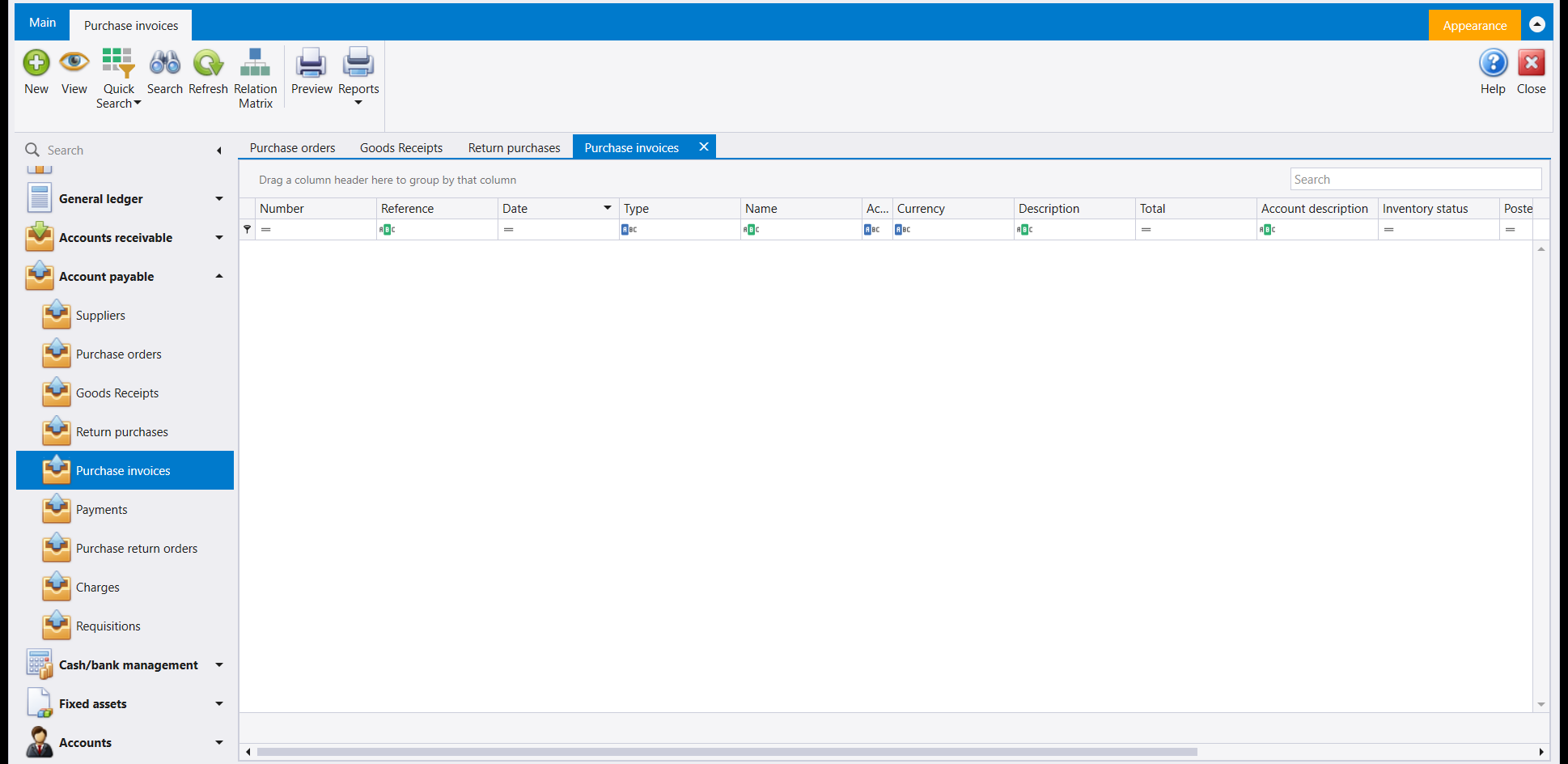
Open Account payable → Purchase invoices, then press New on the ribbon.
An empty invoice opens as its own tab called New Purchase invoice. It keeps that name until you save, when it takes its real number.
2. Fill the header - the supplier first
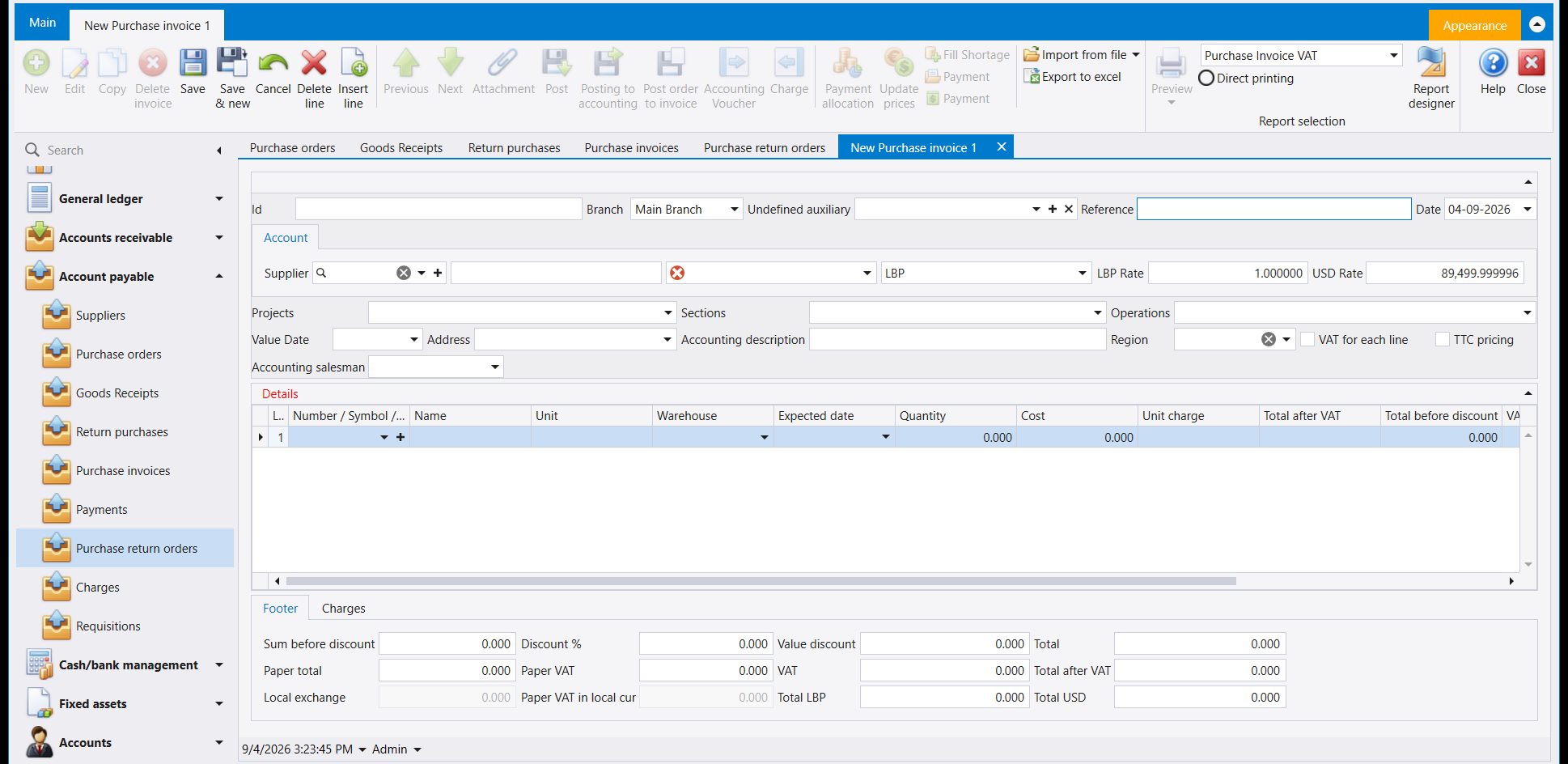
Type the supplier's number into the Supplier box - the digits, not the name. Libra fills in the rest by itself.
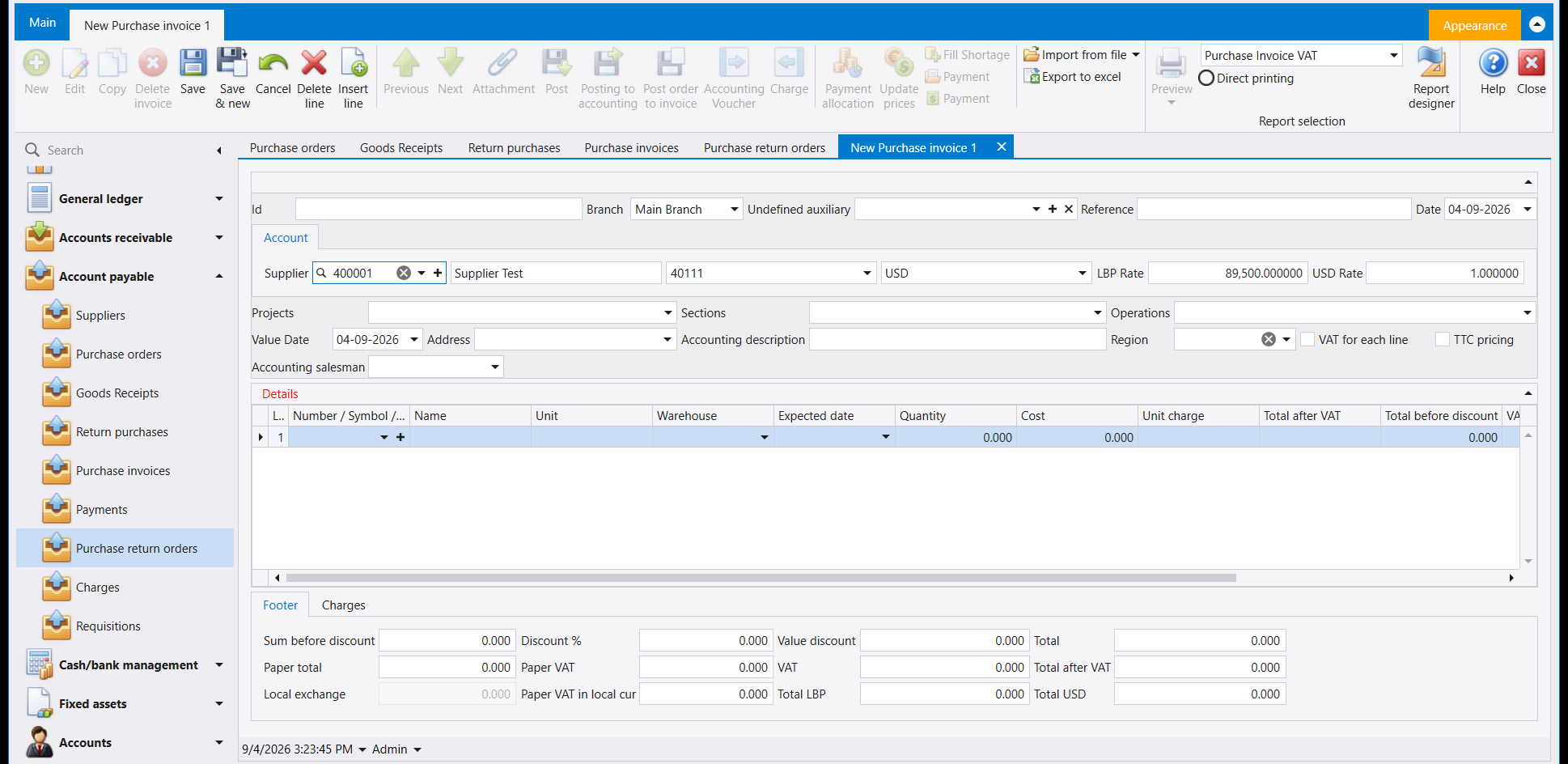
Check what it filled in before going further, because the currency came from the supplier and not from you. Here it chose USD, with an LBP Rate of 89,500.000000. If that is not the currency you expected, you have the wrong supplier - fix it now, before typing any lines.
Then fill in the two boxes that are yours:
- Reference - the supplier's own invoice number. It is a column in the list and you can filter on it, so it is how you will find this document again.
- Accounting description - a sentence describing the purchase. It appears on the accounting entry Libra writes for you.
Leave Id alone. It stays empty until you save.
3. Add the line
Click into the first cell of the Details grid, under Number / Symbol / Barcode, and open its drop-down. The item list appears.
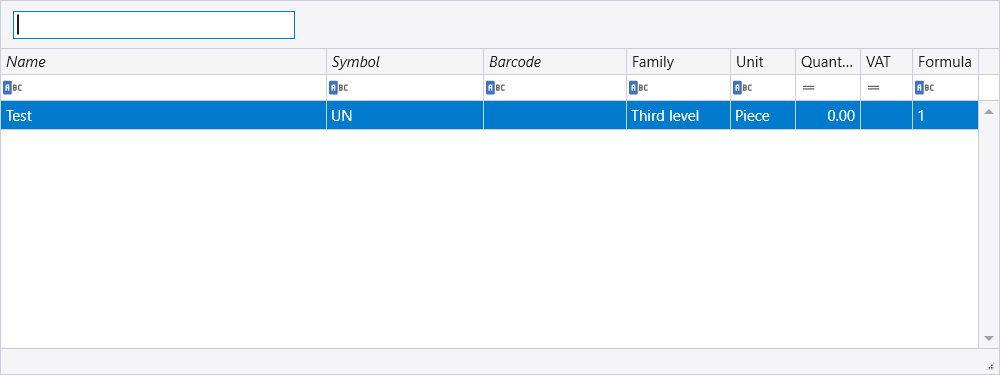
The Quantity column in this list is how many you already have. Pick your item and press Enter.
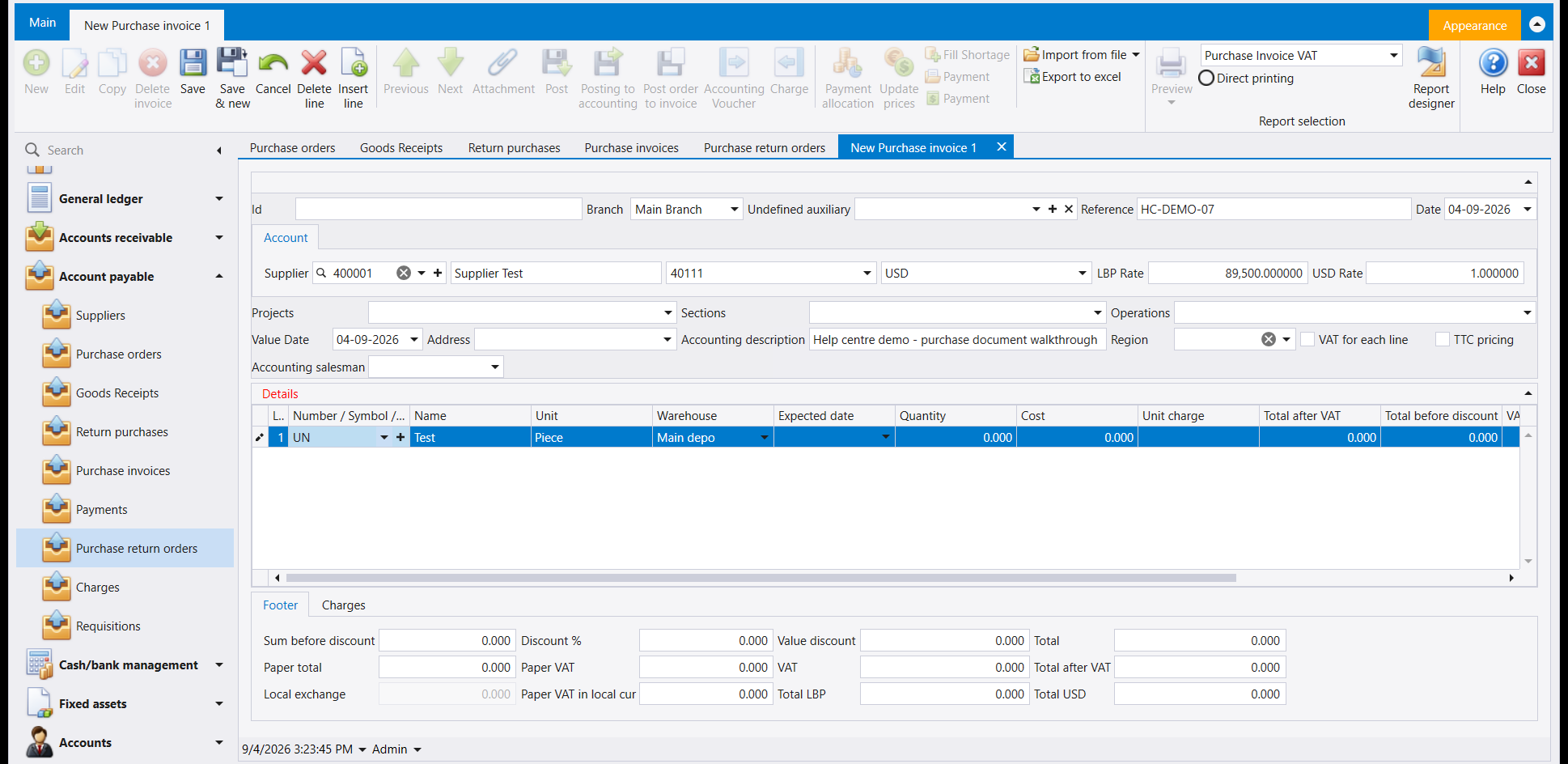
The name, the unit and the warehouse fill themselves in - the warehouse being the one the item normally goes into. Change it if these goods are going somewhere else.
Now type the Quantity and the Cost. Cost is what you are paying per unit, in the document's currency.
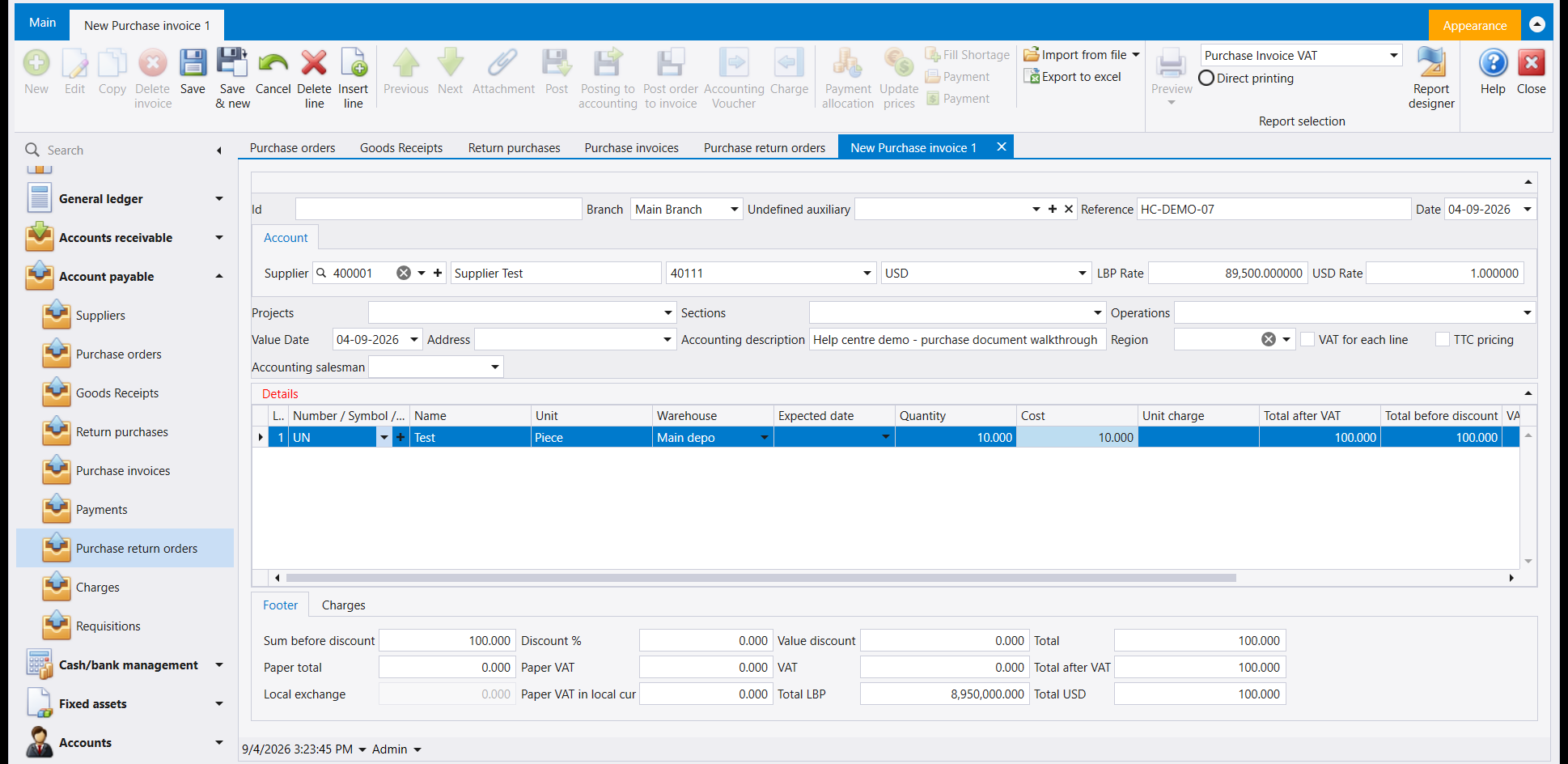
Watch the footer. It should stop reading 0.000 and show your totals, in both currencies. If it does not, the cell has not been committed - click on another field and look again. A document whose footer is still zero will save as an empty one.
4. Save
Click a field in the header first - Accounting description will do - and then press F12, or click Save on the ribbon.
Save will not work while the cursor is still inside a grid cell. Click out of the line first. This is the single most common reason a purchase invoice appears not to save.
If you left Paper VAT in local cur empty, Libra asks about it rather than refusing:
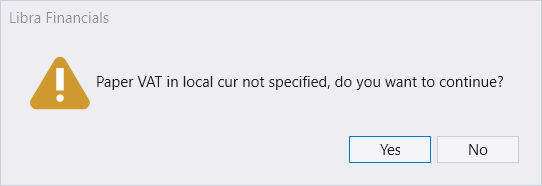
Answer Yes if you are not tracking the paper VAT figure separately. This is a question, not an error.
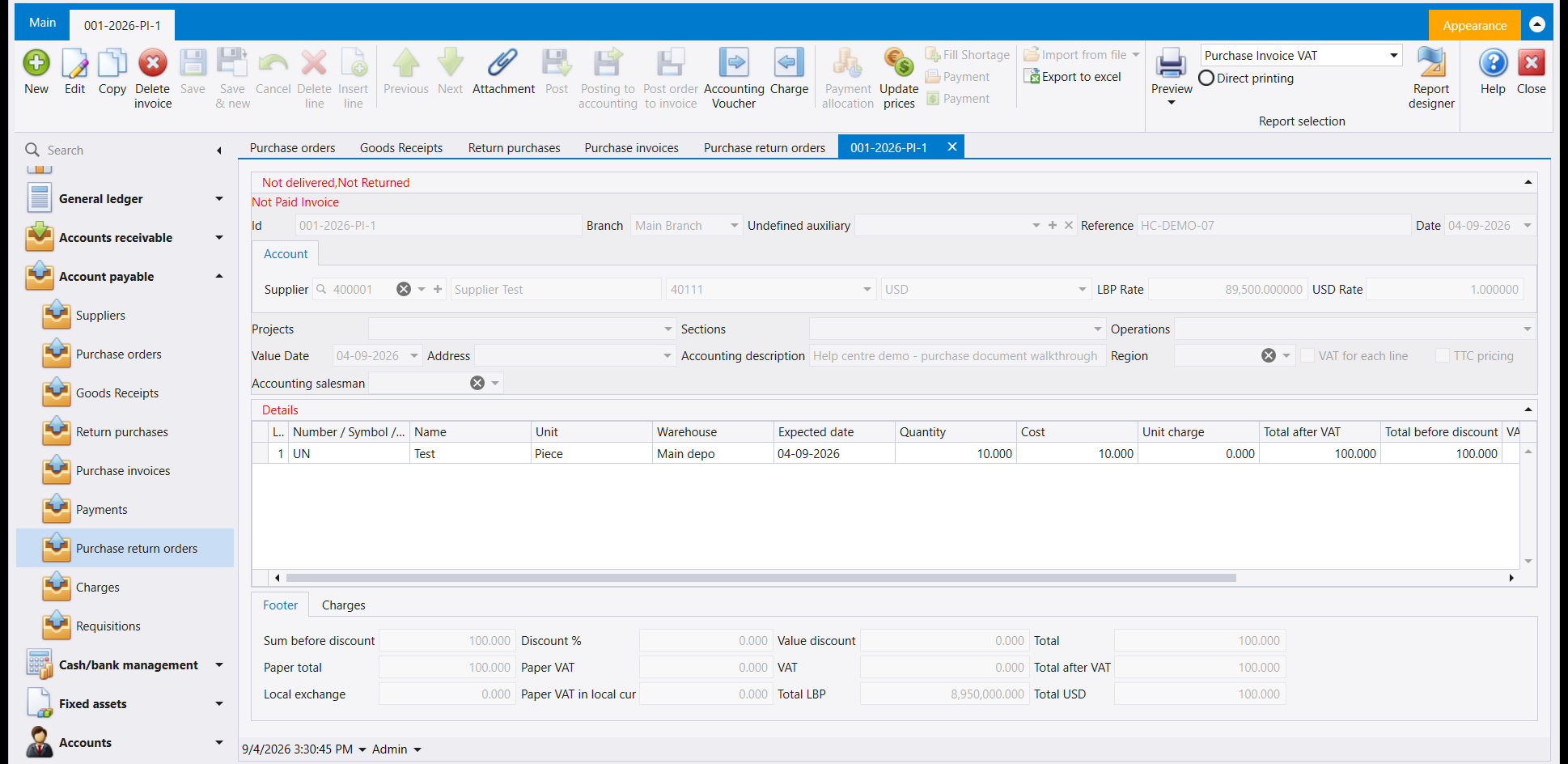
The tab and the Id now read the real number - 001-2026-PI-1. The red lines are the document's own status, not a problem: the goods have not been passed on to anyone, and the supplier has not been paid yet.
5. Check the goods arrived
This is worth doing once, so you trust it afterwards. Open any document with a line grid, click into the item cell and open the lookup again:
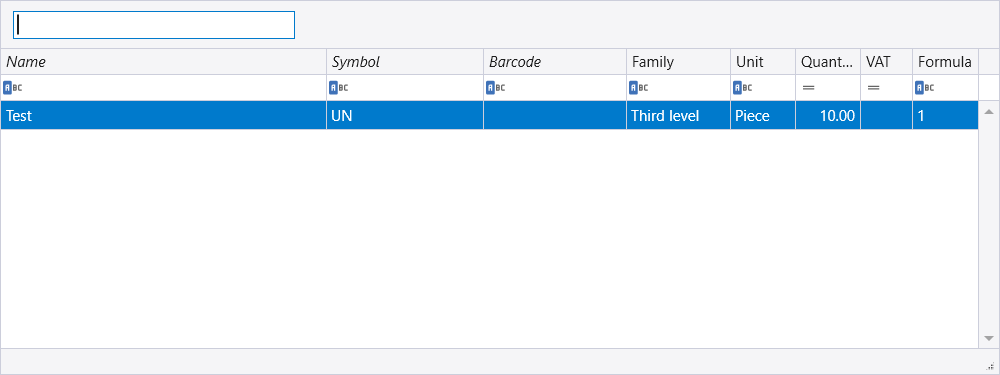
The Quantity that read 0.00 before the invoice now reads 10.00. The goods are in the warehouse, and you can now sell them.
To see what the invoice did to your accounts, press Accounting Voucher on the open invoice's ribbon. It opens the entry Libra wrote - the goods on one side, what you owe the supplier on the other.
6. If something is wrong
- The footer is still
0.000. The line was never committed. Click out of the cell and check the totals before saving. - Nothing happens when you press F12. The cursor is inside a grid cell. Click a header field first.
- The currency is wrong. It came from the supplier. Clear the supplier and choose the right one - do not try to change the currency box on its own.
- The document is not in the list afterwards. The list is showing a filter, not everything. Change Quick Search from Top 50 Records to All.
- You need to undo it. Use Delete invoice on the ribbon of the open document. Deleting the invoice takes the goods back out of the warehouse and removes the accounting entry with it, so do not delete one you have already paid against.
مثال عملي من أوله إلى آخره: مورّد واحد وصنف واحد وعشر قطع بكلفة 10.00 لكل قطعة. يستغرق نحو دقيقة.
فاتورة الشراء هي المستند الذي يُستحسن التعلّم عليه، لأنها المستند الذي يفعل كل شيء دفعةً واحدة - تصل البضاعة إلى مستودعك ويُسجَّل ما تدين به للمورّد. وكل ما يلي ينطبق على مستندات الشراء الأربعة الأخرى أيضًا؛ غاية الأمر أنها تفعل أقل. ولمعرفة ما يفعله كلٌّ من الخمسة، اقرأ مستندات الشراء.
١. افتح مستندًا جديدًا
افتح Account payable ← Purchase invoices، ثم اضغط New في الشريط.
تُفتح فاتورة فارغة في لسان خاص بها اسمه New Purchase invoice. ويبقى هذا الاسم حتى تحفظ، فيأخذ رقمه الحقيقي.
٢. املأ الرأس - المورّد أولًا
اكتب رقم المورّد في صندوق Supplier - الأرقام لا الاسم. وليبرا يملأ الباقي بنفسه.
تحقّق مما ملأه قبل أن تمضي، لأن العملة أتت من المورّد لا منك. هنا اختار USD بـLBP Rate مقداره 89,500.000000. فإن لم تكن هذه العملة التي توقّعتها، فالمورّد خطأ - صحّحه الآن، قبل أن تكتب أي سطر.
ثم املأ الصندوقين اللذين يخصّانك:
- Reference - رقم فاتورة المورّد نفسه. وهو عمود في القائمة ويمكنك الفلترة عليه، فهو الطريقة التي ستجد بها هذا المستند لاحقًا.
- Accounting description - جملة تصف عملية الشراء. وتظهر على القيد المحاسبي الذي يكتبه ليبرا نيابةً عنك.
اترك Id وشأنه. يبقى فارغًا حتى تحفظ.
٣. أضف السطر
انقر في أول خلية من شبكة Details تحت Number / Symbol / Barcode، وافتح قائمتها المنسدلة. فتظهر لائحة الأصناف.
عمود Quantity في هذه اللائحة هو ما تملكه أصلًا. اختر صنفك واضغط Enter.
يملأ الاسم والوحدة والمستودع أنفسها - والمستودع هو الذي يدخل إليه الصنف عادةً. غيّره إن كانت هذه البضاعة ذاهبة إلى مكان آخر.
الآن اكتب Quantity وCost. والكلفة هي ما تدفعه للقطعة الواحدة، بعملة المستند.
راقب الذيل. يجب أن يتوقّف عن قراءة 0.000 وأن يُظهر مجاميعك بالعملتين. فإن لم يفعل، فالخلية لم تُثبَّت - انقر على حقل آخر وانظر مرة أخرى. والمستند الذي يبقى ذيله صفرًا سيُحفظ فارغًا.
٤. احفظ
انقر أولًا على حقل في الرأس - Accounting description يفي بالغرض - ثم اضغط F12، أو انقر Save في الشريط.
لن يعمل الحفظ ما دام المؤشّر داخل خلية في الشبكة. انقر خارج السطر أولًا. وهذا هو السبب الأشيع على الإطلاق لأن تبدو فاتورة الشراء وكأنها لم تُحفظ.
وإذا تركت Paper VAT in local cur فارغًا، يسألك ليبرا عنه بدل أن يرفض:
أجب Yes إن كنت لا تتابع رقم الضريبة الورقية على حدة. هذا سؤال لا خطأ.
صار اللسان وId يقرآن الرقم الحقيقي - 001-2026-PI-1. والسطران الأحمران حالة المستند نفسه لا مشكلة: فالبضاعة لم تُمرَّر إلى أحد، والمورّد لم يُدفع له بعد.
٥. تحقّق من وصول البضاعة
يستحق هذا أن تفعله مرة واحدة لتثق به بعدها. افتح أي مستند فيه شبكة سطور، وانقر في خلية الصنف وافتح اللائحة مجددًا:
الكمية التي كانت تقرأ 0.00 قبل الفاتورة صارت تقرأ 10.00. البضاعة في المستودع، وصار بإمكانك بيعها.
ولترى ما فعلته الفاتورة بحساباتك، اضغط Accounting Voucher في شريط الفاتورة المفتوحة. فيفتح القيد الذي كتبه ليبرا - البضاعة في جهة، وما تدين به للمورّد في الجهة الأخرى.
٦. إذا حدث خطأ
- الذيل ما زال
0.000. لم يُثبَّت السطر أصلًا. انقر خارج الخلية وتحقّق من المجاميع قبل الحفظ. - لا يحدث شيء عند ضغط F12. المؤشّر داخل خلية في الشبكة. انقر على حقل في الرأس أولًا.
- العملة خاطئة. أتت من المورّد. امسح المورّد واختر الصحيح - ولا تحاول تغيير صندوق العملة وحده.
- المستند غير موجود في القائمة بعد ذلك. القائمة تعرض فلترًا لا كل شيء. غيّر Quick Search من Top 50 Records إلى All.
- تحتاج إلى التراجع. استخدم Delete invoice في شريط المستند المفتوح. وحذف الفاتورة يُخرج البضاعة من المستودع ويزيل القيد المحاسبي معها، فلا تحذف فاتورة سبق أن دفعت على أساسها.