
Purchase documents: orders, goods receipts, invoices and returnsمستندات الشراء: الطلبات وأذونات الاستلام والفواتير والمرتجعات
Under Account payable there are five entries that all buy something: Purchase orders, Goods Receipts, Return purchases, Purchase invoices and Purchase return orders. They open the same form, and it is the mirror of the sales form described in Sales documents. What changes is not the screen - it is what Libra does when you save it.
To create one step by step, read How to record a purchase invoice.
1. Five entries, one screen
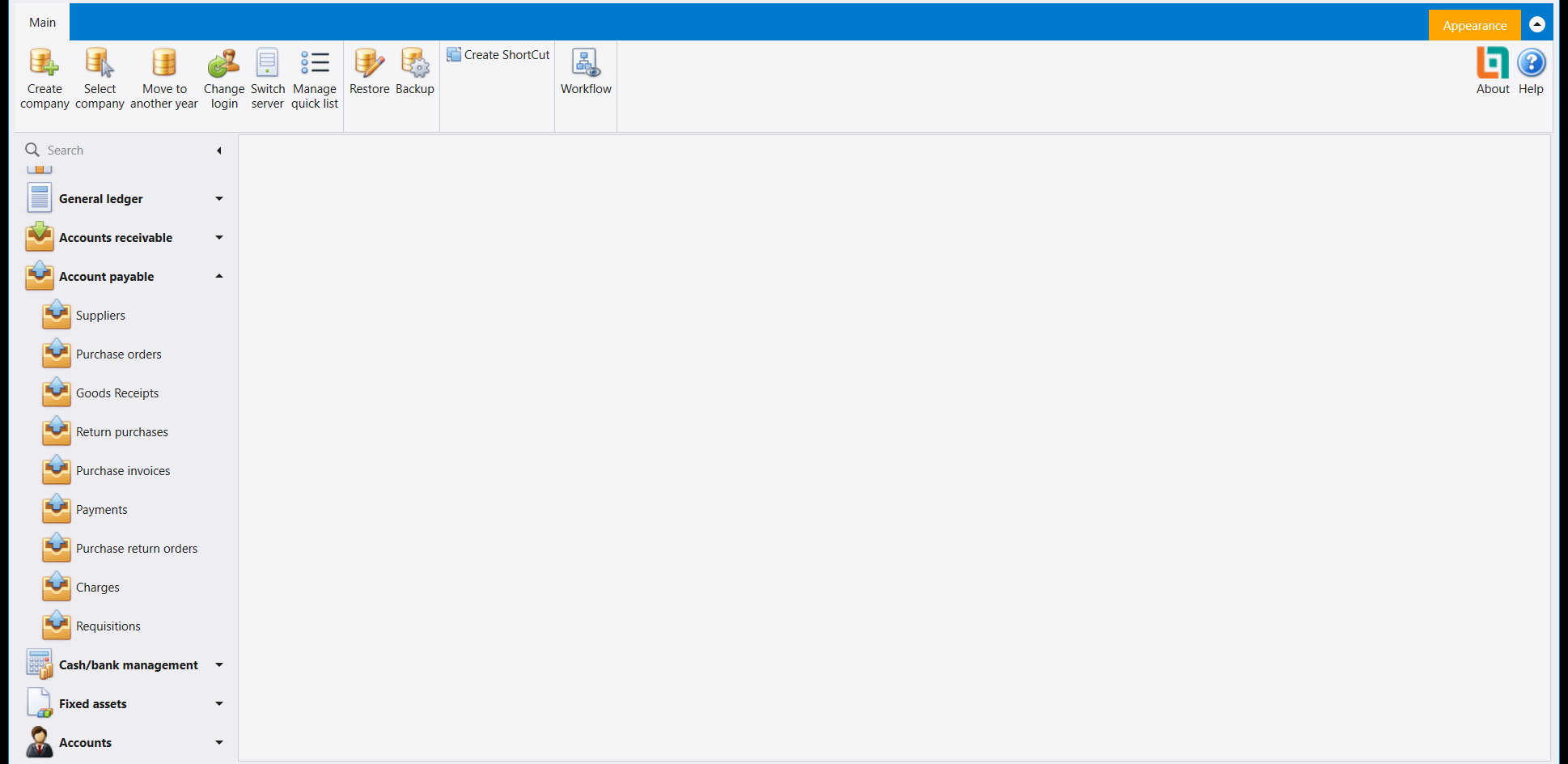
Open any of the five and you get the same three-part layout as the sales side: a header saying who and when, a Details grid saying what, and a Footer adding it up. The lists are identical too - the same columns, the same filter row, the same ribbon.
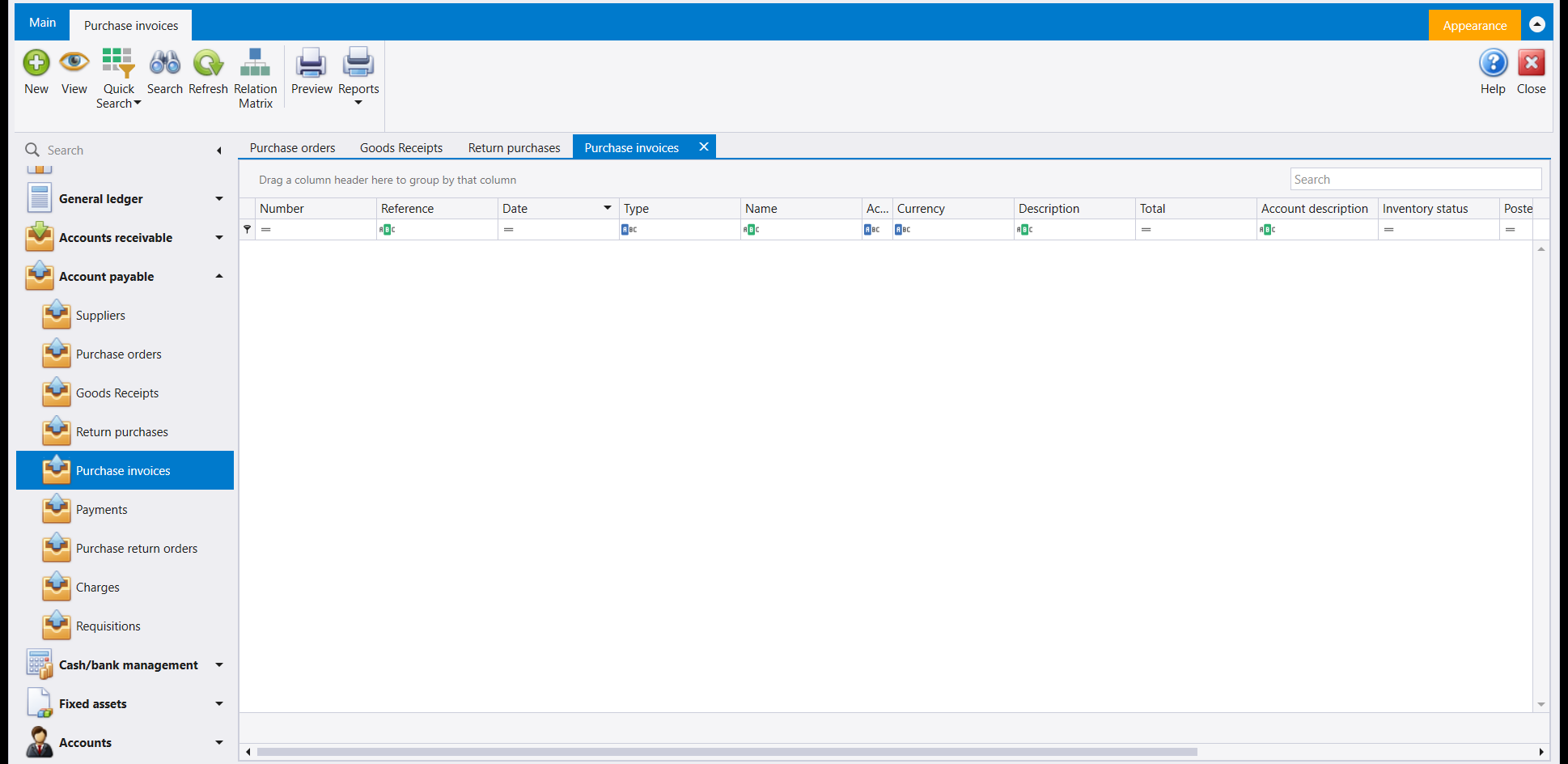
There is one visible difference from the sales lists, and it is worth knowing before you go looking for a button that is not there: the purchase lists carry no "generate" action. On the sales side the invoice list offers Generate Delivery Slips and the order list offers Generate Invoices. All five purchase lists offer the same eight buttons and nothing else. Turning a purchase order into an invoice is done from inside the open document, with Post order to invoice.
2. What each one does
This is the part worth learning, because the form gives you no clue. The same two questions decide everything: does the document move goods, and does it reach your accounts?
| Document | Moves goods | Reaches the accounts |
|---|---|---|
| Purchase orders | No | No |
| Goods Receipts | Yes | No |
| Purchase invoices | Yes | Yes |
| Return purchases | Yes | Yes (the other way) |
| Purchase return orders | No | No |
So a purchase order is a request: you have written down what you want from the supplier, and nothing else has happened. A goods receipt brings the goods into the warehouse without booking what you owe. A purchase invoice does both - the goods arrive and the debt to the supplier is recorded. A return purchase is the invoice run backwards - and it is built from that invoice with Alt+X, as How to return goods to a supplier shows. A purchase return order is the request to send goods back, and like the purchase order it moves nothing on its own.
Notice how exactly this mirrors the sales side. A sales order matches a purchase order, a delivery matches a goods receipt, and a sales invoice matches a purchase invoice - one taking goods out and billing the customer, the other bringing goods in and recording what you owe.
That table is read from your company's own document-type setup rather than demonstrated one by one here. What was demonstrated is the Purchase invoices row, in full: the goods arrived in the warehouse and the accounting entry was written.
3. The header: the supplier decides the currency
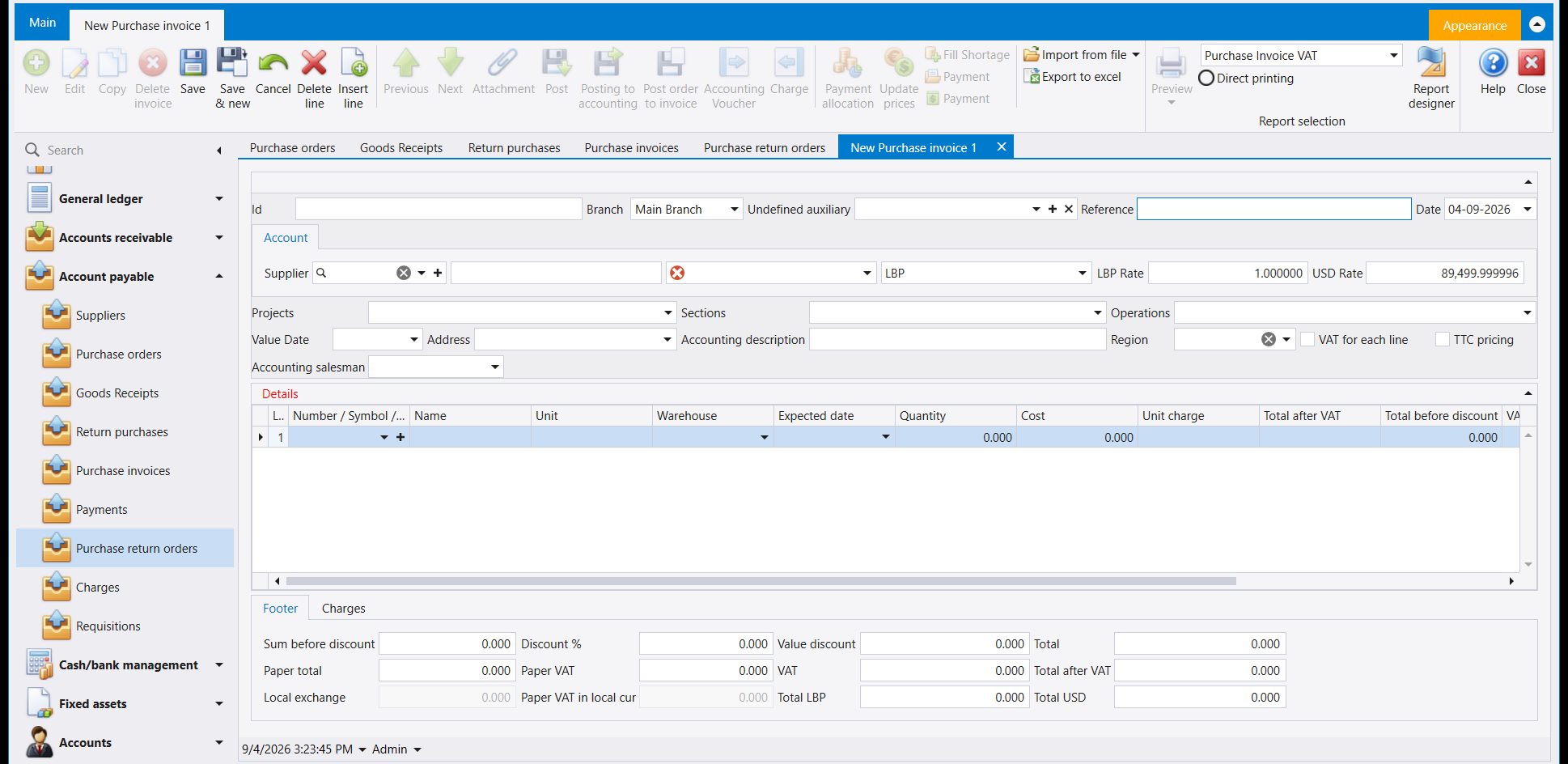
Id stays empty until you save - Libra fills it in. Date defaults to today. Reference is yours: put the supplier's invoice number there, because it is a column in the list and you can filter on it.
Supplier is the field that does the work, exactly as Customer does on a sales document. Pick the supplier and Libra fills in the account, the currency and both rates by itself.
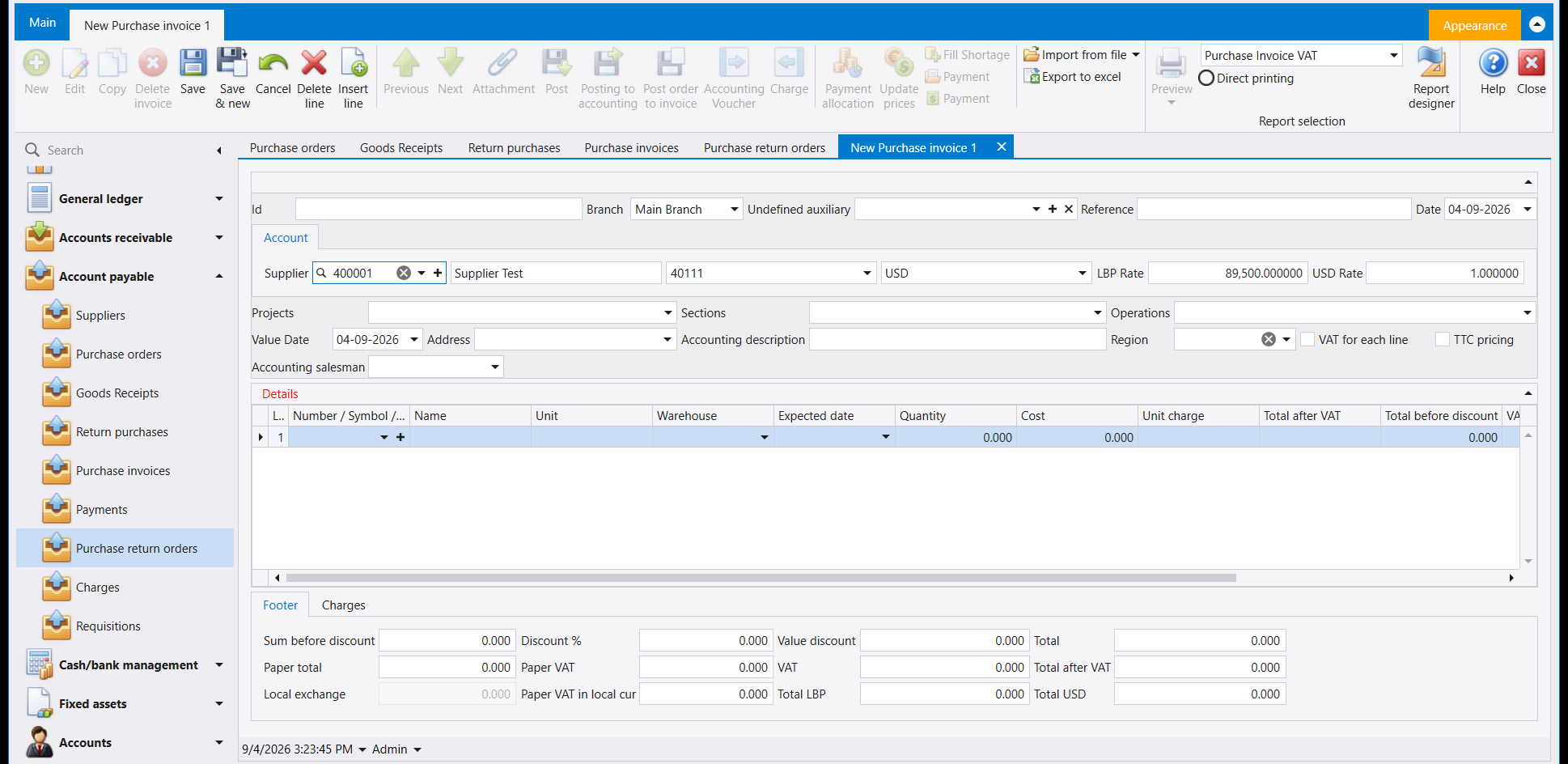
This is the one thing most likely to surprise you. The currency is not yours to assume - it comes from the supplier's own account. In the example above, choosing the supplier set the currency to USD, the LBP Rate to 89,500.000000 and the USD Rate to 1.000000. On the sales side, a customer held in Lebanese pounds sets exactly the opposite pair - an LBP Rate of 1.000000 and a USD Rate of 89,499.999996.
So a supplier you pay in dollars and a customer you bill in pounds produce documents in different currencies, and Libra converts each one for you rather than making you choose. Pick the supplier first, before you type any lines: changing it afterwards can reprice everything you have already entered.
4. The line: what you are buying, and at what cost
The Details grid is one row per thing bought: Number / Symbol / Barcode, Name, Unit, Warehouse, Expected date, Quantity, Cost, Unit charge, Total after VAT and Total before discount.
The price column is calledCosthere, notPrice. On a sales document the same column is Price - what you charge. On a purchase document it is Cost - what you pay. It is the same column doing the opposite job, and it is the quickest way to tell at a glance which kind of document you have open.
You only choose the item. Everything beside it fills itself in - the name, the unit, and the warehouse the item normally goes into.
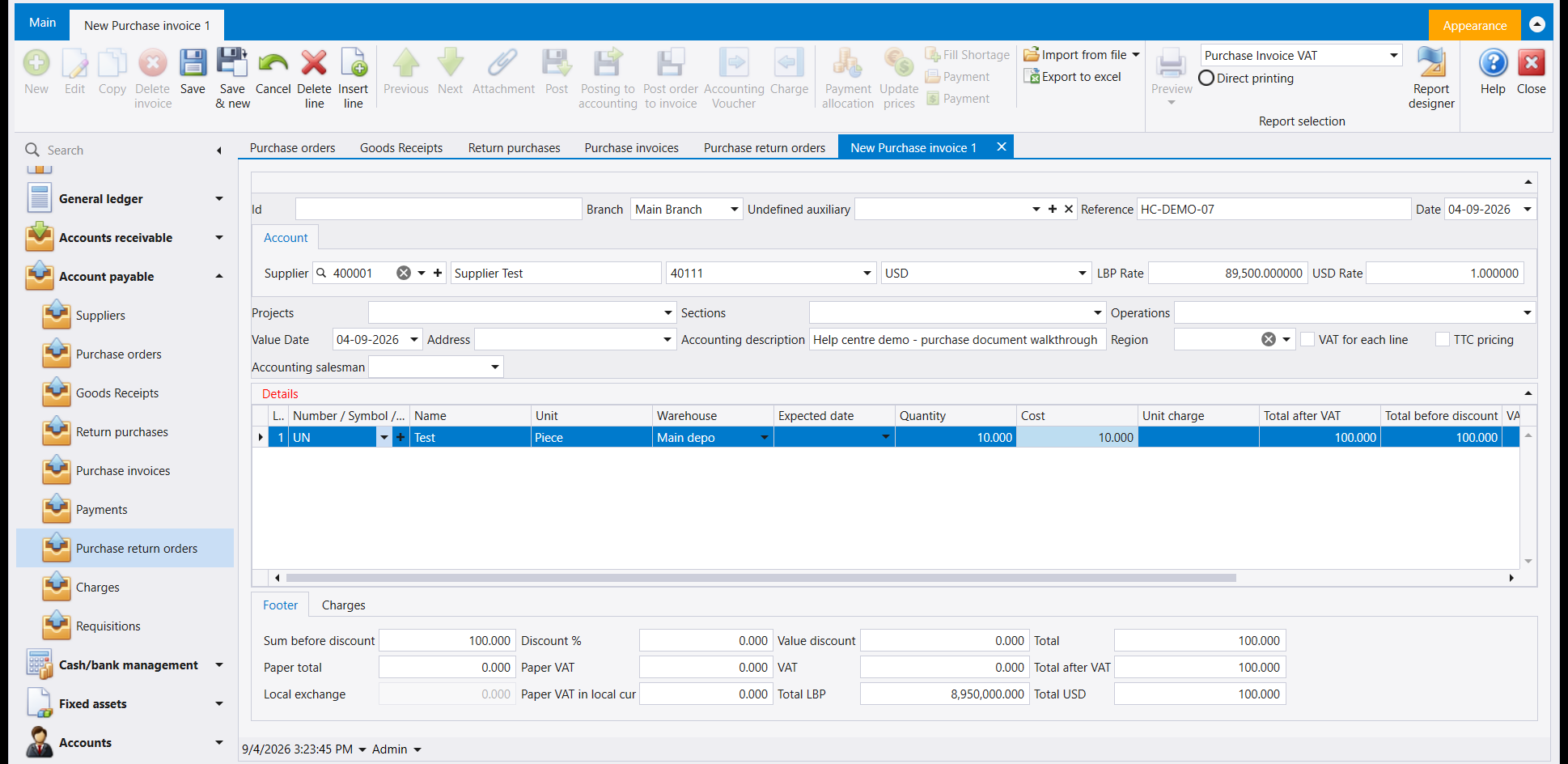
The Footer totals in this order: Sum before discount, then Discount % and Value discount, giving Total; then Paper total and Paper VAT, then VAT and Total after VAT; and finally the same figure in both company currencies - Total LBP and Total USD. Above, 10 pieces at 10.00 came out as 100.000 USD and 8,950,000.000 LBP at the rate in the header.
The footer is how you know a line took. If you have typed a quantity and a cost but the footer still reads 0.000, the cell has not been committed and saving would store a document with nothing in it. Click away from the cell and watch the totals change before you save.Paper total and Paper VAT are the two extra footer boxes the sales form does not have. They are what the supplier's own paper invoice says, kept beside what Libra worked out, so the two can be compared. Leaving Paper VAT in local cur empty is allowed - Libra asks you to confirm it before saving rather than refusing.
5. The number tells you which screen made it
Save, and Libra assigns a number built as branch - year - document type - sequence, exactly as on the sales side. The document type is the part to read:
| Document | Number looks like |
|---|---|
| Purchase invoices | 001-2026-PI-1 |
| Purchase orders | 001-2026-PO-1 |
| Goods Receipts | 001-2026-GR-1 |
| Return purchases | 001-2026-RPI-1 |
| Purchase return orders | 001-2026-RPO-1 |
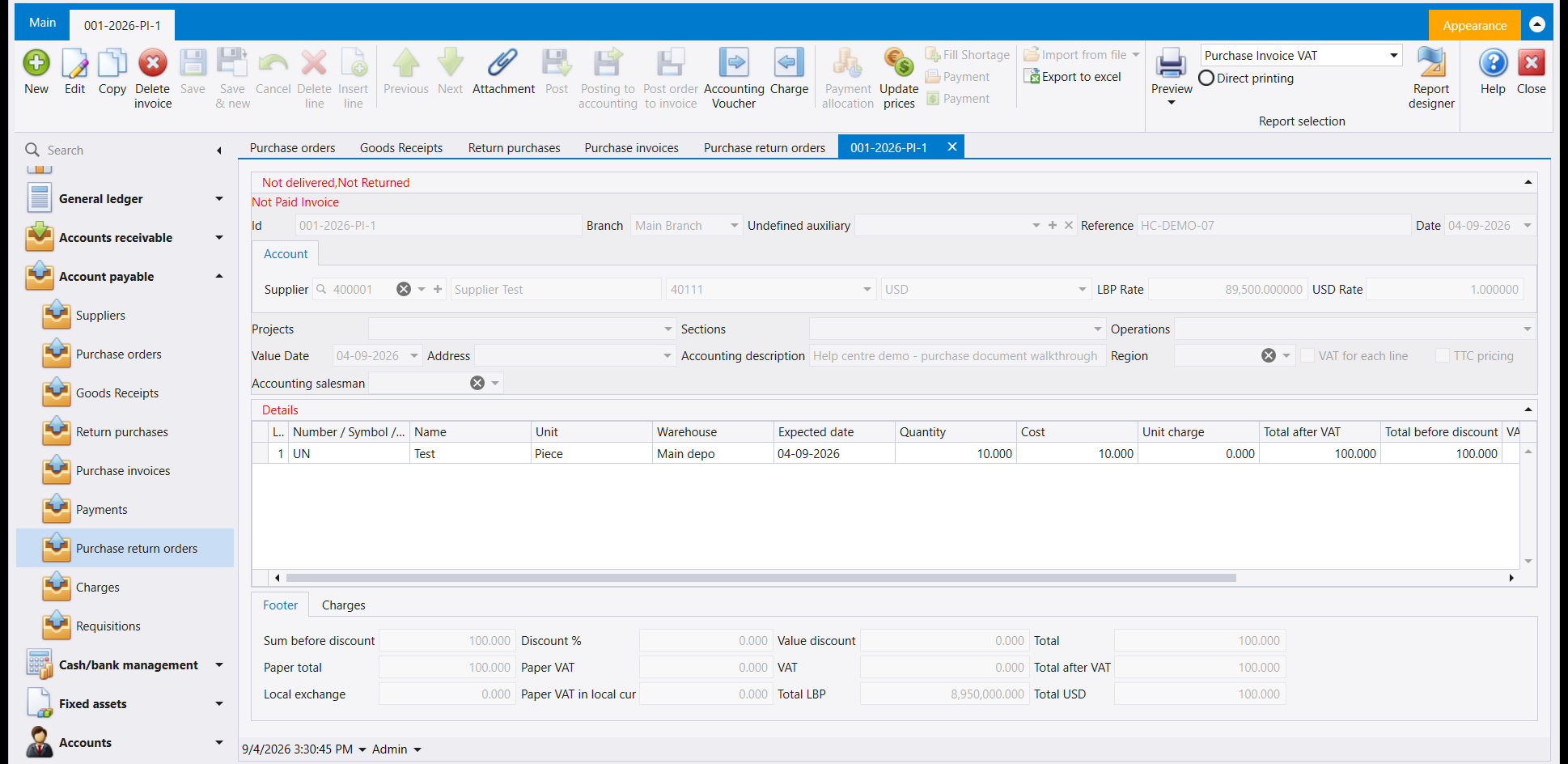
Each type counts separately, so a -1 only means it is the first of that type this year. The red lines at the top - Not delivered, Not Returned and Not Paid Invoice - are the document telling you what has not happened to it yet. Not Paid is the one the sales documents do not carry: it is the reminder that receiving the goods and paying for them are two separate acts.
6. What a saved purchase invoice actually changed
Two things, and both were checked rather than assumed.
The goods arrived. Before the invoice, the item's own lookup showed nothing on hand:
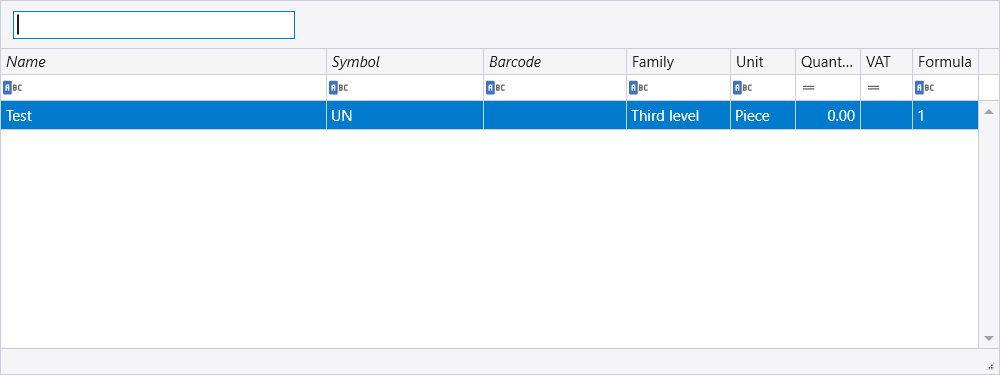
Afterwards, the same lookup showed the ten pieces sitting in the warehouse. That is the whole point of the document, and it is what makes a sales invoice possible - Libra will not let you sell what you do not have.
The accounting entry was written for you. A purchase invoice books the goods against the expense side and the amount owed against the supplier, and you do not type either one. The ribbon on an open invoice carries Accounting Voucher, which opens the entry the invoice made, and Posting to accounting beside it. If you ever want to check what an invoice did to your books, that button is the answer - not a report.
7. Buying in dollars while keeping books in pounds
The example above is worth one more look, because it is the ordinary case in Lebanon and it is where a purchase document earns its keep.
The supplier is held in USD. The item's expense account is held in LBP. The invoice is for 100.00 USD, and Libra recorded it as 8,950,000 LBP as well - both figures, at the rate in the header, on the same document. Neither side had to be converted by hand, and the two currencies each balance on their own.
This is why the rate boxes are in the header rather than buried in the setup: the rate that matters is the one on the day of the document, and it is written onto the document when you save it. Change the rate next month and this invoice keeps the rate it was booked at.
8. Seeing the whole chain at once
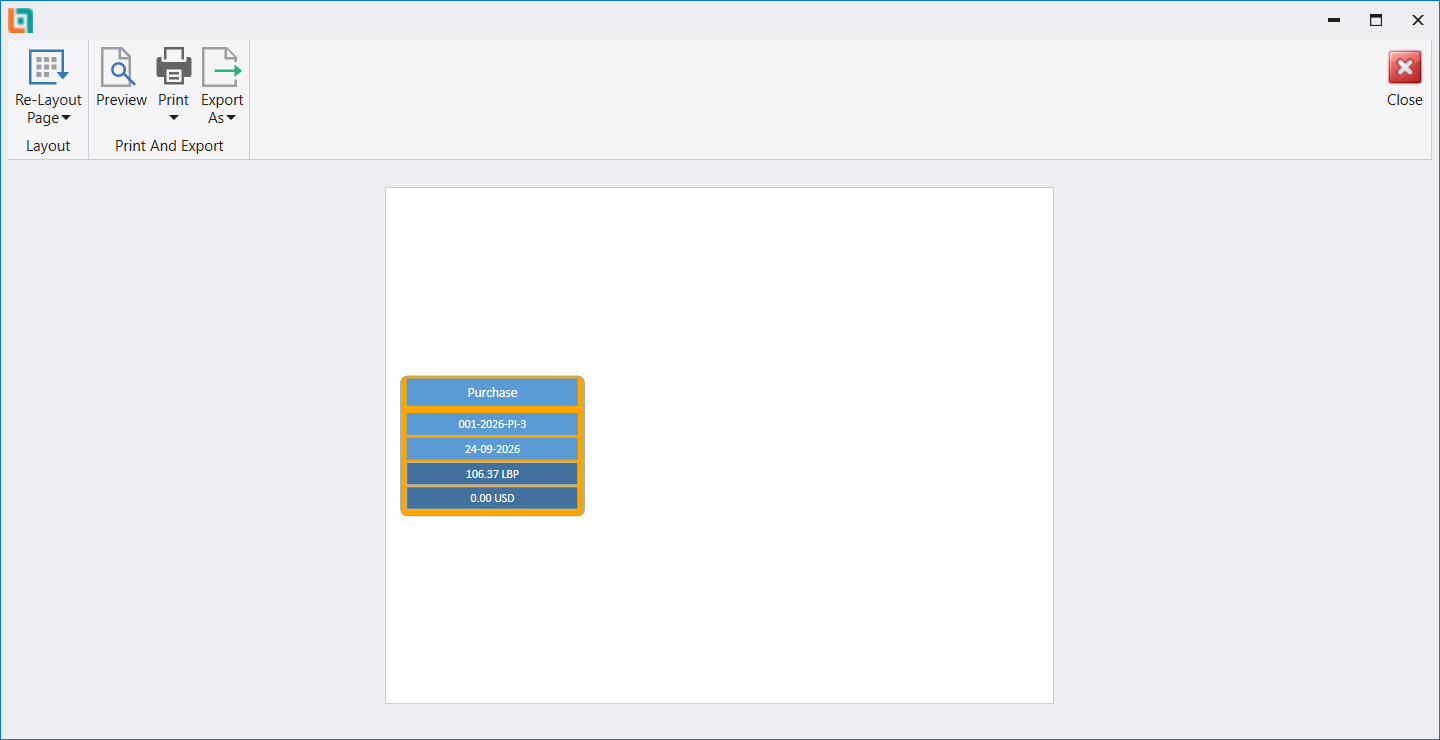
An order, the goods receipt taken against it and the invoice that followed are three documents describing one purchase, and each of them knows only its own part. Relation Matrix, on the ribbon of any of the three, is what puts them back together: it draws the documents as linked boxes, each box naming a document and its total, with arrows in the order they happened. The same picture opens whichever one of them you started from, so you can answer "what has been received against this order, and what has been invoiced" from the document already in front of you. A document that was typed out on its own, with nothing linked to it either side, draws a single box carrying its own number, date and totals - which is the picture's way of telling you the chain stops here.
Purchase orders, receipts and returns covers how one document is built out of another in the first place.
ضمن Account payable (ذمم الموردين) هناك خمسة مداخل تشتري جميعها شيئًا: Purchase orders (طلبات الشراء) وGoods Receipts (أذونات الاستلام) وReturn purchases (مرتجع المشتريات) وPurchase invoices (فواتير الشراء) وPurchase return orders (طلبات مرتجع الشراء). وكلّها تفتح الشاشة نفسها، وهي مرآة شاشة المبيعات الموصوفة في مستندات المبيعات. ما يتغيّر ليس الشاشة، بل ما يفعله ليبرا عند الحفظ.
لإنشاء مستند خطوة بخطوة، اقرأ كيفية تسجيل فاتورة شراء.
١. خمسة مداخل وشاشة واحدة
افتح أيًّا من الخمسة تحصل على التخطيط الثلاثي نفسه الموجود في جهة المبيعات: رأس يقول لمن ومتى، وشبكة Details (التفاصيل) تقول ماذا، وFooter (الذيل) يجمع المبالغ. والقوائم متطابقة أيضًا - الأعمدة نفسها، وصف الفلترة نفسه، والشريط نفسه.
هناك فرق واحد ظاهر عن قوائم المبيعات، ويستحق أن تعرفه قبل أن تبحث عن زر غير موجود: قوائم الشراء لا تحمل أي زر توليد. ففي جهة المبيعات تعرض قائمة الفواتير Generate Delivery Slips وتعرض قائمة الطلبات Generate Invoices. أما قوائم الشراء الخمس فتعرض الأزرار الثمانية نفسها ولا شيء غيرها. وتحويل طلب شراء إلى فاتورة يتم من داخل المستند المفتوح، بزر Post order to invoice.
٢. ماذا يفعل كل واحد منها
هذا هو الجزء الذي يستحق التعلّم، لأن الشاشة لا تدلّك عليه. السؤالان نفسهما يحسمان كل شيء: هل يحرّك المستند البضاعة، وهل يصل إلى حساباتك؟
| المستند | يحرّك البضاعة | يصل إلى الحسابات |
|---|---|---|
| Purchase orders | لا | لا |
| Goods Receipts | نعم | لا |
| Purchase invoices | نعم | نعم |
| Return purchases | نعم | نعم (بالاتجاه المعاكس) |
| Purchase return orders | لا | لا |
إذًا طلب الشراء طلبٌ: دوّنت ما تريده من المورّد، ولم يحدث شيء آخر. وإذن الاستلام يُدخل البضاعة إلى المستودع دون أن يقيّد ما عليك. وفاتورة الشراء تفعل الأمرين - تصل البضاعة ويُسجَّل الدَّين للمورّد. ومرتجع المشتريات هو الفاتورة معكوسة - ويُبنى من تلك الفاتورة بـAlt+X، كما يبيّن كيفية إرجاع بضاعة إلى المورّد. أما طلب مرتجع الشراء فهو طلب إعادة البضاعة، ومثل طلب الشراء لا يحرّك شيئًا بنفسه.
لاحظ كم يطابق هذا جهة المبيعات تمامًا. طلب المبيعات يقابل طلب الشراء، وإذن التسليم يقابل إذن الاستلام، وفاتورة المبيعات تقابل فاتورة الشراء - إحداهما تُخرج البضاعة وتطالب الزبون، والأخرى تُدخل البضاعة وتسجّل ما عليك.
هذا الجدول مقروء من إعدادات أنواع المستندات في شركتك لا مُجرَّب واحدًا واحدًا هنا. والذي جُرِّب فعلًا هو سطر Purchase invoices كاملًا: وصلت البضاعة إلى المستودع وكُتِب القيد المحاسبي.
٣. الرأس: المورّد هو من يحدّد العملة
يبقى Id فارغًا حتى تحفظ - ليبرا هو من يملؤه. وDate يأخذ تاريخ اليوم. أما Reference فلك أنت: ضع فيه رقم فاتورة المورّد، فهو عمود في القائمة ويمكنك الفلترة عليه.
Supplier هو الحقل الذي يقوم بالعمل، تمامًا كما يفعل Customer في مستند المبيعات. اختر المورّد فيملأ ليبرا الحساب والعملة والسعرين بنفسه.
هذا هو الأمر الأرجح أن يفاجئك. العملة ليست لك أن تفترضها - فهي آتية من حساب المورّد نفسه. في المثال أعلاه أدّى اختيار المورّد إلى ضبط العملة على USD وLBP Rate على 89,500.000000 وUSD Rate على 1.000000. وفي جهة المبيعات يضبط زبونٌ محفوظ بالليرة اللبنانية الزوج المعاكس تمامًا - LBP Rate بقيمة 1.000000 وUSD Rate بقيمة 89,499.999996.
إذًا مورّد تدفع له بالدولار وزبون تطالبه بالليرة يُنتجان مستندين بعملتين مختلفتين، وليبرا يحوّل لك كلًّا منهما بدل أن يجبرك على الاختيار. اختر المورّد أولًا قبل أن تكتب أي سطر: تغييره لاحقًا قد يعيد تسعير كل ما أدخلته.
٤. السطر: ما الذي تشتريه، وبأي كلفة
شبكة Details سطر لكل شيء مُشترى: Number / Symbol / Barcode وName وUnit وWarehouse وExpected date وQuantity وCost وUnit charge وTotal after VAT وTotal before discount.
عمود السعر اسمه هناCostلاPrice. ففي مستند المبيعات يُسمّى العمود نفسه Price - ما تتقاضاه. وفي مستند الشراء يُسمّى Cost - ما تدفعه. هو العمود نفسه يؤدي الدور المعاكس، وهو أسرع طريقة لتعرف بنظرة واحدة أي نوع من المستندات مفتوح أمامك.
أنت تختار الصنف فقط. وكل ما بجانبه يملأ نفسه - الاسم والوحدة والمستودع الذي يدخل إليه الصنف عادةً.
يجمع Footer بهذا الترتيب: Sum before discount، ثم Discount % وValue discount فينتج Total؛ ثم Paper total وPaper VAT، ثم VAT وTotal after VAT؛ وأخيرًا الرقم نفسه بعملتَي الشركة - Total LBP وTotal USD. في الأعلى خرجت 10 قطع بكلفة 10.00 بما يعادل 100.000 دولار و8,950,000.000 ليرة بحسب السعر الموجود في الرأس.
الذيل هو دليلك على أن السطر قد ثبت. إذا كتبت كمية وكلفة وبقي الذيل على 0.000، فالخلية لم تُثبَّت بعد وسيحفظ ليبرا مستندًا فارغًا. انقر خارج الخلية وراقب تغيّر المجاميع قبل أن تحفظ.وPaper total وPaper VAT هما الصندوقان الإضافيان في الذيل اللذان لا وجود لهما في شاشة المبيعات. وهما ما تقوله فاتورة المورّد الورقية نفسها، محفوظًا بجانب ما حسبه ليبرا، ليتسنّى مقارنة الاثنين. وتَرْك Paper VAT in local cur فارغًا مسموح - يطلب منك ليبرا تأكيده قبل الحفظ بدل أن يرفض.
٥. الرقم يخبرك أي شاشة أنشأته
احفظ، فيعطيك ليبرا رقمًا مبنيًّا هكذا: الفرع - السنة - نوع المستند - التسلسل، تمامًا كما في جهة المبيعات. ونوع المستند هو الجزء الذي يجب أن تقرأه:
| المستند | شكل الرقم |
|---|---|
| Purchase invoices | 001-2026-PI-1 |
| Purchase orders | 001-2026-PO-1 |
| Goods Receipts | 001-2026-GR-1 |
| Return purchases | 001-2026-RPI-1 |
| Purchase return orders | 001-2026-RPO-1 |
كل نوع يُعدّ على حدة، فالرقم -1 يعني فقط أنه الأول من ذلك النوع هذه السنة. والسطران الأحمران في الأعلى - Not delivered, Not Returned وNot Paid Invoice - هما المستند يخبرك بما لم يحدث له بعد. وNot Paid هو السطر الذي لا تحمله مستندات المبيعات: فهو التذكير بأن استلام البضاعة ودفع ثمنها فعلان منفصلان.
٦. ما الذي غيّرته فاتورة الشراء المحفوظة فعلًا
أمران، وكلاهما فُحِص لا افتُرِض.
وصلت البضاعة. قبل الفاتورة كانت لائحة الصنف نفسها تُظهر أن لا شيء في المستودع:
وبعدها أظهرت اللائحة نفسها القطع العشر موجودة في المستودع. وهذا هو مغزى المستند كلّه، وهو ما يجعل فاتورة المبيعات ممكنة - فليبرا لا يسمح لك أن تبيع ما لا تملكه.
وكُتِب القيد المحاسبي نيابةً عنك. فاتورة الشراء تقيّد البضاعة في جهة المصروف والمبلغ المستحق على المورّد، ولا تكتب أنت أيًّا منهما. ويحمل شريط الفاتورة المفتوحة زر Accounting Voucher الذي يفتح القيد الذي أنشأته الفاتورة، وبجانبه Posting to accounting. فإن أردت يومًا أن تتحقّق مما فعلته فاتورة بدفاترك، فذلك الزر هو الجواب - لا تقرير.
٧. أن تشتري بالدولار وتمسك دفاترك بالليرة
يستحق المثال أعلاه نظرة أخيرة، لأنه الحالة الاعتيادية في لبنان، وهو الموضع الذي يثبت فيه مستند الشراء قيمته.
المورّد محفوظ بـالدولار. وحساب مصروف الصنف محفوظ بـالليرة. والفاتورة بقيمة 100.00 دولار، وقد سجّلها ليبرا بـ8,950,000 ليرة أيضًا - الرقمان معًا، بالسعر الموجود في الرأس، على المستند نفسه. ولم يضطر أي طرف إلى تحويل يدوي، والعملتان توازن كلٌّ منهما نفسها.
ولهذا صناديق السعر في الرأس لا مدفونة في الإعدادات: فالسعر الذي يهمّ هو سعر يوم المستند، ويُكتب على المستند حين تحفظه. غيّر السعر الشهر المقبل وتبقى هذه الفاتورة بالسعر الذي قُيِّدت به.
٨. رؤية السلسلة كلها دفعة واحدة
الطلب، وإذن الاستلام المأخوذ بموجبه، والفاتورة التي تبعتهما، ثلاثة مستندات تصف عملية شراء واحدة، ولا يعرف كلٌّ منها غير جزئه. وRelation Matrix في شريط أيٍّ من الثلاثة هو ما يعيد جمعها: فهو يرسم المستندات صناديق متّصلة، كل صندوق باسم مستند ومجموعه، وبينها أسهم بترتيب حدوثها. وتُفتح الصورة نفسها من أيٍّ منها بدأت، فتجيب عن سؤال "ماذا استُلم بموجب هذا الطلب وماذا فُوتر" من المستند الذي أمامك أصلًا. أمّا المستند الذي كُتب وحده ولم يُربط به شيء من أيّ جهة فيرسم صندوقًا واحدًا يحمل رقمه وتاريخه ومجاميعه - وهذه طريقة الصورة في إخبارك بأن السلسلة تقف هنا.
ويغطّي طلبات الشراء وأذونات الاستلام والمرتجعات كيفية بناء مستند من آخر أساسًا.