
How to record a sales orderكيفية تسجيل طلب مبيعات
A worked example, start to finish: one customer, one item, one unit, 90,000 LBP. It takes about a minute.
A sales order is the safest of the six sales documents to learn on, because it promises goods rather than moving them - nothing leaves your warehouse and nothing reaches your accounts until you turn it into an invoice. Everything below applies to a sales invoice as well; the invoice simply also takes the goods out of the warehouse, which is why it can refuse (see step 5). For what each of the six documents does, read Sales documents.
1. Open a new document
Accounts receivable → Sales orders, then New on the ribbon. A tab opens called New Sales order and keeps that name until you save.
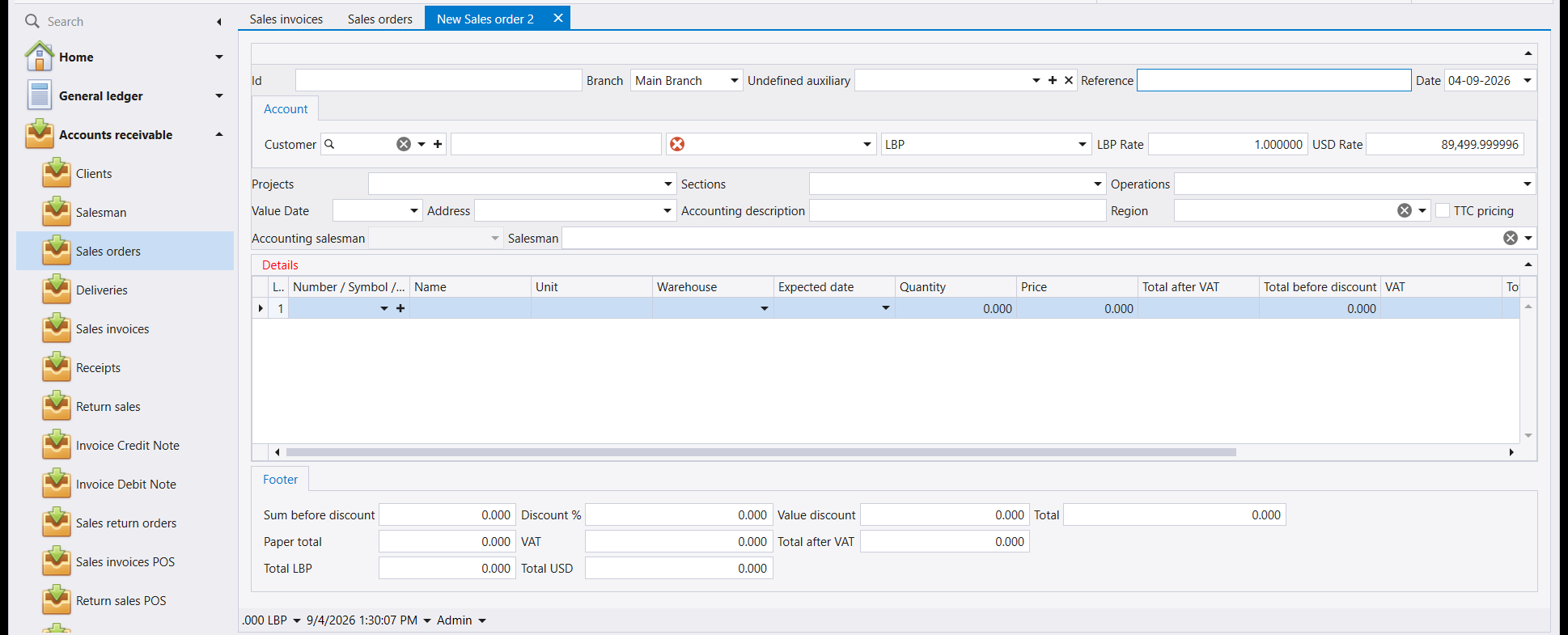
2. Fill the header - the customer first
Always the customer before anything else. Choosing the customer sets the account, the currency and the exchange rates, and if you change it after typing lines it can reprice them.
- Customer - pick the client. Watch the three boxes to the right fill themselves in: the account, the currency, and the two rates.
- Reference - your own tracking code or the customer's order number. It is a column in the list, so it is the fastest way to find this document later.
- Date - already today's date. Change it only if the order was actually placed earlier.
- Accounting description - a sentence describing the order, in your own words.
Leave everything else alone the first time. Projects, Sections, Operations, Region and the two salesman fields are optional, and Value Date fills itself in.
3. Add the line
Click the first cell of the Details grid, under Number / Symbol / Barcode, and open its drop-down. Pick the item from the list that appears - it shows you the name, the unit and how many you currently have.
Then check what filled itself in, and type only the two things Libra cannot know: the Quantity, and the Price if the one it proposed is not what you are charging.
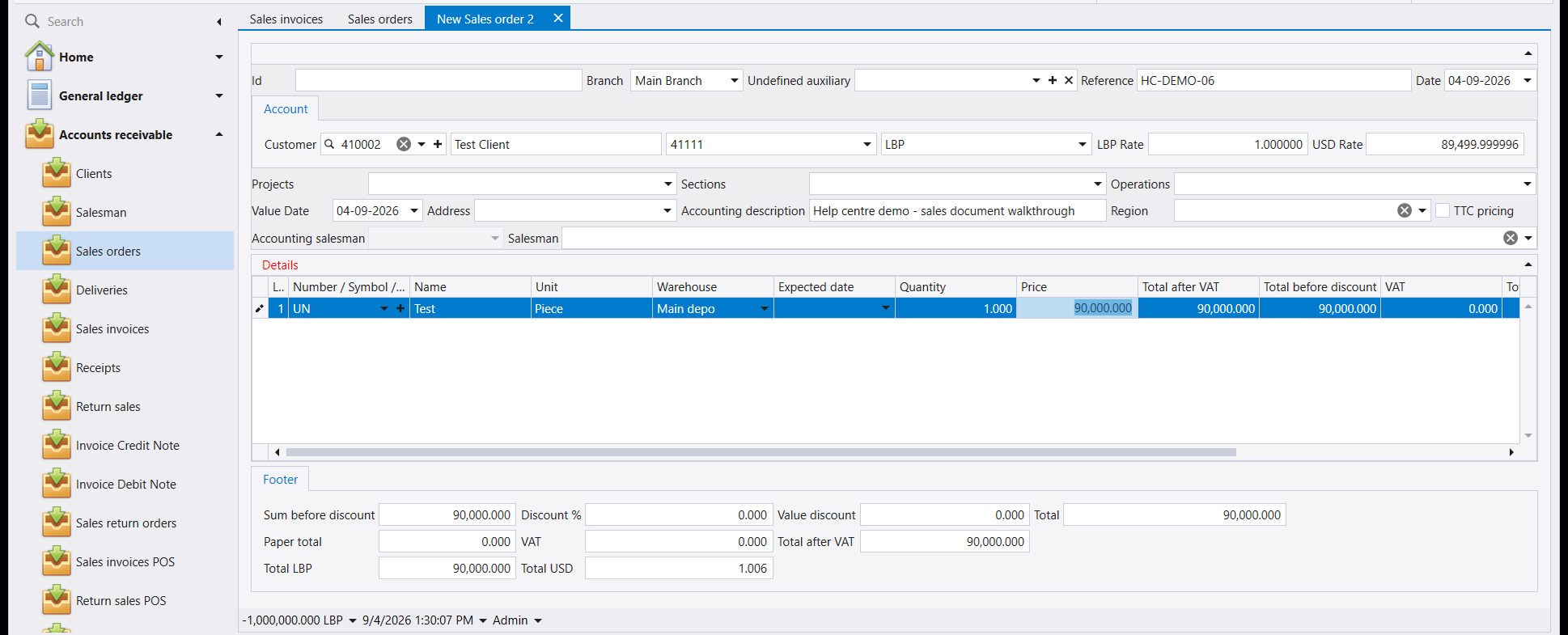
Check the footer before you go on. The totals at the bottom are the only proof the line registered. If Sum before discount and Total still read 0.000 after you have typed a quantity and a price, the cell has not been committed - click on another field and watch them change. Saving while they read zero stores a document with no line in it.To add a second line, press Down from the finished line, or use Insert line on the ribbon.
4. Save
Press Save on the ribbon, or F12.
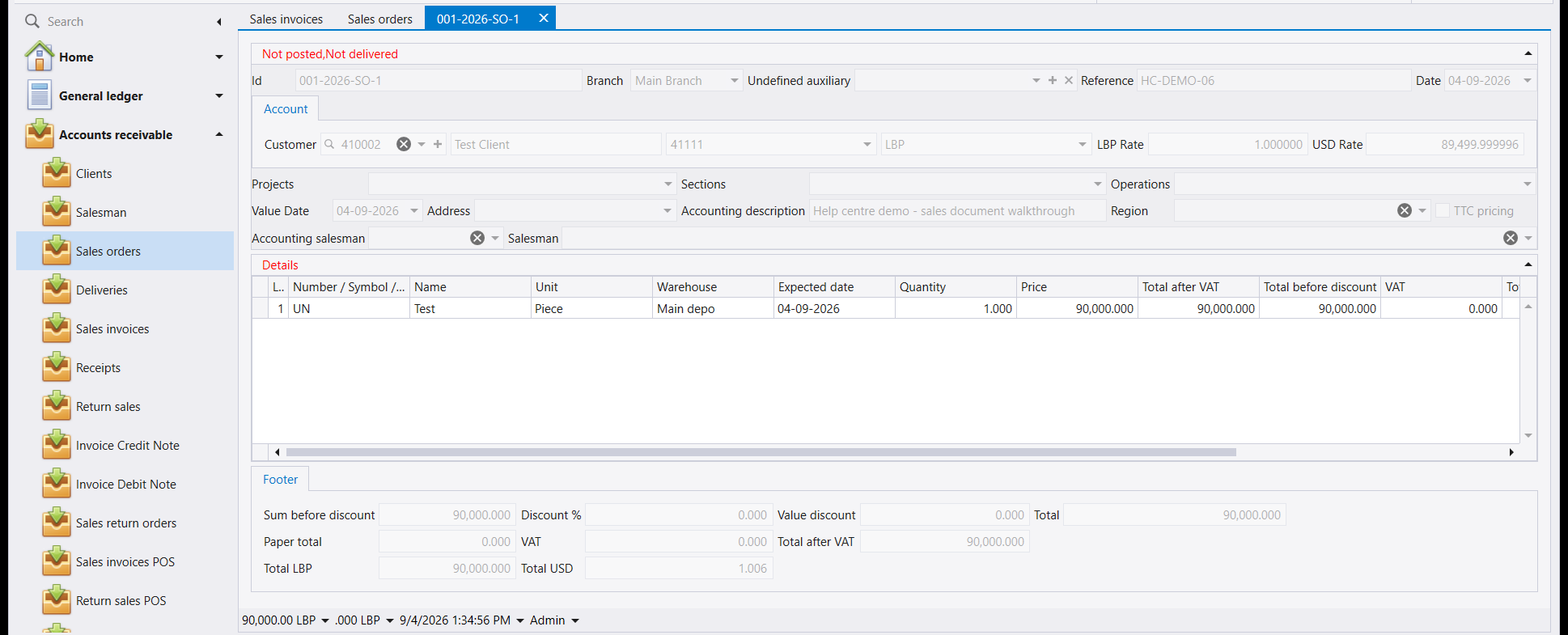
You know it worked when the tab stops saying New Sales order and shows a real number instead - here 001-2026-SO-1. The Id field fills in with the same number and the form turns read-only.
The red Not posted, Not delivered is not an error. It is the order telling you it is still only a promise: nothing has been delivered and nothing has reached the accounts. That is exactly what a sales order should say.
If you pressed F12 and nothing happened, the cursor was probably still inside a grid cell. Click on a header field such as Accounting description first, then save.
5. If something is wrong
"Quantity is not available in warehouses" - you are on a sales invoice or a delivery, and you have none of that item in stock. Neither document can move goods you do not have. Either receive the stock first on a purchase document, or record a sales order now and invoice it when the goods arrive.
The document saved but the list looks empty - the list opens on a filter. Use Quick Search and choose All, then look again.
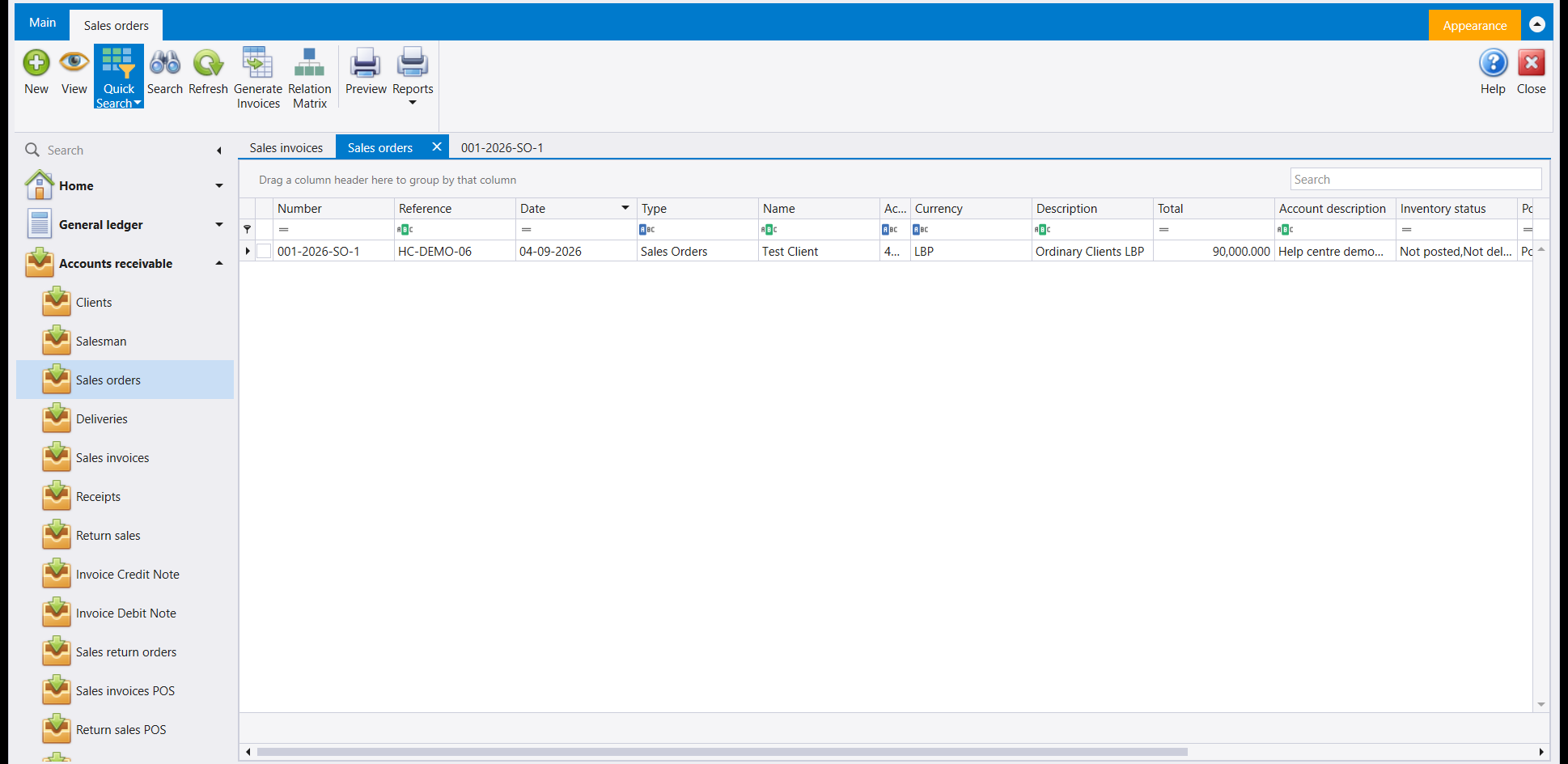
The totals stayed at zero - a cell was never committed. Reopen the document, click into the quantity, retype it, click away, and check the footer before saving again.
The line has no warehouse - pick one in the Warehouse column. An item that is stocked cannot be sold out of nowhere.
The customer is not in the list - they have not been created yet. See How to create a client.
مثال عملي من البداية إلى النهاية: زبون واحد، صنف واحد، وحدة واحدة، 90,000 ليرة. يستغرق نحو دقيقة.
طلب المبيعات هو أأمن المستندات الستة لتتعلّم عليه، لأنه يَعِد بالبضاعة ولا يحرّكها - فلا يخرج شيء من مستودعك ولا يصل شيء إلى حساباتك حتى تحوّله إلى فاتورة. وكل ما يلي ينطبق على فاتورة المبيعات أيضًا؛ الفاتورة تُخرج البضاعة من المستودع إضافةً إلى ذلك، ولهذا يمكن أن تُرفَض (انظر الخطوة ٥). ولمعرفة ما يفعله كل من المستندات الستة، اقرأ مستندات المبيعات.
١. افتح مستندًا جديدًا
Accounts receivable ← Sales orders، ثم New من الشريط. يُفتح لسان اسمه New Sales order ويبقى بهذا الاسم حتى تحفظ.
٢. املأ الرأس - الزبون أولًا
الزبون قبل أي شيء آخر دائمًا. اختيار الزبون يضبط الحساب والعملة وأسعار الصرف، وإذا غيّرته بعد كتابة السطور فقد يعيد تسعيرها.
- Customer - اختر الزبون. راقب الخانات الثلاث على يمينه وهي تملأ نفسها: الحساب والعملة والسعران.
- Reference - رمز تتبّعك الخاص أو رقم طلبية الزبون. وهو عمود في القائمة، فهو أسرع طريقة لإيجاد هذا المستند لاحقًا.
- Date - فيه تاريخ اليوم أصلًا. لا تغيّره إلا إذا كانت الطلبية قد قُدّمت فعلًا في وقت أسبق.
- Accounting description - جملة تصف الطلبية بكلماتك.
اترك ما عدا ذلك في المرة الأولى. فحقول Projects وSections وOperations وRegion وحقلا المندوب اختيارية، وValue Date يملأ نفسه.
٣. أضف السطر
انقر أول خلية في شبكة Details تحت Number / Symbol / Barcode، وافتح قائمتها المنسدلة. اختر الصنف من اللائحة التي تظهر - فهي تعرض لك الاسم والوحدة وكم تملك منه حاليًا.
ثم تحقّق ممّا ملأ نفسه، ولا تكتب إلا الشيئين اللذين لا يستطيع ليبرا معرفتهما: Quantity (الكمية)، وPrice (السعر) إن كان المقترح ليس ما تتقاضاه.
تحقّق من الذيل قبل أن تتابع. المجاميع في الأسفل هي الدليل الوحيد على أن السطر قد سُجّل. إذا بقي Sum before discount وTotal على 0.000 بعد أن كتبت كمية وسعرًا، فالخلية لم تُثبَّت - انقر على حقل آخر وراقبها تتغيّر. والحفظ وهي على الصفر يخزّن مستندًا بلا سطر.ولإضافة سطر ثانٍ، اضغط Down من السطر المكتمل، أو استخدم Insert line من الشريط.
٤. احفظ
اضغط Save من الشريط، أو F12.
تعرف أنه نجح حين يتوقّف اللسان عن قول New Sales order ويعرض رقمًا حقيقيًا بدلًا منه - هنا 001-2026-SO-1. ويمتلئ حقل Id بالرقم نفسه وتصبح الشاشة للقراءة فقط.
أما Not posted, Not delivered بالأحمر فليس خطأ. إنه الطلب يخبرك أنه ما زال وعدًا فقط: لم يُسلَّم شيء ولم يصل شيء إلى الحسابات. وهذا بالضبط ما يجب أن يقوله طلب المبيعات.
إذا ضغطت F12 ولم يحدث شيء، فالمؤشر على الأرجح ما زال داخل خلية في الشبكة. انقر على حقل في الرأس مثل Accounting description أولًا، ثم احفظ.
٥. إذا حدث خطأ
"Quantity is not available in warehouses" - أنت على فاتورة مبيعات أو إذن تسليم، ولا تملك شيئًا من ذلك الصنف في المخزون. ولا يستطيع أي من المستندين تحريك بضاعة لا تملكها. فإمّا أن تستلم البضاعة أولًا بمستند شراء، وإمّا أن تسجّل طلب مبيعات الآن وتفوتره حين تصل البضاعة.
حُفِظ المستند لكن القائمة تبدو فارغة - القائمة تفتح على فلتر. استخدم Quick Search واختر All، ثم انظر مجددًا.
بقيت المجاميع على الصفر - خلية لم تُثبَّت أبدًا. أعد فتح المستند، وانقر داخل الكمية، وأعد كتابتها، وانقر خارجها، وتحقّق من الذيل قبل أن تحفظ ثانيةً.
السطر بلا مستودع - اختر واحدًا في عمود Warehouse. فالصنف المخزَّن لا يمكن بيعه من لا مكان.
الزبون غير موجود في اللائحة - لم يُنشأ بعد. انظر كيفية إنشاء زبون.