
Inventory reports: stock, barcodes and movementتقارير المخزون: الكمية والباركود والحركة
The ribbon every one of these screens shares - Preview, Direct printing, the report-selection box, and the saved-filter box - is covered in Inventory reports: how the report screens work. This page covers what each of the following nine screens actually asks for and answers.
1. Inventory
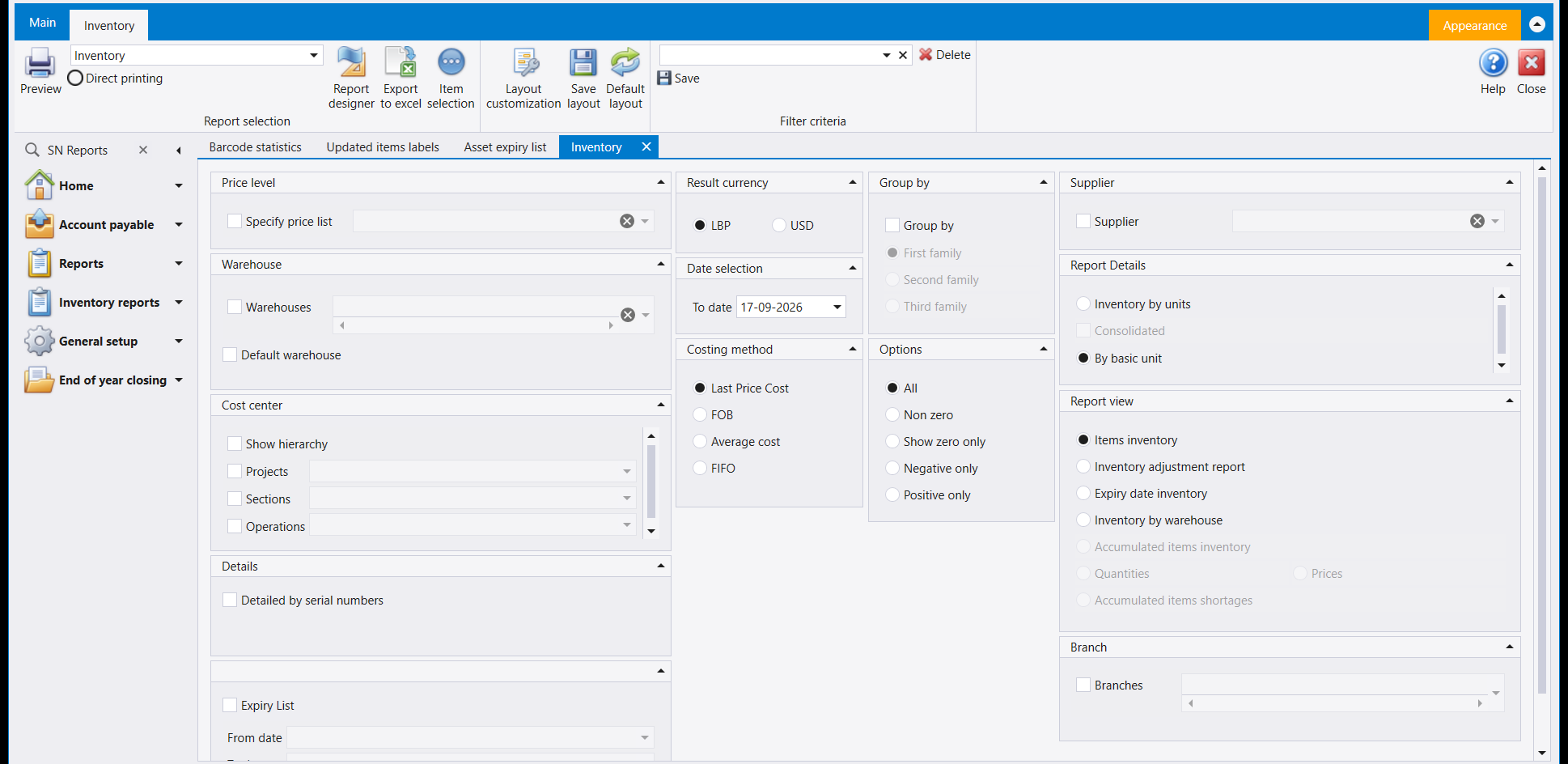
The main stock report, and the richest screen in the menu. Result currency chooses LBP or USD; Costing method chooses Last Price Cost, FOB, Average cost or FIFO as the basis for the values shown. Options narrows to All items, Non zero, Show zero only, Negative only or Positive only balances. Report view decides the shape of the answer: Items inventory for a plain list, Inventory adjustment report, Expiry date inventory, or Inventory by warehouse. Narrow further by Warehouse, Supplier, Branch or cost centre, and tick Detailed by serial numbers for a serial-level breakdown.
2. Asset expiry list
The shortest screen in the menu: a From date and a To date.
3. Daily invoice journal
Invoice vouchers in a date range. Separate Value Date and Entry Time ranges filter by value date and by the time of entry. Vouchers selection narrows to Specific types or Non posted orders and a chosen Voucher type; Group by then re-sorts the same list by Auxiliary accounts, Invoice issue dates, Invoice issue dates (with VAT details), Salesmen as indicated in invoices or Reference numbers.
4. Daily Warehouse
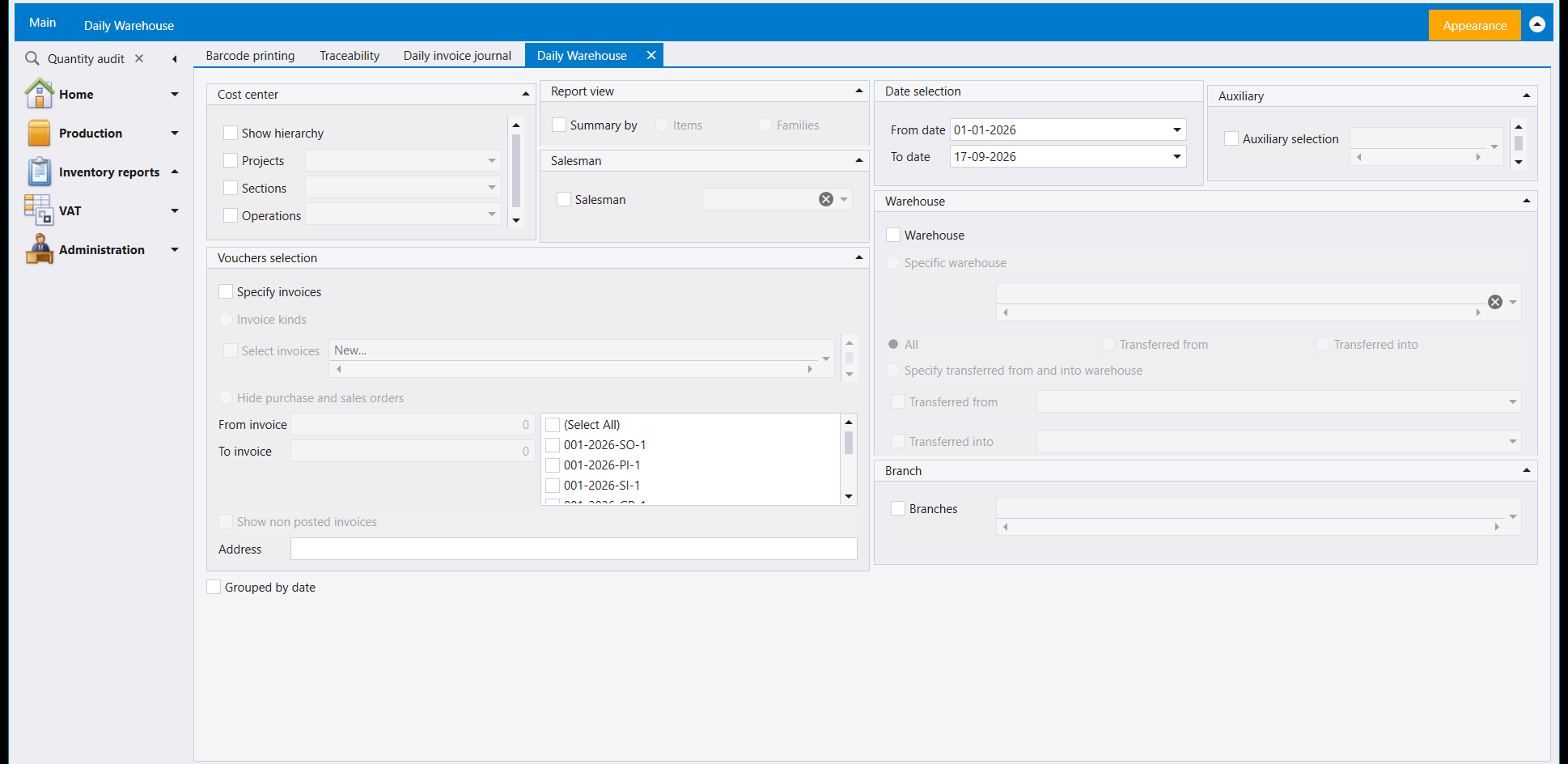
Warehouse movement over a date range. Specify invoices limits it to the invoices you tick in its list, or to a From invoice / To invoice range. Warehouse narrows to All movement, Transferred from a warehouse, Transferred into one, or Specify transferred from and into warehouse. Grouped by date is a further option, and Salesman, Auxiliary, Branch and cost-centre filters complete the screen.
5. Supplier items statement
Items by supplier over a date range, narrowed by Suppliers or Salesman, with Show quantities and Show obsolete as options.
6. Barcode statistics
A short lookup by barcode: type what a barcode Starts with, and choose Show ready barcodes or Show details.
7. Updated items labels
Items for label printing: Changing items or All items over a date range, or the items of a chosen Invoice or Supplier, with Show printed items as an option. Items can also be added one at a time from the list on the left, and units read as Primary, Other or All units.
8. Traceability
A form of lookups: a Recall Reason, a Code, an Edition, an Item, a Spec, an ExpiryDate, a Sales Order and a Production Order.
9. Barcode printing
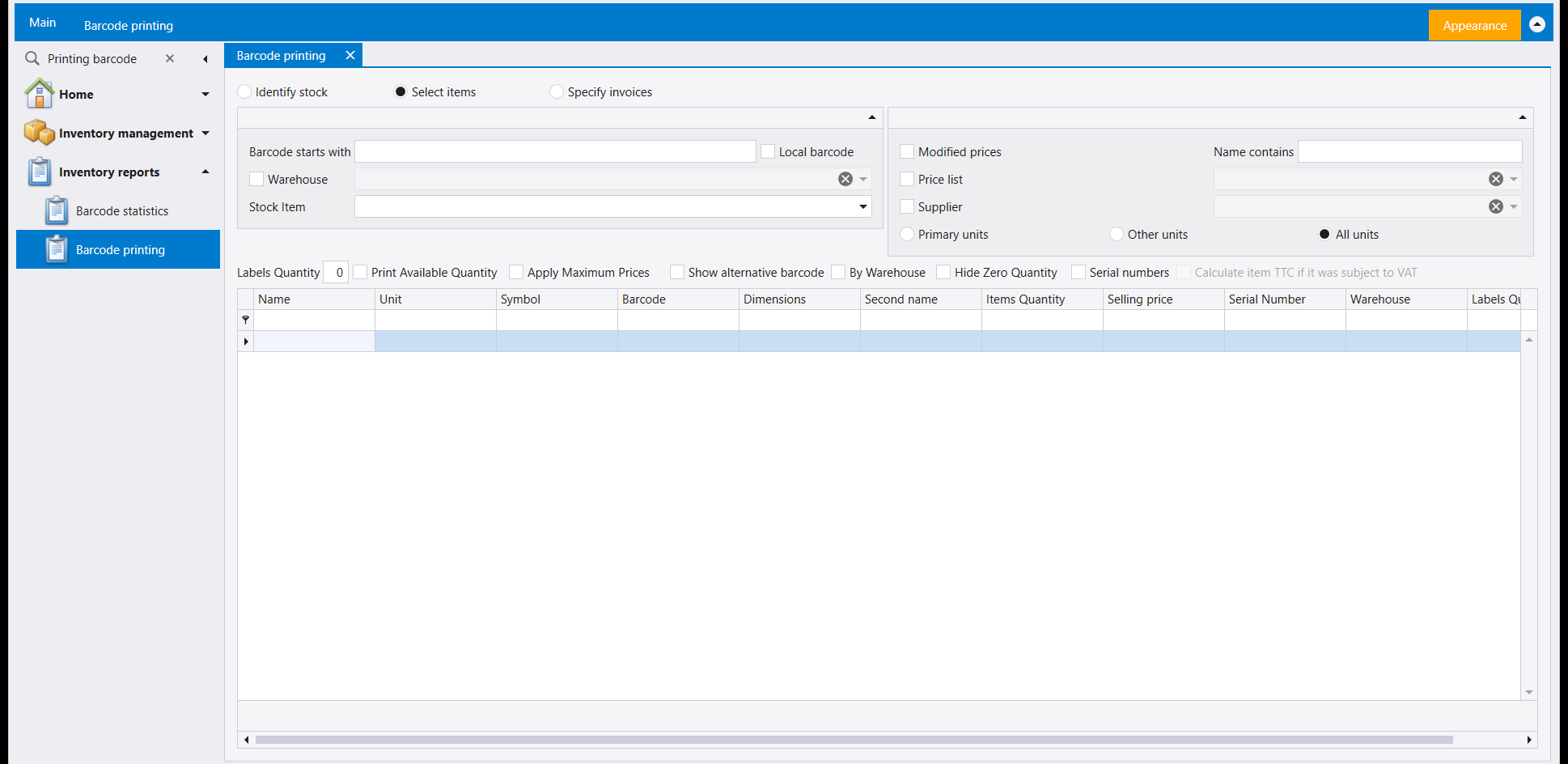
The label-printing screen. Three ways to fill its grid: Identify stock, Select items or Specify invoices, with Barcode starts with, Warehouse, Stock Item, Modified prices, Price list, Supplier and Name contains as filters. Labels Quantity sits beside the options Print Available Quantity, Apply Maximum Prices, Show alternative barcode, By Warehouse, Hide Zero Quantity and Serial numbers.
الشريط الذي تتشارك فيه كل هذه الشاشات - Preview و Direct printing وصندوق اختيار التقرير وصندوق المرشِّحات المحفوظة - مشروح في تقارير المخزون: كيف تعمل شاشات التقارير. وهذه الصفحة تتناول ما تطلبه وتجيب عنه كل واحدة من التسع شاشات التالية.
١. Inventory
تقرير المخزون الرئيسي، وأغنى شاشة في القائمة. يختار Result currency بين LBP و USD؛ ويختار Costing method بين Last Price Cost و FOB و Average cost و FIFO أساسًا للقيم المعروضة. ويضيّق Options إلى All أو Non zero أو Show zero only أو Negative only أو Positive only. ويقرّر Report view شكل الجواب: Items inventory للائحة بسيطة، أو Inventory adjustment report، أو Expiry date inventory، أو Inventory by warehouse. وضيّق أكثر بـ Warehouse أو Supplier أو Branch أو مركز الكلفة، وأشِّر Detailed by serial numbers لتفصيل على مستوى التسلسلات.
٢. Asset expiry list
أقصر شاشة في القائمة: From date و To date.
٣. Daily invoice journal
سندات الفواتير في مدى زمني. ومدى Value Date ومدى Entry Time منفصلان يرشّحان بتاريخ القيمة وبوقت الإدخال. ويضيّق Vouchers selection إلى Specific types أو Non posted orders ونوع سند مختار؛ ثم يعيد Group by ترتيب اللائحة نفسها بحسب Auxiliary accounts أو Invoice issue dates أو Invoice issue dates (with VAT details) أو Salesmen as indicated in invoices أو Reference numbers.
٤. Daily Warehouse
حركة المخازن في مدى زمني. ويحصر Specify invoices التقرير في الفواتير التي تؤشّرها في لائحته، أو في مدى From invoice / To invoice. ويضيّق Warehouse إلى All أو Transferred from مخزن أو Transferred into مخزن أو Specify transferred from and into warehouse. وGrouped by date خيار إضافي، وتكمل الشاشةَ مرشِّحات Salesman وAuxiliary وBranch ومراكز الكلفة.
٥. Supplier items statement
الأصناف بحسب المورّد في مدى زمني، مضيَّقة بـ Suppliers أو Salesman، مع Show quantities و Show obsolete خيارين.
٦. Barcode statistics
بحث قصير بالباركود: اكتب ما Starts with به الباركود، واختر Show ready barcodes أو Show details.
٧. Updated items labels
أصناف لطباعة الملصقات: Changing items أو All items في مدى زمني، أو أصناف Invoice أو Supplier مختار، مع Show printed items خيارًا. ويمكن أيضًا إضافة الأصناف واحدًا واحدًا من اللائحة على اليسار، وقراءة الوحدات Primary أو Other أو All units.
٨. Traceability
نموذج من حقول البحث: Recall Reason و Code و Edition و Item و Spec و ExpiryDate و Sales Order و Production Order.
٩. Barcode printing
شاشة طباعة الملصقات. ثلاث طرق لملء شبكتها: Identify stock أو Select items أو Specify invoices، مع Barcode starts with و Warehouse و Stock Item و Modified prices و Price list و Supplier و Name contains مرشِّحات. ويقع Labels Quantity بجانب الخيارات Print Available Quantity و Apply Maximum Prices و Show alternative barcode و By Warehouse و Hide Zero Quantity و Serial numbers.