
Inventory reports: how the report screens workتقارير المخزون: كيف تعمل شاشات التقارير
The Inventory reports menu holds a long list of screens, and every one of them is built the same way: a page of filters, then a button that runs it. Once you know one, you know the rest.
1. Every inventory report screen works the same way
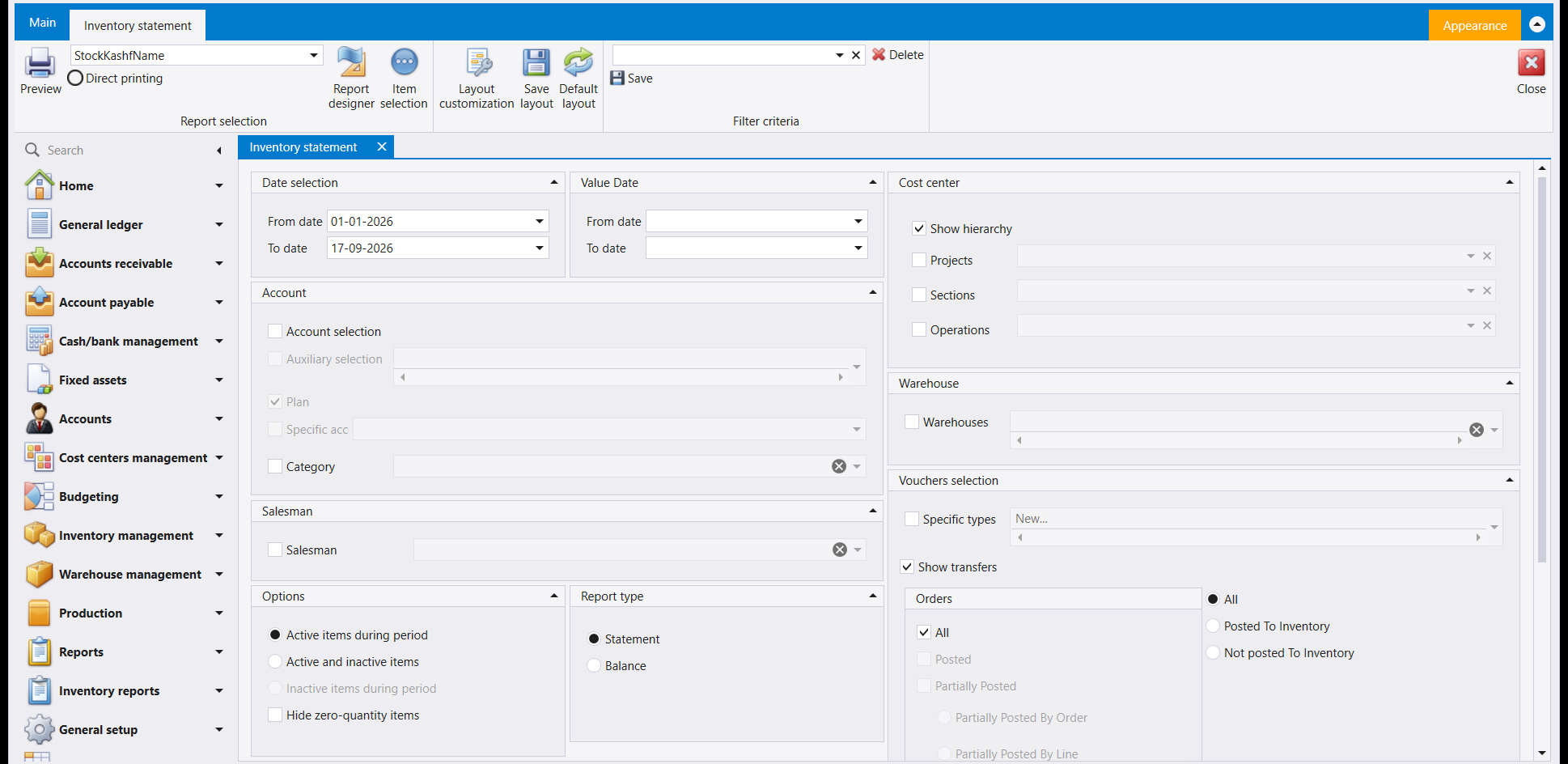
Every screen opens the same ribbon: a box naming the report layout, Preview at the far left, and a Direct printing option beside it, which sends the report straight to the printer instead of showing it on screen first. Fill in the filters, then press Preview.
Report designer changes how the printed page looks (its guide). Layout customization, Save layout and Default layout only arrange the filter boxes on this screen, for you alone (Libra remembers your screen). The box beside Save and Delete keeps a named set of filters, so a report you run often becomes one click instead of a form filled in from memory. Close ends the screen.
If a screen's filters run longer than the window, use the scroll bar at the right edge of the panel to reach the rest.
2. Inventory statement
A stock Statement or Balance for a date range, narrowed by account, category, salesman, warehouse and cost centre. The Vouchers selection panel adds Specific types, Show transfers, an Orders filter, and a separate choice of All, Posted To Inventory or Not posted To Inventory. Active items during period, Active and inactive items and Hide zero-quantity items decide which items are worth listing at all. Detailed by dimensions and Detailed by serial numbers break a line down further; Result currency chooses Invoice currency or Account currency, in LBP or USD.
3. Shortages
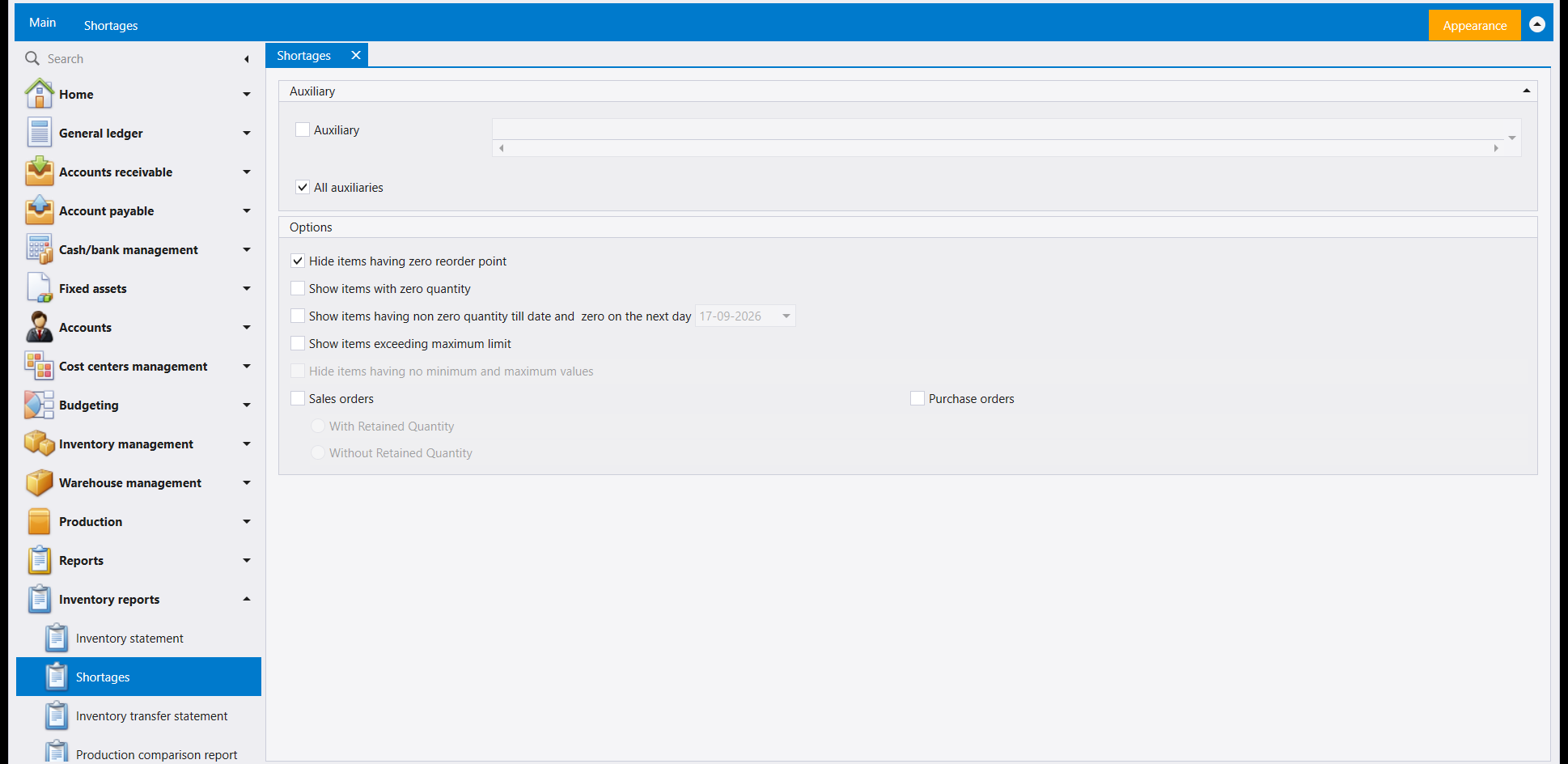
Answers which items have already fallen below their reorder point, or are about to. Hide items having zero reorder point is ticked by default, so the list starts with only the items you have actually set a minimum for. Show items exceeding maximum limit flips the same idea around, for items you may be over-stocked on.
4. Inventory transfer statement
What moved from warehouse to to warehouse, over a date range, optionally by cost centre (Show hierarchy, Projects, Sections, Operations) or branch. Show balances only turns the movement list into a running total instead.
5. Production comparison report
Compares production activity rather than listing it: a date range and a from/to number narrow which runs are included, Specify end product narrows by what came out, and Group by - Category, Production order or Production - decides how the comparison is broken down.
6. Invoices tracking reports
Follows a document across every stage it can pass through - Purchase orders, Sales orders, Goods Receipt, Delivery, Purchase invoice, Sales invoice, POS sales - so you can see what is Not posted, Partially posted, Totally posted, or on a Non & Partially Posted Order. Value Date/Delivery date can be read Per line or Per order; Order by and Summary by (Detailed/Summarized) shape how the result reads rather than what it includes.
7. Stock Fixed Assets
The filters of a fixed-asset report: an asset, a currency, a date range and a cost-centre breakdown (Show hierarchy, Projects, Sections, Operations).
8. Attachment reports
Which documents in a date range carry an attachment, and of which invoice type - narrowed further by cost centre.
9. Warehouses information
A lookup rather than a period report - it carries no date range at all. Filter by Supplier or by Warehouse, either on its own or together.
10. Inventory information
Finds items by a condition rather than by a plain stock count: zero cost price, a selling price between two values, selling price less than cost price, negative onhand over a date range, obsolete items, or zero onhand and not obsolete. Print pictures and Sort by alphabetical order shape the printed result.
11. Family reports
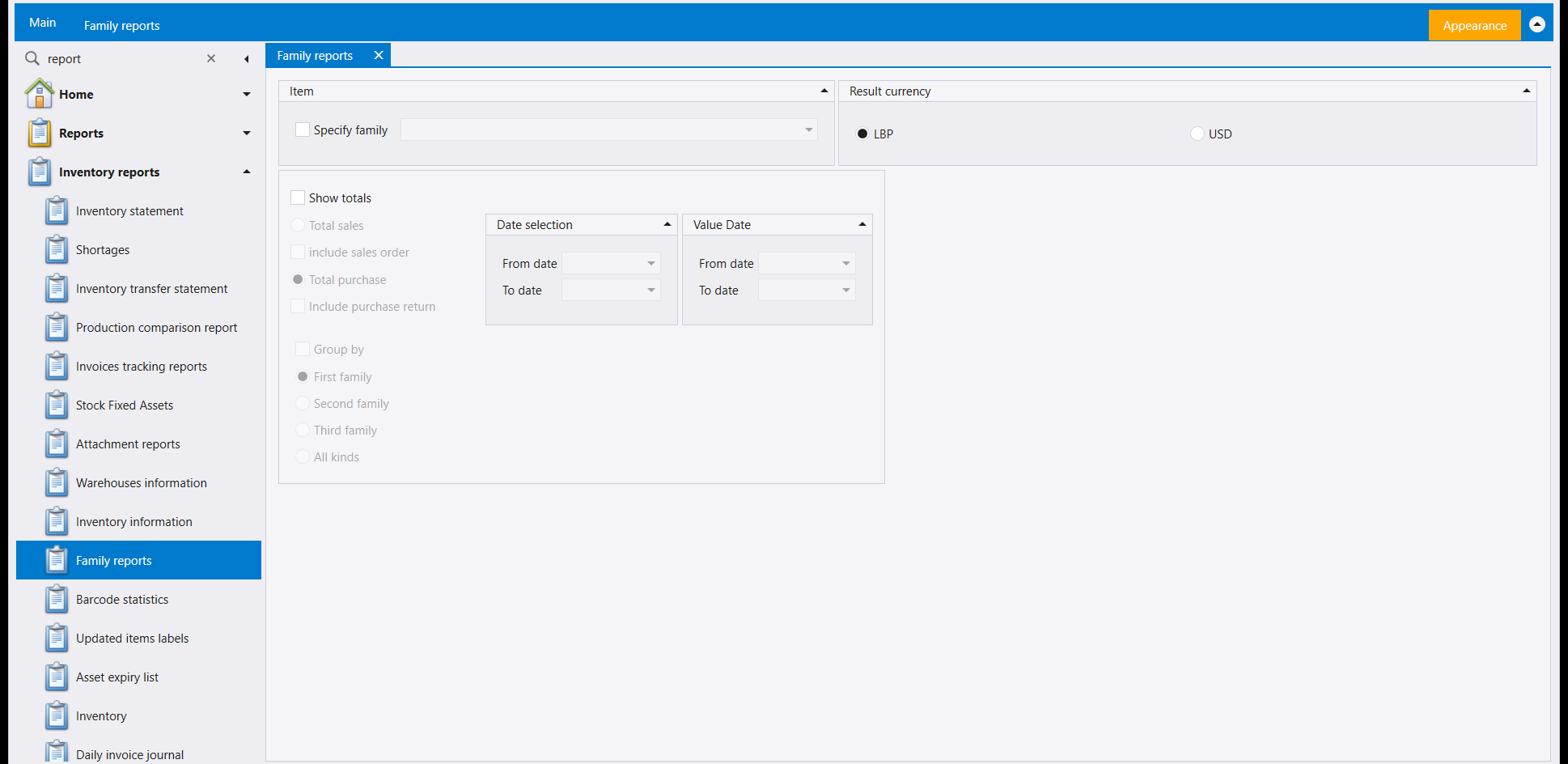
Totals sales or purchases by item family rather than by item - Total sales (with include sales order) or Total purchase (with include purchase return), over a date range, in LBP or USD. Group by goes three levels deep: First family, Second family, Third family, or All kinds together.
تضمّ قائمة Inventory reports لائحة طويلة من الشاشات، وكلّها مبنية بالطريقة نفسها: صفحة مرشِّحات، ثم زر يشغّلها. فإذا عرفت واحدة عرفت البقية.
١. كل شاشة تقرير مخزون تعمل بالطريقة نفسها
تفتح كل شاشة الشريط نفسه: صندوق يسمّي تخطيط التقرير، وPreview في أقصى اليسار، وخيار Direct printing بجانبه يرسل التقرير إلى الطابعة مباشرةً بدل عرضه على الشاشة أولًا. املأ المرشِّحات ثم اضغط Preview.
وReport designer يغيّر شكل الصفحة المطبوعة (دليله). أمّا Layout customization وSave layout وDefault layout فترتّب صناديق المرشِّحات على هذه الشاشة فقط، ولك وحدك (ليبرا يتذكّر شاشتك). والصندوق الذي بجانب Save وDelete يحفظ مجموعة مرشِّحات مسمّاة، فيصير التقرير الذي تشغّله كثيرًا نقرةً واحدة بدل نموذج يُملأ من الذاكرة. وClose يُغلق الشاشة.
وإذا امتدّت مرشِّحات شاشة إلى ما بعد النافذة، استخدم شريط التمرير عند الحافة اليمنى للوحة للوصول إلى بقيتها.
٢. Inventory statement
Statement أو Balance للمخزون في مدى زمني، يُضيَّق بالحساب أو الفئة أو المندوب أو المخزن ومركز الكلفة. وتضيف لوحة Vouchers selection كلًّا من Specific types وShow transfers وفلتر Orders، واختيارًا منفصلًا بين All وPosted To Inventory وNot posted To Inventory. وActive items during period وActive and inactive items وHide zero-quantity items تقرّر أي الأصناف يستحق أن يُسرَد أصلًا. وDetailed by dimensions وDetailed by serial numbers يُنزلان بالسطر أبعد؛ وResult currency يختار Invoice currency أو Account currency، بالـLBP أو USD.
٣. Shortages
تجيب عن أي الأصناف نزل بالفعل تحت نقطة إعادة الطلب، أو يقترب من ذلك. وHide items having zero reorder point مؤشَّر افتراضيًا، فتبدأ اللائحة بالأصناف التي حدّدت لها حدًّا أدنى فعلًا. وShow items exceeding maximum limit يعكس الفكرة نفسها، للأصناف التي قد تكون مخزونها زائدًا.
٤. Inventory transfer statement
ما انتقل from warehouse إلى to warehouse، في مدى زمني، اختياريًا بحسب مركز الكلفة (Show hierarchy وProjects وSections وOperations) أو الفرع. وShow balances only يحوّل لائحة الحركة إلى مجموع جارٍ بدلًا منها.
٥. Production comparison report
يقارن نشاط الإنتاج بدل سرده: مدى زمني ومدى أرقام من/إلى يضيّقان أي العمليات تُشمَل، وSpecify end product يضيّق بحسب ما خرج، وGroup by - Category أو Production order أو Production - يقرّر كيف تُقسَّم المقارنة.
٦. Invoices tracking reports
يتابع الوثيقة عبر كل طور تمرّ به - Purchase orders وSales orders وGoods Receipt وDelivery وPurchase invoice وSales invoice وPOS sales - فترى ما هو Not posted أو Partially posted أو Totally posted، أو على Non & Partially Posted Order. ويُقرأ Value Date/Delivery date بحسب Per line أو Per order؛ وOrder by وSummary by (Detailed/Summarized) يُشكِّلان طريقة عرض النتيجة لا محتواها.
٧. Stock Fixed Assets
مرشِّحات تقرير للأصول الثابتة: أصل، وعملة، ومدى زمني، وتفصيل بمركز الكلفة (Show hierarchy وProjects وSections وOperations).
٨. Attachment reports
أي الوثائق في مدى زمني تحمل ملفًا مرفقًا، ومن أي نوع فاتورة - ويُضيَّق أكثر بمركز الكلفة.
٩. Warehouses information
بحث بدل تقرير دوري - فلا يحمل مدى زمنيًا أصلًا. رشِّح بـSupplier أو بـWarehouse، كلٌّ على حدة أو معًا.
١٠. Inventory information
يجد الأصناف بحسب شرط لا بعدّ مخزون بسيط: zero cost price، أو selling price between بين قيمتين، أو selling price less than cost price، أو negative onhand في مدى زمني، أو obsolete items، أو zero onhand and not obsolete. وPrint pictures وSort by alphabetical order يُشكِّلان النتيجة المطبوعة.
١١. Family reports
يُجمِّل المبيعات أو المشتريات بحسب فئة الصنف لا الصنف نفسه - Total sales (مع include sales order) أو Total purchase (مع include purchase return)، في مدى زمني، بالـLBP أو USD. ويذهب Group by ثلاثة مستويات: First family وSecond family وThird family، أو All kinds معًا.