
Changing how a printed page looks: the Report designerتغيير شكل الصفحة المطبوعة: مصمّم التقارير
Every page Libra prints (a trial balance, an invoice, a journal voucher, a receipt) comes from a layout: a design file that says where each figure, label and line goes on the paper. Libra fills the layout with your data at the moment you press Preview or print. The Report designer is where a layout is changed: a logo added, a column widened, a label reworded, a signature line drawn.
For choosing between the layouts a report already has, see From screen to paper: how a Libra report runs.
1. What the designer changes, and what it never touches
The designer edits the layout file and nothing else. Your vouchers, invoices, accounts and balances stay exactly as they are. You can open the designer, look around and close it without saving, and nothing has changed anywhere.
What does change when you save is every printout made from that layout. A layout belongs to a report, not to one document: change the invoice layout and every invoice printed from then on comes out the new way, including old invoices printed again. That is why section 4 matters.
Two things look similar but are not printed layouts:
- Layout customization, Save layout and Default layout on a report screen arrange the filter panels on the screen, not the printed page: see Libra remembers your screen: columns, layouts and saved filters.
- The Reports drop-down on list screens builds a printout from a list: Printing any list: the Reports menu.
2. Who can open it, and from where
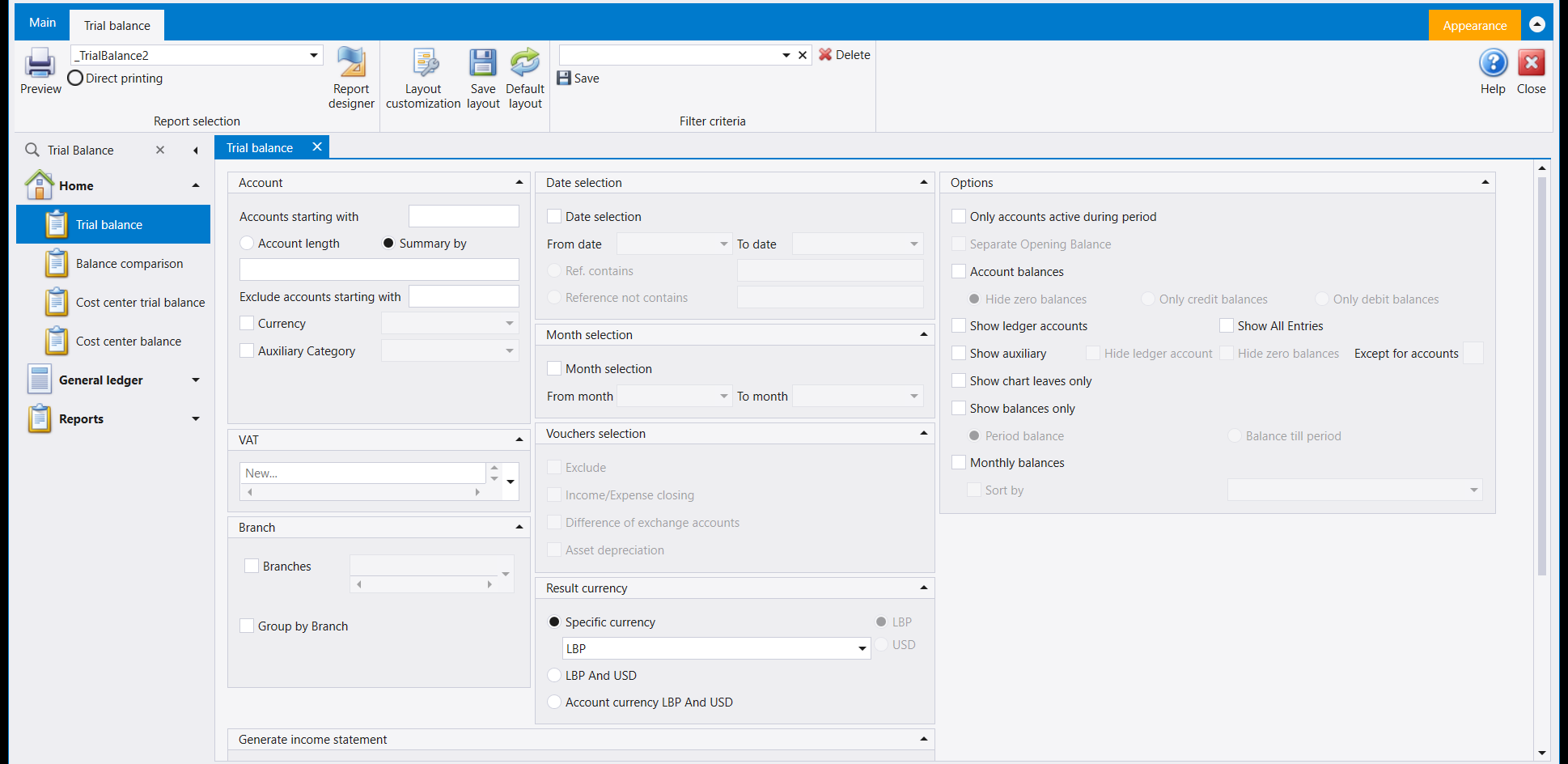
The Report designer button shows on report and document screens for users whose role holds the Report designer right (see Users, roles and rights). If a colleague has the button and you do not, that is the reason: ask your administrator. Give this right to administrators only, since whoever holds it can change pages that everyone else prints.
There are two ways in:
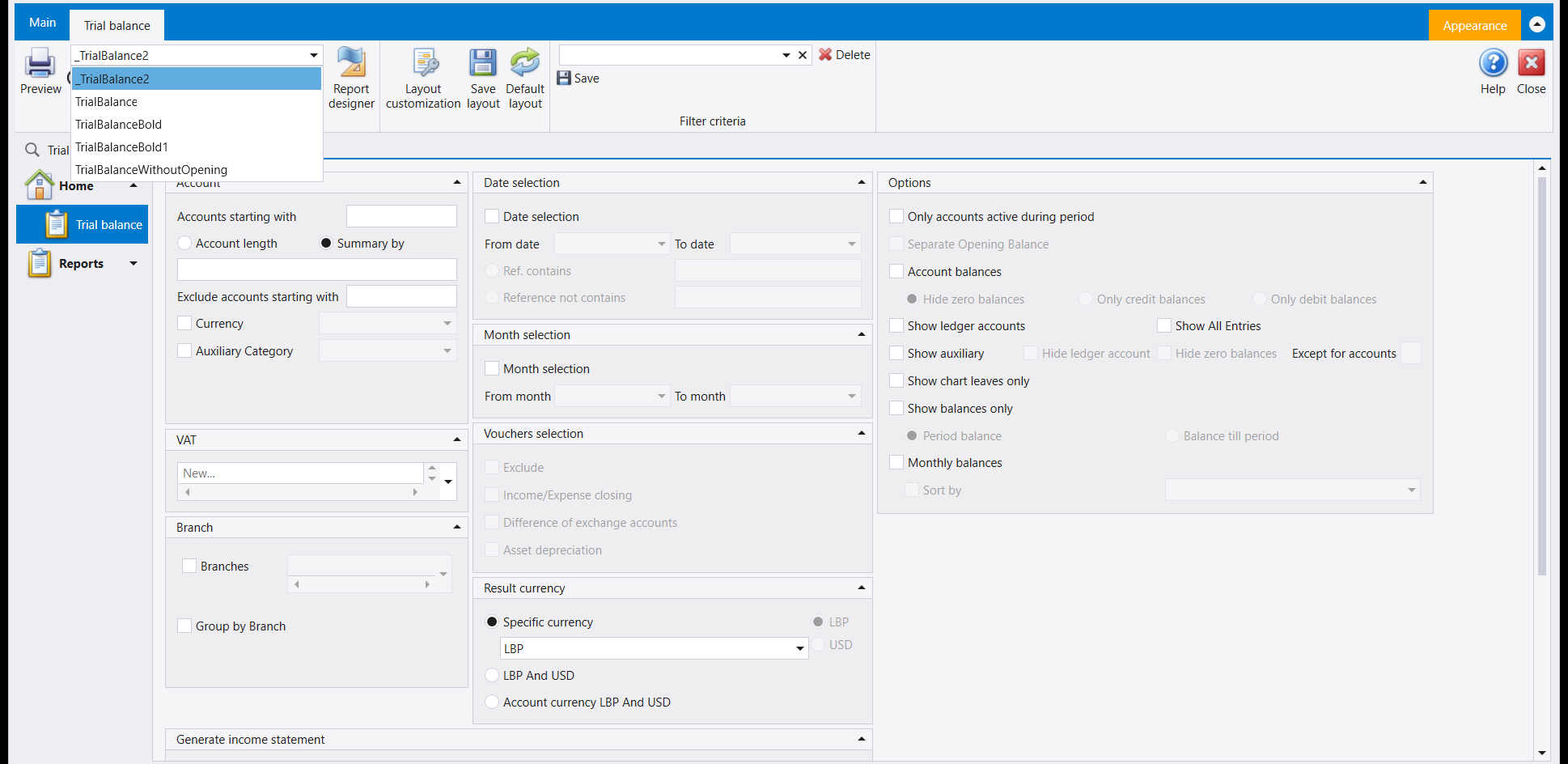
- From a report or document screen - the everyday way. Pick a layout in Report selection, then press Report designer on the same ribbon. The designer opens on the layout you picked, ready to edit. The designer's tab shows the report's internal name, which stays the same in every copy - so always pick the layout in Report selection before you open the designer; that is how you know which one you are editing.
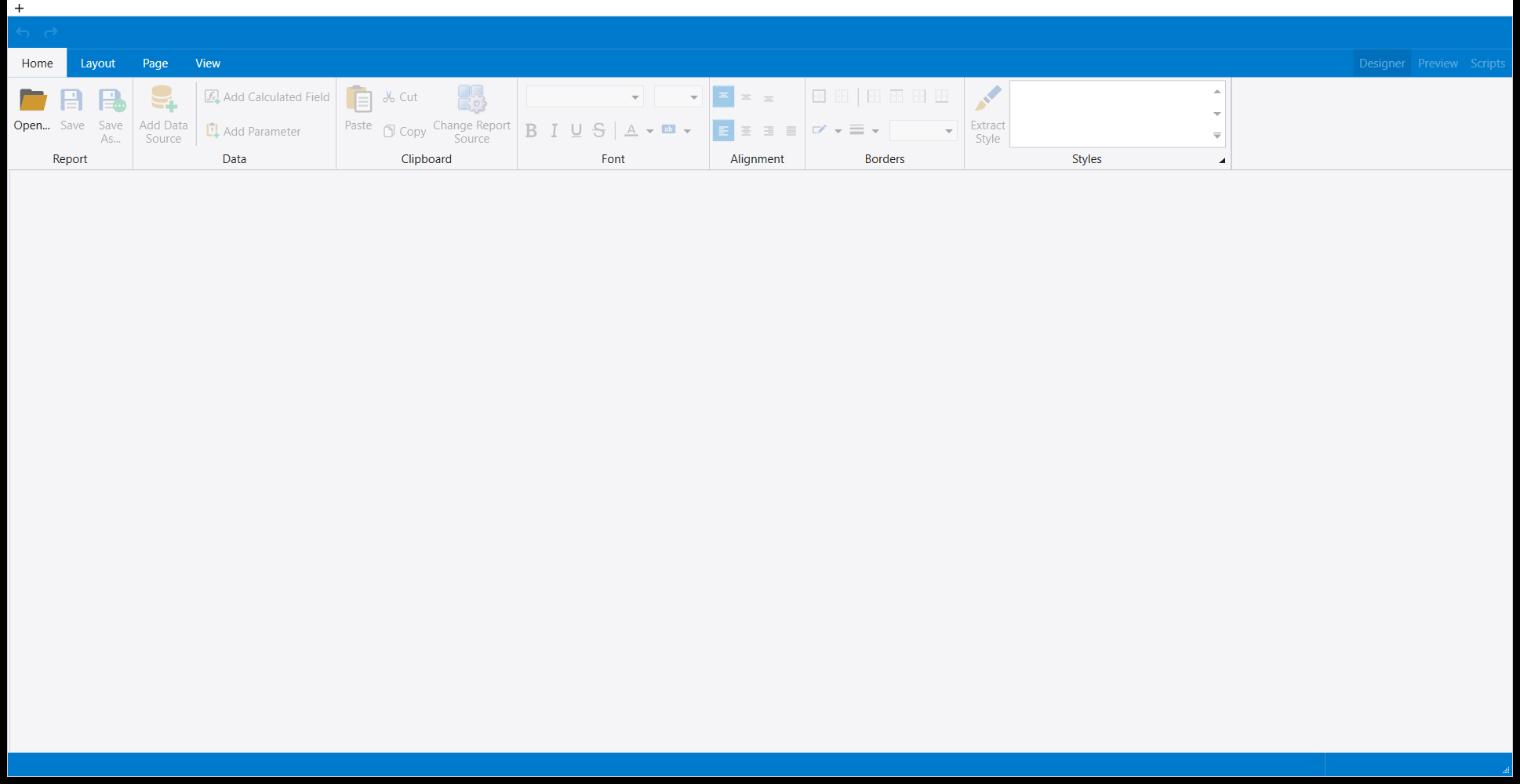
- From Administration → Report designer. This opens an empty designer, for whoever manages the layouts of your installation (see Report setup and mail). Only Open… is ready to use: Save and Save As… stay greyed, and so do Add Data Source, Add Calculated Field, Add Parameter, Change Report Source and the Designer / Preview / Scripts switch, until a layout file is opened.
3. A short tour of the designer
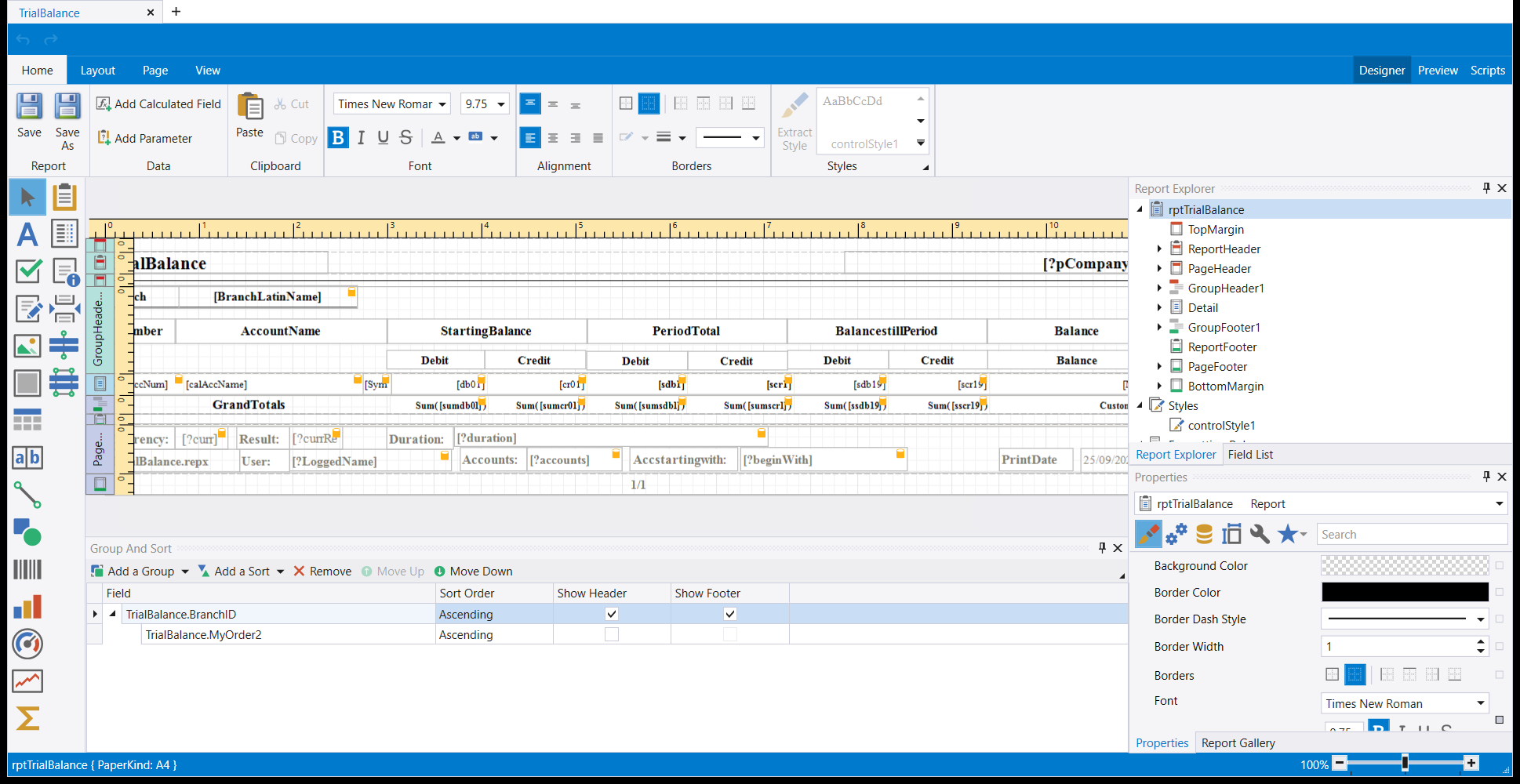
- The ribbon has four tabs, Home, Layout, Page and View. Home holds Save and Save As, Add Calculated Field and Add Parameter, the clipboard, and the font, alignment, border and style tools. At the far right, Designer, Preview and Scripts switch between editing the page, a preview that first asks for the report's values, and the layout's scripts.
- The page fills the middle, divided into horizontal bands. Report Explorer, at the right, lists them in page order: TopMargin, ReportHeader, PageHeader, GroupHeader1, Detail, GroupFooter1, ReportFooter, PageFooter and BottomMargin. The header bands carry the title, the heading and the column captions; Detail repeats once for every line of data; the footer bands carry totals and page footers. The band an item sits in decides whether it prints once or on every line.
- Group And Sort, under the page, shows how the lines are grouped and in which order.
- Properties, at the bottom right, shows the settings of whatever is selected: colours, borders, font.
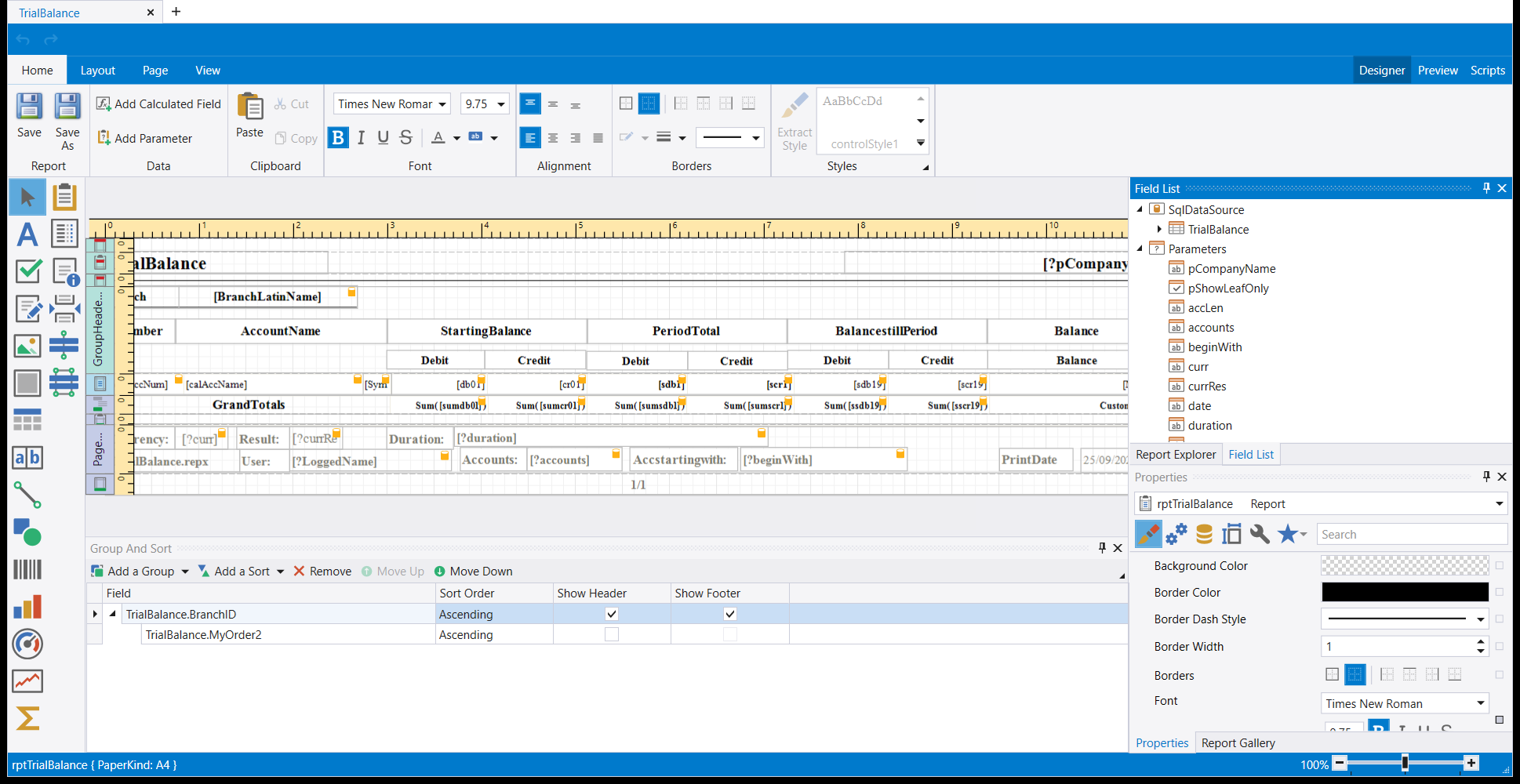
- Field List, on the tab beside Report Explorer, shows the data the layout prints and, under Parameters, the values the report is run with, such as the date and the accounts chosen on the criteria screen.
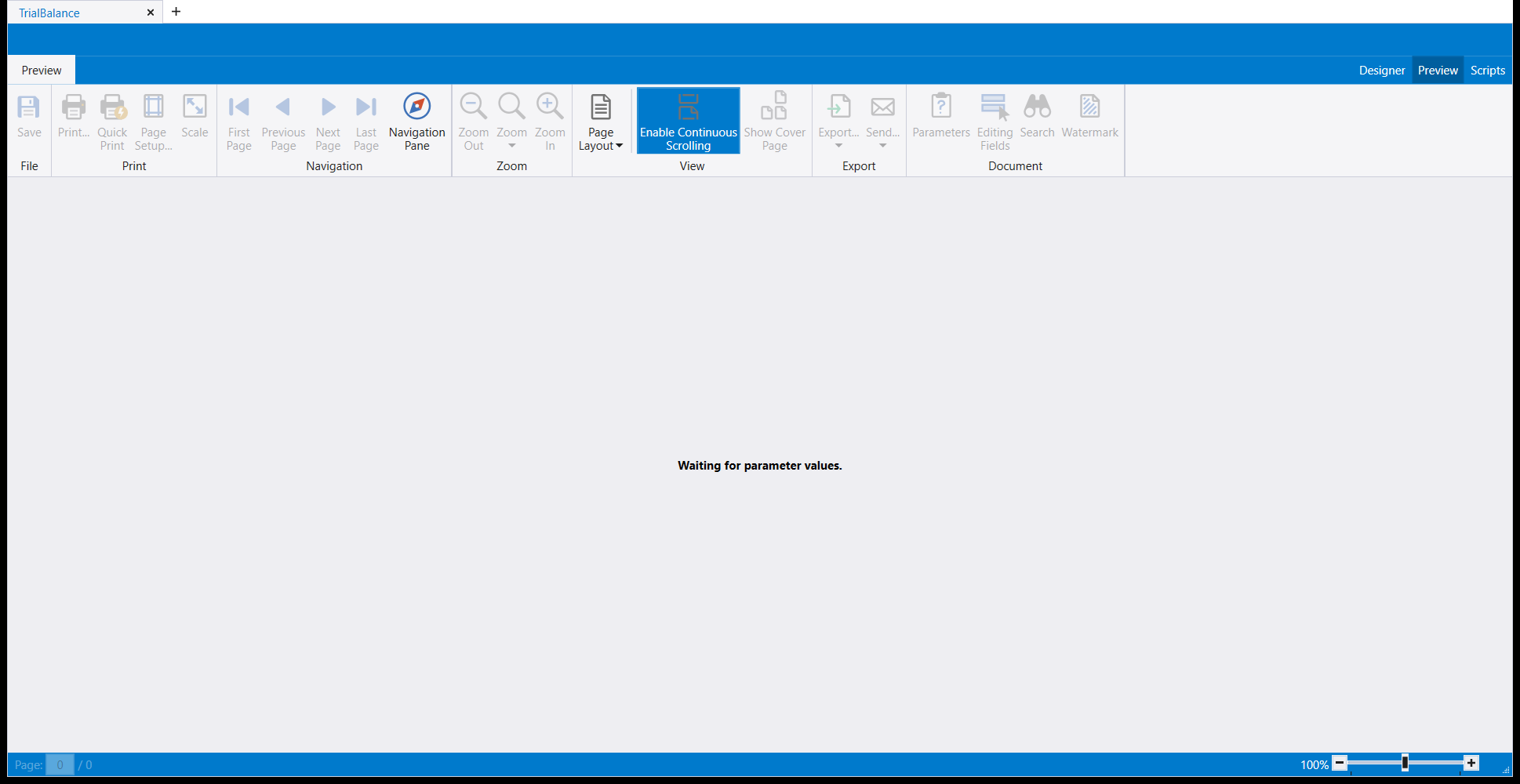
The designer's Preview tab opened on Waiting for parameter values. Its ribbon has the same print, page and zoom tools as the Preview window, plus an Export group with Export… and Send…. To see the layout with real figures, save, close the designer, and press Preview on the report screen.
Keep changes to the look of the page: position, size, wording, fonts, a logo, a field added or removed. For a figure the report does not print yet, ask IDS support.
4. The safe routine: copy first, then edit
- On the report or document screen, pick the layout you want to start from in Report selection, and press Report designer.
- Before changing anything, press Save As and give the copy a new name, for example
Invoice with logo. Use letters, numbers and spaces: no dots. The list cuts a name at its first dot, soInvoice v1.2would be listed asInvoice v1and then fail with Missing report. - Close the designer. This step is required: after Save As the designer is still attached to the layout you opened, so pressing Save now would write over the original.
- Open Report selection, pick your new name and press Report designer again. You are now editing your copy.
- Make your changes and press Save.
- Close the designer, pick your new name in Report selection and press Preview to check it with real data before you print.
Why this order:
- Save writes over the layout you opened. If that was a standard layout shipped with Libra, you have changed it for every company and every user printing from that computer, or from every computer if your report folder is shared. A Libra update may also replace it later, taking your change with it.
- Save As replaces an existing name without asking. Choose a name nobody has used.
- A copy leaves the original in the list, so going back is one click.
Your copy is kept next to the layout you started from, so other companies that print from the same layouts will see its name in their list too. For a layout only one company should see, read Special reports: a printed layout for one company.
5. Layouts and languages
Libra prints in the language you logged in with, and an Arabic login prints right to left. Some reports keep a separate set of layouts for each language, and layouts made for one company only are always kept per language. After making a layout, log in with each language you print in and open Report selection. If your new name is missing there, make the same change in that language too.
6. Going back
- To stop using a layout, pick the original name again in Report selection. Nothing else is needed.
- A copy you no longer want is removed by whoever manages your Libra installation, or by IDS support (see Special reports: a printed layout for one company).
- If a standard layout was saved over by mistake, ask IDS support to put the standard file back, and tell them the report and the layout name.
7. When to ask for help
- A layout that should appear for one company only, while the other companies keep the standard look: see Special reports: a printed layout for one company.
- A layout that should be the same on every computer: layouts are read from each computer's own report folder unless a shared one is set. See Special reports: a printed layout for one company.
- A printout that needs a figure the Field List does not offer.
كل صفحة يطبعها Libra (ميزان مراجعة، فاتورة، قيد يومية، إيصال) تأتي من تصميم: ملف يحدّد مكان كل رقم وكل عنوان وكل خط على الورقة. يملأ Libra التصميم ببياناتك لحظة الضغط على Preview أو الطباعة. وReport designer هو المكان الذي يُعدَّل فيه التصميم: إضافة شعار، توسيع عمود، تغيير عنوان، أو رسم سطر للتوقيع.
لاختيار تصميم من التصاميم الموجودة أصلًا لتقرير ما، راجع من الشاشة إلى الورق: كيف يعمل التقرير في ليبرا.
١. ما الذي يغيّره المصمّم، وما الذي لا يمسّه أبدًا
يعدّل المصمّم ملف التصميم فقط. تبقى قيودك وفواتيرك وحساباتك وأرصدتك كما هي تمامًا. يمكنك فتح المصمّم والتجوّل فيه ثم إغلاقه دون حفظ، ولا يتغيّر شيء في أي مكان.
أما الذي يتغيّر عند الحفظ فهو كل مطبوعة تصدر عن ذلك التصميم. التصميم خاص بالتقرير لا بمستند واحد: غيّر تصميم الفاتورة فتخرج كل فاتورة تُطبع بعد ذلك بالشكل الجديد، حتى الفواتير القديمة عند إعادة طباعتها. لهذا السبب يهمّ القسم ٤.
شيئان يشبهان التصميم وليسا تصميمًا مطبوعًا:
- Layout customization وSave layout وDefault layout في شاشة التقرير ترتّب لوحات الفلاتر على الشاشة، لا الصفحة المطبوعة: راجع ليبرا يتذكّر شاشتك: الأعمدة والتصاميم والفلاتر المحفوظة.
- قائمة Reports المنسدلة في شاشات القوائم تبني مطبوعة من قائمة: طباعة أي قائمة: قائمة Reports.
٢. من يستطيع فتحه، ومن أين
يظهر زر Report designer في شاشات التقارير والمستندات للمستخدمين الذين يحمل دورهم صلاحية Report designer (راجع المستخدمون والأدوار والصلاحيات). إذا ظهر الزر لزميلك ولم يظهر لك، فهذا هو السبب: اسأل مدير النظام. امنح هذه الصلاحية للمسؤولين فقط، لأن من يحملها يستطيع تغيير صفحات يطبعها الجميع.
هناك طريقان للدخول:
- من شاشة تقرير أو مستند - الطريق اليومي. اختر تصميمًا في Report selection، ثم اضغط Report designer على الشريط نفسه. يفتح المصمّم على التصميم الذي اخترته جاهزًا للتعديل. ويعرض تبويب المصمّم الاسم الداخلي للتقرير، وهو واحد في كل النسخ - لذلك اختر التصميم دائمًا في Report selection قبل أن تفتح المصمّم؛ فبذلك تعرف أيّها تعدّل.
- من Administration ← Report designer. يفتح مصمّمًا فارغًا، لمن يدير تصاميم التثبيت لديكم (راجع إعداد التقارير والبريد). والجاهز للاستعمال فيه Open… وحده: يبقى Save وSave As… رماديين، وكذلك Add Data Source وAdd Calculated Field وAdd Parameter وChange Report Source ومفتاح Designer / Preview / Scripts، حتى يُفتح ملف تصميم.
٣. جولة قصيرة في المصمّم
- الشريط العلوي فيه أربعة تبويبات: Home وLayout وPage وView. يحمل Home الأمرين Save وSave As، وAdd Calculated Field وAdd Parameter، والحافظة، وأدوات الخط والمحاذاة والحدود والأنماط. وفي أقصى اليمين تنقلك Designer وPreview وScripts بين تعديل الصفحة، ومعاينة تطلب قيم التقرير أولًا، ونصوص التصميم البرمجية.
- الصفحة في الوسط، مقسّمة إلى أشرطة أفقية. ويسردها Report Explorer في اليمين بترتيب الصفحة: TopMargin وReportHeader وPageHeader وGroupHeader1 وDetail وGroupFooter1 وReportFooter وPageFooter وBottomMargin. تحمل أشرطة الرأس العنوان والترويسة وعناوين الأعمدة؛ ويتكرّر Detail مرة لكل سطر من البيانات؛ وتحمل أشرطة التذييل المجاميع وتذييل الصفحة. والشريط الذي يقع فيه العنصر هو ما يقرّر هل يُطبع مرة واحدة أم على كل سطر.
- Group And Sort تحت الصفحة يبيّن كيف تُجمَّع الأسطر وبأيّ ترتيب.
- Properties في أسفل اليمين يعرض إعدادات العنصر المحدّد: الألوان والحدود والخط.
- Field List، في التبويب المجاور لـReport Explorer، يعرض البيانات التي يطبعها التصميم، وتحت Parameters القيم التي يعمل بها التقرير، كالتاريخ والحسابات المختارة في شاشة المعايير.
فُتح تبويب Preview في المصمّم على Waiting for parameter values. ويحمل شريطه أدوات الطباعة والصفحات والتكبير نفسها التي في نافذة المعاينة، ومعها مجموعة Export فيها Export… وSend…. ولترى التصميم بأرقام حقيقية، احفظ، وأغلق المصمّم، واضغط Preview في شاشة التقرير.
اجعل تعديلاتك في شكل الصفحة: المكان والحجم والصياغة والخطوط والشعار، وإضافة حقل أو حذفه. أما إذا احتجت رقمًا لا يطبعه التقرير بعد، فاسأل دعم IDS.
٤. الطريقة الآمنة: انسخ أولًا ثم عدّل
- في شاشة التقرير أو المستند، اختر في Report selection التصميم الذي تريد البدء منه، واضغط Report designer.
- قبل أي تعديل، اضغط Save As وأعطِ النسخة اسمًا جديدًا، مثل
Invoice with logo. استعمل الحروف والأرقام والمسافات: بلا نقاط. القائمة تقطع الاسم عند أول نقطة، فيظهرInvoice v1.2باسمInvoice v1ثم يفشل برسالة Missing report. - أغلق المصمّم. وهذه الخطوة لازمة: فبعد Save As يبقى المصمّم مرتبطًا بالتصميم الذي فتحته، فلو ضغطت Save الآن لكتبت فوق الأصل.
- افتح Report selection، واختر الاسم الجديد، واضغط Report designer من جديد. أنت الآن تعدّل نسختك.
- أجرِ تعديلاتك واضغط Save.
- أغلق المصمّم، واختر الاسم الجديد في Report selection، واضغط Preview لتفحصه ببيانات حقيقية قبل الطباعة.
لماذا هذا الترتيب:
- Save يكتب فوق التصميم الذي فتحته. إذا كان تصميمًا قياسيًا من التصاميم التي تأتي مع Libra، فقد غيّرته لكل شركة ولكل مستخدم يطبع من ذلك الجهاز، أو من كل الأجهزة إذا كان مجلد التقارير مشتركًا. وقد يستبدله تحديث Libra لاحقًا فيذهب تعديلك معه.
- Save As يستبدل الاسم الموجود دون أن يسأل. اختر اسمًا لم يستعمله أحد.
- النسخة تُبقي الأصل في القائمة، فتكون العودة إليه بنقرة واحدة.
تُحفظ نسختك بجانب التصميم الذي بدأت منه، فتظهر في قائمة الشركات الأخرى التي تطبع من التصاميم نفسها. لتصميم لا يراه إلا شركة واحدة، اقرأ التقارير الخاصة: تصميم مطبوع لشركة واحدة.
٥. التصاميم واللغات
يطبع Libra باللغة التي دخلت بها، والدخول بالعربية يطبع من اليمين إلى اليسار. بعض التقارير تحتفظ بمجموعة تصاميم منفصلة لكل لغة، والتصاميم الخاصة بشركة واحدة محفوظة دائمًا لكل لغة على حدة. بعد إنشاء تصميم، ادخل بكل لغة تطبع بها وافتح Report selection. إذا لم تجد اسمك الجديد هناك، فأجرِ التعديل نفسه بتلك اللغة أيضًا.
٦. العودة إلى ما كان
- للتوقف عن استعمال تصميم، اختر الاسم الأصلي من جديد في Report selection. لا حاجة إلى شيء آخر.
- النسخة التي لم تعد تريدها يحذفها من يدير تثبيت Libra لديكم، أو دعم IDS (راجع التقارير الخاصة: تصميم مطبوع لشركة واحدة).
- إذا حُفظ فوق تصميم قياسي بالخطأ، فاطلب من دعم IDS إعادة الملف القياسي، واذكر لهم التقرير واسم التصميم.
٧. متى تطلب المساعدة
- تصميم يجب أن يظهر لشركة واحدة فقط، بينما تحتفظ الشركات الأخرى بالشكل القياسي: راجع التقارير الخاصة: تصميم مطبوع لشركة واحدة.
- تصميم يجب أن يكون واحدًا على كل الأجهزة: تُقرأ التصاميم من مجلد التقارير في كل جهاز ما لم يُحدَّد مجلد مشترك. راجع التقارير الخاصة: تصميم مطبوع لشركة واحدة.
- مطبوعة تحتاج رقمًا لا يعرضه Field List.