
Libra remembers your screen: columns, layouts and saved filtersليبرا يتذكّر شاشتك: الأعمدة والتصاميم والفلاتر المحفوظة
Libra keeps three kinds of personal arrangement for you: how each list looks, how each report screen's filter panel is laid out, and the named sets of filters you save on a report. All three belong to you, in this company; your colleagues keep their own.
1. Lists keep the shape you give them
Every list in Libra - clients, items, vouchers, invoices - is a grid you can rearrange:
- drag a column header left or right to change the column order;
- drag the edge of a header to make a column wider or narrower;
- click a header to sort by that column;
- drag a header onto the band above the columns to group the list by it, as the auxiliary accounts screen shows.
Libra keeps that arrangement for you, under your own user, so the list comes back the way you set it up. Other users see their own arrangement, never yours.
Want a list back the way it was shipped? Ask your administrator or IDS support to reset your saved arrangement for that list. Only your own arrangement is affected.
2. Arranging a report screen's filter panel
Most report screens carry three buttons in the ribbon, between Report designer and the Filter criteria box:

- Layout customization is an on/off switch. Switched on, it draws a thin red frame round the whole filter area, with a small menu handle at its top-left corner, right on the screen itself. The frame marks the area you are rearranging. Press Layout customization again and the frame and the handle disappear.
- Save layout keeps the current arrangement of that screen for you. It shows no message; the screen simply opens that way from then on, until a Libra update, after which you may need to press Save layout again.
- Default layout puts the screen back to its original arrangement, on screen, and saves nothing. The values in the filters stay as they are. Press Save layout afterwards if you want the original arrangement to be the one the screen opens with next time.
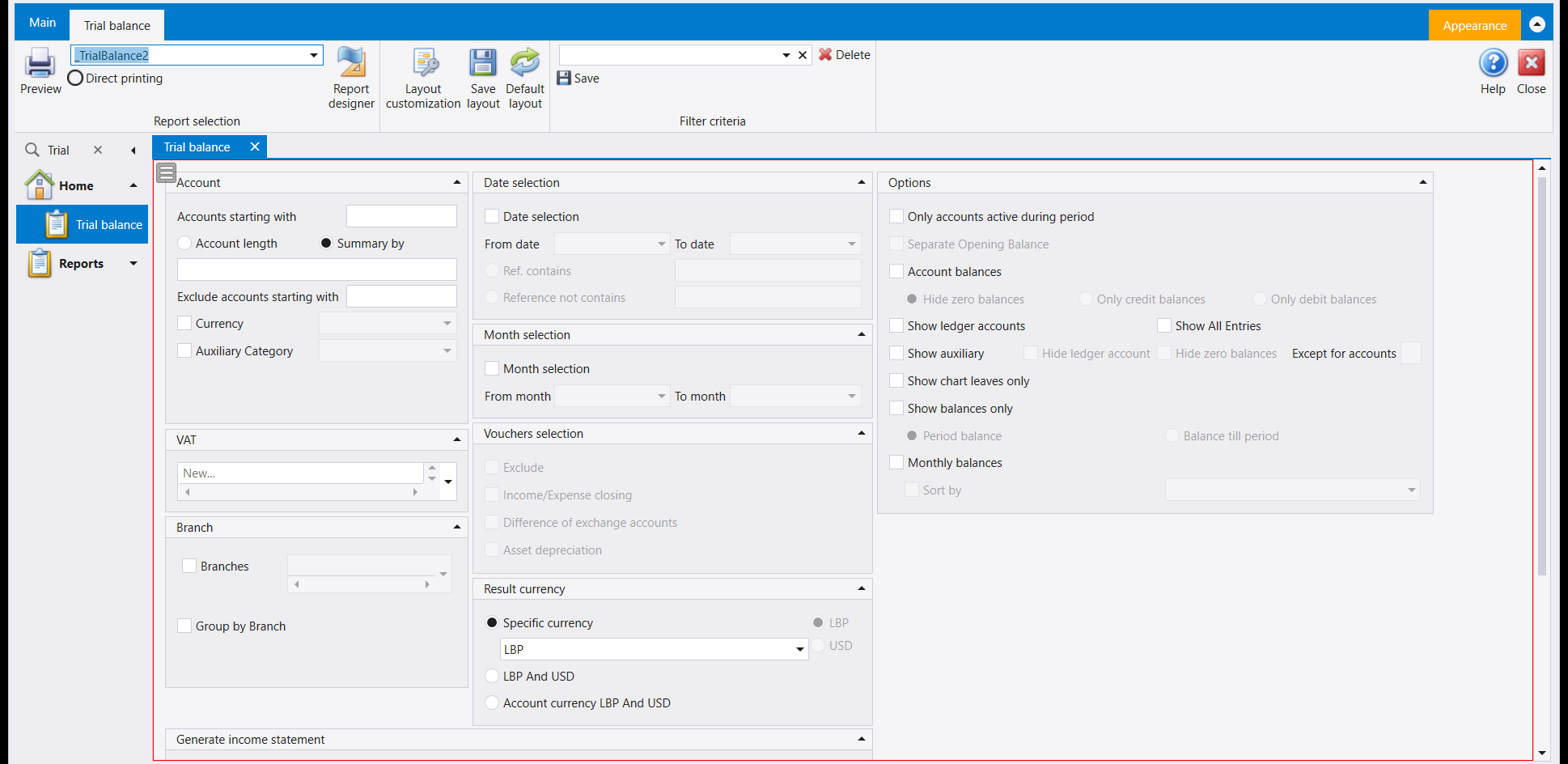
These three buttons arrange the screen only. They never change the printed page - that is the job of Changing how a printed page looks: the Report designer - and they never change your figures.
3. Saving a set of filters you use often
The Filter criteria box, with Save and Delete beside it, turns a form you fill in every month into a single pick:
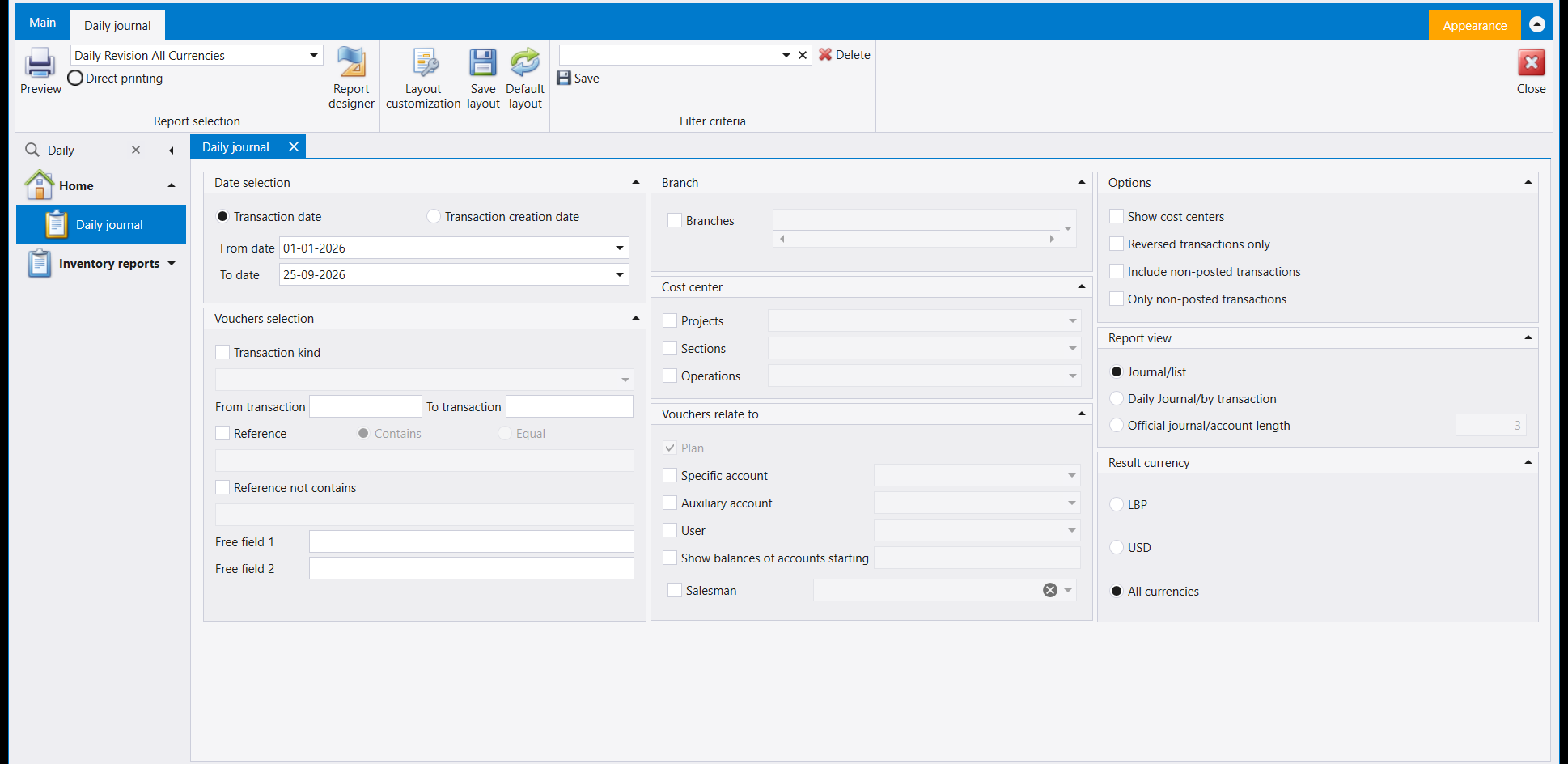
- Fill in the report's filters as usual - dates, accounts, options, result currency.
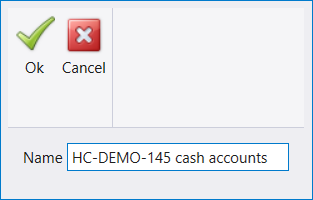
- Press Save next to the Filter criteria box. A small window opens with a Name field and Ok and Cancel. The name goes in this window: the box on the ribbon only shows and picks saved names.
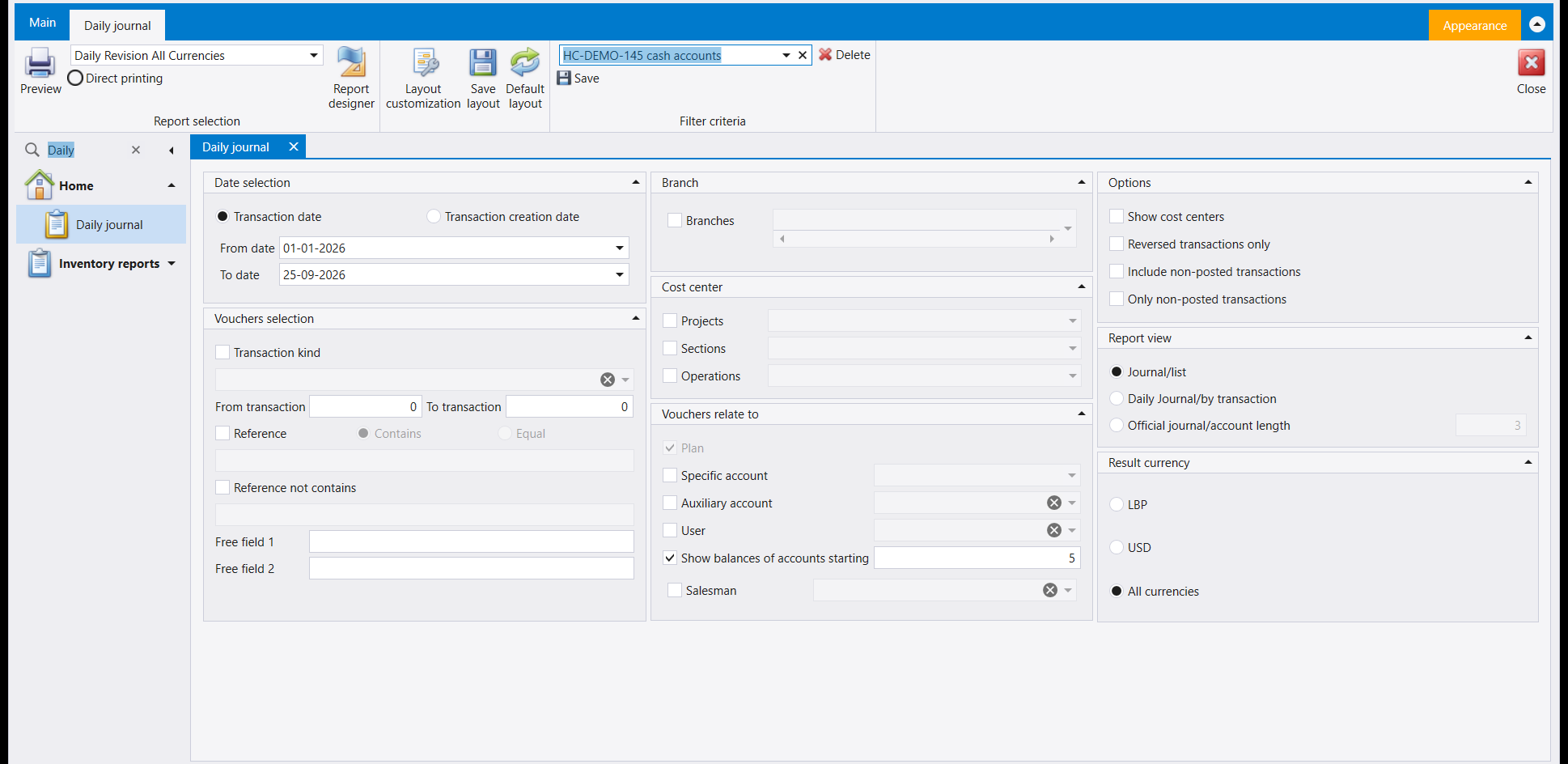
- Type a name you will recognise - Monthly TB in USD, Suppliers over 90 days - and press Ok. The box now shows the name, and its drop-down lists it.
Using a saved set. When you open the screen again, the Filter criteria box starts empty and the filters are at their usual values. Open the box's drop-down, pick the name, and confirm with the drop-down's own OK: every filter fills itself in, and you press Preview.

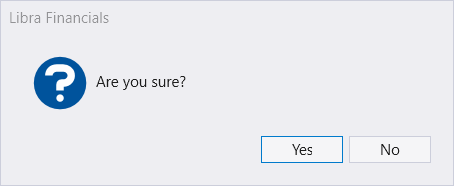
Removing a set. Pick it in the box and press Delete. Libra asks Are you sure?; Yes removes the set and empties the box, and the values on screen stay as they are.
A few habits that help:
- Save each set on the screen you will use it on, and give it a name that says what it is for.
- To change a set, fill in the new filters, save them under a new name, then delete the old one.
- A saved set belongs to the user who saved it. A colleague on the same report builds and sees their own sets.
4. Giving every user the same filters from day one
Because saved sets belong to users, a firm that wants everyone to start from the same filters builds them once, in the company it creates its new companies from - the template company described in Working across many client companies.
Log in to the template company as each user who should have the sets, and save them there. When a new company is created from the template with Copy structure, those users come across with it, and the filters they saved come with them: every new company, and every user copied into it, opens with the same named sets ready in the Filter criteria box. Sets saved afterwards, in the new company, stay in that company.
5. What follows you, and what stays on the computer
| What | Kept for | Follows you to another computer? | Follows you to another company? |
|---|---|---|---|
| List columns, widths, sorting, grouping | you, in this company | yes | only through a template copy, at creation |
| Report filter-panel arrangement | you, in this company, per screen | yes | only through a template copy, at creation |
| Saved filter sets | you, in this company | yes | only through a template copy, at creation |
| Printed layouts | the report folders | depends on where they are kept | see below |
The first three are stored with the company's own data, so they are waiting for you on any computer you log in from. Printed layouts are a different thing: they are files, looked after as described in Changing how a printed page looks: the Report designer, and the layouts you build from a list's Reports menu are saved on the computer where you made them - see Printing any list: the Reports menu. For how a report runs from criteria to preview, see From screen to paper: how a Libra report runs.
يحفظ ليبرا لك ثلاثة أنواع من الترتيب الشخصي: شكل كل لائحة، وترتيب لوحة الفلاتر في كل شاشة تقرير، ومجموعات الفلاتر المسمّاة التي تحفظها على تقرير. والثلاثة لك أنت، في هذه الشركة؛ ولزملائك ترتيبهم.
١. اللوائح تحتفظ بالشكل الذي تعطيها إياه
كل لائحة في ليبرا - الزبائن والأصناف والقيود والفواتير - جدول تستطيع إعادة ترتيبه:
- اسحب عنوان عمود يمينًا أو يسارًا لتغيير ترتيب الأعمدة؛
- اسحب حافة العنوان لتوسيع العمود أو تضييقه؛
- انقر على عنوان للفرز بحسب ذلك العمود؛
- اسحب عنوانًا إلى الشريط الذي فوق الأعمدة لتجميع اللائحة بحسبه، كما تُظهر شاشة الحسابات المساعدة.
ويحفظ ليبرا هذا الترتيب لك، باسم مستخدمك أنت، فتعود اللائحة بالشكل الذي ضبطتها عليه. ويرى كل مستخدم آخر ترتيبه هو، لا ترتيبك.
تريد إعادة لائحة إلى شكلها الأصلي؟ اطلب من مسؤول النظام أو دعم IDS إعادة ضبط ترتيبك المحفوظ لتلك اللائحة. ولا يتأثّر إلا ترتيبك أنت.
٢. ترتيب لوحة الفلاتر في شاشة تقرير
تحمل معظم شاشات التقارير ثلاثة أزرار في الشريط، بين Report designer وصندوق Filter criteria:
- Layout customization (تخصيص التصميم) مفتاح تشغيل وإيقاف. عند تشغيله يرسم إطارًا أحمر رفيعًا حول منطقة الفلاتر كلها، ومقبض قائمة صغيرًا في زاويتها العليا اليسرى، على الشاشة نفسها. والإطار يحدّد المنطقة التي تعيد ترتيبها. اضغط Layout customization مرة أخرى فيختفي الإطار والمقبض.
- Save layout (حفظ التصميم) يحفظ لك الترتيب الحالي لتلك الشاشة. ولا يُظهر رسالة؛ بل تُفتح الشاشة بهذا الشكل من بعدها، إلى أن يأتي تحديث لـLibra، فقد تحتاج بعده إلى الضغط على Save layout من جديد.
- Default layout (التصميم الافتراضي) يعيد الشاشة إلى ترتيبها الأصلي، على الشاشة، ولا يحفظ شيئًا. وتبقى القيم في الفلاتر كما هي. فاضغط Save layout بعده إن أردت أن يكون الترتيب الأصلي هو الذي تُفتح به الشاشة في المرة التالية.
هذه الأزرار الثلاثة ترتّب الشاشة فقط. فهي لا تغيّر الصفحة المطبوعة أبدًا - فتلك مهمة تغيير شكل الصفحة المطبوعة: مصمّم التقارير - ولا تغيّر أرقامك أبدًا.
٣. حفظ مجموعة فلاتر تستعملها كثيرًا
صندوق Filter criteria، ومعه Save وDelete بجانبه، يحوّل النموذج الذي تملؤه كل شهر إلى اختيار واحد:
- املأ فلاتر التقرير كالعادة - التواريخ والحسابات والخيارات وعملة النتيجة.
- اضغط Save بجانب صندوق Filter criteria. تُفتح نافذة صغيرة فيها خانة Name وزرّا Ok وCancel. والاسم يُكتب في هذه النافذة: أما الصندوق على الشريط فيعرض الأسماء المحفوظة ويختار منها.
- اكتب اسمًا ستعرفه - ميزان شهري بالدولار، موردون فوق 90 يومًا - واضغط Ok. فيعرض الصندوق الاسم، وتسرده قائمته المنسدلة.
استعمال مجموعة محفوظة. حين تفتح الشاشة من جديد، يبدأ صندوق Filter criteria فارغًا والفلاتر على قيمها المعتادة. افتح القائمة المنسدلة للصندوق، واختر الاسم، وأكّد بزر OK الخاص بالقائمة المنسدلة: فتمتلئ كل الفلاتر وحدها، وتضغط Preview.
حذف مجموعة. اخترها في الصندوق واضغط Delete. يسأل ليبرا Are you sure?؛ وYes يحذف المجموعة ويُفرغ الصندوق، وتبقى القيم على الشاشة كما هي.
عادات تساعدك:
- احفظ كل مجموعة في الشاشة التي ستستعملها فيها، وأعطها اسمًا يقول الغرض منها.
- لتغيير مجموعة، املأ الفلاتر الجديدة، واحفظها باسم جديد، ثم احذف القديمة.
- المجموعة المحفوظة تخصّ المستخدم الذي حفظها. والزميل على التقرير نفسه يبني مجموعاته ويراها هو.
٤. منح كل المستخدمين الفلاتر نفسها من اليوم الأول
لأن المجموعات المحفوظة تخصّ المستخدمين، فإن المكتب الذي يريد أن يبدأ الجميع بالفلاتر نفسها يبنيها مرة واحدة، في الشركة التي ينشئ منها شركاته الجديدة - شركة القالب الموصوفة في العمل مع شركات عملاء كثيرة.
سجّل الدخول إلى شركة القالب باسم كل مستخدم ينبغي أن تكون له المجموعات، واحفظها هناك. وحين تُنشأ شركة جديدة من القالب عبر Copy structure، ينتقل هؤلاء المستخدمون معها، وتنتقل معهم الفلاتر التي حفظوها: فكل شركة جديدة، وكل مستخدم يُنسخ إليها، تُفتح بالمجموعات المسمّاة نفسها جاهزة في صندوق Filter criteria. أما المجموعات التي تُحفظ بعد ذلك في الشركة الجديدة فتبقى في تلك الشركة.
٥. ما يتبعك، وما يبقى على الحاسوب
| ماذا | محفوظ لـ | يتبعك إلى حاسوب آخر؟ | يتبعك إلى شركة أخرى؟ |
|---|---|---|---|
| أعمدة اللوائح وعروضها وفرزها وتجميعها | لك، في هذه الشركة | نعم | فقط عبر نسخة من القالب، عند الإنشاء |
| ترتيب لوحة الفلاتر في التقرير | لك، في هذه الشركة، لكل شاشة | نعم | فقط عبر نسخة من القالب، عند الإنشاء |
| مجموعات الفلاتر المحفوظة | لك، في هذه الشركة | نعم | فقط عبر نسخة من القالب، عند الإنشاء |
| تصاميم الطباعة | مجلدات التقارير | بحسب مكان حفظها | انظر أدناه |
الثلاثة الأولى محفوظة مع بيانات الشركة نفسها، فتنتظرك على أي حاسوب تسجّل الدخول منه. أما تصاميم الطباعة فشيء آخر: إنها ملفات، يُعتنى بها كما يشرح تغيير شكل الصفحة المطبوعة: مصمّم التقارير، والتصاميم التي تبنيها من قائمة Reports في لائحة تُحفظ على الحاسوب الذي صنعتها عليه - انظر طباعة أي قائمة: قائمة Reports. ولكيف يعمل التقرير من المعايير إلى المعاينة، انظر من الشاشة إلى الورق: كيف يعمل التقرير في ليبرا.