
How to open an accountكيفية فتح حساب
Opening an account is the most common thing anyone does in Libra. This guide walks the whole cycle and explains every field on the Chart of accounts details form. For what the chart of accounts is and how its numbering works, read The chart of accounts first.
1. Open the screen and pick the parent
From the left menu, open Chart of accounts. Find the account your new one belongs under - open the branch, or type in the filter row beneath the Number column to jump to it.
Before going further, check the parent is still allowed to take children: if anything has already been posted on it, it can never become a parent. Guide 04's parent/child rule explains what to do when it has.
With the parent selected, click New in the ribbon. (Edit opens the same form for an account that already exists.)
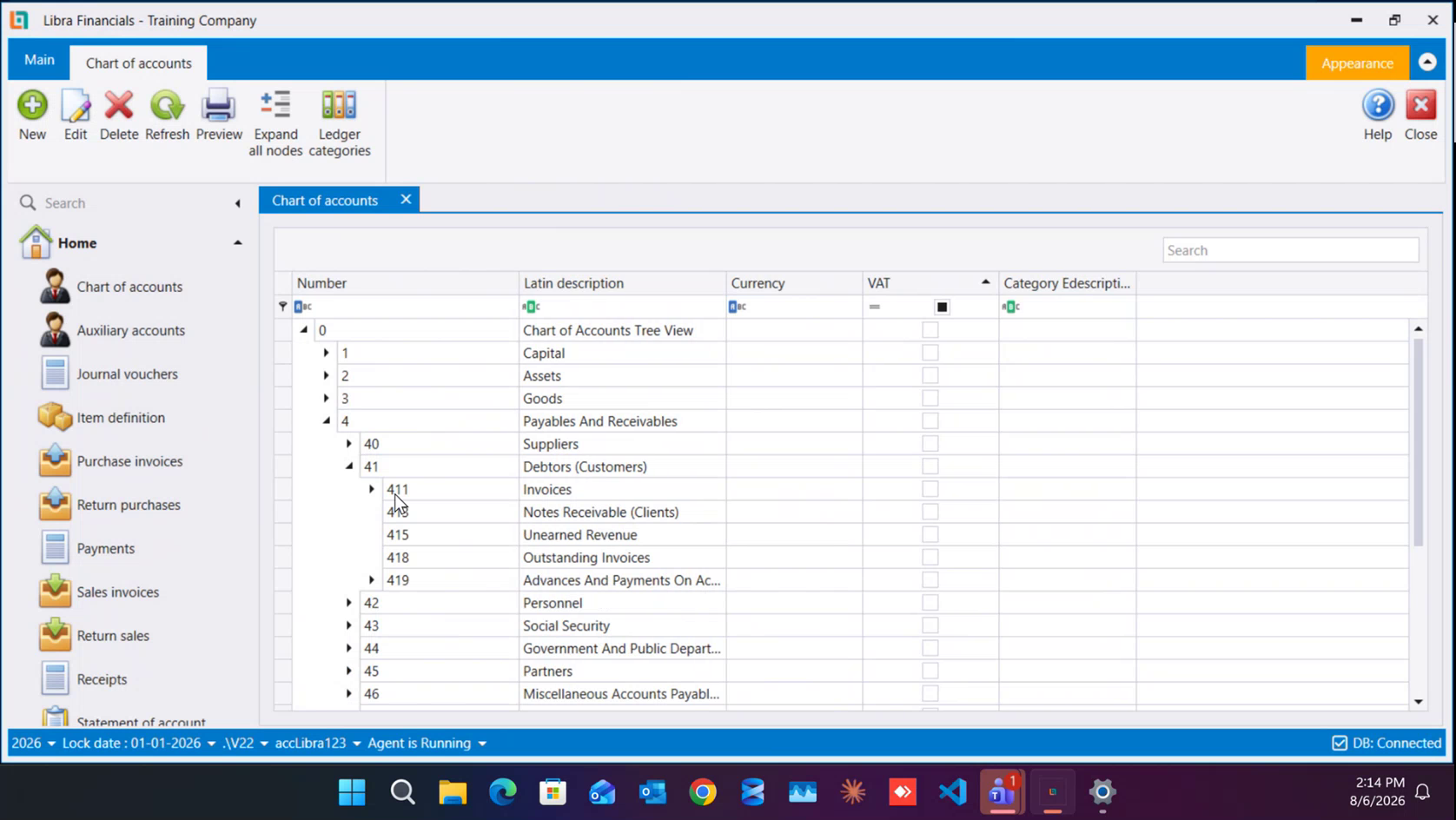
2. Number, currency and length
- Number - the account's number and its position in the tree at the same time: an account that sits under
411starts with411. It cannot be changed once the account is saved, so get it right now. - Currency - the unlabelled dropdown to the right of the number. It sets the account's default currency,
LBPorUSD. Left empty, the account follows the company's own default currency. - Length - how many digits the number has, which is the same as how deep the account sits. You do not type it: it fills itself in as soon as you enter the number.
41111gives a length of5.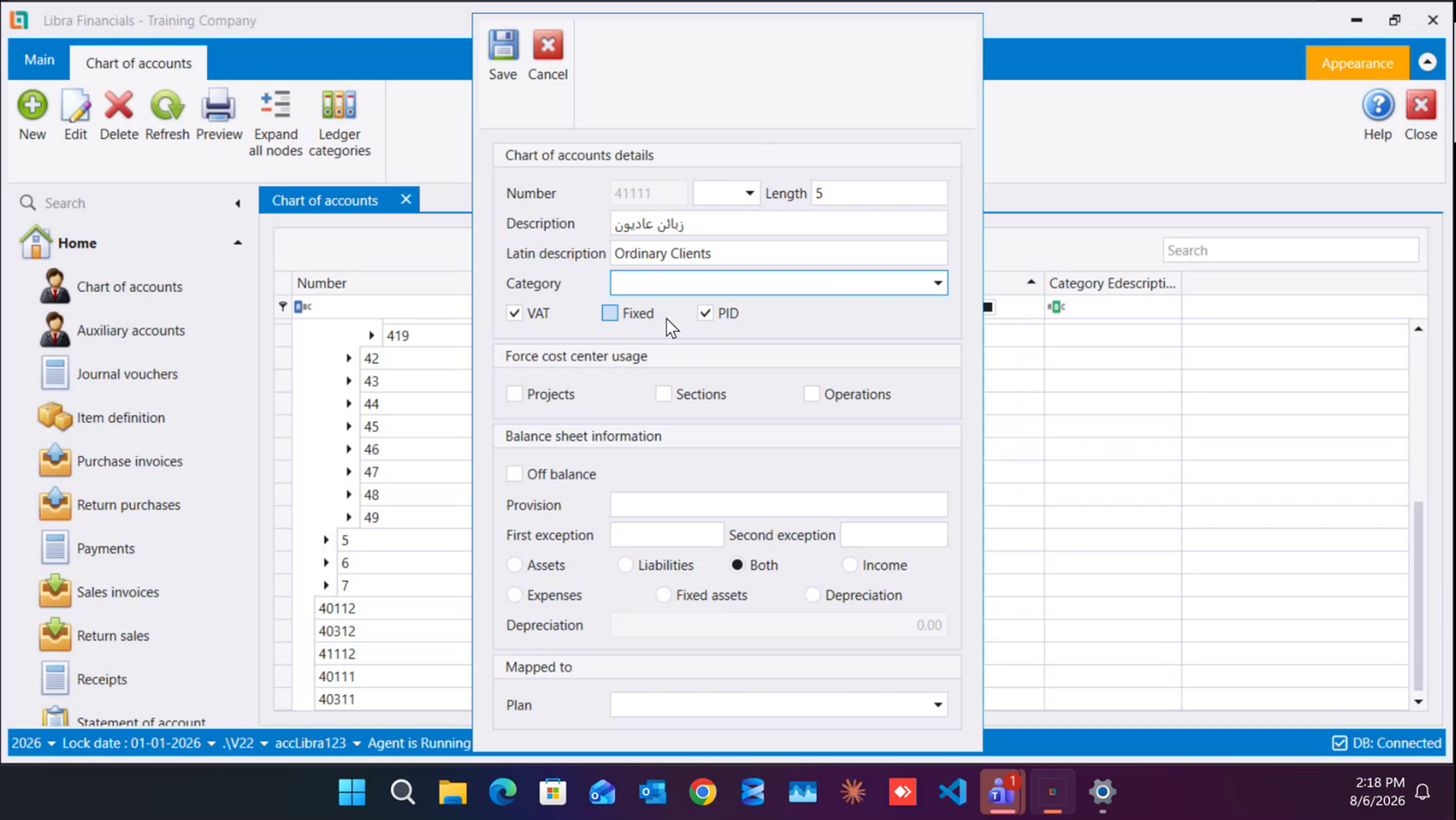
3. Description and Latin description
Every account carries two names - Description in Arabic and Latin description in Latin letters. They are what you search by, and what prints on invoices, vouchers and reports; you choose which language a document shows, so fill both in properly rather than leaving one blank.
4. Category
Leave it empty. Category exists for Saudi Arabia, where accounts carry an extra classification. It is not used in Lebanon, which is why the list opens with nothing in it.
5. VAT, Fixed and PID
Three checkboxes, and each one changes how the account behaves for the rest of its life.
- VAT - tick it if VAT passes over this account. This is exactly what separates
41111 Ordinary Clientsfrom41112 Clients Non VAT, and it is what makes a VAT return come out right. - Fixed - locks the account to the currency chosen above:
- currency set and
Fixedticked → only that currency can be posted. - currency set,
Fixedclear → that currency comes up by default, but others are still accepted. - currency left empty → the company's default currency is used and the account accepts either.
- currency set and
- PID - tick it if the account carries auxiliary records (clients, suppliers, employees, banks). With
PIDon, nothing can be posted to the account without naming an auxiliary; with it off, auxiliaries cannot be used on it at all.
PID freezes after the first posting. Once one entry has gone through the account - with or without an auxiliary - the setting can no longer be changed. Decide before you start working.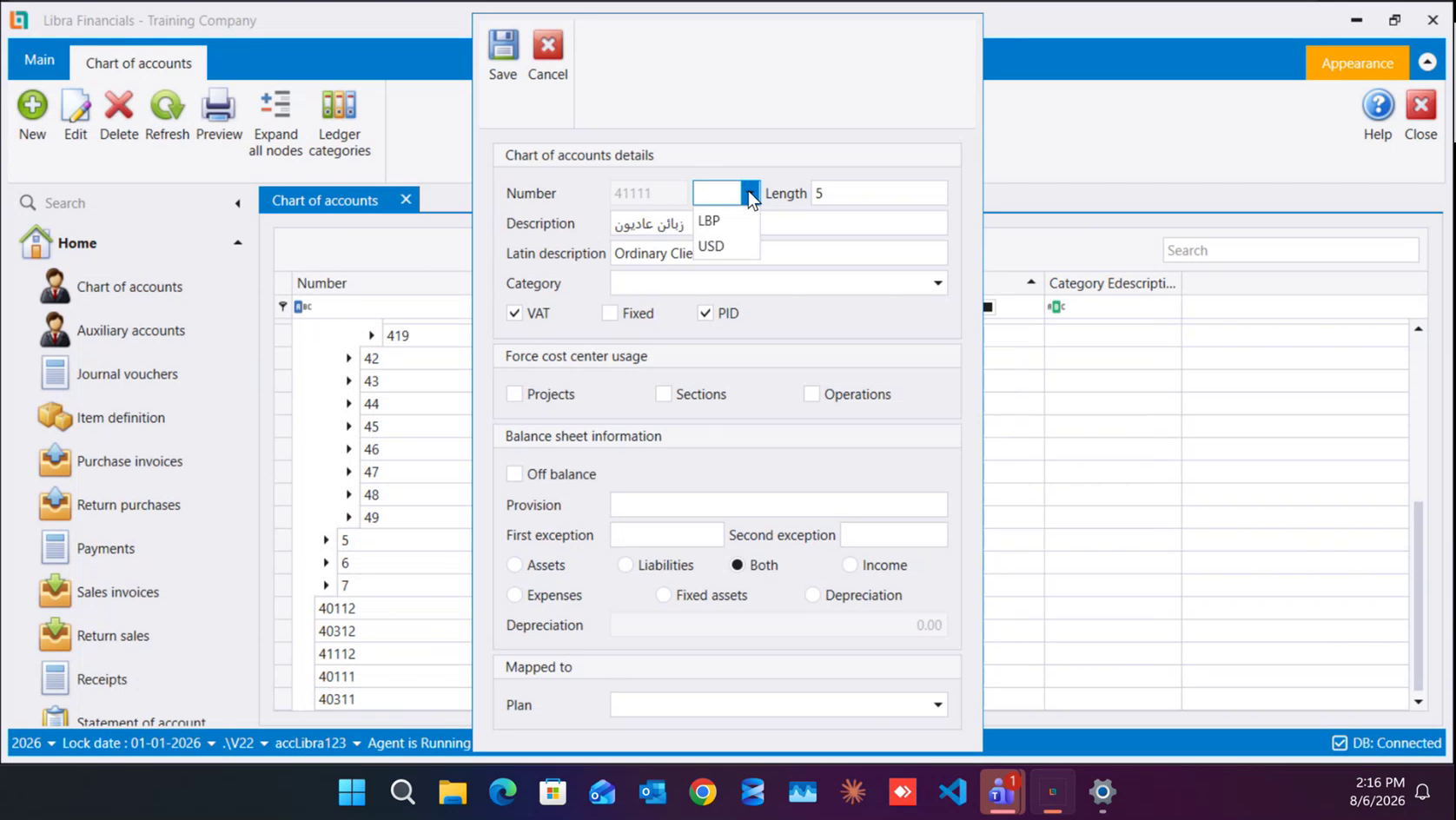
6. Force cost center usage
Three boxes - Projects, Sections and Operations. Tick one and the account can no longer be posted without a cost center of that kind, which is how you guarantee that every amount on this account is charged to a project. Leave them clear if you are not using cost centers.
7. Balance sheet information
This block tells the reports what kind of account this is.
- Off balance - tick it for an off-balance-sheet account.
- Provision - for a provision account.
- First exception / Second exception - used with depreciation handling.
- Assets · Liabilities · Both · Income · Expenses · Fixed assets · Depreciation - the account's nature. The trial balance, the balance sheet and the income statement are all built on this setting. On the Lebanese plan every account already ships set correctly, so leave it as it is unless you are building a chart from scratch for another country.
- Depreciation - the depreciation rate, for a fixed-asset account. It can be left empty and set from the asset's own file instead.
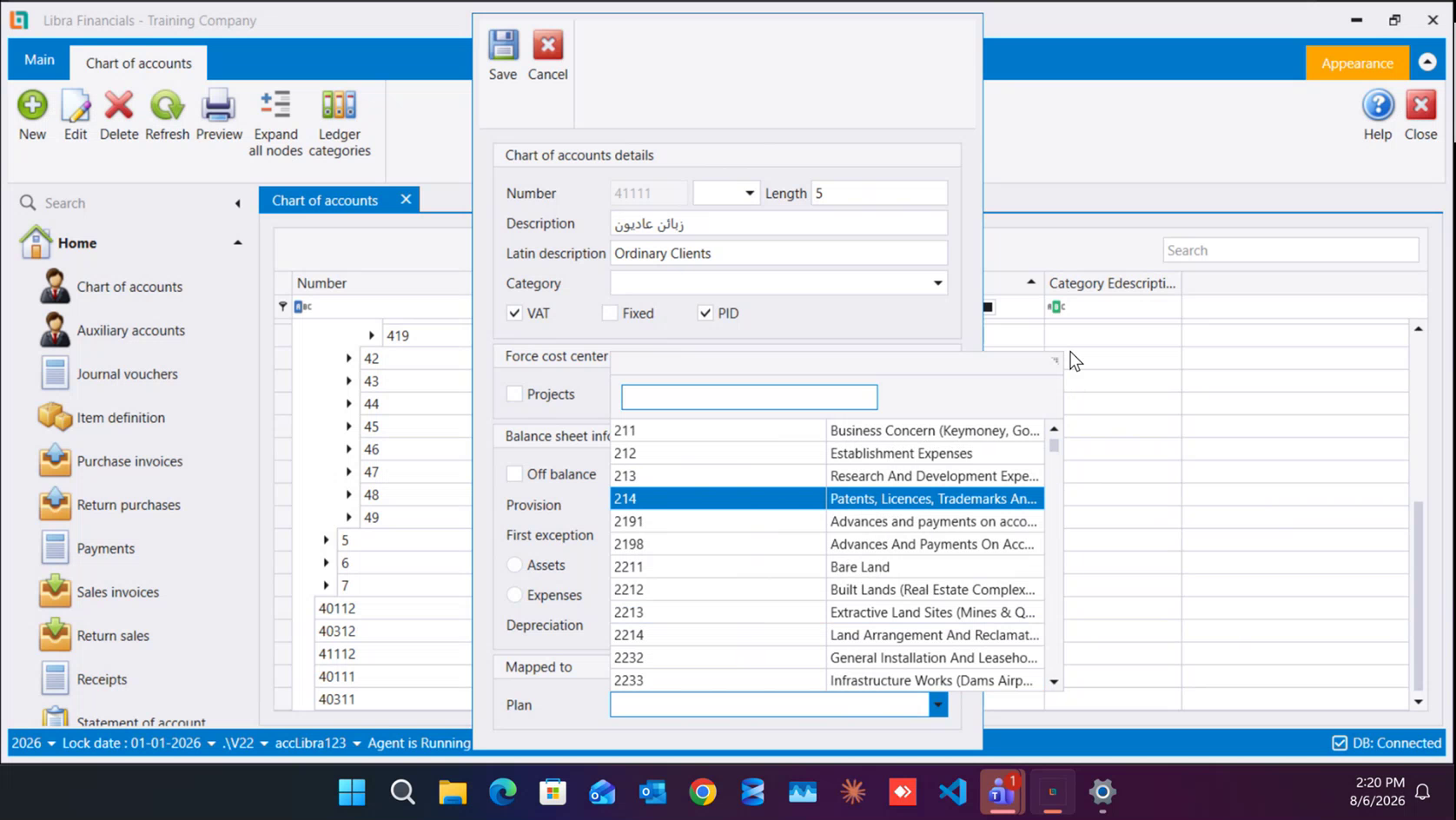
8. Mapped to → Plan
Leave it empty. Plan picks another account out of the chart; it belongs to fixed-asset setup, where it ties an asset account to the account its depreciation is posted on.
9. Save
Click Save at the top of the form - Cancel closes it without keeping anything. The account appears in the tree straight away.
What you cannot change afterwards
Three things freeze, and all three are regular support calls:
| What | Frozen from |
|---|---|
| The account number | the moment the account is saved |
| PID | the first entry posted on the account |
| Whether the account can have children | the first entry posted on the account |
Next: Suppliers - the auxiliary records that sit on the accounts you have just opened.
فتح حساب هو أكثر ما يفعله المستخدم في ليبرا. يشرح هذا الدليل الدورة كاملة، وكل حقل في نموذج تفاصيل شجرة الحسابات (Chart of accounts details). ولمعرفة ما هي شجرة الحسابات وكيف يعمل ترقيمها، اقرأ أولًا شجرة الحسابات.
1. افتح الشاشة واختر الأب
من القائمة اليسرى افتح شجرة الحسابات (Chart of accounts). ابحث عن الحساب الذي يندرج حسابك الجديد تحته - افتح الغصن، أو اكتب في صفّ التصفية أسفل عمود الرقم (Number) للوصول إليه.
وقبل المتابعة، تأكد أن الأب ما يزال يقبل أبناءً: فإذا رُحِّل عليه أي قيد لن يصير أبًا أبدًا. وتشرح قاعدة الأب والابن في الدليل 04 ما العمل عندها.
ومع تحديد الأب، اضغط جديد (New) في الشريط. (وزر تعديل (Edit) يفتح النموذج نفسه لحساب قائم.)
2. الرقم والعملة والطول
- الرقم (Number) - رقم الحساب وموقعه في الشجرة في آن واحد: فالحساب الذي يقع تحت
411يبدأ بـ411. ولا يمكن تغييره بعد حفظ الحساب، فاضبطه الآن. - العملة (Currency) - القائمة المنسدلة غير المسمّاة إلى يمين الرقم. تحدد عملة الحساب الافتراضية،
LBPأوUSD. وإن تركتها فارغة اتبع الحساب العملة الافتراضية للشركة. - الطول (Length) - عدد خانات الرقم، وهو نفسه عمق الحساب في الشجرة. ولا تكتبه بنفسك: يُملأ تلقائيًا فور إدخال الرقم. فالحساب
41111طوله5.
3. الوصف والوصف اللاتيني
لكل حساب اسمان: الوصف (Description) بالعربية والوصف اللاتيني (Latin description) بالأحرف اللاتينية. وبهما تبحث، وهما ما يُطبع على الفواتير والقيود والتقارير؛ وأنت تختار بأي لغة يظهر المستند، فاملأ الاثنين كما ينبغي بدل ترك أحدهما فارغًا.
4. الفئة (Category)
اتركها فارغة. فحقل الفئة (Category) موجود من أجل السعودية حيث تحمل الحسابات تصنيفًا إضافيًا، ولا يُستعمل في لبنان - ولهذا تفتح القائمة خالية.
5. الضريبة والتثبيت والحسابات المساعدة
ثلاثة مربعات اختيار، وكل واحد منها يغيّر سلوك الحساب طوال عمره.
- الضريبة (VAT) - ضع علامة إن كانت الضريبة تمرّ على هذا الحساب. وهذا بالضبط ما يفصل
41111 Ordinary Clientsعن41112 Clients Non VAT، وهو ما يجعل التصريح الضريبي يخرج صحيحًا. - مثبّت (Fixed) - يقفل الحساب على العملة المختارة أعلاه:
- عملة محددة مع علامة
Fixed← لا يُقبل الترحيل إلا بتلك العملة. - عملة محددة بلا علامة
Fixed← تظهر تلك العملة افتراضيًا، لكن غيرها مقبول أيضًا. - العملة فارغة ← تُستعمل العملة الافتراضية للشركة ويقبل الحساب الاثنتين.
- عملة محددة مع علامة
- حسابات مساعدة (PID) - ضع علامة إن كان الحساب يحمل سجلات مساعدة (زبائن، موردون، موظفون، مصارف). فمع تفعيل
PIDلا يمكن الترحيل على الحساب دون تحديد سجل مساعد؛ ومن دونه لا يمكن استعمال السجلات المساعدة عليه أصلًا.
يتجمّد حقل PID بعد أول قيد. فمتى مرّ قيد واحد على الحساب - بسجل مساعد أو بدونه - لم يعد ممكنًا تغيير هذا الإعداد. فاحسم أمرك قبل أن تبدأ العمل.
6. إجبار استعمال مركز التكلفة (Force cost center usage)
ثلاثة مربعات: مشاريع (Projects) وأقسام (Sections) وعمليات (Operations). وبوضع علامة على أحدها لا يعود ممكنًا الترحيل على الحساب دون مركز تكلفة من ذلك النوع، وهكذا تضمن أن كل مبلغ على هذا الحساب محمَّل على مشروع. واتركها فارغة إن كنت لا تستعمل مراكز التكلفة.
7. معلومات الميزانية (Balance sheet information)
هذا القسم يخبر التقارير بطبيعة الحساب.
- خارج الميزانية (Off balance) - ضع علامة للحساب خارج الميزانية.
- مؤونة (Provision) - لحساب المؤونة.
- الاستثناء الأول (First exception) / الاستثناء الثاني (Second exception) - يُستعملان مع معالجة الاستهلاكات.
- أصول (Assets) · مطلوبات (Liabilities) · الاثنان (Both) · إيراد (Income) · مصروف (Expenses) · أصول ثابتة (Fixed assets) · استهلاك (Depreciation) - طبيعة الحساب. وميزان المراجعة والميزانية وحساب الأرباح والخسائر تُبنى كلها على هذا الإعداد. وفي المخطط اللبناني تأتي كل الحسابات مضبوطة أصلًا، فاتركها كما هي إلا إن كنت تبني مخططًا من الصفر لدولة أخرى.
- الاستهلاك (Depreciation) - نسبة الاستهلاك لحساب أصل ثابت. ويمكن تركها فارغة وضبطها من ملف الأصل نفسه.
8. مرتبط بـ ← الخطة (Mapped to → Plan)
اتركه فارغًا. فحقل الخطة (Plan) يختار حسابًا آخر من الشجرة، وهو من إعداد الأصول الثابتة حيث يربط حساب الأصل بالحساب الذي يُرحَّل عليه استهلاكه.
9. احفظ
اضغط حفظ (Save) أعلى النموذج - وزر إلغاء (Cancel) يغلقه دون حفظ شيء. ويظهر الحساب في الشجرة فورًا.
ما لا يمكن تغييره لاحقًا
ثلاثة أمور تتجمّد، وكلها مصدر اتصالات دعم متكررة:
| ماذا | يتجمّد اعتبارًا من |
|---|---|
| رقم الحساب | لحظة حفظ الحساب |
| حسابات مساعدة (PID) | أول قيد يُرحَّل على الحساب |
| إمكان أن يكون للحساب أبناء | أول قيد يُرحَّل على الحساب |
التالي: الموردون - السجلات المساعدة التي تجلس على الحسابات التي فتحتها للتو.