
How to set up a companyكيفية إنشاء شركة
Creating a company in Libra is a two-step wizard. This guide walks through both steps and explains every field on the way. For what the account plans mean, see Old Plan vs New Plan.
1. Open the wizard
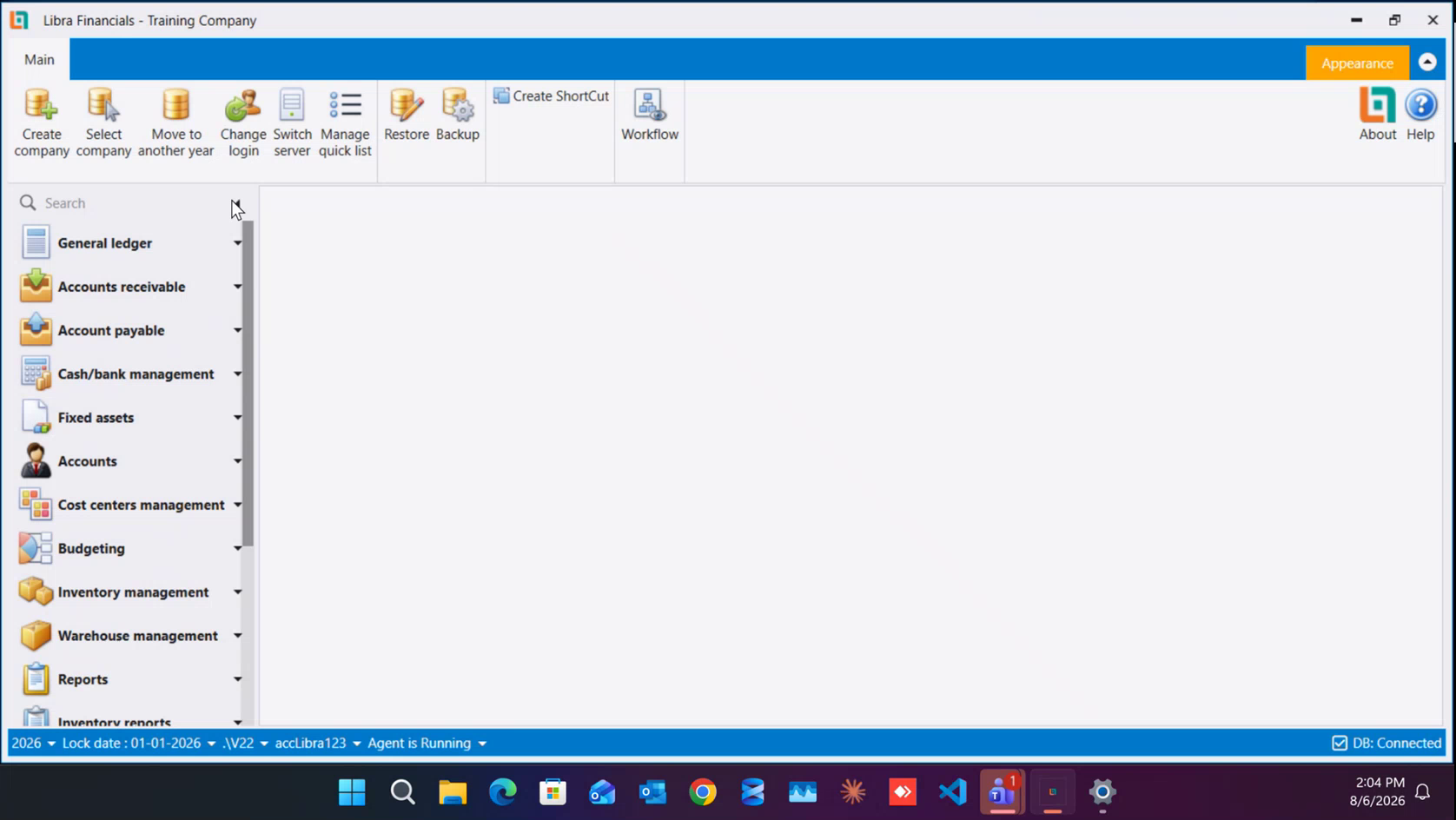
On the Main ribbon tab, click Create company. The same ribbon also holds Select company, Move to another year, Change login, Switch server and Manage quick list.
2. Step 1 Of 2 - choose how the accounts start
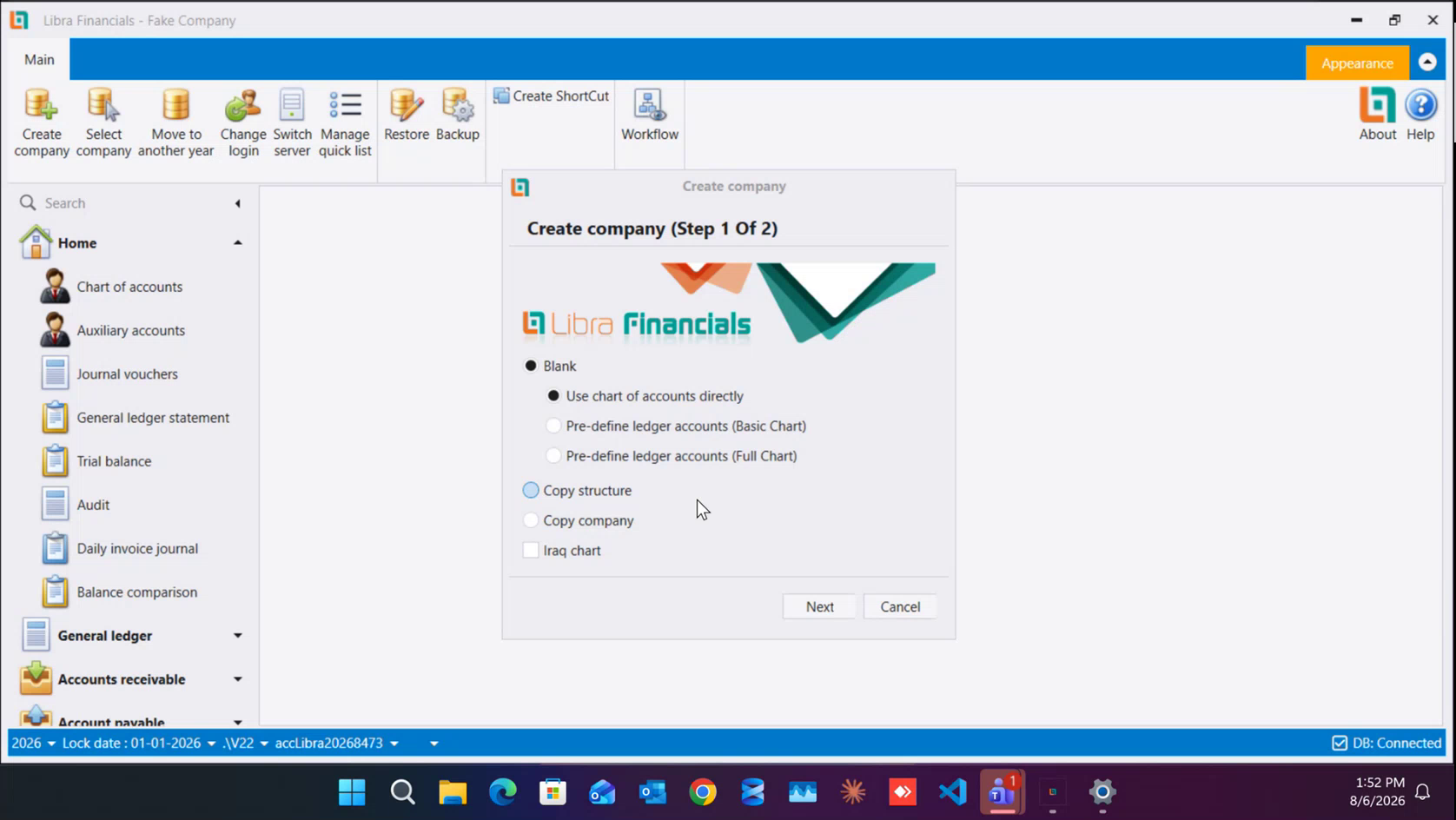
Pick how the new company's accounts are built, then click Next.
- Blank → Use chart of accounts directly - the New Plan, and the right choice for almost every new company. Leave it selected.
- Blank → Pre-define ledger accounts (Basic Chart) / (Full Chart) - the Old Plan. Legacy; only for a customer who is already working that way.
- Copy structure - start from an existing company's structure (chart, clients, suppliers, settings, users, permissions) without its data.
- Copy company - start from an existing company with its data.
- Iraq chart - tick this to build the company on the pre-defined Iraqi chart that now ships inside the system, instead of importing a chart or attaching a prepared database. It is only available on the Blank path: pick Copy structure or Copy company and it greys out, along with the three chart options.
3. Step 2 Of 2 - Characteristics
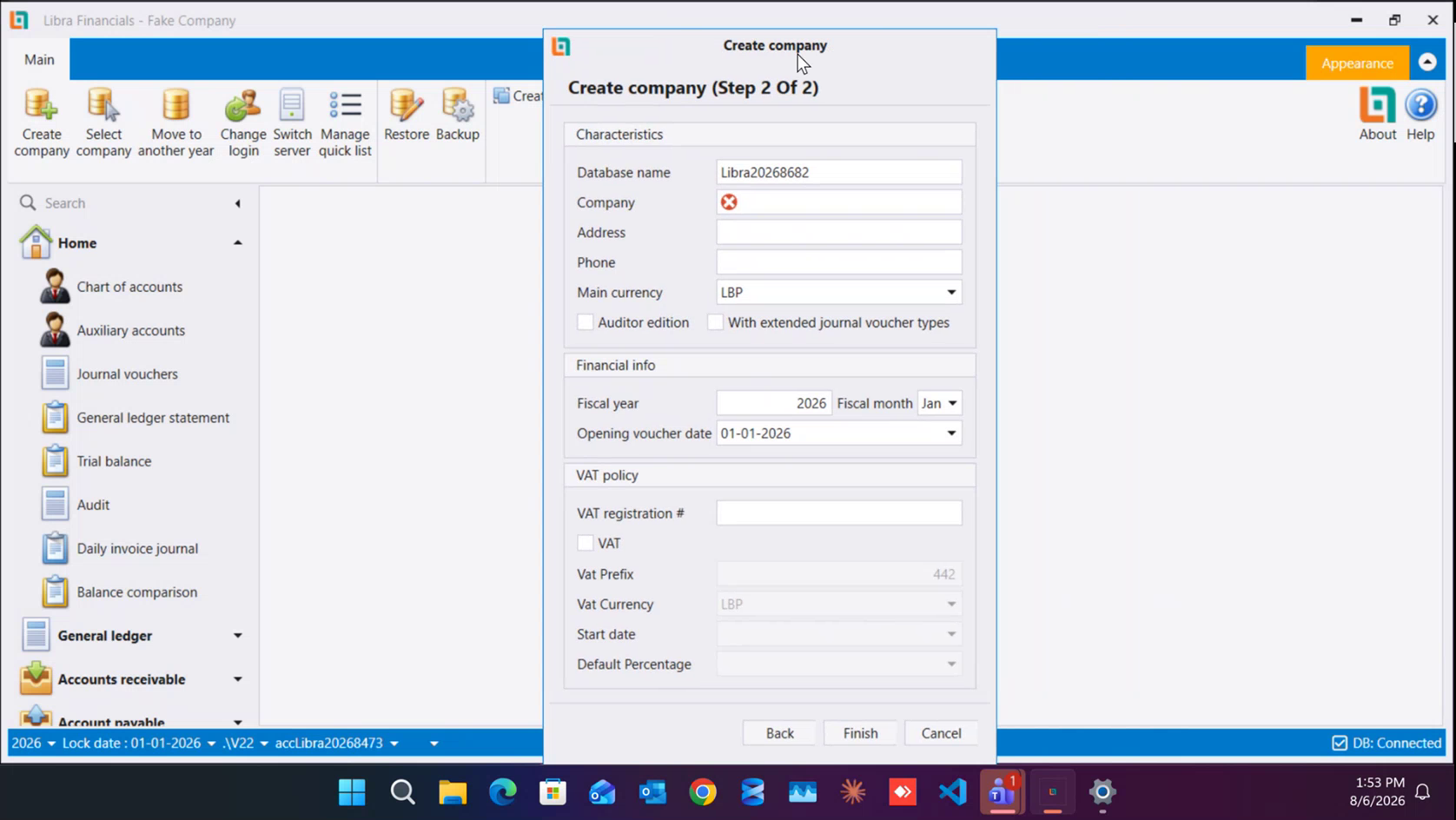
- Database name - the SQL database name. Normally leave it as generated. Libra adds an
accprefix of its own when it creates the database, so a field readingLibra202682433produces the databaseaccLibra202682433- type a fullacc…name yourself and you get the prefix twice. If you do change it (for example to match the company name, so it is easy to find when data is moved), it may contain no spaces and no special characters - SQL will not accept them. - Company - the company name, free text. Required.
- Address and Phone - printed by default on invoices and vouchers. Plain text, no format is enforced, and both can be edited later from inside the company.
- Main currency - always start with
LBP, even for a company that works in dollars or for a foreign company. Once you are inside the company, change the base currency to whatever it really trades in. - Auditor edition - a pre-configured set-up for audit firms, who open many companies and post journal entries only. Ticking it removes the receipt and payment forms; receipts and payments are still entered, as types inside the journal voucher. It is offered on the New Plan path only: choose Pre-define ledger accounts on step 1 and this box is not shown at all, leaving six fields in this section instead of seven. A company started this way opens on a ready-made short menu - see Working across many client companies.
- With extended journal voucher types - adds multiple voucher types (sales, purchases, returns) instead of one journal voucher. This also removes the receipt and payment forms.
If a customer reports that the receipt and payment screens have disappeared, check these two boxes first. They are turned back on through the system options, not from this wizard.
4. Step 2 Of 2 - Financial info
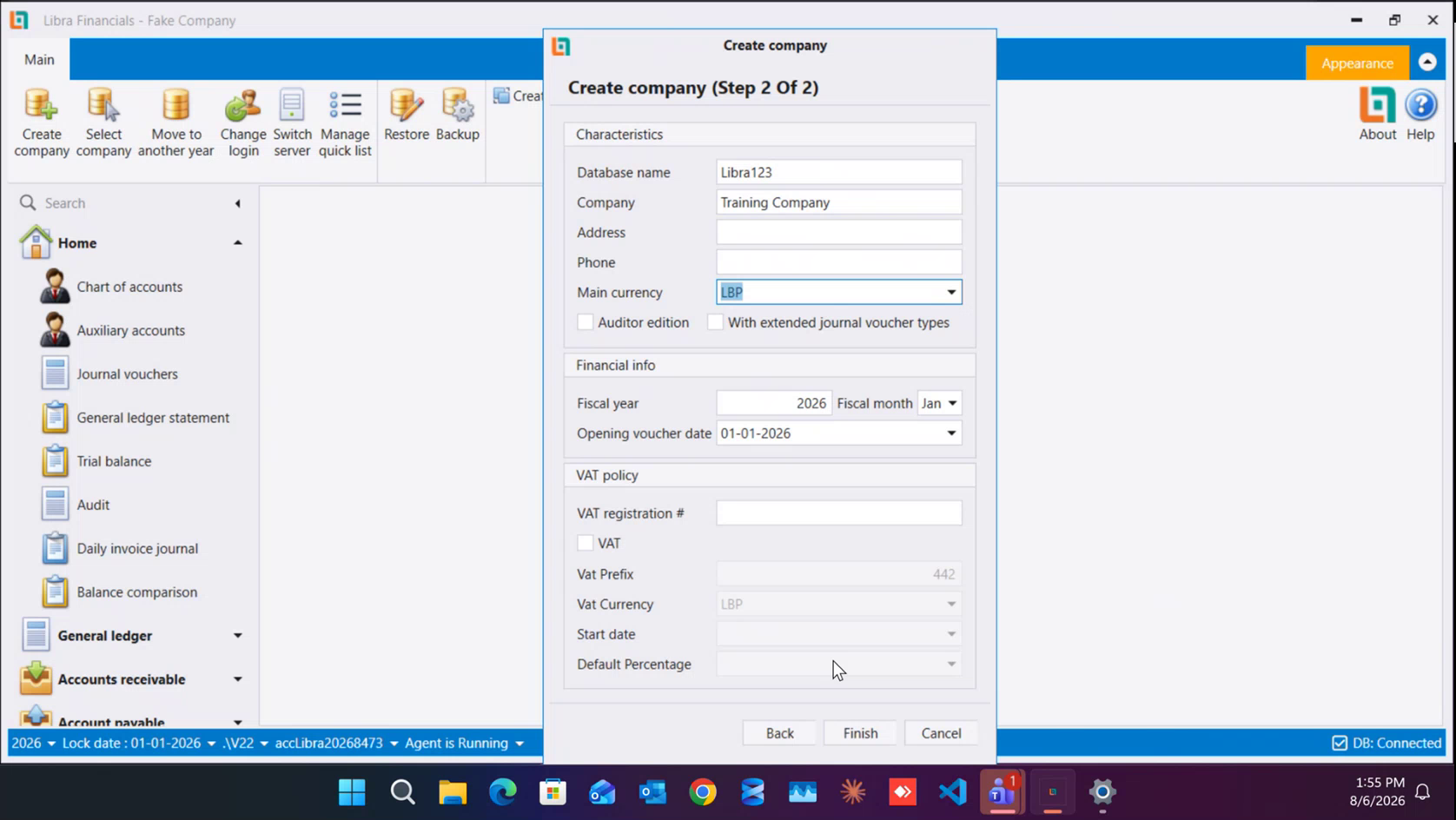
- Fiscal year - the financial year the system starts in. Libra keeps one continuous database across many years rather than one database per year, so you can report ten years back in a single report - but you cannot post before the year you set here.
- Fiscal month - the month the financial year opens. January for about 99% of companies; schools and some associations start in September.
- Opening voucher date - the real start-of-work date. If the year opens in January but the company actually started trading in May, put the May date here. This date is fixed once the company is created and can only be corrected in the database afterwards, not from the interface - so get it right now.
5. Step 2 Of 2 - VAT policy
- VAT registration # - the company's financial number. A VAT-registered company uses its TVA number: the financial number plus a
601/604/605suffix depending on the entity type (for example111→111-601). If the customer does not have the number yet, it can be filled in later. - VAT - tick it if the company is registered for VAT. The four fields below stay greyed out until this box is ticked.
- Vat Prefix -
442in Lebanon. Every VAT account in the chart starts with442, which is how VAT accounts are recognised. Other countries use their own prefix. - Vat Currency -
LBP. In Lebanon VAT must be in Lebanese pounds; in another country you set that country's currency here. - Start date - when VAT registration begins. Invoices dated before it carry no VAT; invoices dated after it do. It is independent of the opening date - a company opening on
01-01-2026that registered for VAT in 2024 simply sets01-01-2026. - Default Percentage - you type this one; unlike Vat Prefix and Vat Currency it starts empty.
11.000in Lebanon. One value, not a multi-select; a different rate is set from inside the company.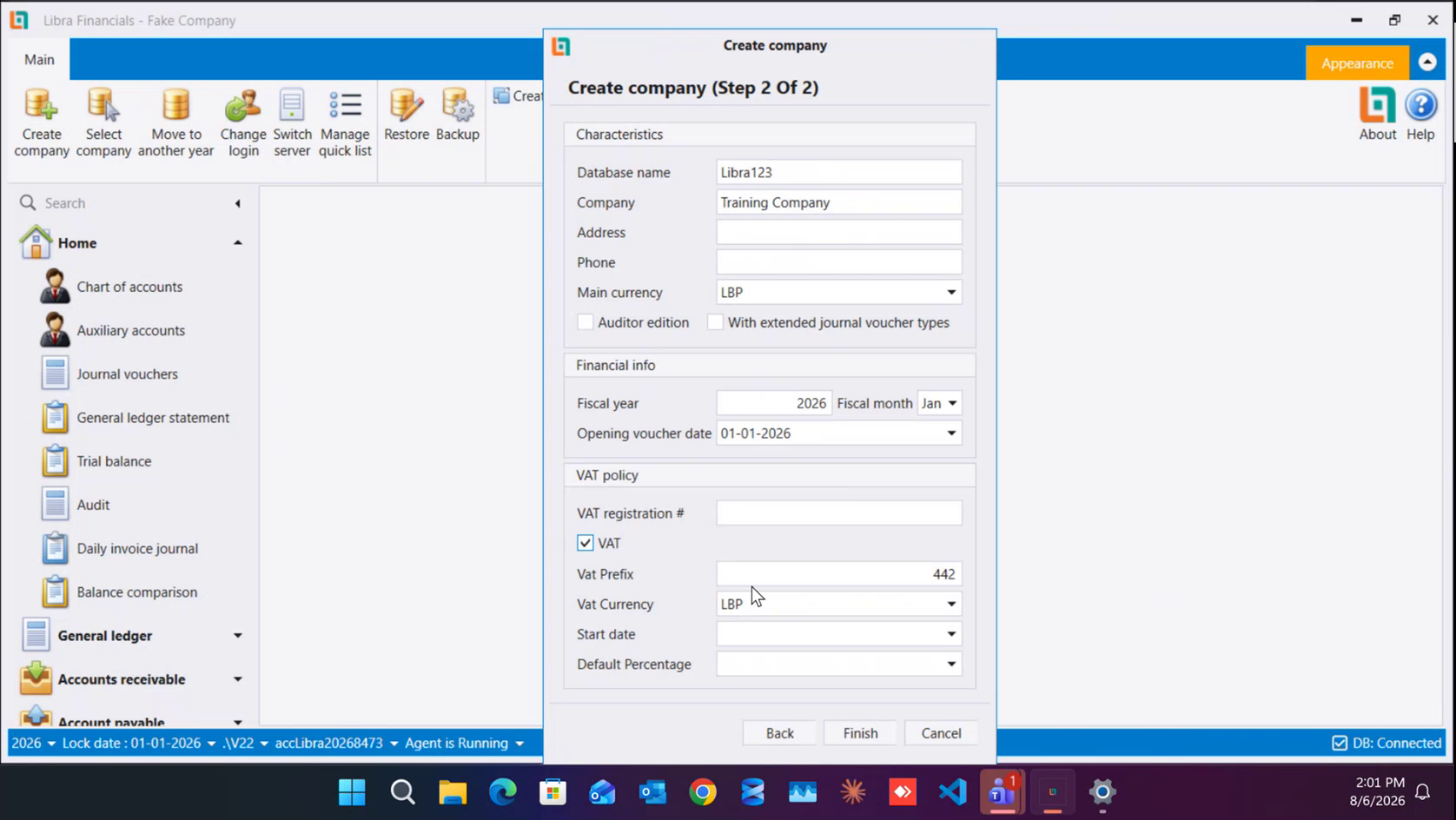
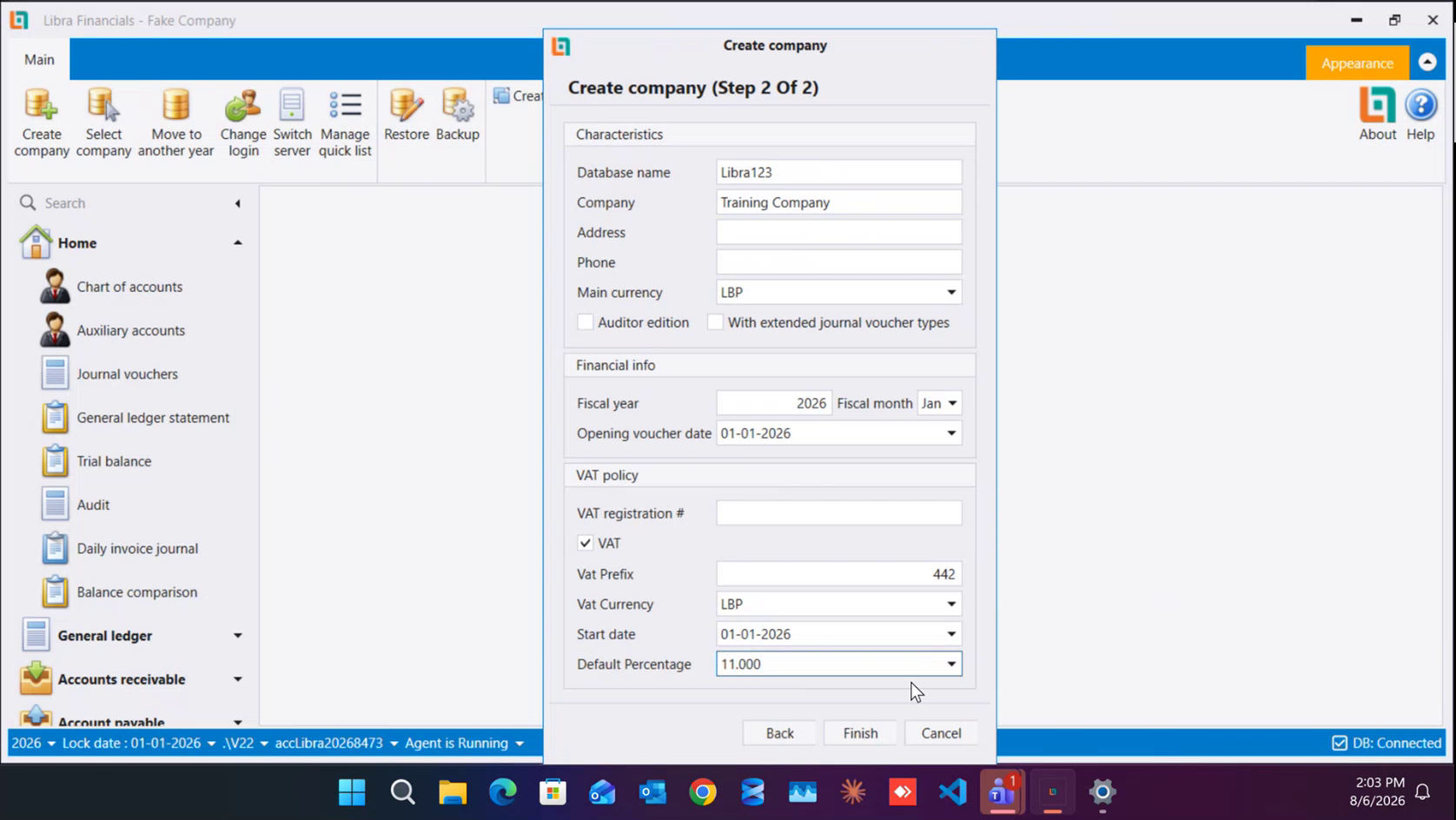
6. Finish and open the company
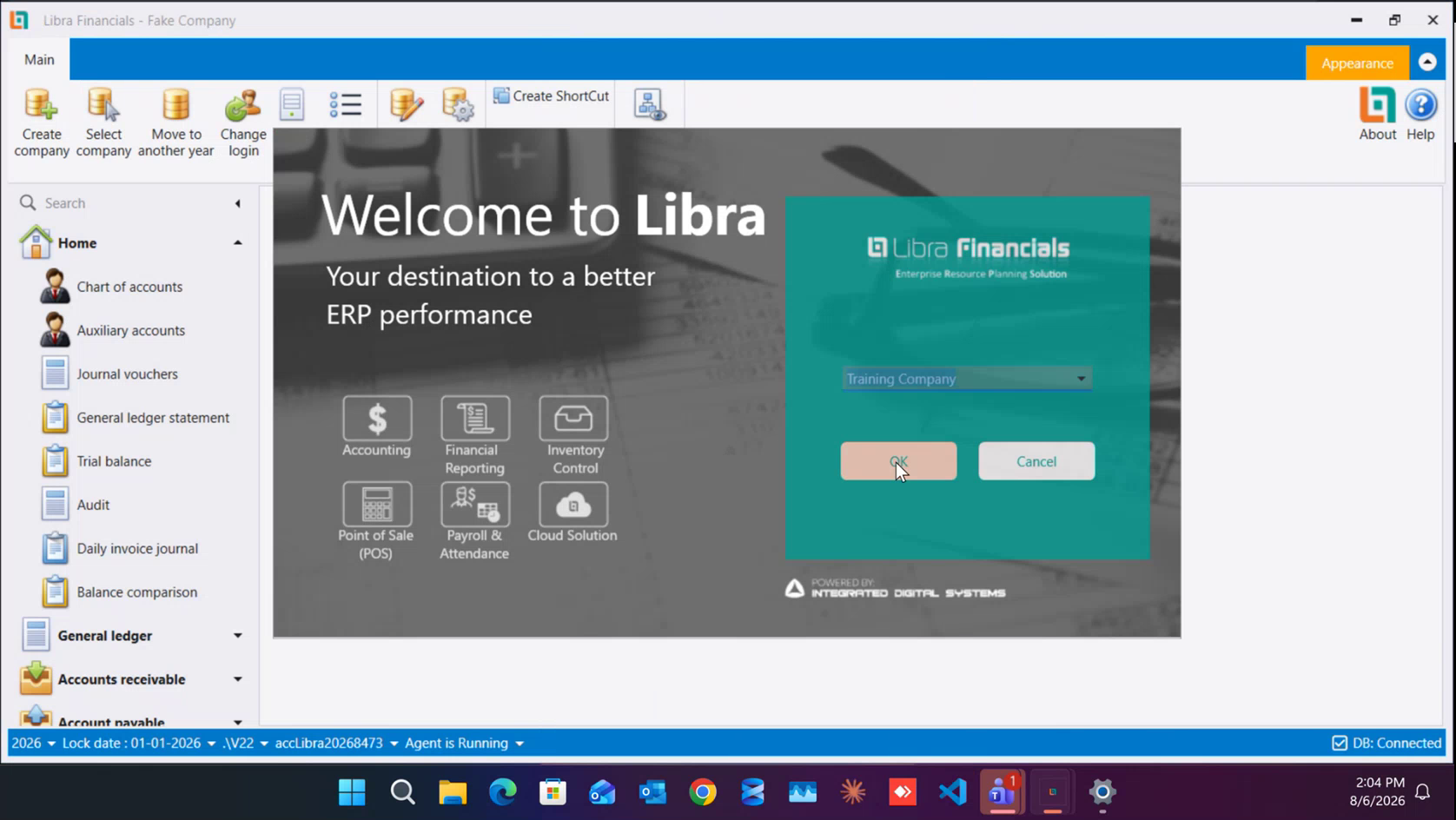
Click Finish. Libra builds the database, confirms with a short message, and closes the wizard - it leaves you in the company you were already working in, so creating a company does not open it. To go in, use the Main ribbon: click Select company, pick the new company from the dropdown and click OK to log in.
The rule
Fill the financial number accurately. The 601 / 604 / 605 suffix is what marks whether the entity is VAT-registered, and that number drives the top-10 customer/supplier reports and all VAT handling.
Next: How to set up the Quick List - build the Home button before you start working.
إنشاء شركة في ليبرا يتم عبر معالج من خطوتين. يشرح هذا الدليل الخطوتين وكل حقل فيهما. لمعرفة معنى خطط الحسابات، انظر الخطة القديمة مقابل الخطة الجديدة.
1. افتح المعالج
من تبويب الرئيسي (Main) في الشريط العلوي، اضغط إنشاء شركة (Create company). يضمّ الشريط نفسه أيضًا اختيار شركة (Select company) والانتقال إلى سنة أخرى (Move to another year) وتغيير المستخدم (Change login) وتبديل الخادم (Switch server) وإدارة القائمة السريعة (Manage quick list).
2. الخطوة 1 من 2 - كيف تبدأ الحسابات
اختر طريقة بناء حسابات الشركة الجديدة ثم اضغط التالي (Next).
- فارغة (Blank) ← استخدام شجرة الحسابات مباشرة (Use chart of accounts directly) - وهي الخطة الجديدة، والخيار الصحيح لكل شركة جديدة تقريبًا. اتركه محددًا.
- فارغة (Blank) ← حسابات أستاذ معرّفة مسبقًا (Pre-define ledger accounts) - المخطط الأساسي (Basic Chart) / المخطط الكامل (Full Chart) - وهي الخطة القديمة، ولا تُستخدم إلا لعميل يعمل بها أصلًا.
- نسخ الهيكل (Copy structure) - البدء من هيكل شركة قائمة (شجرة الحسابات، الزبائن، الموردون، الإعدادات، المستخدمون، الصلاحيات) بدون بياناتها.
- نسخ الشركة (Copy company) - البدء من شركة قائمة مع بياناتها.
- المخطط العراقي (Iraq chart) - ضع علامة هنا لبناء الشركة على المخطط العراقي المعرّف مسبقًا داخل النظام، بدل استيراد مخطط أو ربط قاعدة بيانات جاهزة. وهو متاح على مسار فارغة (Blank) فقط: إن اخترت نسخ الهيكل أو نسخ الشركة فسيصبح معطّلًا هو وخيارات المخطط الثلاثة.
3. الخطوة 2 من 2 - الخصائص (Characteristics)
- اسم قاعدة البيانات (Database name) - اسم قاعدة SQL. عادةً اتركه كما وُلِّد. فليبرا يضيف البادئة
accمن عنده عند إنشاء القاعدة: حقل مكتوب فيهLibra202682433يُنتج القاعدةaccLibra202682433، وإن كتبت أنت اسمًا يبدأ بـaccتكرّرت البادئة مرتين. وإن غيّرته (مثلًا ليطابق اسم الشركة فيسهل إيجاده عند نقل البيانات) فيجب ألا يحوي مسافات ولا رموزًا خاصة - لأن SQL لا يقبلها. - الشركة (Company) - اسم الشركة، نص حر. حقل إلزامي.
- العنوان (Address) والهاتف (Phone) - يُطبعان افتراضيًا على الفواتير والقيود. نص عادي بلا تنسيق مفروض، ويمكن تعديلهما لاحقًا من داخل الشركة.
- العملة الرئيسية (Main currency) - ابدأ دائمًا بـ
LBPحتى لو كانت الشركة تعمل بالدولار أو كانت شركة أجنبية. وبعد الدخول إلى الشركة غيّر العملة الأساسية إلى عملتها الحقيقية. - نسخة المدقق (Auditor edition) - إعدادات جاهزة لمكاتب التدقيق التي تفتح شركات كثيرة وتُدخل قيودًا فقط. تفعيلها يُلغي نموذجَي القبض والدفع؛ ويبقى القبض والدفع مُدخَلين كأنواع داخل قسيمة القيد. وهذا الخيار متاح على مسار الخطة الجديدة فقط: إن اخترت حسابات أستاذ معرّفة مسبقًا في الخطوة الأولى فلن يظهر أصلًا، فتصبح حقول هذا القسم ستة بدل سبعة. والشركة التي تُنشأ هكذا تفتح على قائمة قصيرة جاهزة - انظر العمل مع شركات عملاء كثيرة.
- مع أنواع قسائم قيد موسعة (With extended journal voucher types) - يضيف أنواعًا متعددة للقسائم (مبيعات، مشتريات، مرتجعات) بدل قسيمة قيد واحدة، لكنه يُلغي أيضًا نموذجَي القبض والدفع.
إذا أبلغك عميل بأن شاشتَي القبض والدفع اختفتا، تحقق من هذين الخيارين أولًا. تُعاد إتاحتهما من خيارات النظام، لا من هذا المعالج.
4. الخطوة 2 من 2 - المعلومات المالية (Financial info)
- السنة المالية (Fiscal year) - السنة التي يبدأ فيها النظام. ليبرا يحتفظ بـقاعدة بيانات واحدة متواصلة عبر السنوات بدل قاعدة لكل سنة، فيمكنك استخراج تقرير يعود عشر سنوات في تقرير واحد - لكن لا يمكنك الترحيل قبل السنة التي تحددها هنا.
- الشهر المالي (Fiscal month) - الشهر الذي تبدأ فيه السنة المالية. كانون الثاني لنحو 99% من الشركات؛ المدارس وبعض الجمعيات تبدأ في أيلول.
- تاريخ قيد الافتتاح (Opening voucher date) - تاريخ بدء العمل الفعلي. إذا كانت السنة تبدأ في كانون الثاني بينما بدأت الشركة العمل فعليًا في أيار، ضع تاريخ أيار هنا. هذا التاريخ يثبت فور إنشاء الشركة ولا يُصحَّح بعدها إلا من قاعدة البيانات لا من الواجهة - فاضبطه الآن.
5. الخطوة 2 من 2 - سياسة الضريبة (VAT policy)
- رقم التسجيل الضريبي (VAT registration #) - الرقم المالي للشركة. والشركة المسجلة بالضريبة تستخدم رقم الـ TVA: الرقم المالي مضافًا إليه
601أو604أو605حسب طبيعتها (مثلًا111←111-601). وإن لم يكن الرقم متوفرًا بعد فيمكن تعبئته لاحقًا. - خاضع للضريبة (VAT) - ضع علامة إن كانت الشركة مسجلة بالضريبة. تبقى الحقول الأربعة أدناه معطّلة حتى تضع هذه العلامة.
- بادئة الضريبة (Vat Prefix) -
442في لبنان. كل حساب ضريبة في الشجرة يبدأ بـ442، وهكذا تُعرف حسابات الضريبة. ولكل دولة بادئتها. - عملة الضريبة (Vat Currency) -
LBP. الضريبة في لبنان إلزاميًا بالليرة اللبنانية؛ وفي دولة أخرى تضع عملة تلك الدولة. - تاريخ البدء (Start date) - تاريخ بدء التسجيل بالضريبة. الفواتير المؤرخة قبله لا تخضع للضريبة، والمؤرخة بعده تخضع. وهو مستقل عن تاريخ الافتتاح - فشركة تفتتح في
01-01-2026وسجّلت بالضريبة عام 2024 تضع ببساطة01-01-2026. - النسبة الافتراضية (Default Percentage) - هذا الحقل تكتبه أنت؛ فهو يبدأ فارغًا بخلاف بادئة الضريبة وعملة الضريبة. وهو
11.000في لبنان. قيمة واحدة لا اختيار متعدد؛ وتُضبط نسبة مختلفة من داخل الشركة.
6. أنهِ المعالج وافتح الشركة
اضغط إنهاء (Finish). يبني ليبرا القاعدة ويؤكد برسالة قصيرة ثم يغلق المعالج، وتبقى أنت في الشركة التي كنت تعمل فيها - أي أن إنشاء الشركة لا يفتحها. وللدخول إليها استخدم الشريط الرئيسي (Main): اضغط اختيار شركة (Select company)، واختر الشركة الجديدة من القائمة المنسدلة، ثم اضغط موافق (OK).
القاعدة
املأ الرقم المالي بدقة. اللاحقة 601 / 604 / 605 هي ما يحدد إن كان الكيان مسجلًا بالضريبة، وهذا الرقم يتحكم بتقارير أكبر عشرة زبائن/موردين وبمعالجة الضريبة كلها.
التالي: كيفية إعداد القائمة السريعة - ابنِ زر الرئيسية قبل أن تبدأ العمل.