
Sales documents: orders, deliveries, invoices and returnsمستندات المبيعات: الطلبات وأذونات التسليم والفواتير والمرتجعات
Under Accounts receivable there are six entries that all sell something: Sales orders, Deliveries, Sales invoices, Return sales, Invoice Credit Note and Invoice Debit Note. They open the same form. What changes is not the screen - it is what Libra does when you save it.
To create one step by step, read How to record a sales order.
1. One screen, six documents
Open any of the six and you get the same three-part layout: a header saying who and when, a Details grid saying what, and a Footer adding it up. The lists are identical too - the same columns, the same filter row, the same ribbon.
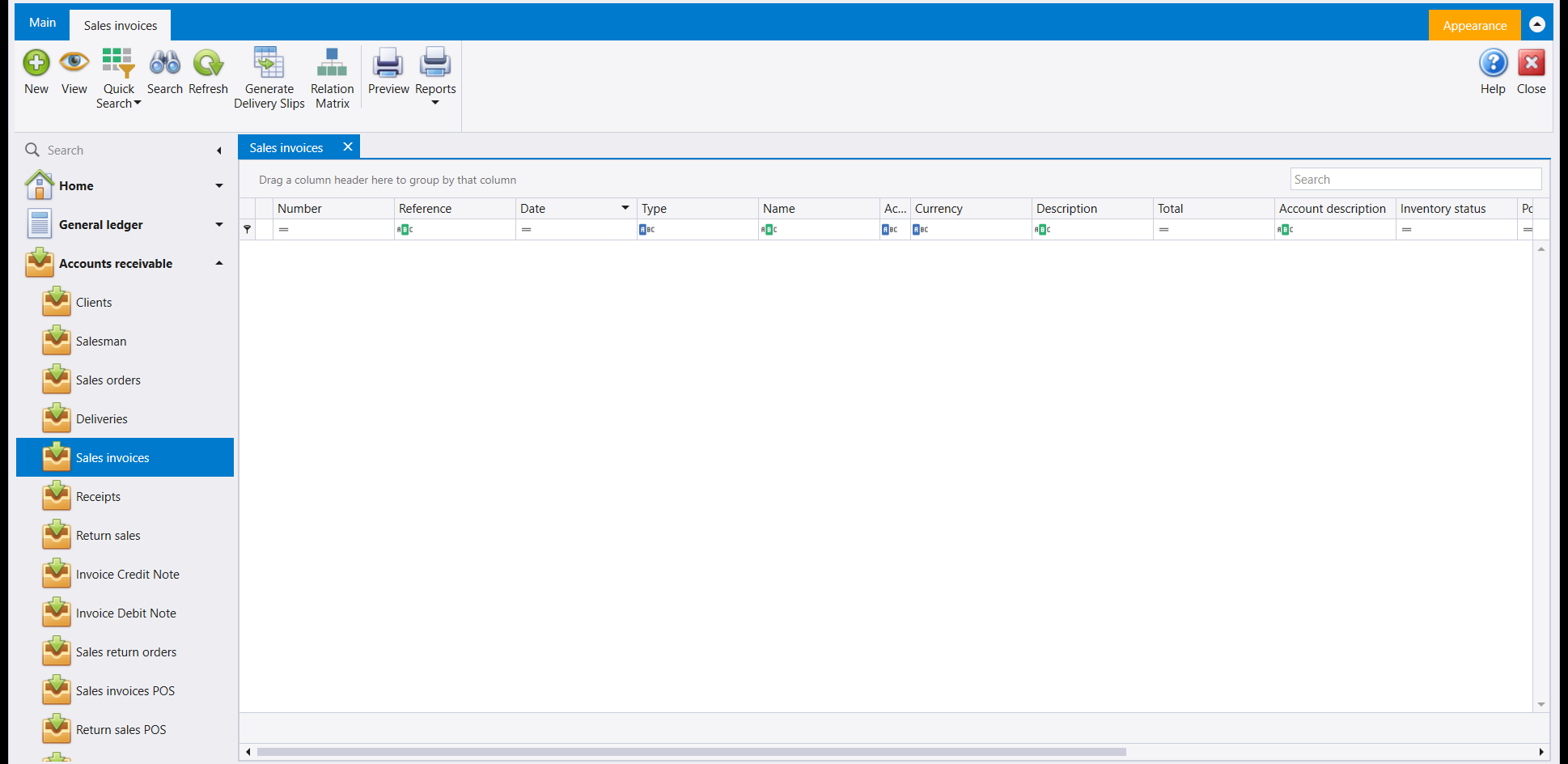
Only two things differ between the six. The ribbon carries the button that makes sense for that document - the invoice list offers Generate Delivery Slips, the order list offers Generate Invoices. And the invoice form has two extras the order does not: a Payment terms / Delivery type tab beside Account, and a Charges tab beside Footer.
The list opens on a filter, not on everything. Quick Search offers Top 50 Records, Today, Last 7 Days, Last 30 Days and All. If a document you just saved is not in the list, change the filter before you conclude it did not save.
2. What each one does
This is the part worth learning, because the form gives you no clue. Two questions decide everything: does the document move goods, and does it reach your accounts?
| Document | Moves goods | Reaches the accounts |
|---|---|---|
| Sales orders | No | No |
| Deliveries | Yes | No |
| Sales invoices | Yes | Yes |
| Return sales | Yes | Yes (the other way) |
| Invoice Credit Note | No | Yes |
| Invoice Debit Note | No | Yes |
So a sales order is a promise: you have written down what the customer wants, and nothing else has happened. A delivery takes the goods out of the warehouse but bills nobody. A sales invoice does both - the goods leave and the sale is recorded against the customer. A return sales is the invoice run backwards. A credit note and a debit note adjust what the customer owes without touching a single item.
That table is read from your company's own document-type setup rather than demonstrated one by one here. What was demonstrated is the first row: a saved sales order changed no warehouse quantity and created no accounting entry.
The two notes read the wrong way round in Arabic. In the setup, Invoice Credit Note carries the Arabic label for a debit note and Invoice Debit Note carries the one for a credit note. Go by the English name and by what the document does, not by the Arabic caption.
3. The header: who, when, and in what currency
The top of the form is the same on all six.
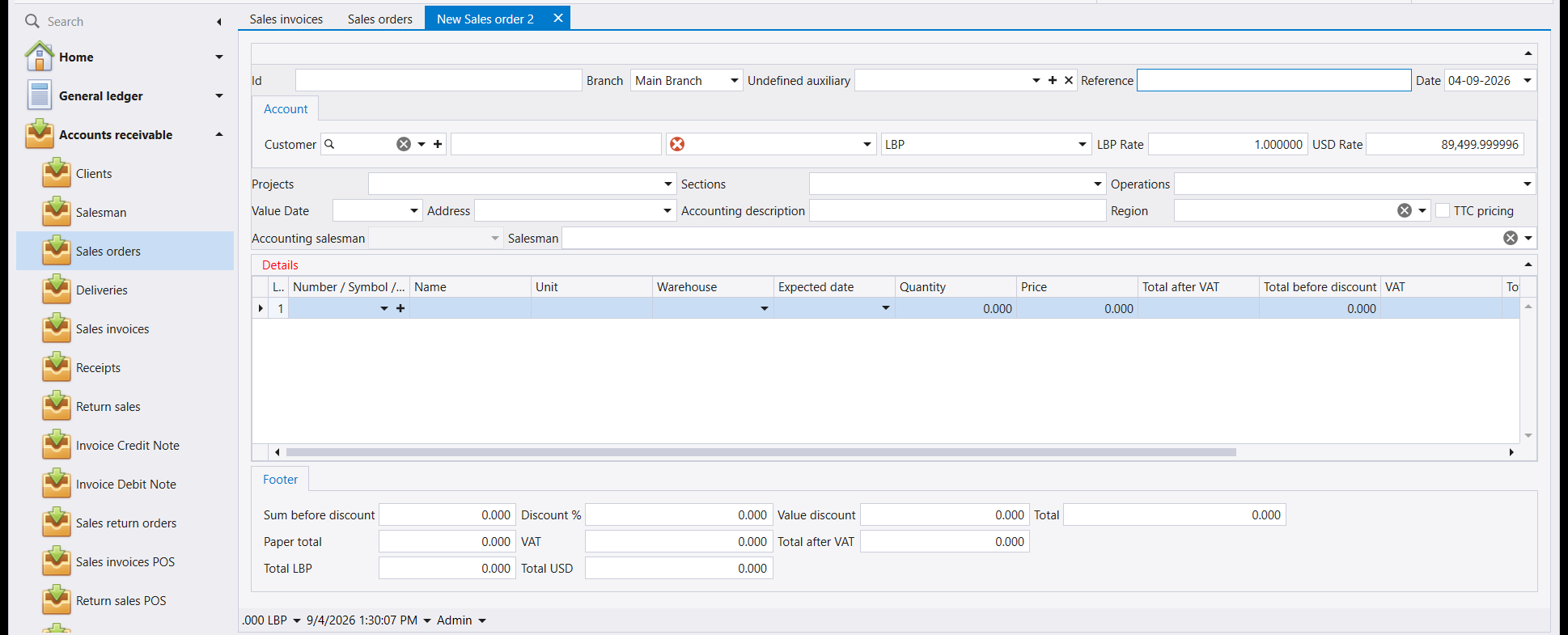
Id stays empty until you save - Libra fills it in. Date defaults to today. Reference is yours: put the customer's order number or your own tracking code there, because it is a column in the list and you can filter on it.
Customer is the field that does the work. Pick the customer and Libra fills in the account, the currency and both rates by itself - in the example above, choosing Test Client filled the account 41111, the currency LBP, an LBP Rate of 1.000000 and a USD Rate of 89,499.999996. Pick the customer first, before you type any lines: changing it afterwards can reprice everything you have already entered.
4. The line: what you are selling
The Details grid is one row per thing sold: Number / Symbol / Barcode, Name, Unit, Warehouse, Expected date, Quantity, Price, Total after VAT, Total before discount and VAT.
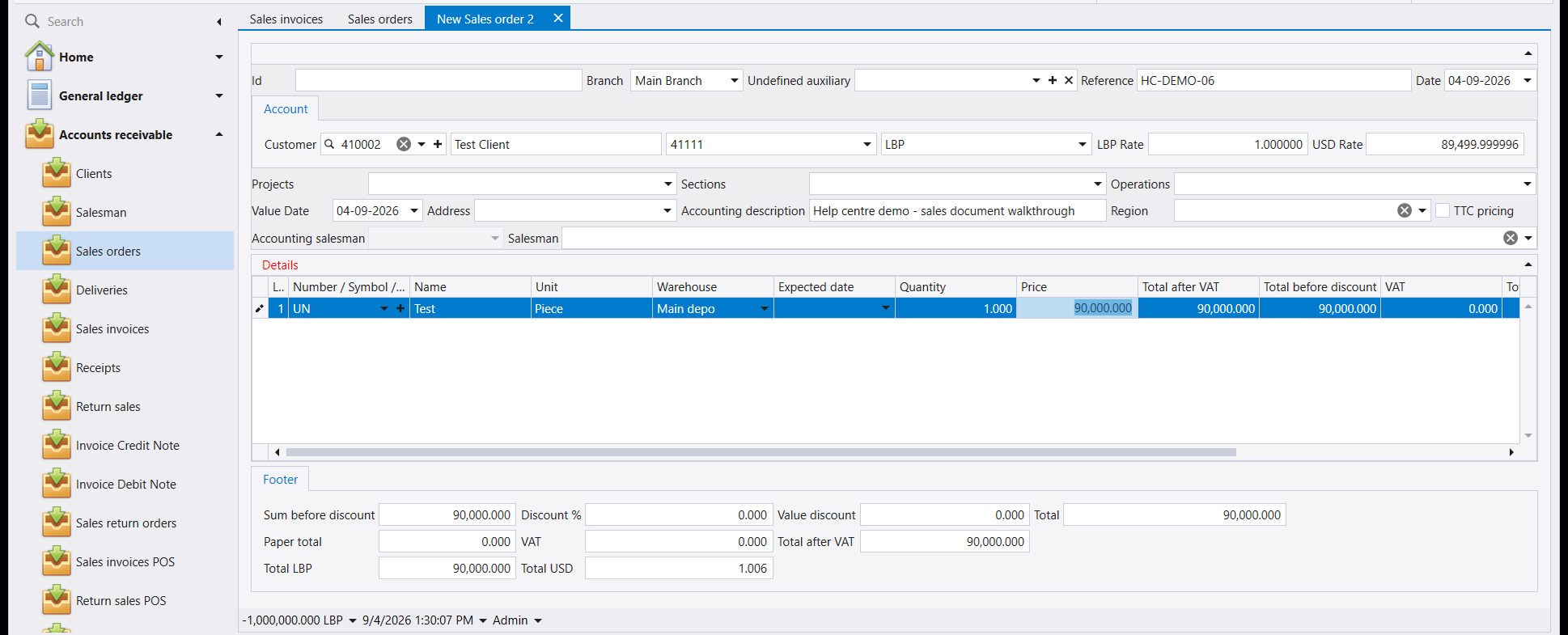
You only choose the item. Everything beside it fills itself in - the name, the unit, the warehouse the item normally comes out of, and the price. Check the price rather than trusting it: it comes from the item's own setup and is not always what you meant to charge today.
The Footer totals in this order: Sum before discount, then Discount % and Value discount, giving Total; then VAT and Total after VAT; and finally the same figure in both company currencies - Total LBP and Total USD. Above, 90,000 LBP came out as 1.006 USD at the rate in the header.
The footer is how you know a line took. If you have typed a quantity and a price but the footer still reads 0.000, the cell has not been committed and saving would store a document with nothing in it. Click away from the cell and watch the totals change before you save.5. The number tells you which screen made it
Save, and Libra assigns a number built as branch - year - document type - sequence. The document type is the part to read:
| Document | Number looks like |
|---|---|
| Sales invoices | 001-2026-SI-1 |
| Sales orders | 001-2026-SO-1 |
| Deliveries | 001-2026-DL-1 |
| Return sales | 001-2026-RS-1 |
| Invoice Credit Note | 001-2026-CrN-1 |
| Invoice Debit Note | 001-2026-DbN-1 |
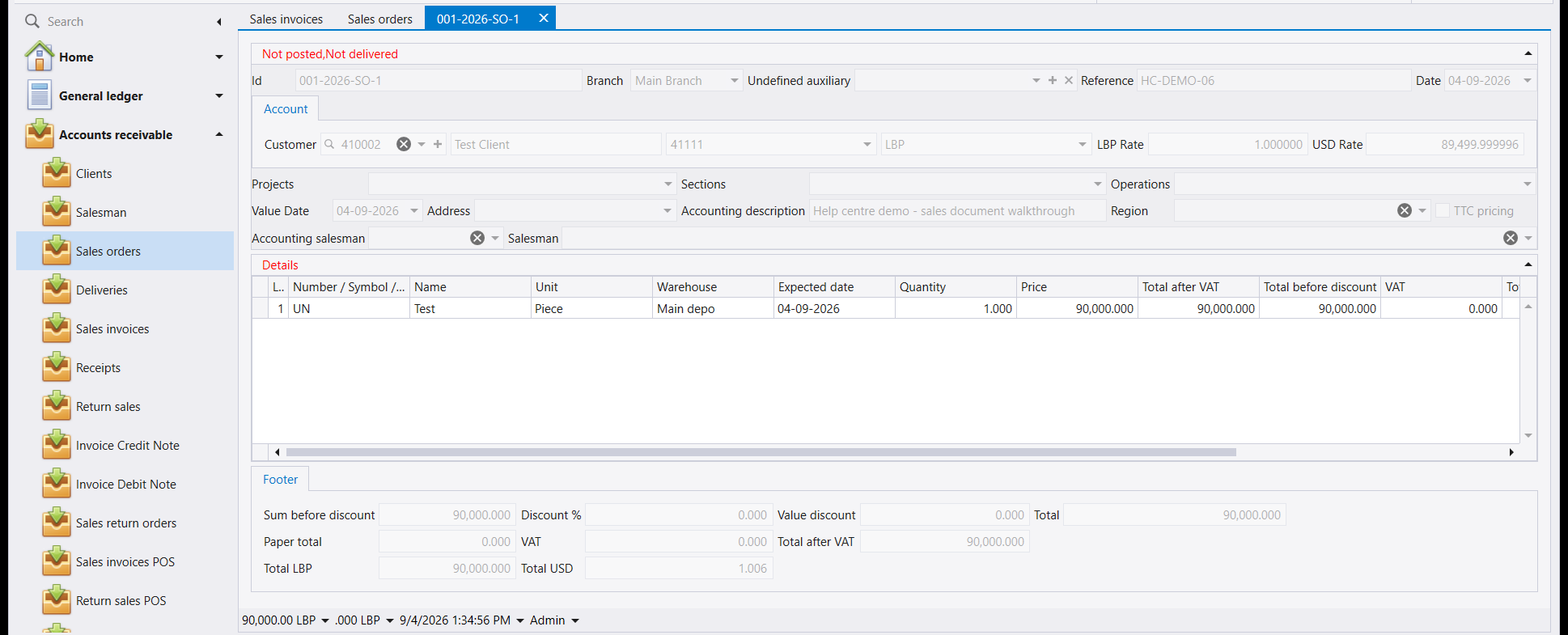
Each type counts separately, so a -1 only means it is the first of that type this year. The red line at the top - Not posted, Not delivered - is the document telling you what has not happened to it yet.
6. You cannot sell what you have not bought
Try to put a quantity on a sales invoice for an item you have none of, and Libra stops you:
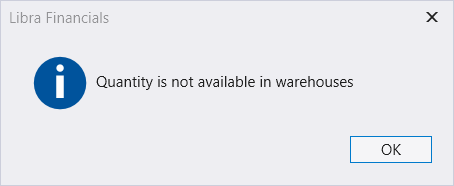
This is not a fault and not a permission. A sales invoice takes goods out of a warehouse, and there are none there to take. The message appears as you type the quantity, before you can even reach the price.
The fix is not a setting. It is to buy the goods first - receive them on a purchase document - and then invoice them. Once the same item has stock in the warehouse, the identical step goes straight through:
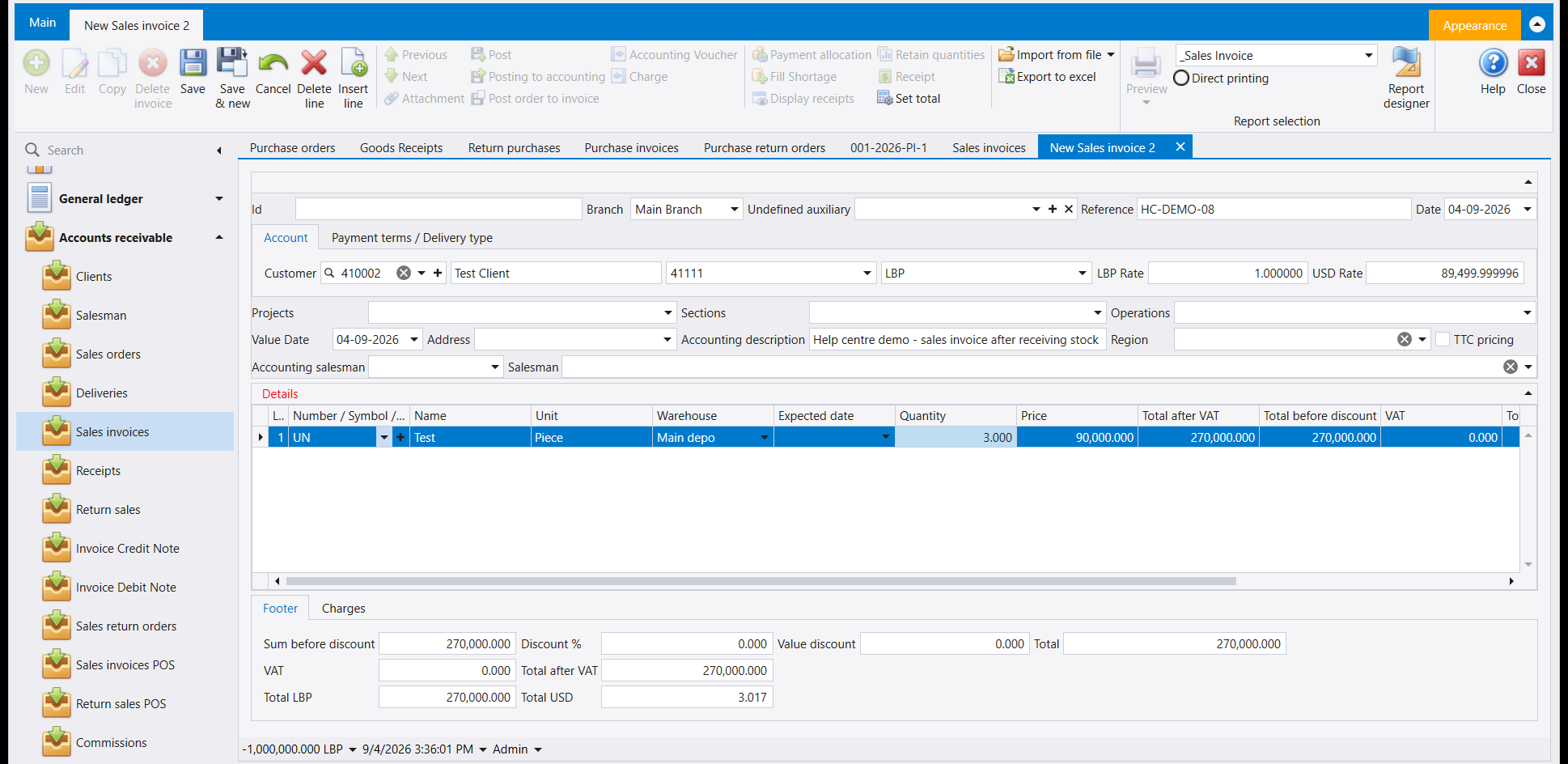
Nothing about the screen changed and nothing was configured - the only difference is that the goods now exist. The invoice then saves like any other document:
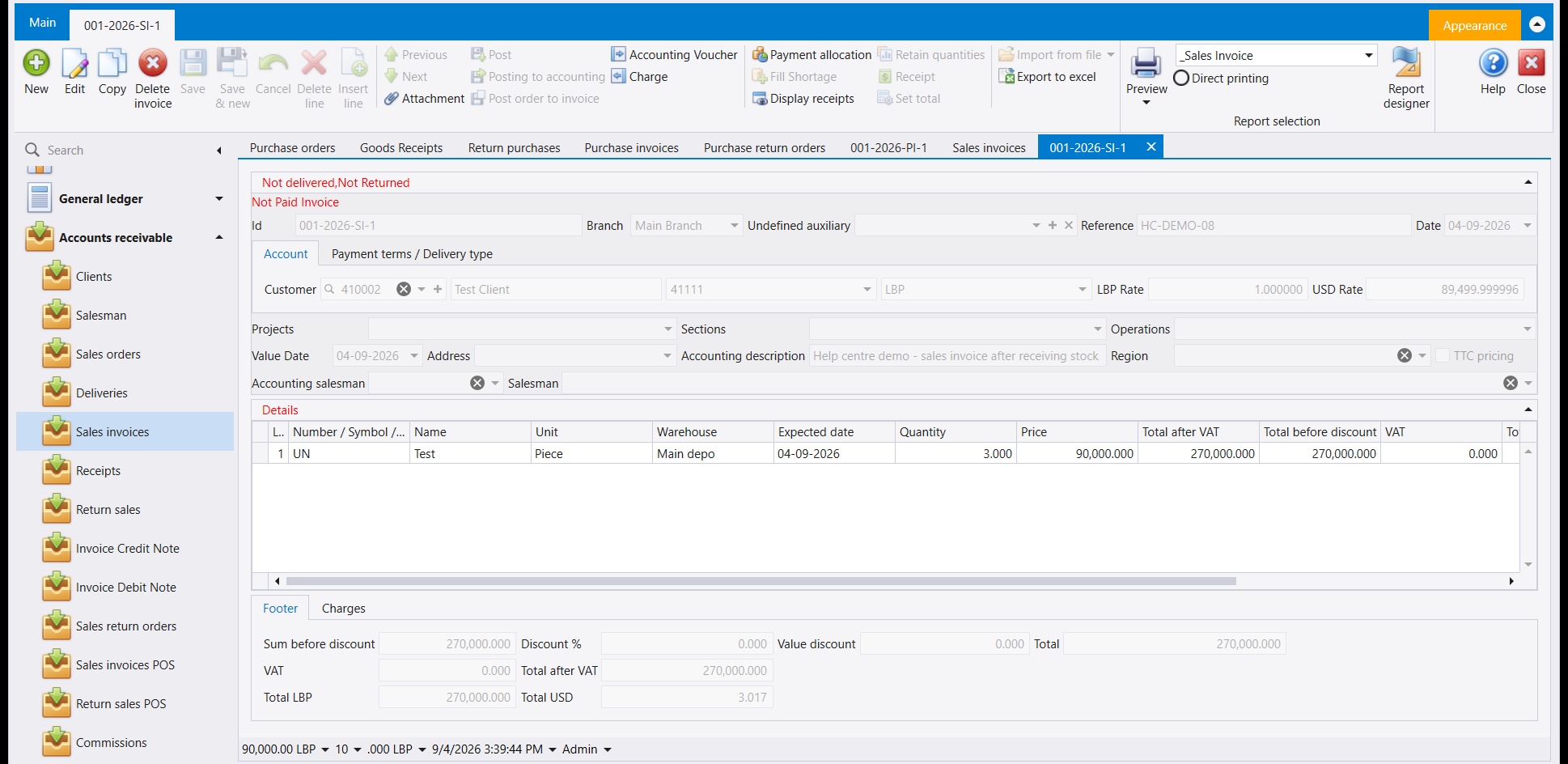
So the order of work is fixed, and it is the reason the purchase side exists: buy, receive, then sell. To do the first two, read Purchase documents and How to record a purchase invoice.
A sales order is the exception, and it is what you use while you wait. It promises goods rather than moving them, so you can record what the customer wants today - before you have the stock - and turn it into an invoice once the goods arrive.
ضمن Accounts receivable (ذمم العملاء) هناك ستة مداخل تبيع جميعها شيئًا: Sales orders (طلبات المبيعات) وDeliveries (أذونات التسليم) وSales invoices (فواتير المبيعات) وReturn sales (مرتجع المبيعات) وInvoice Credit Note وInvoice Debit Note. وكلّها تفتح الشاشة نفسها. ما يتغيّر ليس الشاشة، بل ما يفعله ليبرا عند الحفظ.
لإنشاء مستند خطوة بخطوة، اقرأ كيفية تسجيل طلب مبيعات.
١. شاشة واحدة وستة مستندات
افتح أيًّا من الستة تحصل على التخطيط الثلاثي نفسه: رأس يقول لمن ومتى، وشبكة Details (التفاصيل) تقول ماذا، وFooter (الذيل) يجمع المبالغ. والقوائم متطابقة أيضًا - الأعمدة نفسها، وصف الفلترة نفسه، والشريط نفسه.
يختلف أمران فقط بين الستة. الشريط يحمل الزر المناسب لذلك المستند - قائمة الفواتير تعرض Generate Delivery Slips، وقائمة الطلبات تعرض Generate Invoices. وشاشة الفاتورة فيها إضافتان ليستا في الطلب: لسان Payment terms / Delivery type بجانب Account، ولسان Charges بجانب Footer.
القائمة تفتح على فلتر لا على كل شيء. يعرض Quick Search الخيارات Top 50 Records وToday وLast 7 Days وLast 30 Days وAll. إن لم يظهر مستند حفظته للتو، غيّر الفلتر قبل أن تستنتج أنه لم يُحفظ.
٢. ماذا يفعل كل واحد منها
هذا هو الجزء الذي يستحق التعلّم، لأن الشاشة لا تدلّك عليه. سؤالان يحسمان كل شيء: هل يحرّك المستند البضاعة، وهل يصل إلى حساباتك؟
| المستند | يحرّك البضاعة | يصل إلى الحسابات |
|---|---|---|
| Sales orders | لا | لا |
| Deliveries | نعم | لا |
| Sales invoices | نعم | نعم |
| Return sales | نعم | نعم (بالاتجاه المعاكس) |
| Invoice Credit Note | لا | نعم |
| Invoice Debit Note | لا | نعم |
إذًا طلب المبيعات وعد: دوّنت ما يريده الزبون، ولم يحدث شيء آخر. وإذن التسليم يُخرج البضاعة من المستودع دون أن يطالب أحدًا بشيء. وفاتورة المبيعات تفعل الأمرين - تخرج البضاعة وتُسجَّل البيعة على الزبون. ومرتجع المبيعات هو الفاتورة معكوسة. أما الإشعار الدائن والإشعار المدين فيعدّلان ما على الزبون دون أن يمسّا صنفًا واحدًا.
هذا الجدول مقروء من إعدادات أنواع المستندات في شركتك لا مُجرَّب واحدًا واحدًا هنا. والذي جُرِّب فعلًا هو السطر الأول: طلب مبيعات محفوظ لم يغيّر أي كمية في المستودع ولم يُنشئ أي قيد محاسبي.
الإشعاران معكوسان في التسمية العربية. في الإعدادات يحمل Invoice Credit Note التسمية العربية للإشعار المدين، ويحمل Invoice Debit Note تسمية الإشعار الدائن. اعتمد على الاسم الإنكليزي وعلى ما يفعله المستند، لا على التسمية العربية.
٣. الرأس: لمن ومتى وبأي عملة
أعلى الشاشة واحد في الستة جميعًا.
يبقى Id فارغًا حتى تحفظ - ليبرا هو من يملؤه. وDate يأخذ تاريخ اليوم. أما Reference فلك أنت: ضع فيه رقم طلبية الزبون أو رمز تتبّعك الخاص، فهو عمود في القائمة ويمكنك الفلترة عليه.
Customer هو الحقل الذي يقوم بالعمل. اختر الزبون فيملأ ليبرا الحساب والعملة والسعرين بنفسه - في المثال أعلاه أدّى اختيار Test Client إلى ملء الحساب 41111 والعملة LBP وLBP Rate بقيمة 1.000000 وUSD Rate بقيمة 89,499.999996. اختر الزبون أولًا قبل أن تكتب أي سطر: تغييره لاحقًا قد يعيد تسعير كل ما أدخلته.
٤. السطر: ما الذي تبيعه
شبكة Details سطر لكل شيء مُباع: Number / Symbol / Barcode وName وUnit وWarehouse وExpected date وQuantity وPrice وTotal after VAT وTotal before discount وVAT.
أنت تختار الصنف فقط. وكل ما بجانبه يملأ نفسه - الاسم والوحدة والمستودع الذي يخرج منه الصنف عادةً والسعر. تحقّق من السعر بدل أن تثق به: فهو آتٍ من إعدادات الصنف نفسه وليس دائمًا ما تقصد أن تتقاضاه اليوم.
يجمع Footer بهذا الترتيب: Sum before discount، ثم Discount % وValue discount فينتج Total؛ ثم VAT وTotal after VAT؛ وأخيرًا الرقم نفسه بعملتَي الشركة - Total LBP وTotal USD. في الأعلى خرجت 90,000 ليرة بما يعادل 1.006 دولار بحسب السعر الموجود في الرأس.
الذيل هو دليلك على أن السطر قد ثبت. إذا كتبت كمية وسعرًا وبقي الذيل على 0.000، فالخلية لم تُثبَّت بعد وسيحفظ ليبرا مستندًا فارغًا. انقر خارج الخلية وراقب تغيّر المجاميع قبل أن تحفظ.٥. الرقم يخبرك أي شاشة أنشأته
احفظ، فيعطيك ليبرا رقمًا مبنيًّا هكذا: الفرع - السنة - نوع المستند - التسلسل. ونوع المستند هو الجزء الذي يجب أن تقرأه:
| المستند | شكل الرقم |
|---|---|
| Sales invoices | 001-2026-SI-1 |
| Sales orders | 001-2026-SO-1 |
| Deliveries | 001-2026-DL-1 |
| Return sales | 001-2026-RS-1 |
| Invoice Credit Note | 001-2026-CrN-1 |
| Invoice Debit Note | 001-2026-DbN-1 |
كل نوع يُعدّ على حدة، فالرقم -1 يعني فقط أنه الأول من ذلك النوع هذه السنة. والسطر الأحمر في الأعلى - Not posted, Not delivered - هو المستند يخبرك بما لم يحدث له بعد.
٦. لا يمكنك أن تبيع ما لم تشترِه
حاول أن تضع كمية في فاتورة مبيعات لصنف لا تملك منه شيئًا، فيوقفك ليبرا:
هذا ليس عطلًا وليس مسألة صلاحيات. فاتورة المبيعات تُخرج بضاعة من مستودع، ولا يوجد فيه ما يُخرَج. وتظهر الرسالة أثناء كتابتك للكمية، قبل أن تصل إلى السعر أصلًا.
والحل ليس إعدادًا. الحل أن تشتري البضاعة أولًا - تستلمها بمستند شراء - ثم تفوترها. وما إن يصبح للصنف نفسه رصيد في المستودع حتى تمرّ الخطوة ذاتها من غير اعتراض:
لم يتغيّر شيء في الشاشة ولم يُضبَط أي إعداد - الفرق الوحيد أن البضاعة صارت موجودة. ثم تُحفظ الفاتورة كأي مستند آخر:
إذًا ترتيب العمل ثابت، وهو سبب وجود جهة الشراء أصلًا: اشترِ، ثم استلم، ثم بِع. ولتفعل الأمرين الأولين، اقرأ مستندات الشراء و كيفية تسجيل فاتورة شراء.
وطلب المبيعات هو الاستثناء، وهو ما تستخدمه في أثناء الانتظار. فهو يَعِد بالبضاعة ولا يحرّكها، فيمكنك أن تسجّل اليوم ما يريده الزبون - قبل أن يكون لديك الرصيد - وتحوّله إلى فاتورة حين تصل البضاعة.