
Finding an item fast, and changing many at onceإيجاد صنف بسرعة، وتغيير كثير منها معًا
Two screens for finding an item you already know exists, and two more for the rarer job of changing many item records at once - the item-side equivalent of the account and cost-centre tools in Changing things in bulk, and just as worth being careful with.
1. Search by Serial Number - finding one unit
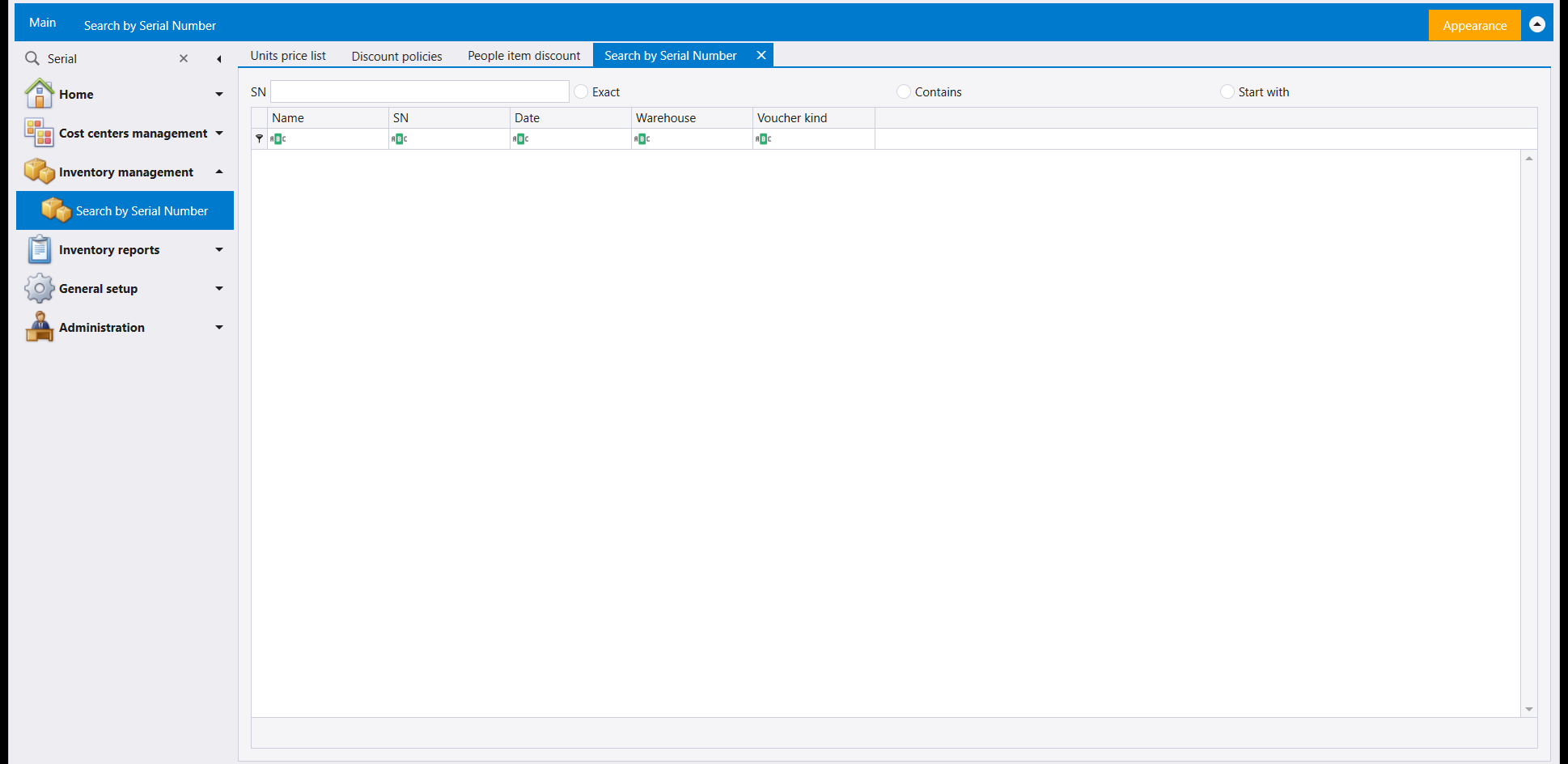
Type into SN and choose Exact, Contains or Start with to decide how closely it has to match. The result lists Name, SN, Date, Warehouse and Voucher kind - so a single serial number tells you which item it belongs to, which warehouse it moved through, and on which kind of document.
2. Item Advanced Search - finding items by anything about them
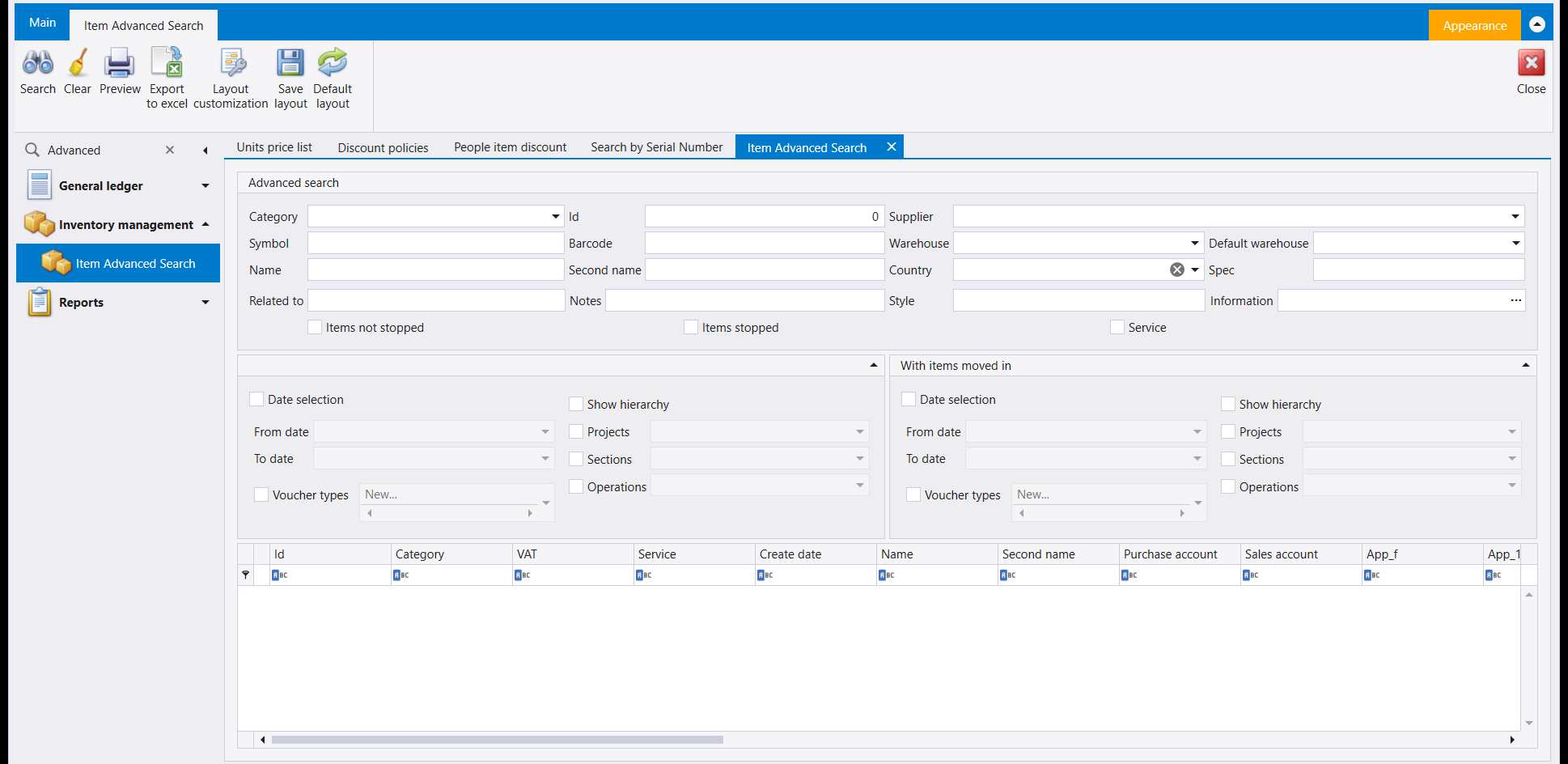
This screen filters items by many fields at once: Category, Id, Supplier, Symbol, Barcode, Warehouse, Default warehouse, Name, Second name, Country, Spec, Related to, Notes, Style and Information, plus Items not stopped, Items stopped and Service. Two further panels add a date range, voucher types and cost centres - the second is headed With items moved in. Search runs it, Clear resets the fields, and Export to excel exports the result grid.
3. Item switch - moving one item's history onto another
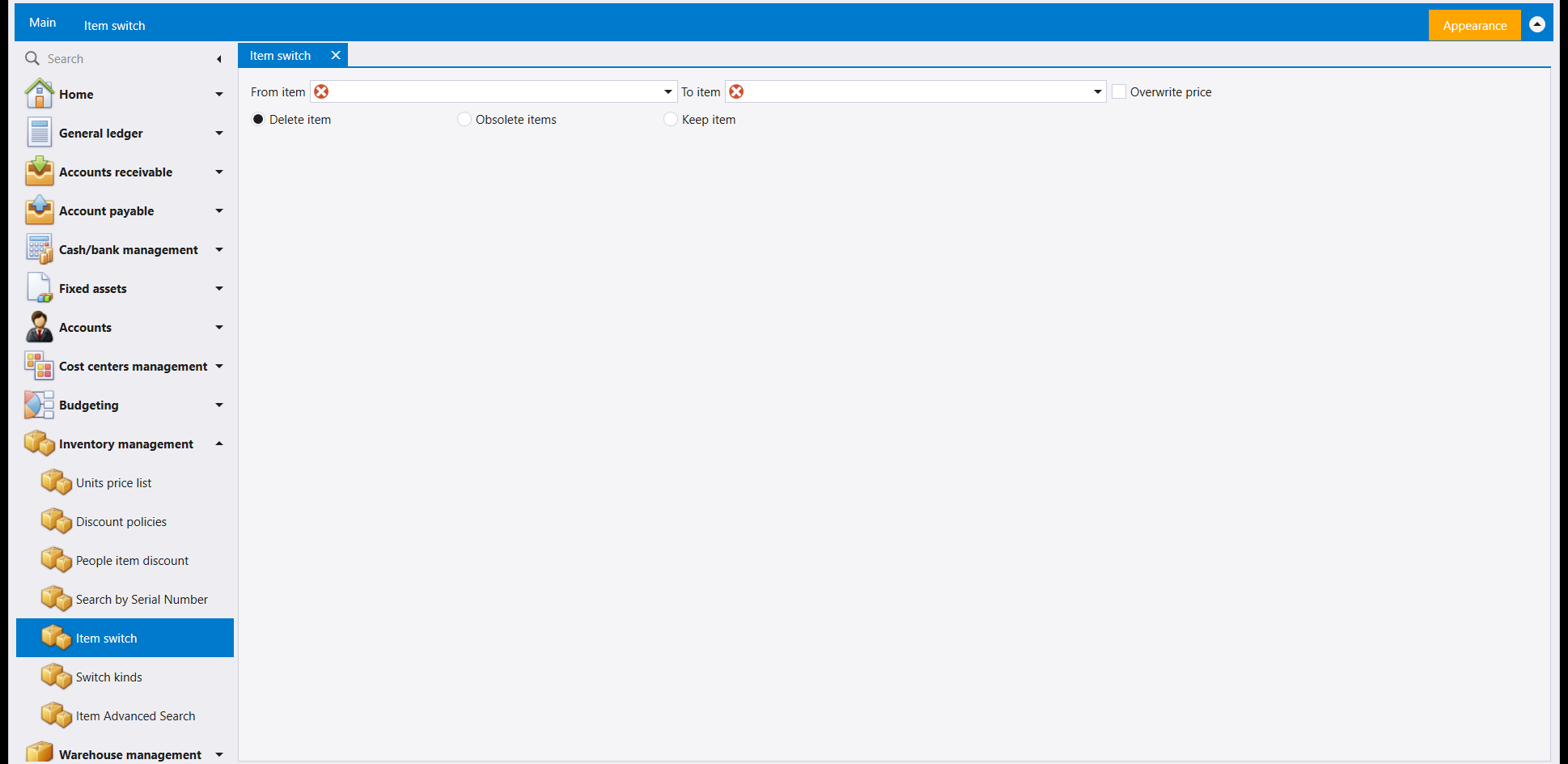
Read this the same way as Switch account: pick a From item and a To item, and the screen replaces the first item with the second. Overwrite price is an option on the same row. What happens to the item you are replacing is a choice of three: Delete item, Obsolete items, or Keep item.
Because this touches every document the from item appears on, treat it the way you would treat Switch account: back a copy up first, and prove the result on one item before running it on many.
4. Switch kinds - moving items from one category to another
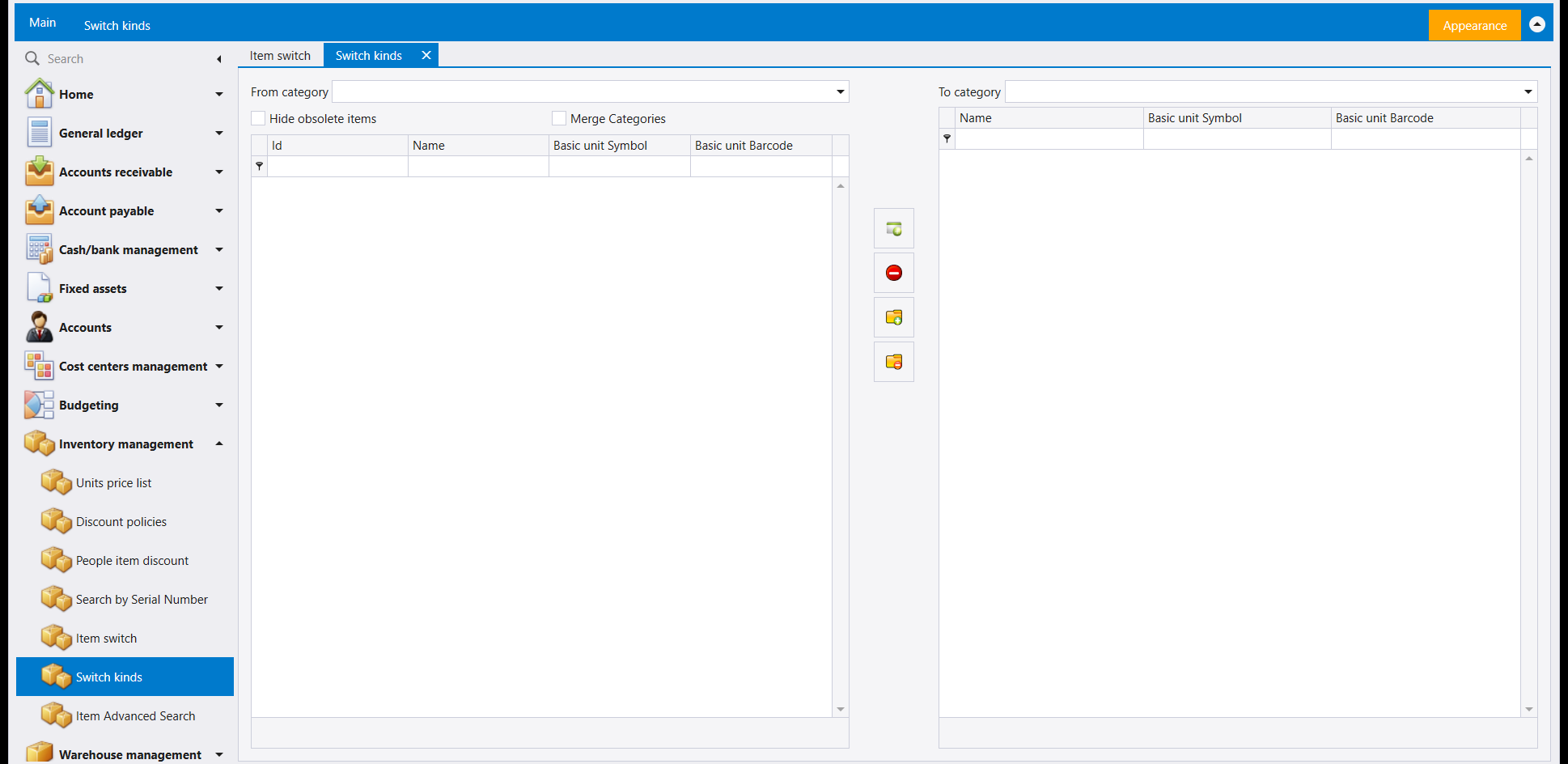
Pick a From category and a To category, and the icon buttons between the two grids move items from the left list into the right one. Hide obsolete items and Merge Categories are options above the left list. For how categories are set up, see Item families.
As with Item switch, this changes item records for good - try it on a few items first.
شاشتان لإيجاد صنف تعرف أنه موجود، وشاشتان أخريان للمهمّة الأقلّ شيوعًا - تغيير سجلّات أصناف كثيرة معًا - وهي نظير أدوات الحسابات ومراكز الكلفة في التغيير بالجملة، وتستحقّ الحذر نفسه.
١. Search by Serial Number - إيجاد وحدة واحدة
اكتب في SN واختر Exact أو Contains أو Start with لتقرّر كم يجب أن تكون المطابقة دقيقة. وتسرد النتيجة Name وSN وDate وWarehouse وVoucher kind - فرقم تسلسلي واحد يخبرك إلى أي صنف ينتمي، وبأي مستودع مرّ، وعلى أي نوع مستند.
٢. Item Advanced Search - إيجاد الأصناف بأي شيء يخصّها
تُرشّح هذه الشاشة الأصناف بحقول كثيرة معًا: Category وId وSupplier وSymbol وBarcode وWarehouse و Default warehouse وName وSecond name وCountry وSpec وRelated to و Notes وStyle وInformation، مع Items not stopped وItems stopped وService. ولوحتان أخريان تضيفان مدى زمنيًا وأنواع سندات ومراكز كلفة - والثانية معنونة With items moved in. وSearch يشغّل البحث، وClear يصفّر الحقول، وExport to excel يصدّر جدول النتائج.
٣. Item switch - نقل تاريخ صنف إلى آخر
اقرأ هذه كما تقرأ Switch account: اختر From item وTo item، فتستبدل الشاشة الصنف الأول بالثاني. وOverwrite price خيار في السطر نفسه. وما يحلّ بالصنف الذي تستبدله خيار من ثلاثة: Delete item أو Obsolete items أو Keep item.
ولأنّ هذا يمسّ كل مستند ظهر فيه الصنف «من»، عامله كما تعامل Switch account: خذ نسخة احتياطية أولًا، وأثبت النتيجة على صنف واحد قبل أن تشغّلها على كثير منها.
٤. Switch kinds - نقل أصناف من فئة إلى أخرى
اختر From category وTo category، فتنقل أزرار الأيقونة بين الجدولين أصنافًا من اللائحة اليسرى إلى اليمنى. وHide obsolete items وMerge Categories خياران فوق اللائحة اليسرى. ولمعرفة كيف تُعدّ الفئات، راجع عائلات الأصناف.
وكما في Item switch، يغيّر هذا سجلّات الأصناف نهائيًا - جرّبه على أصناف قليلة أولًا.