
Stock counts: what you have vs. what the system thinksعدّ المخزون: ما تملكه فعلًا في مقابل ما يظنّه النظام
Sooner or later the shelf and the system disagree, and Libra has a small family of screens for closing that gap: one that counts a whole warehouse for a date range and a cost centre, one that counts fast by barcode, and two that list the counts already saved.
1. Inventory Adjustment - counting a warehouse
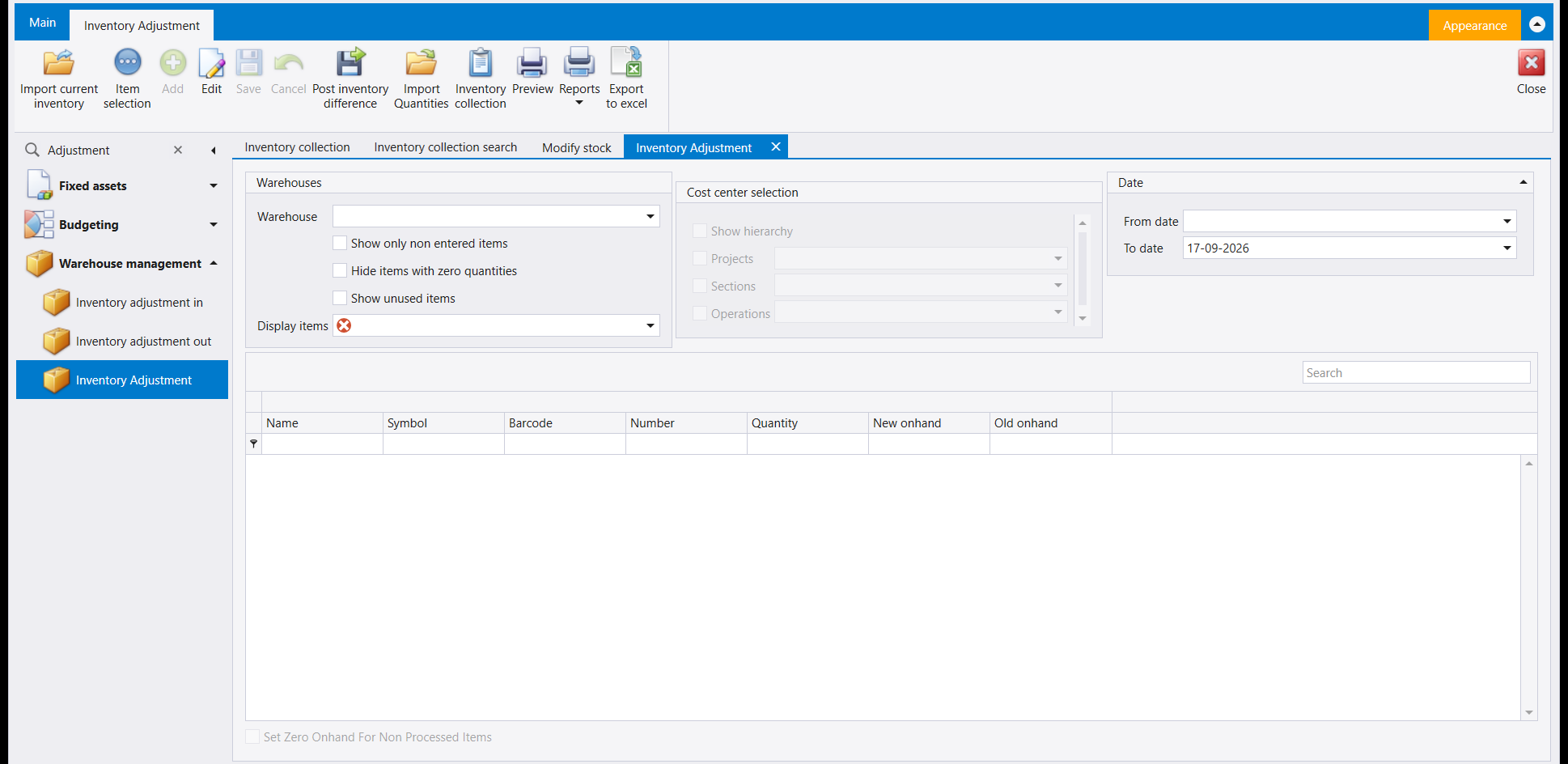
Read the ribbon in the order you work: Import current inventory loads the items into the grid with their current quantities; Item selection limits the count to the items you choose; Add and Edit change lines by hand; Save keeps the count. Import Quantities brings counted quantities in from a file. Post inventory difference is a separate, later step: it records the difference between the counted figures and the system's figures, so press it only once the count is complete and checked.
Post inventory difference has one setting behind it. The company needs an inventory-difference account chosen first, on the Inventory closing tab of the inventory parameters - see System parameters - and Libra tells you plainly if it is still empty when you press the button. Once it is set, posting the difference does the rest of the work itself: Libra writes the correcting stock document for exactly the quantity the count calls for, and posts it. You do not open that document and fill it in by hand.
Three panels decide what you are counting:
- Warehouses - pick the Warehouse, then narrow the list with Show only non entered items, Hide items with zero quantities or Show unused items. Display items is a required field: the screen needs to know which of those views you want before it will show you anything.
- Cost center selection - tick Show hierarchy to restrict the count to one Project, Section or Operation instead of the whole warehouse. See Cost centers for what those three groupings mean.
- Date - a From date/To date range for the count.
In the grid, Quantity is what the system holds now, New onhand is the figure you counted, and Old onhand is the count saved earlier for that line. The checkbox under the grid, Set Zero Onhand For Non Processed Items, is for a full count: items you did not count are set to zero when you post, so leave it clear when you count only part of a warehouse.
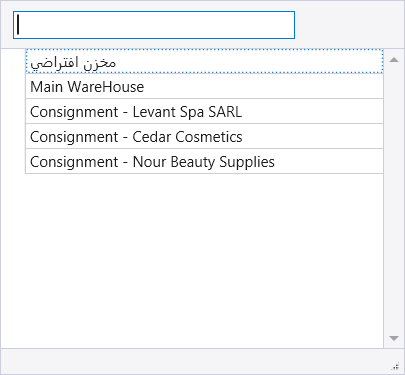
Click the arrow beside Warehouse and this is what opens: every warehouse you are allowed to count, including any consignment warehouse set up for a particular partner - see Consignment for how those are created and why each partner gets its own.
2. Modify stock - counting by barcode
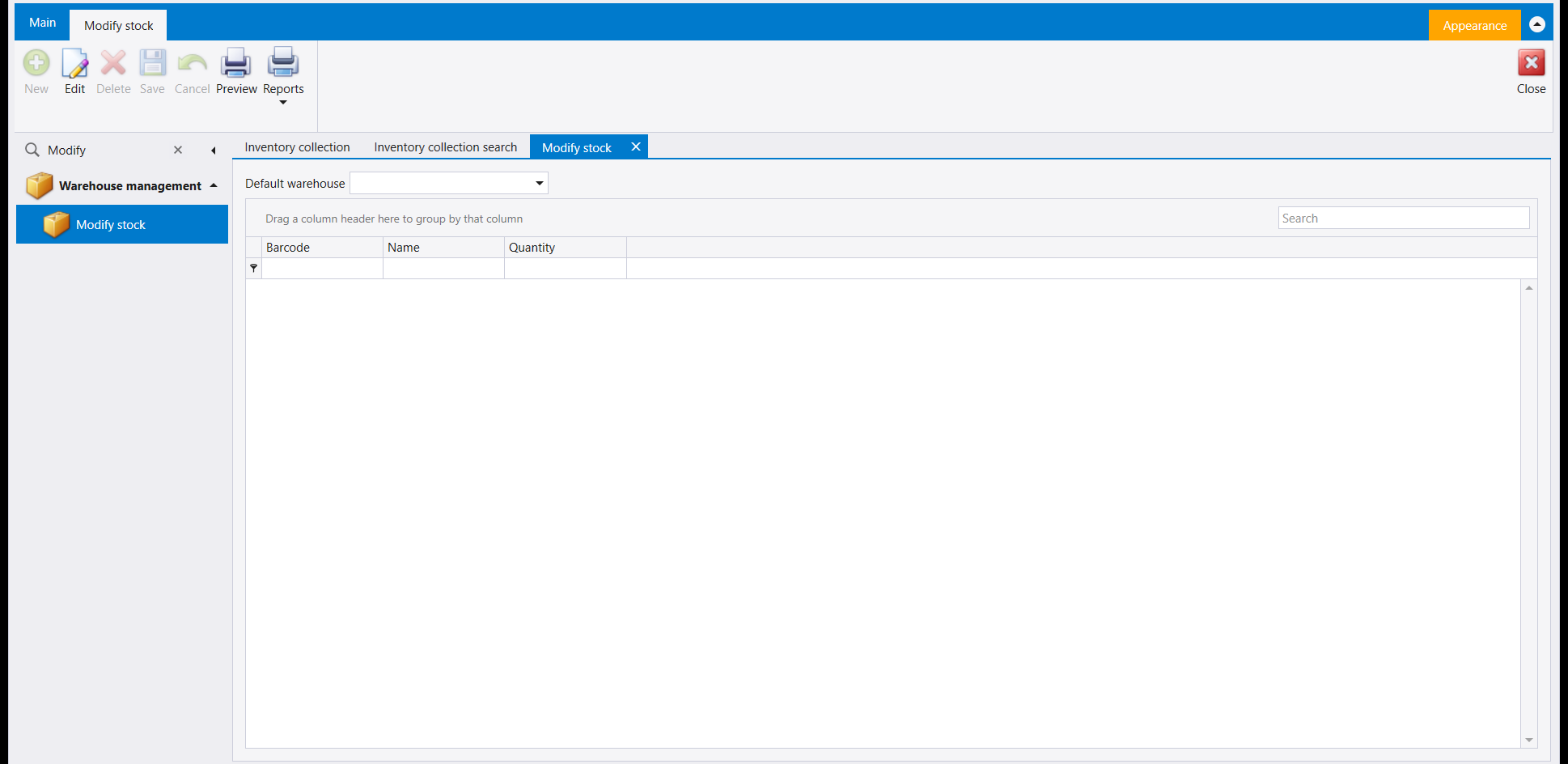
Modify stock is the fast version of the same idea. Pick a Default warehouse, then scan or type a barcode and a quantity straight into a grid that holds only Barcode, Name and Quantity. It has its own New, Edit, Delete, Save and Cancel buttons, plus Preview and Reports.
3. Inventory collection - the counts you have already taken
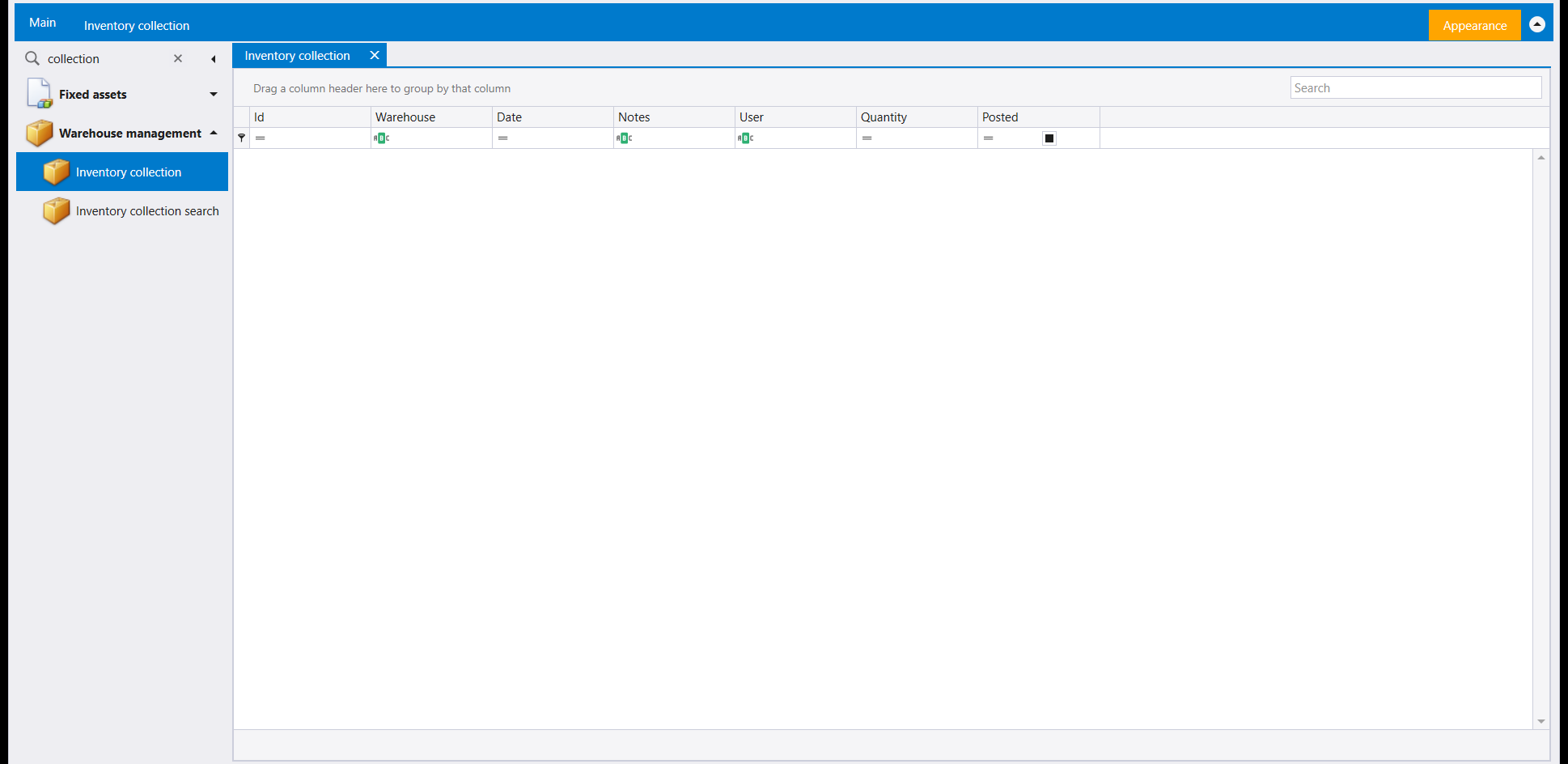
Every count you save is kept here, one row per count, with Warehouse, Date, Notes, User, Quantity and whether it is Posted. The Inventory Adjustment ribbon carries an Inventory collection button of the same name.
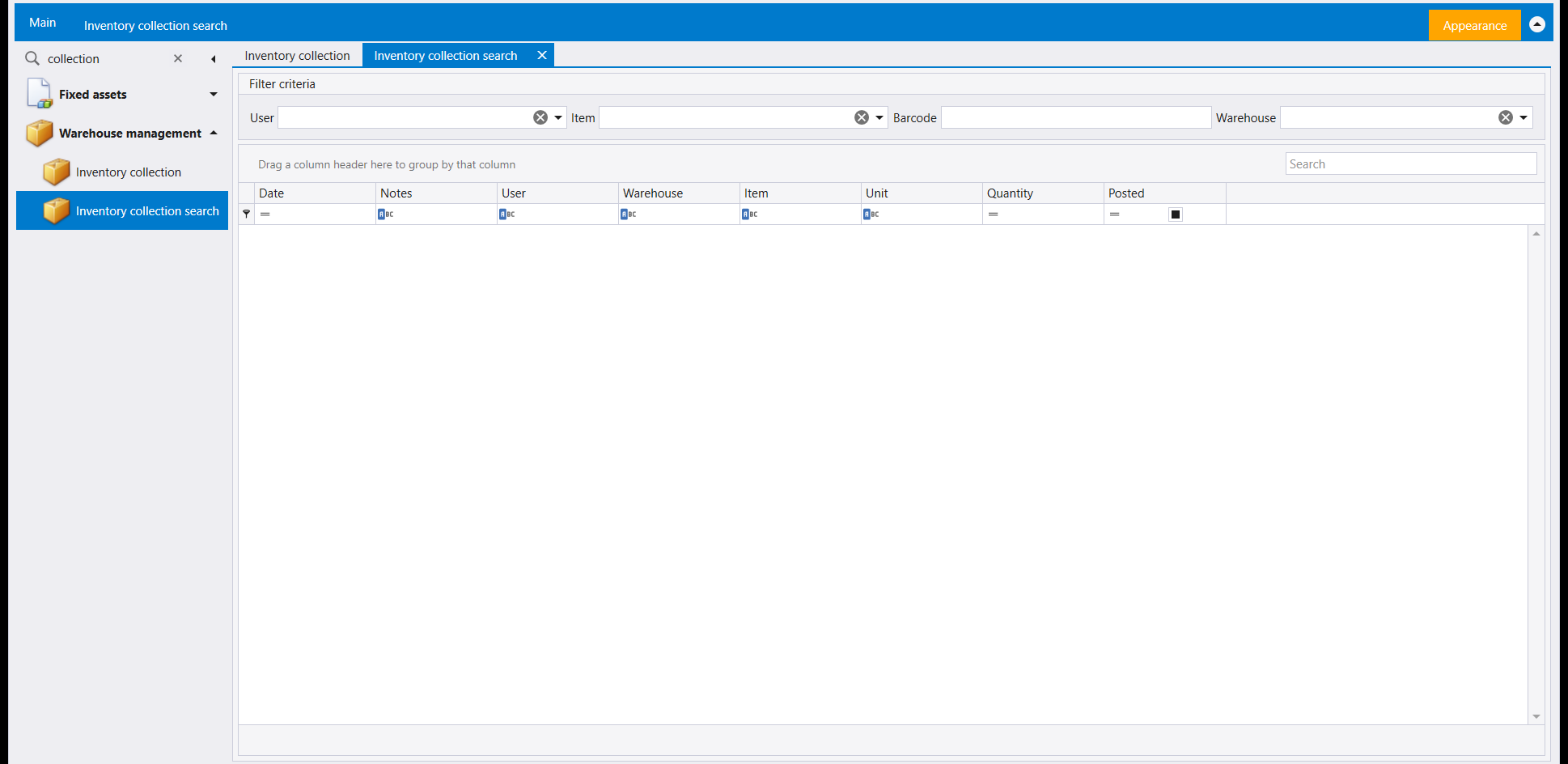
Inventory collection search finds one particular count among all the saved ones, by User, Item, Barcode or Warehouse, and lists every match with Date, Notes, User, Warehouse, Item, Unit, Quantity and Posted.
عاجلًا أو آجلًا يختلف ما على الرفّ عمّا يظنّه النظام، وليبرا فيها مجموعة صغيرة من الشاشات لإغلاق تلك الفجوة: شاشة تعدّ مستودعًا كاملًا لمدى زمني ومركز كلفة، وشاشة تعدّ بسرعة بالباركود، وشاشتان تسردان الأعداد المحفوظة.
١. Inventory Adjustment - عدّ مستودع
اقرأ الشريط بترتيب عملك: Import current inventory يُحمِّل الأصناف إلى الجدول بكمياتها الحالية؛ وItem selection يحصر العدّ في الأصناف التي تختارها؛ وAdd وEdit يغيّران السطور يدويًا؛ وSave يحفظ العدّ. وImport Quantities يُدخل الكميات المعدودة من ملف. أما Post inventory difference فخطوة منفصلة لاحقة: يسجّل الفرق بين الأرقام المعدودة وأرقام النظام، فلا تضغطه إلا بعد اكتمال العدّ والتحقق منه.
ولـPost inventory difference إعدادٌ خلفه. إذ تحتاج الشركة إلى اختيار حساب فرق المخزون أولًا، في لسان Inventory closing ضمن معايير المخزون - راجع معايير النظام - ويخبرك ليبرا بوضوح إن كان لا يزال فارغًا حين تضغط الزر. وبعد ضبطه يتولّى ترحيل الفرق بقية العمل بنفسه: يكتب ليبرا مستند المخزون المصحِّح بالكمية المطلوبة تمامًا ويرحّله. ولا تفتح أنت ذلك المستند لتملأه بيدك.
وثلاث لوحات تقرّر ماذا تعدّ:
- Warehouses - اختر Warehouse، ثم ضيّق اللائحة بـShow only non entered items أو Hide items with zero quantities أو Show unused items. وDisplay items حقل مطلوب: تحتاج الشاشة أن تعرف أيّ تلك العروض تريد قبل أن تُظهر لك شيئًا.
- Cost center selection - علّم Show hierarchy لتحصر العدّ في Project أو Section أو Operation واحد بدل المستودع كله. راجع مراكز الكلفة لمعنى تلك الأقسام الثلاثة.
- Date - مدى From date/To date للعدّ.
وفي الجدول، Quantity هو ما يحمله النظام الآن، وNew onhand هو الرقم الذي عددته، وOld onhand هو العدّ المحفوظ سابقًا لذلك السطر. والخانة تحت الجدول، Set Zero Onhand For Non Processed Items، مخصّصة للعدّ الكامل: الأصناف التي لم تعدّها تُصفَّر عند الترحيل، فاتركها غير مؤشَّرة حين تعدّ جزءًا فقط من المستودع.
اضغط السهم بجانب Warehouse وهذا ما يُفتح: كل مستودع مسموح لك بعدّه، بما فيه أي مستودع أمانة أُعدّ لشريك معيّن - راجع الأمانة لكيفية إنشاء تلك المستودعات ولماذا يحصل كل شريك على مستودعه الخاص.
٢. Modify stock - العدّ بالباركود
Modify stock هي النسخة السريعة من نفس الفكرة. اختر Default warehouse، ثم امسح أو اكتب باركودًا وكمية مباشرة في جدول لا يحمل غير Barcode وName وQuantity. ولها أزرارها الخاصة New وEdit وDelete وSave وCancel، مع Preview وReports.
٣. Inventory collection - الأعداد التي أجريتها من قبل
كل عدّ تحفظه يُحفظ هنا، سطر لكل عدّ، بـWarehouse وDate وNotes وUser وQuantity وهل هو Posted. ويحمل شريط Inventory Adjustment زرًّا بالاسم نفسه Inventory collection.
Inventory collection search تجد عدًّا معيّنًا بين كل ما حُفظ، بـUser أوItem أو Barcode أوWarehouse، وتسرد كل مطابقة بـDate وNotes وUser وWarehouse و Item وUnit وQuantity وPosted.