
Building a cost-centre tree, and splitting a cost by percentageبناء شجرة مراكز تكلفة، وتوزيع كلفة بالنسبة المئوية
Cost centers explains what the three dimensions are for and why a company sets its own names for them. This guide covers the two things that guide leaves out: how a tree is actually built node by node, and a screen that splits one posted value across several cost centers automatically instead of you typing a line per center.
1. Building the tree: New chart, not New detail
Open Cost Centers, pick the Type you want to build under, and select the row the new node should sit under - the parent comes from whichever row is selected when you open New, not from the account code you type.
The ribbon's New button is a split button with two choices, and only one of them creates a node:
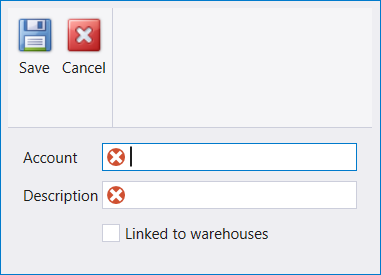
New chart is the node-creation dialog. It carries Account, Description and a Linked to warehouses checkbox. The account code is free text - it only has to be unique, and its shape does not decide where it nests. Select the parent row first, then open New chart and type a code; the new row appears under the parent you had selected. Try to save a code whose parent was never created and Libra answers «Please create father account first» - so the fix is to select the real parent row, not to change the code.
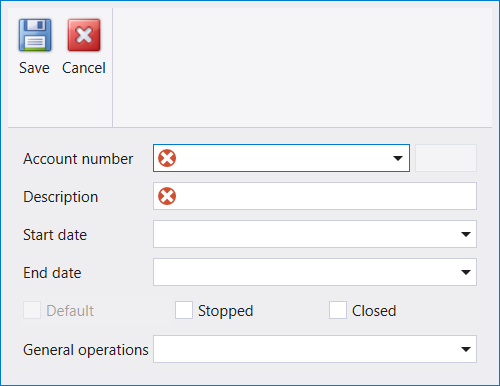
New detail looks like a second way to add a node, and it is not one. Its Account number field is a lookup into nodes that already exist - type a code that is not there yet and it autocompletes to the nearest one that is, ready to attach your Description to the wrong node if you save. Use New detail only to set Start date, End date, the Default / Stopped / Closed radio, or General operations on a node New chart already created - never to create the node itself.
2. A worked example: property, building, apartment
A business that manages property is the clearest case for a deep tree, and it is worth building before you decide your own company needs one. Model it as:
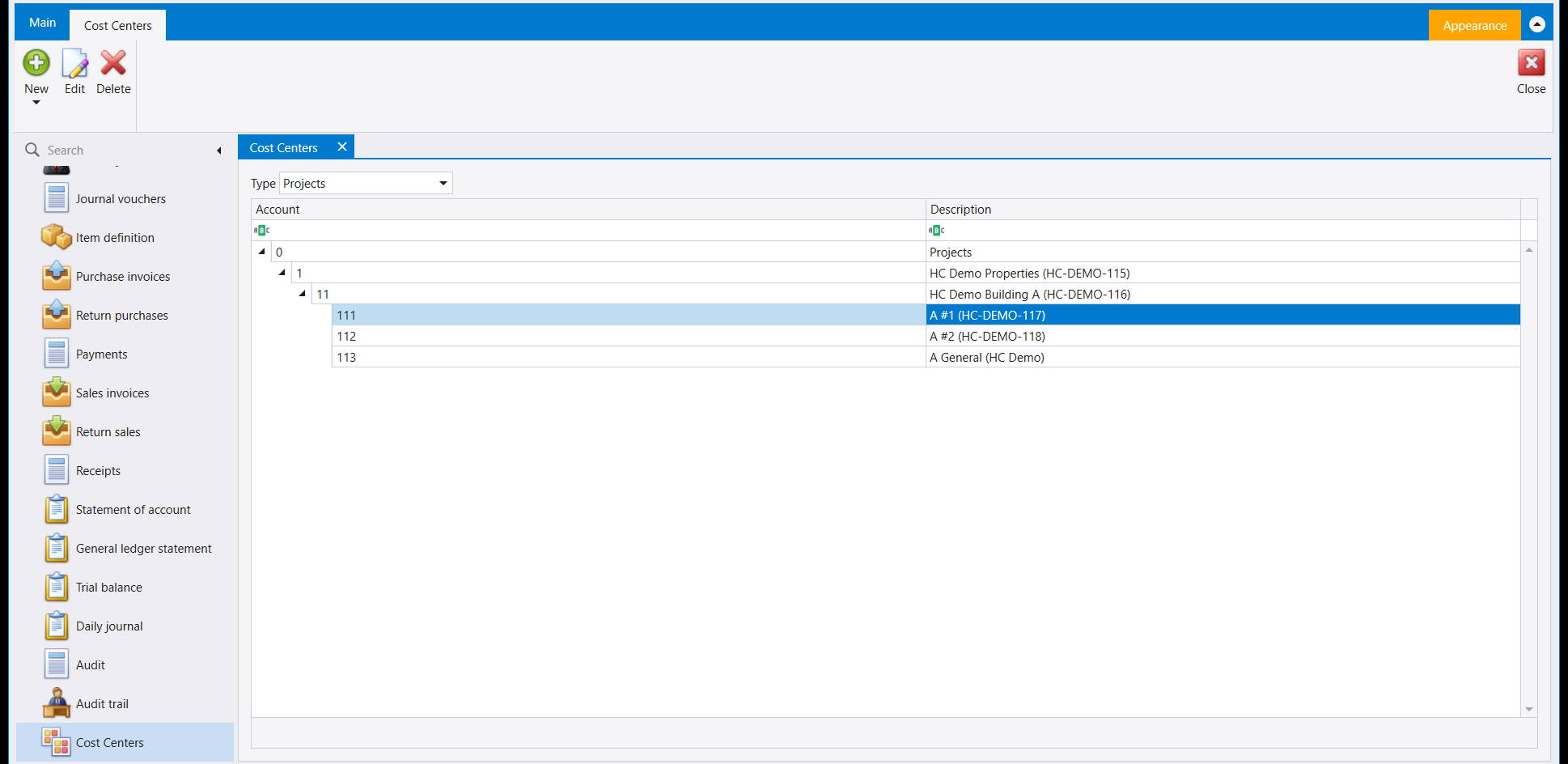
- a node for the project (the property as a whole);
- a building node under it, one per building;
- an apartment node under each building, one per unit;
- a General node under each building, for a cost that belongs to no single apartment - a lift repair, a shared entrance light, cleaning the shared stairwell;
- one more General node at the project level, for a cost shared across every building the project has.
Post each cost against the node that actually caused it. A repair inside one apartment goes on that apartment's own node; a cost nobody can attribute to one unit goes on the building's General node instead, and one that spans every building in the project goes on the project's own General node. At year end, spread each General node's balance across the apartments it covers - evenly, or by each apartment's own floor area if some units are larger than others. Which of the two you pick is a decision about your own building, not something the tree forces on you.
3. Splitting a cost automatically: percentage distribution
Typing the same split by hand every month - the same three cost centers, the same three percentages
- is exactly the kind of repetition a cost-centre tree is supposed to remove. **Percentage
distribution on cost centers** is the screen for it: configure the split once, and every future posting to the account can carry it without a line being typed per cost center.
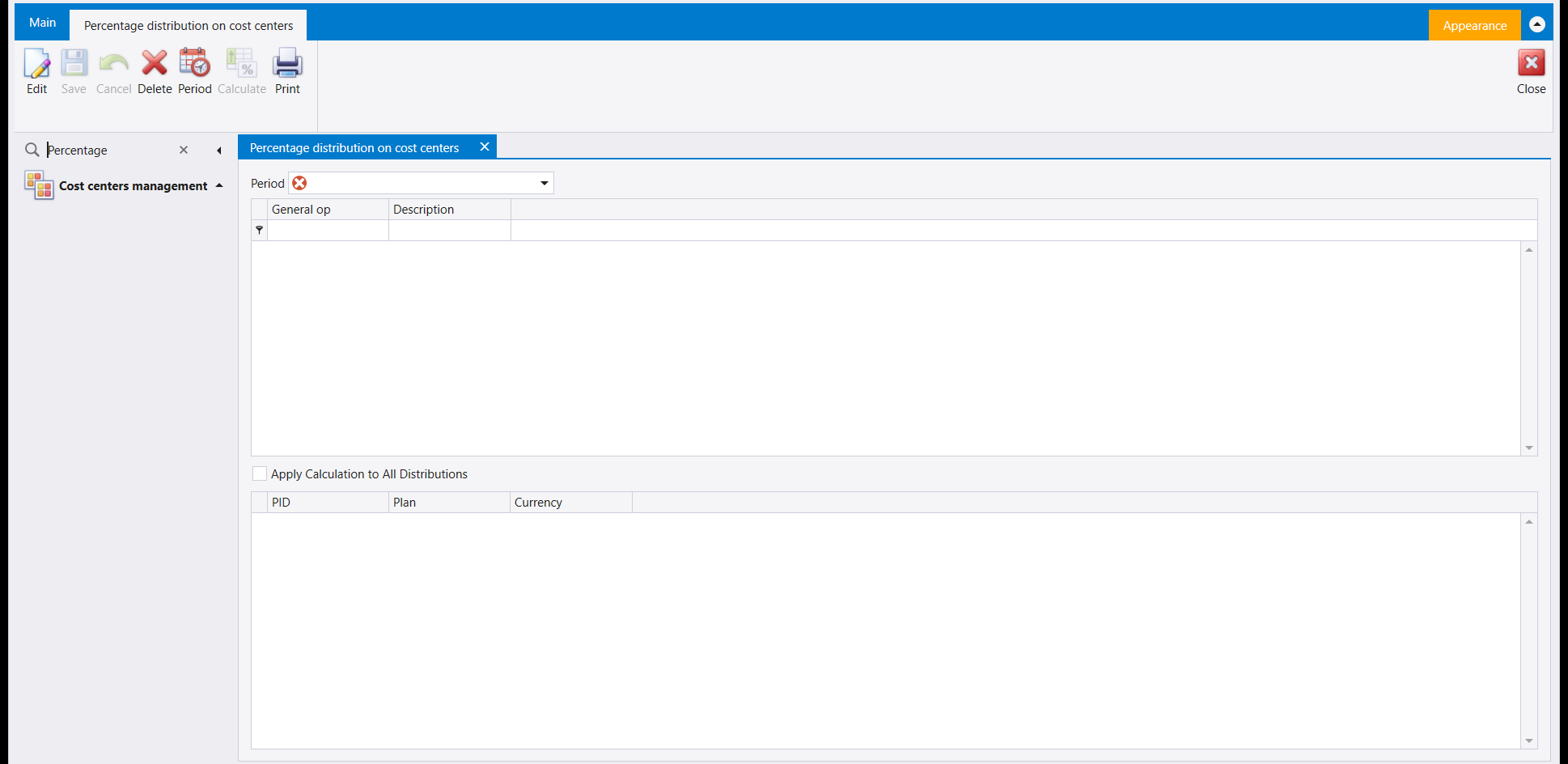
The screen opens on a Period field, marked required. Below it sits a grid of General op / Description rows - this is where the accounts to be split are listed - and a checkbox, Apply Calculation to All Distributions. A second grid below that carries PID, Plan and Currency columns, for the cost centers and shares each listed account splits across. The ribbon carries Edit, Save, Cancel, Delete, Period, Calculate and Print.
Some companies' own navbar list under Cost centers management draws only Switch cost centers; when that is the case for yours, open Percentage distribution on cost centers through the navigation pane's Search box instead, the same way as any screen your own company's menu keeps off its list.
Next: Cost centers for what Type and the three dimensions mean, and Paying a supplier in a different currency from their invoice for paying a supplier whose invoice sits in a different currency from the cash or bank account settling it.
يشرح مراكز التكلفة ما هي الأبعاد الثلاثة ولماذا تضع كل شركة أسماءها الخاصة لها. ويغطي هذا الدليل ما يترك ذلك الدليل جانبًا: كيف تُبنى الشجرة فعليًا عقدة بعد عقدة، وشاشة توزّع قيمة واحدة مرحَّلة على عدة مراكز تكلفة تلقائيًا بدل أن تكتب أنت سطرًا لكل مركز.
١. بناء الشجرة: New chart لا New detail
افتح Cost Centers، واختر Type الذي تريد البناء تحته، وحدد السطر الذي يجب أن تقع العقدة الجديدة تحته - فالعقدة الأم تأتي من أي سطر كان محددًا عند فتح New، لا من رمز الحساب الذي تكتبه.
وزر New في الشريط زر منقسم بخيارين، وواحد منهما فقط ينشئ عقدة:
New chart هو نافذة إنشاء العقدة. ويحمل Account وDescription ومربع اختيار Linked to warehouses. ورمز الحساب نص حر - لا يلزم إلا أن يكون فريدًا، وشكله لا يقرر أين يتموضع. حدد سطر الأم أولًا، ثم افتح New chart واكتب رمزًا؛ فيظهر السطر الجديد تحت السطر الذي كان محددًا. وإن حاولت حفظ رمز لم يُنشأ أبوه بعد، يجيب ليبرا «Please create father account first» - فالحل هو تحديد سطر الأب الحقيقي، لا تغيير الرمز.
أما New detail فيبدو طريقة ثانية لإضافة عقدة، وهو ليس كذلك. فحقله Account number بحثٌ في عقد أُنشئت أصلًا - اكتب رمزًا لم يُنشأ بعد فيكمله تلقائيًا إلى أقرب رمز أُنشئ فعلًا، جاهزًا لإلصاق Description الذي كتبته بالعقدة الخطأ إن حفظت. استعمل New detail فقط لضبط Start date أو End date أو خيارات Default / Stopped / Closed أو General operations على عقدة أنشأها New chart أصلًا - لا لإنشاء العقدة نفسها أبدًا.
٢. مثال مطبَّق: مشروع ومبنى وشقة
منشأة تدير عقارات هي أوضح حالة لشجرة عميقة، ويستحق بناؤها قبل أن تقرر أن شركتك تحتاج واحدة. صمّمها هكذا:
- عقدة للمشروع (العقار ككل)؛
- عقدة مبنى تحته، واحدة لكل مبنى؛
- عقدة شقة تحت كل مبنى، واحدة لكل وحدة؛
- عقدة عامة (General) تحت كل مبنى، لكلفة لا تخص شقة واحدة بعينها - إصلاح مصعد، إضاءة مدخل مشترك، تنظيف الدرج المشترك؛
- عقدة عامة (General) أخرى على مستوى المشروع، لكلفة مشتركة بين كل مباني المشروع.
رحّل كل كلفة على العقدة التي سببتها فعلًا. فإصلاح داخل شقة واحدة يذهب إلى عقدة تلك الشقة نفسها؛ وكلفة لا يمكن نسبتها إلى وحدة واحدة تذهب إلى عقدة General الخاصة بالمبنى بدلًا من ذلك، وما يشمل كل مباني المشروع يذهب إلى عقدة General الخاصة بالمشروع نفسه. وفي نهاية السنة، وزّع رصيد كل عقدة General على الشقق التي تغطيها - بالتساوي، أو بحسب مساحة كل شقة إن كانت بعض الوحدات أكبر من غيرها. وأيّ الطريقتين تختار قرار يخص مبناك أنت، لا شيء تفرضه الشجرة عليك.
٣. توزيع كلفة تلقائيًا: التوزيع بالنسبة المئوية
كتابة التوزيع نفسه يدويًا كل شهر - المراكز الثلاثة نفسها، والنسب الثلاث نفسها - هو بالضبط نوع التكرار الذي يُفترض بشجرة مراكز التكلفة أن تزيله. وشاشة Percentage distribution on cost centers هي المخصصة لذلك: اضبط التوزيع مرة واحدة، وكل ترحيل مستقبلي على الحساب يمكن أن يحمله دون أن يُكتب سطر لكل مركز تكلفة.
تفتح الشاشة على حقل Period، مؤشَّر كإلزامي. وتحته جدول من أسطر General op / Description
- وهو حيث تُدرَج الحسابات المراد توزيعها - ومربع اختيار Apply Calculation to All Distributions.
وتحت ذلك جدول ثانٍ يحمل أعمدة PID وPlan وCurrency، لمراكز التكلفة وحصصها التي يتوزع عليها كل حساب مدرج. ويحمل الشريط Edit وSave وCancel وDelete وPeriod و Calculate وPrint.
وفي بعض الشركات لا ترسم لائحة القائمة الخاصة بها تحت Cost centers management سوى Switch cost centers؛ وإن كان هذا حال شركتك، افتح Percentage distribution on cost centers من صندوق Search في لوحة التصفح بدلًا من ذلك، تمامًا كأي شاشة تُبقيها قائمة شركتك خارج لائحتها.
التالي: مراكز التكلفة لمعنى Type والأبعاد الثلاثة، و دفع مبلغ لمورّد بعملة مختلفة عن عملة فاتورته لدفع مبلغ لمورّد فاتورته بعملة مختلفة عن عملة الصندوق أو المصرف الذي يسدّدها.