
Printing any list: the Reports menuطباعة أي قائمة: قائمة Reports
Report screens such as the Trial balance come with ready-made layouts. Lists (journal vouchers, receipts and payments, items, invoices, stock movements and many more) have a tool of their own: a Reports drop-down on the list's ribbon that turns the list you are looking at into a printout you name, keep and print again whenever you need it.
For the layouts of report and document screens, see Changing how a printed page looks: the Report designer.
1. Where to find it
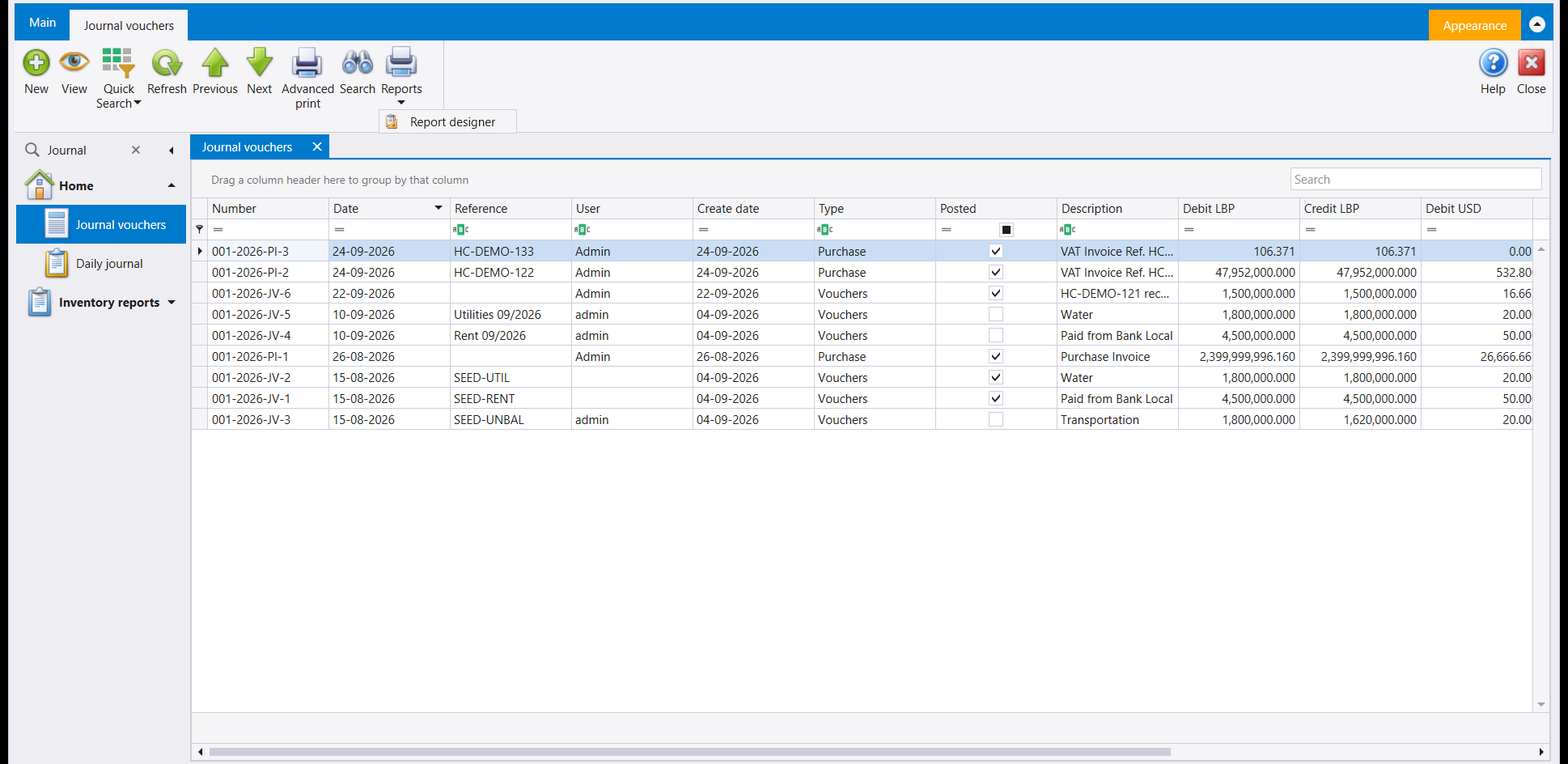
Reports sits on the ribbon of many list screens; on the Journal vouchers list it comes after Advanced print and Search. It shows for users whose role holds the Report designer right (see Users, roles and rights).
Until a report has been saved from that list, the drop-down holds a single entry, Report designer, which creates one. Each report you save is then added to the menu above Report designer, which stays the last entry.
Each list keeps its own set. A report made on the item list appears only in the item list's menu, and journal vouchers, receipts, payments and the other voucher lists each keep a set of their own.
2. Creating a report from a list
- Arrange the list first. Show the columns you want, in the order you want, and narrow the rows down to what you want to print. The report is built from the list as it is on screen.
- Open Reports and choose Report designer. The designer opens with a report already built from the list, on a tab carrying the list's internal name (Transaction for Journal vouchers): the list's columns run across the page, with their headings above.
- Adjust what you need: a title, column widths, a logo.
- Save asks for the report's name in a small Report Name window, and the report is kept under the name you give there. Give it a short, clear name, and keep dots out of it, the same habit as for printed layouts. A name that is already in the menu is replaced without a question, so choose a new one.
- Once it is saved, the designer closes and the report is added to the Reports menu.
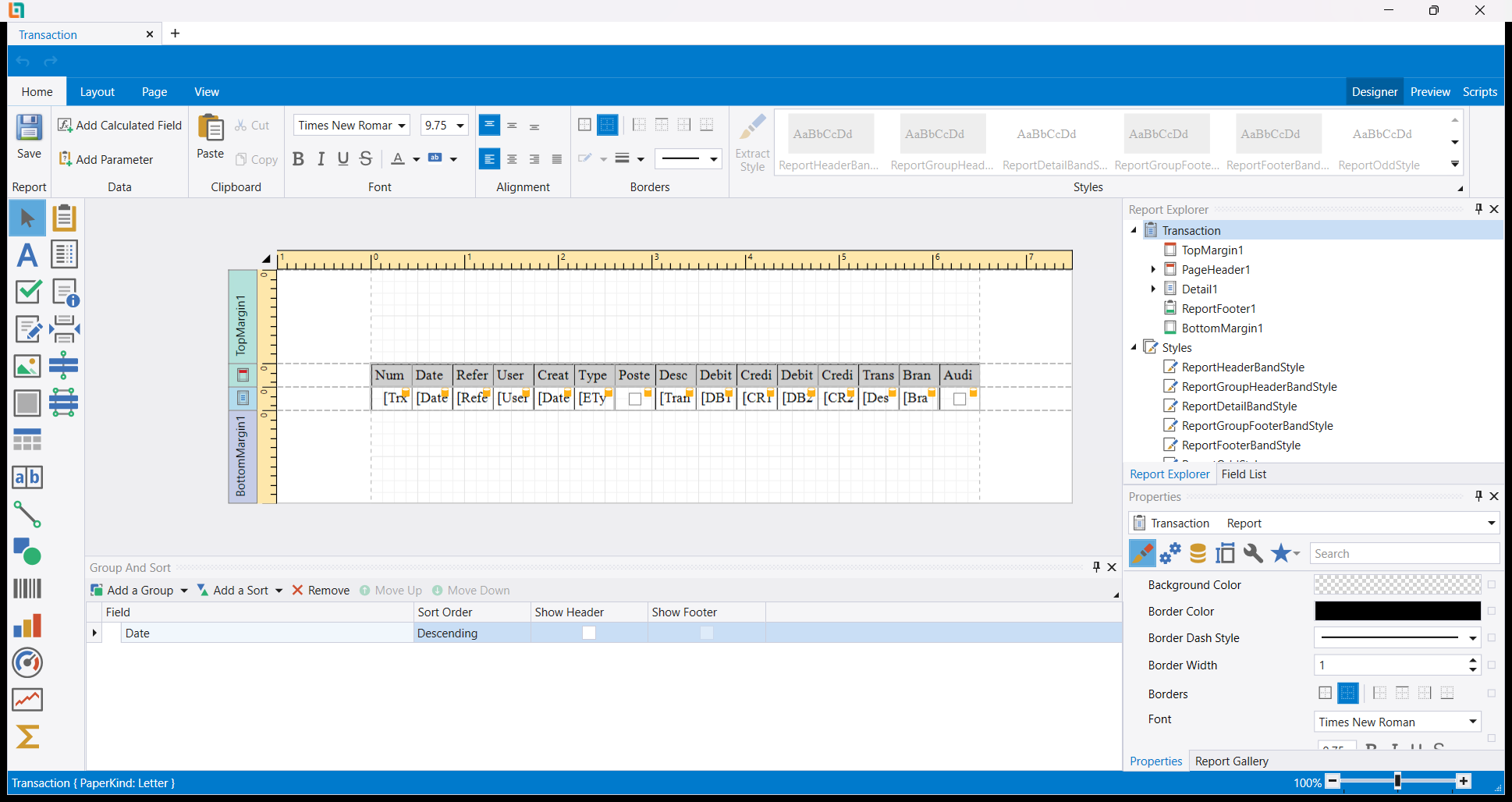
In the designer the report already carries the list's sort order: here, under Group And Sort, the vouchers are sorted by Date, Descending. The Report group holds Save only, since a new list report gets its name when you first save it.
3. Using a saved report
Each saved report in the menu opens a small submenu with four entries:
- Preview builds the report from the list as it stands now, in the layout you saved, and shows it ready to print. So set the list first (this month's vouchers, one warehouse's items), then choose Preview.
- Edit reopens the report in the designer. Save there writes over the saved report. To keep the old version as well, create a second report with Report designer instead.
- Rename gives the report a new name.
- Delete asks you to confirm, then removes the report from the menu.
4. Where these reports are kept: this computer
Reports made from the Reports menu are saved on the computer where you create them, inside that computer's Libra installation. That has three consequences:
- Other computers keep their own menus. Create the report again on each computer that needs it, or ask whoever manages your installation to copy it across.
- They belong to the computer, not to a company. Every user on that computer who has the menu sees them, in every company, and a report made on one company's item list works on another company's item list too.
- Your company backups leave them out. Ask for this computer's Libra reports to be included in its own backup, and copied before a Libra update.
5. Tips
- Arrange, then create. Preview always builds from the list as it stands, so keep the list arranged the same way when you reuse a report.
- One report per purpose. Two small reports (for example Vouchers by user and Vouchers by account) are easier to keep right than one report you keep rearranging.
- Ad hoc reports print the same way. An ad hoc report's page carries the same Reports menu: see Ad hoc reports: ready-made queries in a grid.
- Looking for the layout of an invoice or a report screen? That is a different tool, the Report designer button next to Report selection: see Changing how a printed page looks: the Report designer.
شاشات التقارير مثل Trial balance تأتي بتصاميم جاهزة. أما القوائم (قيود اليومية، الإيصالات والدفعات، الأصناف، الفواتير، حركات المخزون وغيرها كثير) فلها أداة خاصة: قائمة Reports (في الواجهة العربية تقارير) المنسدلة على شريط القائمة، وهي تحوّل القائمة التي أمامك إلى مطبوعة تسمّيها وتحتفظ بها وتطبعها من جديد متى احتجت.
لتصاميم شاشات التقارير والمستندات، راجع تغيير شكل الصفحة المطبوعة: مصمّم التقارير.
١. أين تجدها
توجد Reports على شريط كثير من شاشات القوائم؛ وفي قائمة Journal vouchers تأتي بعد Advanced print وSearch. وتظهر للمستخدمين الذين يحمل دورهم صلاحية Report designer (راجع المستخدمون والأدوار والصلاحيات).
وإلى أن يُحفظ تقرير من تلك القائمة، تحمل القائمة المنسدلة بندًا واحدًا هو Report designer (في الواجهة العربية مصمم التقارير)، وبه يُنشأ التقرير. ثم يُضاف كل تقرير تحفظه إلى القائمة فوق Report designer، الذي يبقى آخر بند فيها.
لكل قائمة مجموعتها الخاصة. التقرير المصنوع في قائمة الأصناف يظهر فقط في قائمة Reports الخاصة بقائمة الأصناف، وقيود اليومية والإيصالات والدفعات وسائر قوائم القيود لكلٍّ منها مجموعتها.
٢. إنشاء تقرير من قائمة
- رتّب القائمة أولًا. أظهر الأعمدة التي تريدها بالترتيب الذي تريده، وضيّق الصفوف إلى ما تريد طباعته. يُبنى التقرير من القائمة كما هي على الشاشة.
- افتح Reports واختر Report designer. يفتح المصمّم وفيه تقرير مبني مسبقًا من القائمة، في تبويب يحمل الاسم الداخلي للقائمة (Transaction لقيود اليومية): أعمدة القائمة ممتدّة عبر الصفحة وعناوينها فوقها.
- عدّل ما تحتاجه: عنوانًا، عرض الأعمدة، شعارًا.
- يطلب Save اسم التقرير في نافذة صغيرة عنوانها Report Name (في الواجهة العربية التقرير الاسم)، ويُحفظ التقرير بالاسم الذي تعطيه هناك. أعطِه اسمًا قصيرًا واضحًا، وأبعد عنه النقاط، وهي العادة نفسها المتّبعة مع التصاميم المطبوعة. الاسم الموجود أصلًا في القائمة يُستبدل دون سؤال، فاختر اسمًا جديدًا.
- بعد الحفظ يُغلق المصمّم ويُضاف التقرير إلى قائمة Reports.
وفي المصمّم يحمل التقرير ترتيب القائمة من البداية: فهنا، تحت Group And Sort، القيود مرتّبة حسب Date ترتيبًا Descending. ولا تحمل مجموعة Report إلا Save، لأن تقرير القائمة الجديد يأخذ اسمه عند أول حفظ.
٣. استعمال تقرير محفوظ
كل تقرير محفوظ في القائمة يفتح قائمة فرعية صغيرة من أربعة بنود:
- Preview (في الواجهة العربية إصدار) يبني التقرير من القائمة كما هي الآن، بالتصميم الذي حفظته، ويعرضه جاهزًا للطباعة. لذلك اضبط القائمة أولًا (قيود هذا الشهر، أصناف مستودع واحد)، ثم اختر Preview.
- Edit (تعديل) يعيد فتح التقرير في المصمّم. وSave هناك يكتب فوق التقرير المحفوظ. للاحتفاظ بالنسخة القديمة أيضًا، أنشئ تقريرًا ثانيًا بواسطة Report designer بدلًا من ذلك.
- Rename (تغير الإسم) يعطي التقرير اسمًا جديدًا.
- Delete (حذف) يطلب منك التأكيد، ثم يحذف التقرير من القائمة.
٤. أين تُحفظ هذه التقارير: على هذا الجهاز
التقارير المصنوعة من قائمة Reports تُحفظ على الجهاز الذي أنشأتها عليه، داخل تثبيت Libra في ذلك الجهاز. ولهذا ثلاث نتائج:
- لكل جهاز قائمته. أنشئ التقرير من جديد على كل جهاز يحتاجه، أو اطلب ممن يدير التثبيت لديكم نسخه إليه.
- هي ملك الجهاز لا الشركة. يراها كل مستخدم على ذلك الجهاز ممّن تظهر لهم القائمة، في كل الشركات، والتقرير المصنوع في قائمة أصناف شركة يعمل في قائمة أصناف شركة أخرى أيضًا.
- النسخ الاحتياطية للشركة لا تشملها. اطلب أن تُضمّ تقارير Libra في هذا الجهاز إلى نسخته الاحتياطية الخاصة، وأن تُنسخ قبل تحديث Libra.
٥. نصائح
- رتّب ثم أنشئ. يبني Preview دائمًا من القائمة كما هي، فأبقِ القائمة مرتّبة بالطريقة نفسها حين تعيد استعمال تقرير.
- تقرير لكل غرض. تقريران صغيران (مثل القيود حسب المستخدم والقيود حسب الحساب) أسهل ضبطًا من تقرير واحد تعيد ترتيبه في كل مرة.
- التقارير حسب الطلب تُطبع بالطريقة نفسها. صفحة التقرير حسب الطلب تحمل قائمة Reports نفسها: راجع التقارير حسب الطلب: استعلامات جاهزة في جدول.
- تبحث عن تصميم فاتورة أو شاشة تقرير؟ تلك أداة مختلفة، وهي زر Report designer بجانب Report selection: راجع تغيير شكل الصفحة المطبوعة: مصمّم التقارير.