
Ad hoc reports: ready-made queries in a gridالتقارير حسب الطلب: استعلامات جاهزة في جدول
Beside the standard reports, a company can carry ad hoc reports: extra reports that your administrator or IDS support adds for a particular need, such as a check your accountant runs every month or a list the standard reports do not lay out the way you want. Each one is a ready-made query. You give it a few values, and it shows the result as a grid you can sort, group and print.
1. Where they appear
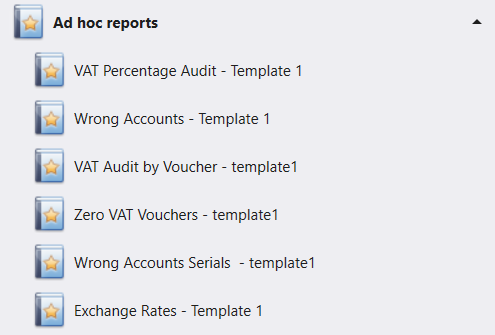
Each ad hoc report is its own entry under Ad hoc reports in the navigation pane. The entry reads as the report's name, a dash, and the name of the template (the saved grid layout) it opens with: for example Exchange Rates - Template 1. A report with two templates shows as two entries. Click an entry and the report opens on a tab of its own, like any other screen.
2. Why your list can differ from a colleague's
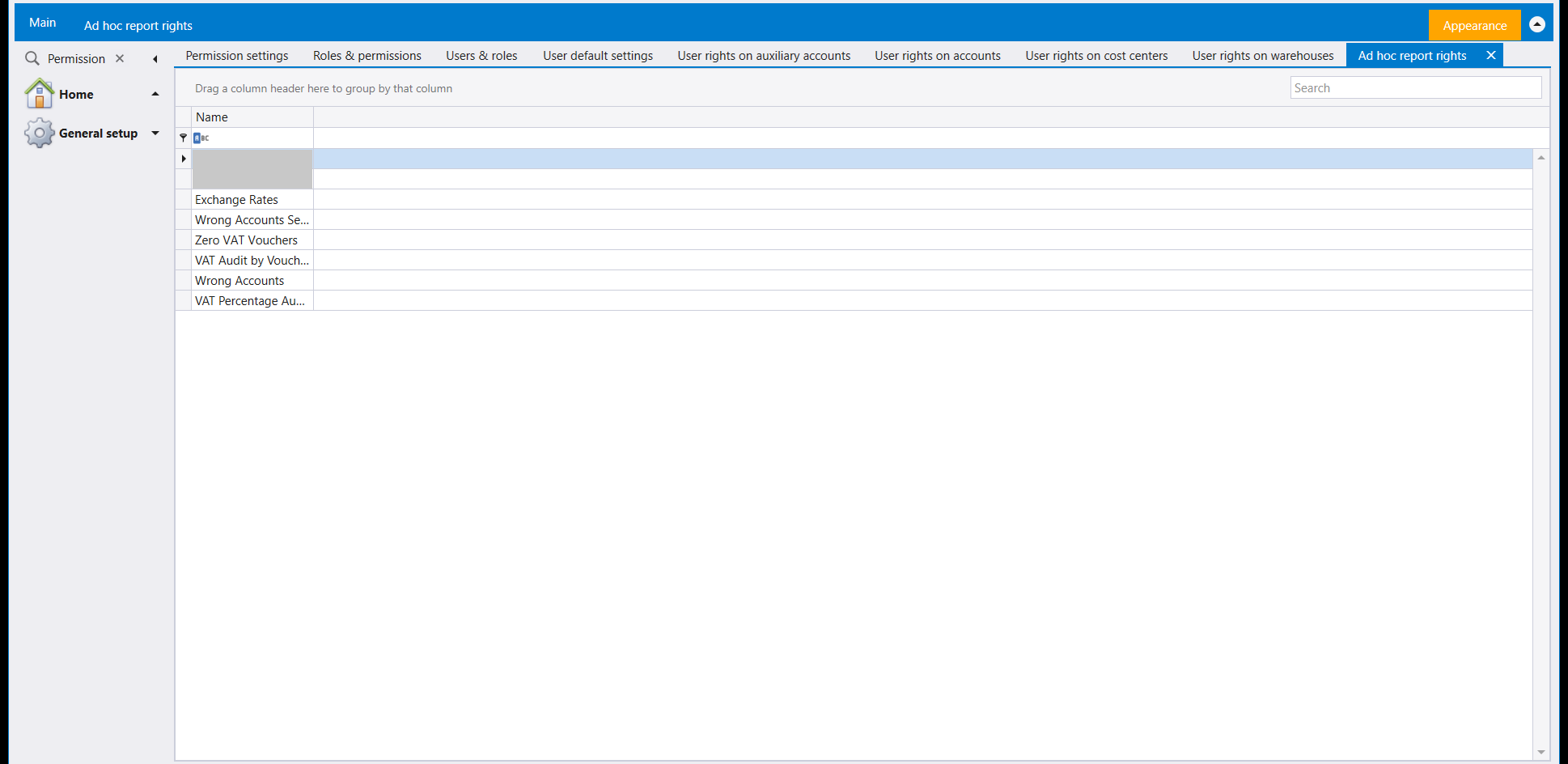
An ad hoc report appears for you once two things are in place: it has a saved template, and it has been granted to one of your roles in Ad hoc report rights. That explains the differences people notice:
- The Ad hoc reports group appears once at least one report is granted to one of your roles. In a company where the reports exist but are granted only to other roles, the group is not drawn in your navigation pane at all.
- Two users in the same company can see different lists. Each sees the reports granted to their own roles.
- Each company keeps its own ad hoc reports. One company can list several and another none, depending on what has been set up and granted in each.
- The list is read when you sign in. After your administrator adds a report or grants you one, close Libra and sign in again to see it.
If the group is missing, or a report you expect is absent, ask your administrator which ad hoc reports are meant for your role.
3. Running one: fill in its values

Many ad hoc reports ask for values before they run, such as a date range or a number. The picture shows, for example, a report your support team added, not one of the six ready-made ones listed above. The boxes sit in a row along the top of the report's page, each labelled with the name the report gives it, such as @DateFrom, @DateTo or @TopCount: a date box for a date, a number box for a number. Check each one before you run the report.
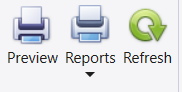
The report's ribbon carries Preview, Reports, Refresh and Close. Fill in the values, then press Refresh: the report runs with them and the rows appear in the grid underneath. Change a value and press Refresh again as often as you like; each run reads the data as it stands at that moment.
4. Working in the grid
The result is a Libra grid, and what you do in it changes your view, never the data:
- Sort. Click a column header. Click it again to reverse the order.
- Group. Drag a column header into the band above the headers. The rows gather under one bar per value. Drag a second header for groups within groups.
A report can open already grouped, with every group folded into a single bar: in the picture above (for example, a report your support team added), the rows sit under Section: 1 By revenue through Section: 5 Period totals. Expand a bar to see its rows.
5. Printing and previewing
Preview turns the result into pages in the same Preview window as every other report, with its page setup, watermark and Send… tools; see From screen to paper: how a Libra report runs.
Reports is the same menu the list screens carry: saved printouts for this report above, and Report designer at the bottom to build a new one from the grid. See Printing any list: the Reports menu.
6. The ready-made ones you may see
New Libra companies come with a few ready-made ad hoc reports. You may see some of them in your list, depending on how your company is set up and what has been granted to your role:
- VAT Percentage Audit
- VAT Audit by Voucher
- Zero VAT Vouchers
- Wrong Accounts
- Wrong Accounts Serials
- Exchange Rates
As the names suggest, most of them are checks, on VAT and on the accounts entries were posted to. Exchange Rates lists the rates on record.
If a report stops with an error message instead of showing rows, note the report's name and the message, and send both to your administrator or IDS support. It is the report's setup that needs correcting, and your data is untouched. If the message appears on every ad hoc report just after your administrator changed one of them, close Libra and sign in again.
7. Setting them up and granting them
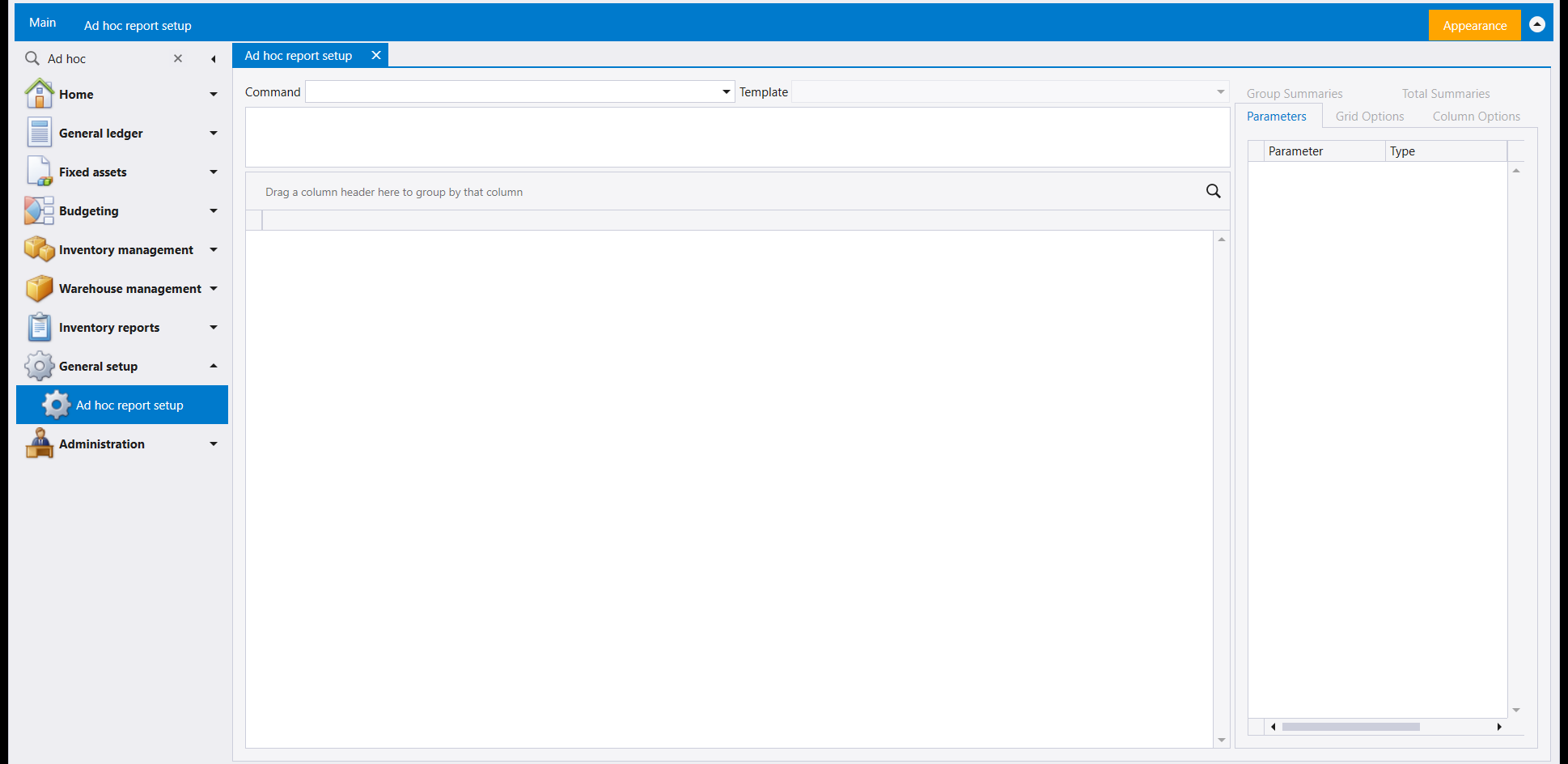
Ad hoc reports are built in Ad hoc report setup under General setup; see Report setup and mail. Writing one needs the query itself, so it is usually IDS support, or someone who knows the company's data well, who creates it. Setting a report up includes naming the values it asks for, on the Parameters tab, and saving its grid layout as a Template.
Who sees each report is decided in Ad hoc report rights, alongside the other user-rights screens; see Users, roles and rights. Rights go by role: grant a report to a role and every user holding that role has it at their next sign-in.
The ready-made ad hoc reports only read. Running one shows your data; sorting, grouping and printing change only your view. A user can explore them without any risk to the books.
إلى جانب التقارير القياسية، قد تحمل الشركة تقارير حسب الطلب (Ad hoc reports): تقارير إضافية يضيفها مسؤول النظام أو دعم IDS لحاجة بعينها، كفحص يُجريه محاسبك كل شهر، أو لائحة لا تعرضها التقارير القياسية بالطريقة التي تريدها. وكلٌّ منها استعلام جاهز. تعطيه بعض القيم، فيعرض النتيجة في جدول يمكنك ترتيبه وتجميعه وطباعته.
١. أين تظهر
لكل تقرير حسب الطلب مدخله الخاص تحت Ad hoc reports في لوحة التنقل. ويُقرأ المدخل باسم التقرير، ثم شرطة، ثم اسم القالب (تصميم الجدول المحفوظ) الذي يُفتح به: مثل Exchange Rates - Template 1. والتقرير الذي له قالبان يظهر مدخلين. انقر على مدخل فيُفتح التقرير في تبويب خاص به، كأي شاشة أخرى.
٢. لماذا قد تختلف لائحتك عن لائحة زميلك
يظهر لك التقرير حسب الطلب متى توفّر أمران: أن يكون له قالب محفوظ، وأن يكون قد مُنح لأحد أدوارك في Ad hoc report rights. وهذا يفسّر الفروق التي يلاحظها الناس:
- تظهر مجموعة Ad hoc reports متى مُنح تقرير واحد على الأقل لأحد أدوارك. وفي شركة توجد فيها التقارير لكنها ممنوحة لأدوار أخرى فقط، لا تُرسم المجموعة في لوحة التنقل لديك أصلًا.
- قد يرى مستخدمان في الشركة نفسها لائحتين مختلفتين. فكلٌّ منهما يرى التقارير الممنوحة لأدواره.
- لكل شركة تقاريرها حسب الطلب. فقد تسرد شركة عدّة تقارير وأخرى لا شيء، بحسب ما جُهّز ومُنح في كلٍّ منهما.
- تُقرأ اللائحة عند الدخول. بعد أن يضيف مسؤول النظام تقريرًا أو يمنحك إياه، أغلق ليبرا وادخل من جديد لتراه.
إن غابت المجموعة، أو غاب عنها تقرير تتوقّعه، فاسأل مسؤول النظام عن التقارير حسب الطلب المخصّصة لدورك.
٣. تشغيل تقرير: املأ قيمه
كثير من التقارير حسب الطلب تطلب قيمًا قبل أن تعمل، كمدى تواريخ أو رقم. والصورة تعرض، مثلًا، تقريرًا أضافه فريق الدعم لديكم، لا أحد التقارير الستة الجاهزة المذكورة أعلاه. وتقع الصناديق في صف على طول أعلى صفحة التقرير، وعلى كلٍّ منها الاسم الذي يعطيه إياه التقرير، مثل @DateFrom و@DateTo و@TopCount: صندوق تاريخ للتاريخ، وصندوق رقم للرقم. افحص كل قيمة قبل تشغيل التقرير.
يحمل شريط التقرير Preview وReports وRefresh وClose. املأ القيم، ثم اضغط Refresh: فيعمل التقرير بها وتظهر الصفوف في الجدول تحتها. غيّر قيمة واضغط Refresh من جديد كلّما شئت؛ فكل تشغيل يقرأ البيانات كما هي في تلك اللحظة.
٤. العمل في الجدول
النتيجة جدول من جداول ليبرا، وما تفعله فيه يغيّر طريقة عرضك، لا البيانات:
- الترتيب. انقر على عنوان عمود. وانقر عليه مرة أخرى لعكس الترتيب.
- التجميع. اسحب عنوان عمود إلى الشريط فوق العناوين. فتجتمع الصفوف تحت شريط لكل قيمة. واسحب عنوانًا ثانيًا لمجموعات داخل مجموعات.
وقد يُفتح التقرير مجمّعًا من البداية، وكل مجموعة مطويّة في شريط واحد: ففي الصورة أعلاه (مثلًا تقرير أضافه فريق الدعم لديكم) تقع الصفوف تحت Section: 1 By revenue إلى Section: 5 Period totals. افتح الشريط لترى صفوفه.
٥. الطباعة والمعاينة
يحوّل Preview النتيجة إلى صفحات في نافذة المعاينة نفسها التي تُفتح لكل تقرير آخر، بأدوات إعداد الصفحة والعلامة المائية وSend…؛ راجع من الشاشة إلى الورق: كيف يعمل التقرير في ليبرا.
أما Reports فهي القائمة نفسها التي تحملها شاشات اللوائح: المطبوعات المحفوظة لهذا التقرير في الأعلى، وReport designer في الأسفل لبناء مطبوعة جديدة من الجدول. راجع طباعة أي قائمة: قائمة Reports.
٦. التقارير الجاهزة التي قد تراها
تأتي شركات ليبرا الجديدة ببضعة تقارير حسب الطلب جاهزة. وقد ترى بعضها في لائحتك، بحسب إعداد شركتك وما مُنح لدورك:
- VAT Percentage Audit
- VAT Audit by Voucher
- Zero VAT Vouchers
- Wrong Accounts
- Wrong Accounts Serials
- Exchange Rates
وكما توحي أسماؤها، معظمها فحوص على الضريبة وعلى الحسابات التي رُحّلت إليها القيود. أما Exchange Rates فيسرد أسعار الصرف المسجّلة.
إن توقّف تقرير برسالة خطأ بدل أن يعرض الصفوف، فدوّن اسم التقرير والرسالة وأرسلهما إلى مسؤول النظام أو دعم IDS. فإعداد التقرير هو ما يحتاج إلى تصحيح، وبياناتك سليمة. وإن ظهرت الرسالة على كل التقارير حسب الطلب بعد أن غيّر مسؤول النظام أحدها مباشرةً، فأغلق ليبرا وادخل من جديد.
٧. تجهيزها ومنحها
تُبنى التقارير حسب الطلب في Ad hoc report setup ضمن General setup؛ راجع إعداد التقارير والبريد. وكتابة تقرير تحتاج إلى الاستعلام نفسه، ولذلك يُنشئه في الغالب دعم IDS أو شخص يعرف بيانات الشركة جيدًا. ويشمل تجهيز التقرير تسمية القيم التي يطلبها، في تبويب Parameters، وحفظ تصميم جدوله بوصفه Template.
أما من يرى كل تقرير فيُقرَّر في Ad hoc report rights، إلى جانب شاشات صلاحيات المستخدمين الأخرى؛ راجع المستخدمون والأدوار والصلاحيات. والصلاحيات تُمنح حسب الدور: امنح تقريرًا لدور فيحصل عليه كل مستخدم يحمل ذلك الدور عند دخوله التالي.
التقارير الجاهزة حسب الطلب تقرأ فقط. تشغيل أحدها يعرض بياناتك؛ والترتيب والتجميع والطباعة لا تغيّر إلا طريقة عرضك. فيستطيع المستخدم استكشافها من دون أي خطر على الدفاتر.