
The main screenالشاشة الرئيسية
When Libra opens you are looking at three things: the ribbon across the top, the menu down the left, and the status bar along the bottom. Everything you do starts in one of them.
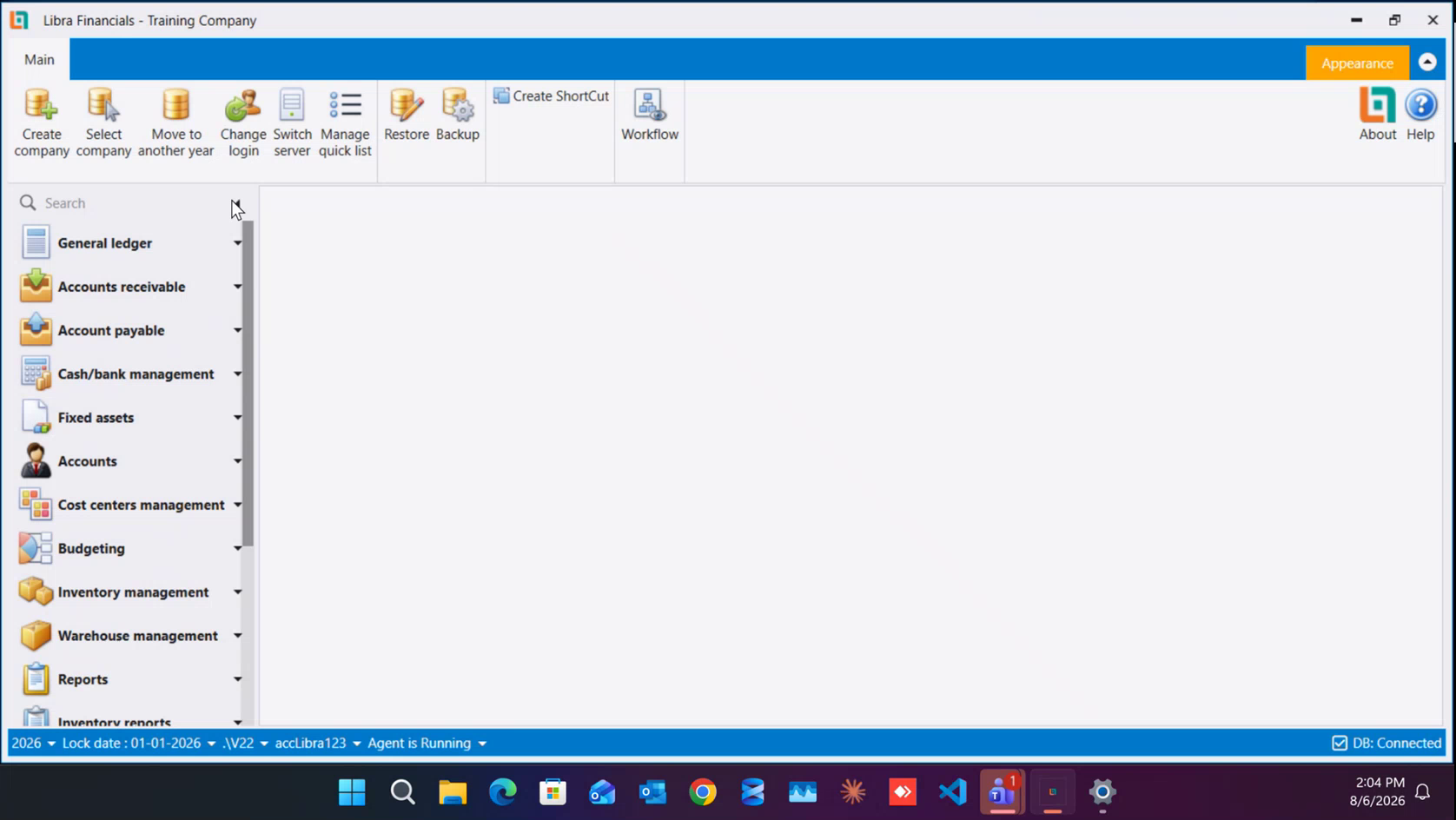
1. The Main ribbon
The Main tab is the company-level toolbar it acts on the company as a whole, not on any one screen:
- Create company: the two-step wizard that builds a new company. See How to set up a company.
- Select company: switch to another company. You pick it from a dropdown and click OK.
- Move to another year: open a different financial year. Used when you close the financial year, and whenever you need to work in an earlier year (2023, say) on its own.
- Change login: sign in as a different user without restarting Libra.
- Switch server: choose which server Libra reads its data from. This only matters if your site runs more than one server; most installations never touch it.
- Manage quick list: build the Home group at the top of the left menu. See How to set up the Quick List.
- Restore and Backup: restore a company from a backup, and take one.
- Create ShortCut: put a desktop shortcut that opens straight into this company.
- About and Help: your exact version number, and the help.
- Workflow, last on the right: the approval flows, when your license includes them.
2. The left menu
The left menu is a set of groups, and only one group is open at a time - clicking a group header closes the one that was open.
- The Home group at the very top is yours. It is empty until you build it with the Quick List, and a brand-new company starts straight at General ledger with no Home group at all.
- Below it come the fixed groups, in order: General ledger, Accounts receivable, Account payable, Cash/bank management, Fixed assets, Accounts, Cost centers management, Budgeting, Inventory management, Warehouse management, Production, Reports, Inventory reports, General setup, VAT, Accounting periods, Workflow setup, End of year closing and Administration.
- The Search box above the groups filters them. Type part of a screen name and the menu collapses to the groups that contain it - handy when you know the name but not the group. Press the Down arrow and Enter to open the match, even a screen the menu does not list - see Opening a screen from the Search box.
You will not see every group. Which ones appear depends on the modules in your license - a company licensed for accounting only has no inventory or production groups - and it can differ from one company to the next on the same installation, so do not be surprised when a group you use daily is missing from a company you have just opened. Groups such as Invoicing, POS and Contracts are hidden this way. Ad hoc reports follows a different rule: it appears once at least one ad hoc report has been granted to one of your roles, so two users of the same company can see it differently (see Ad hoc reports). See Getting started for how the modules fit together.
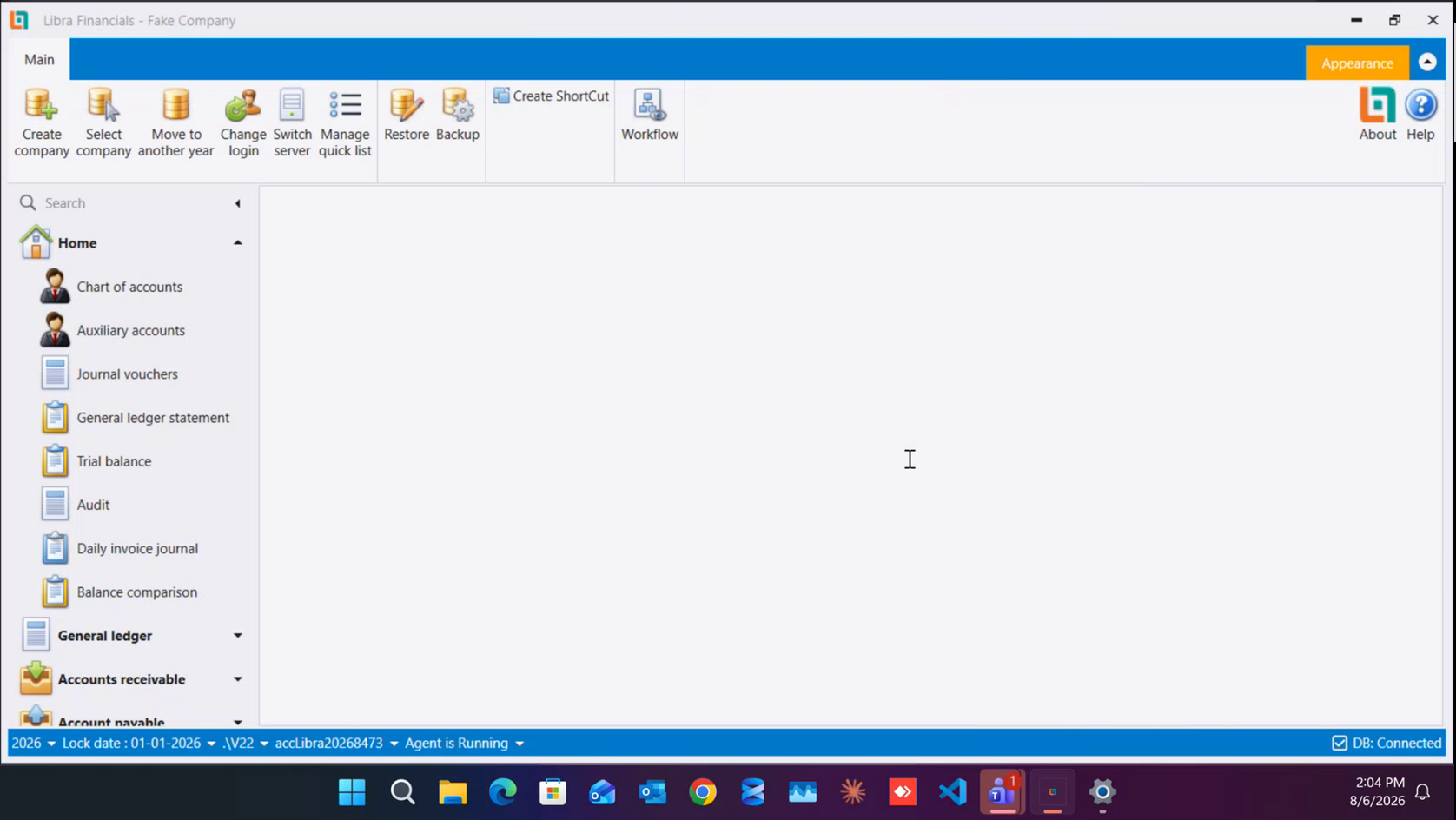
Click a group to open it and see its screens:
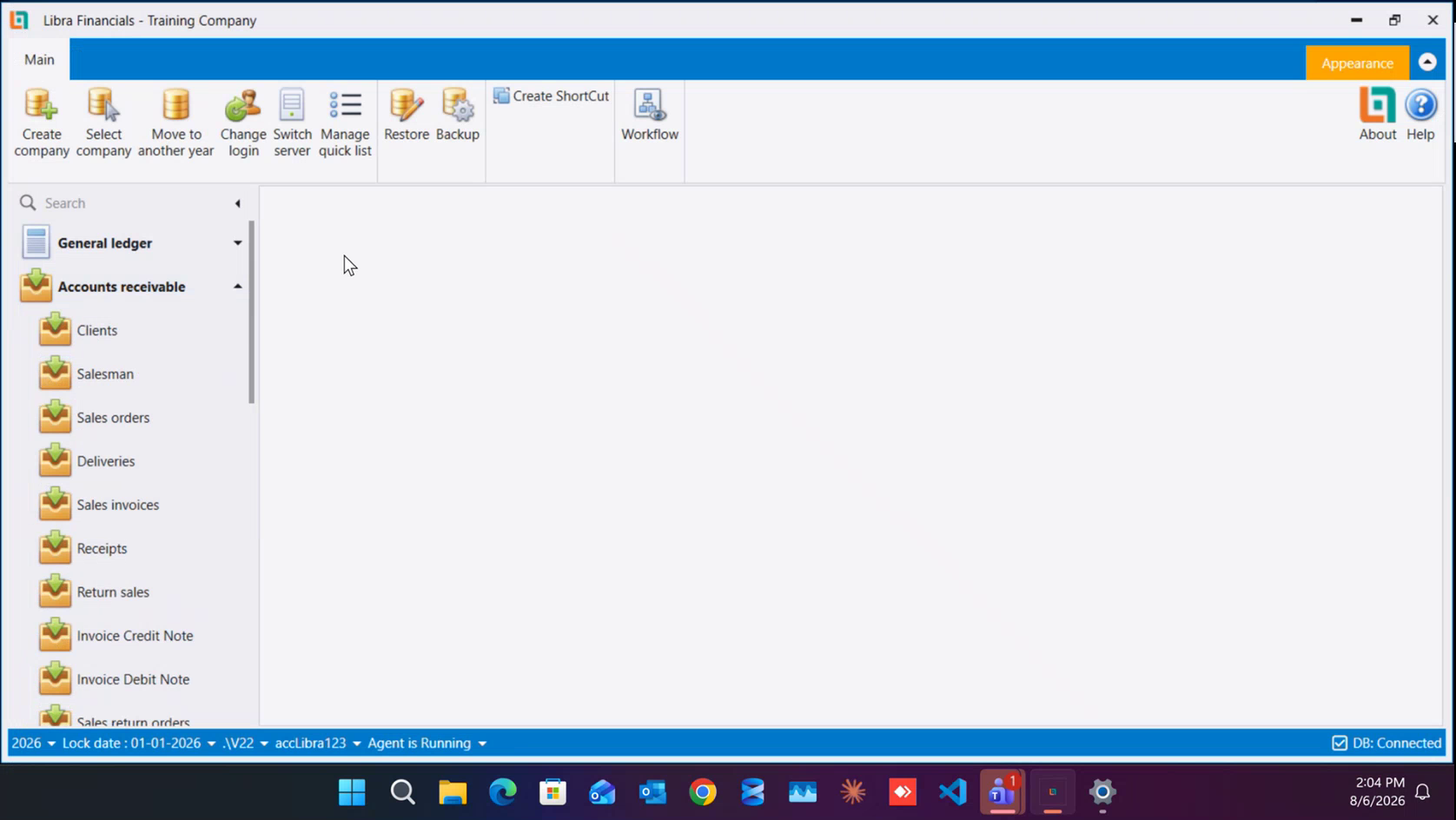
3. Screens open as tabs
Choosing a screen from the menu does not open a new window - it opens a tab in the working area, and several tabs can stay open side by side. Only editing dialogs and message boxes are separate windows.
One thing this changes: the ribbon at the top is replaced by the open screen's own ribbon, so the Main buttons above are no longer in front of you. Click the Main tab to bring them back whenever you need Create company, Select company or Change login.
4. The status bar
The bar along the bottom tells you where you actually are. Read it before you report a problem, and read it whenever a figure looks wrong:
- The year (for example
2026): the financial year you are working in. - Lock date: the date before which nothing can be posted.
- The server (for example
.\V22): which server this data is coming from. - The database (for example
accMyCompany): which company database you are in. This is the quickest way to check you are not in the wrong company. - Agent is Running: the background service is alive.
- DB: Connected: Libra is connected to the database.
Next: Old Plan vs New Plan: the one decision to make before you create a company.
عند فتح ليبرا تكون أمام ثلاثة عناصر: الشريط في الأعلى، والقائمة على اليسار، وشريط الحالة في الأسفل. وكل ما تفعله يبدأ من أحدها.
١. الشريط الرئيسي (Main)
تبويب الرئيسي (Main) هو شريط أدوات الشركة ككل، لا شاشة بعينها:
- إنشاء شركة (Create company): معالج الخطوتين الذي يبني شركة جديدة. انظر كيفية إنشاء شركة.
- اختيار شركة (Select company): الانتقال إلى شركة أخرى؛ تختارها من قائمة منسدلة ثم موافق (OK).
- الانتقال إلى سنة أخرى (Move to another year): فتح سنة مالية مختلفة. تُستخدم عند إقفال السنة المالية، وكلما احتجت العمل في سنة سابقة (2023 مثلًا) وحدها.
- تغيير المستخدم (Change login): الدخول بمستخدم آخر دون إعادة تشغيل ليبرا.
- تبديل الخادم (Switch server): اختيار الخادم الذي يقرأ منه ليبرا بياناته. لا يعني ذلك إلا المواقع التي تشغّل أكثر من خادم، ومعظم التركيبات لا تلمسه أبدًا.
- إدارة القائمة السريعة (Manage quick list): بناء مجموعة الرئيسية (Home) أعلى القائمة اليسرى. انظر كيفية إعداد القائمة السريعة.
- الاستعادة (Restore) والنسخ الاحتياطي (Backup): استعادة شركة من نسخة احتياطية، وأخذ نسخة.
- إنشاء اختصار (Create ShortCut): وضع اختصار على سطح المكتب يفتح هذه الشركة مباشرة.
- حول (About) والمساعدة (Help): رقم نسختك بالضبط، والمساعدة.
- مسار العمل (Workflow) في آخر الشريط: مسارات الموافقات، إن كانت ضمن رخصتك.
٢. القائمة اليسرى
القائمة اليسرى مجموعات، ولا تُفتح إلا مجموعة واحدة في كل مرة - فالضغط على عنوان مجموعة يغلق المفتوحة قبلها.
- مجموعة الرئيسية (Home) في الأعلى مجموعتك أنت. تبقى فارغة حتى تبنيها بالقائمة السريعة، والشركة الجديدة تبدأ مباشرة من دفتر الأستاذ العام (General ledger) بلا مجموعة رئيسية أصلًا.
- تحتها المجموعات الثابتة: دفتر الأستاذ العام (General ledger)، والذمم المدينة (Accounts receivable)، والذمم الدائنة (Account payable)، وإدارة النقد والمصارف (Cash/bank management)، والأصول الثابتة (Fixed assets)، والحسابات (Accounts)، وإدارة مراكز التكلفة (Cost centers management)، والموازنات (Budgeting)، وإدارة المخزون (Inventory management)، وإدارة المستودعات (Warehouse management)، والإنتاج (Production)، والتقارير (Reports)، وتقارير المخزون (Inventory reports)، والإعداد العام (General setup)، والضريبة (VAT)، والفترات المحاسبية (Accounting periods)، وإعداد مسار العمل (Workflow setup)، وإقفال آخر السنة (End of year closing)، والإدارة (Administration).
- ويصفّي مربع البحث (Search) فوق المجموعات: اكتب جزءًا من اسم شاشة فتنكمش القائمة إلى المجموعات التي تحويها - وهو مفيد حين تعرف الاسم ولا تعرف المجموعة. واضغط السهم Down ثم Enter لتفتح الشاشة المطابقة، حتى لو لم تُدرجها القائمة - راجع فتح شاشة من صندوق Search.
لن ترى كل المجموعات. فما يظهر منها يتبع الوحدات المشمولة برخصتك - فالشركة المرخّصة للمحاسبة فقط لا مجموعات مخزون أو إنتاج لديها - وقد يختلف الظاهر من شركة إلى أخرى على التركيب نفسه، فلا تستغرب غياب مجموعة تستعملها يوميًا عن شركة فتحتها للتو. ومن المجموعات التي تُخفى هكذا الفوترة (Invoicing) ونقاط البيع (POS) والعقود (Contracts). أمّا التقارير حسب الطلب (Ad hoc reports) فلها قاعدة أخرى: تظهر حين يُمنح أحدُ أدوارك تقريرًا واحدًا حسب الطلب على الأقل، فقد يراها مستخدم ولا يراها زميله في الشركة نفسها (انظر التقارير حسب الطلب). انظر البداية لمعرفة كيف تتكامل الوحدات.
اضغط على مجموعة لفتحها ورؤية شاشاتها:
٣. الشاشات تُفتح كتبويبات
اختيار شاشة من القائمة لا يفتح نافذة جديدة، بل يفتح تبويبًا في مساحة العمل، ويمكن أن تبقى عدة تبويبات مفتوحة جنبًا إلى جنب. ولا يكون نافذة منفصلة إلا مربعات التعديل والرسائل.
وثمة أثر لهذا: يحلّ شريط الشاشة المفتوحة محلّ الشريط العلوي، فتغيب عنك أزرار الشريط الرئيسي. اضغط تبويب الرئيسي (Main) لاستعادتها كلما احتجت إنشاء شركة أو اختيار شركة أو تغيير المستخدم.
٤. شريط الحالة
يخبرك الشريط السفلي أين أنت فعلًا. اقرأه قبل الإبلاغ عن مشكلة، واقرأه كلما بدا رقم غير صحيح:
- السنة: (
2026مثلًا) السنة المالية التي تعمل فيها. - تاريخ الإقفال (Lock date): التاريخ الذي لا يُرحَّل شيء قبله.
- الخادم: (
.\V22مثلًا) - الخادم الذي تأتي منه هذه البيانات. - قاعدة البيانات: (
accMyCompanyمثلًا) - قاعدة بيانات الشركة التي أنت فيها، وهي أسرع طريقة للتأكد أنك لست في الشركة الخطأ. - الوكيل يعمل (Agent is Running): الخدمة الخلفية تعمل.
- قاعدة البيانات متصلة (DB: Connected): ليبرا متصل بقاعدة البيانات.
التالي: الخطة القديمة مقابل الجديدة - القرار الوحيد الذي يسبق إنشاء الشركة.