
Working across many client companiesالعمل مع شركات عملاء كثيرة
An audit or accounting firm that keeps the books of several clients ends up creating a new Libra company for almost every engagement. Building each one from the same starting point, instead of setting each client up from nothing, is what makes that repeatable.
1. Build one template company first
Before creating any client company, build one company that never carries a posting of its own - think of it as your firm's template. Set up, once, everything a new client should start with:
- the chart of accounts, opened down to whatever depth your largest or most detailed client actually needs - see The chart of accounts and How to open an account for the numbering and the parent/child rule behind it;
- the users and roles your staff use across engagements;
- the fixed-asset accounts, with their Mapped to pairing already filled in, so it does not have to be re-typed on every client (see §8 of How to open an account);
- the report filters your firm runs on every client - §4 below.
Nothing should ever post into this company. Its only job is to be copied.
2. Create each client company from it
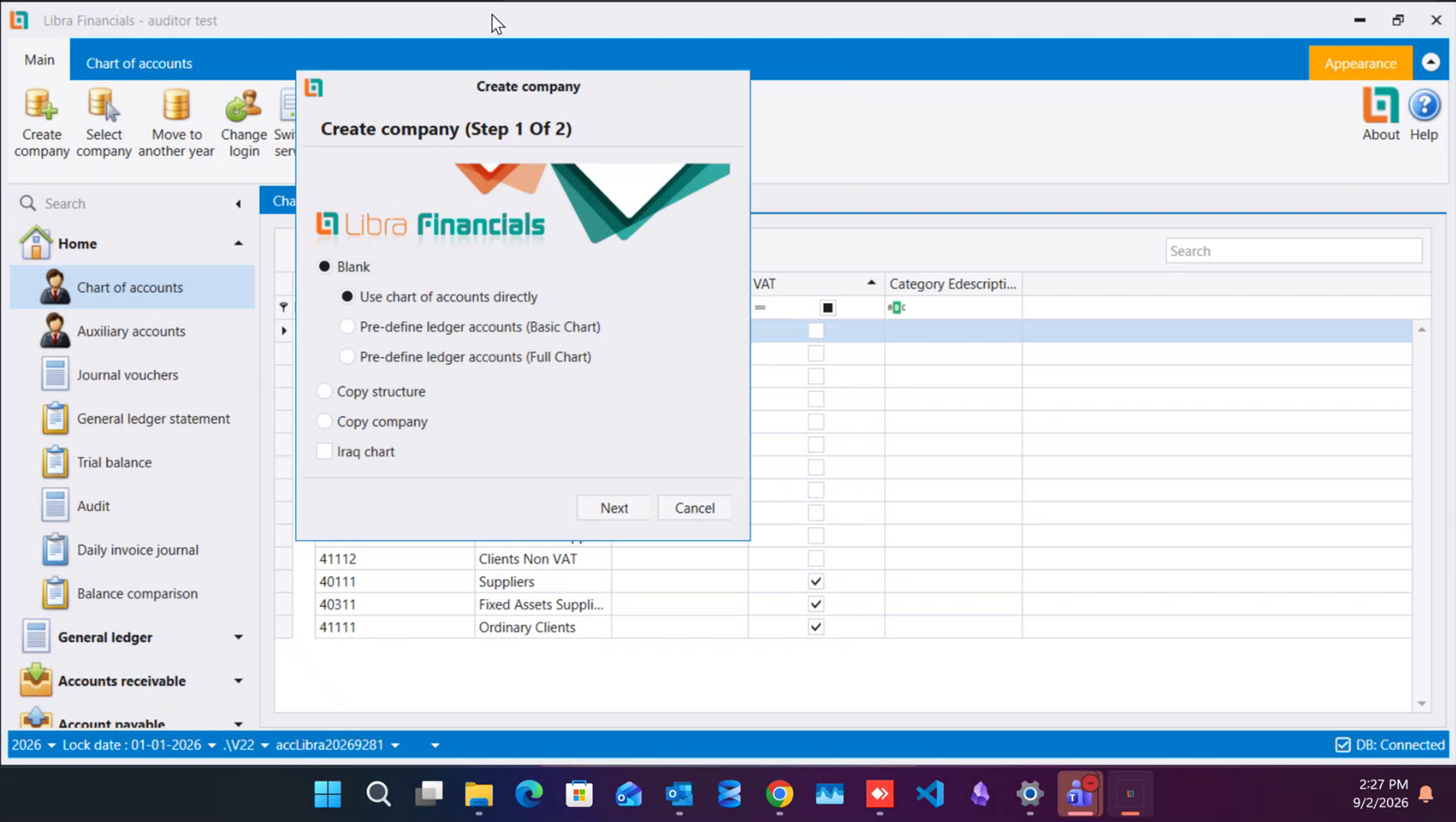
Every new client company starts from Create company → Copy structure, pointed at the template. Copy structure carries the chart of accounts, settings, permissions and users across without any of the template's own data, so the new company opens already shaped like your firm's standard, with none of another client's figures in it. How to set up a company walks through the rest of the wizard field by field; this is only which option to pick on step 1, and which company to point it at.
3. One login per person, not one login per client
A staff member who works on several client companies needs one Users & roles login, not a new one for every engagement. What changes company to company is whether that login can reach it at all: open Users & roles inside the client company in question and tick that person's own Disabled switch on or off - the same field Users, roles and rights documents. Someone rotating off one engagement is disabled in that one company only; their username and password on every other client company they still work on are untouched.
4. Saved filters travel with the template
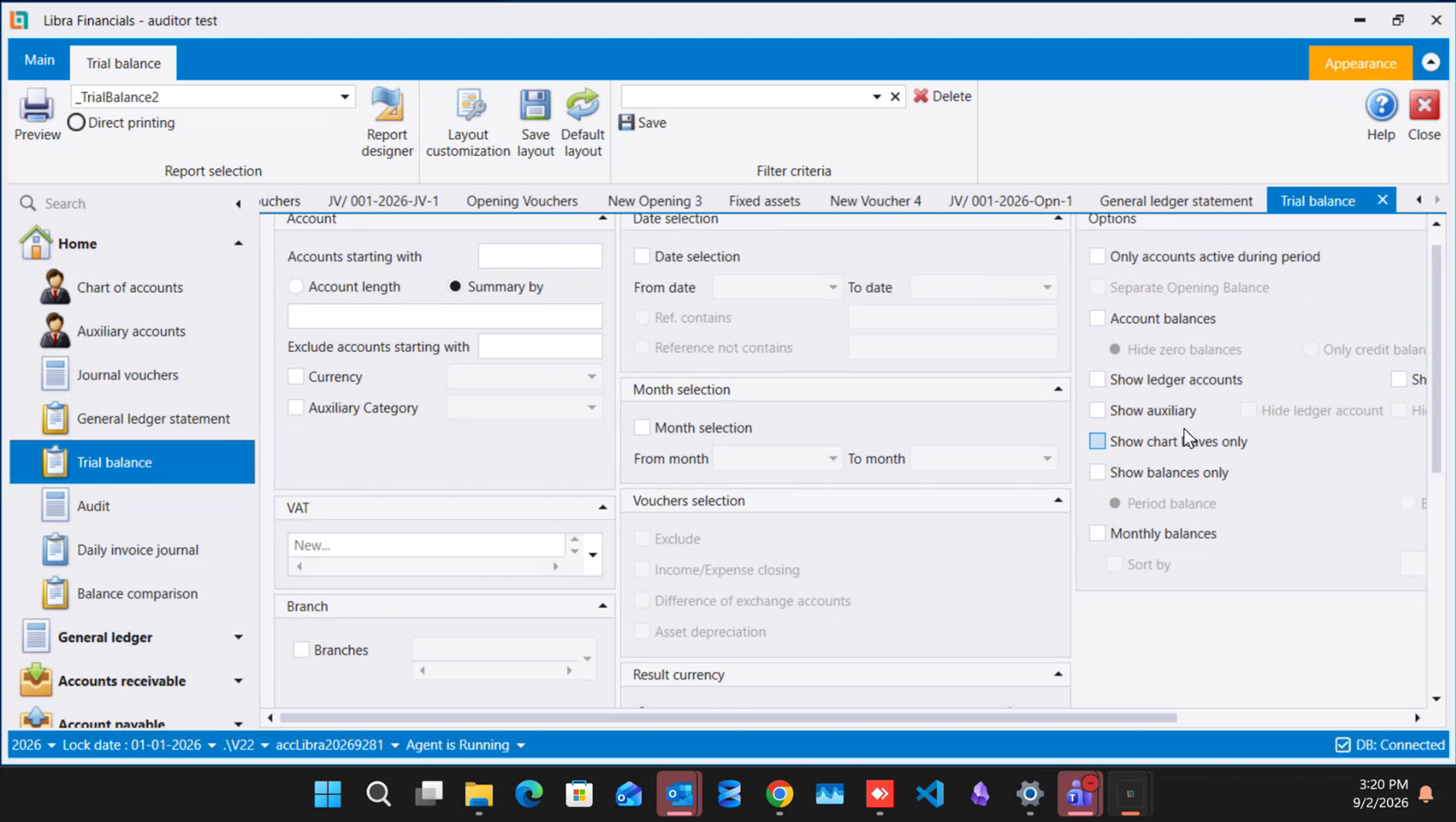
A saved report filter - built from Filter criteria → Save on any report screen, see Reports - belongs to the user who saved it, not to the company. Build your firm's standard filters once, inside the template company, using the same users Copy structure carries into every client. Because those users come across with the copy, the filters they already saved come with them: every new client company opens with the same named filters ready to pick from the Filter criteria box, with nothing to rebuild by hand.
See Structuring a client's chart for audit work for how to shape each client's own chart once it has been copied across.
مكتب تدقيق أو محاسبة يمسك دفاتر عدة عملاء ينتهي به الأمر إلى إنشاء شركة جديدة في ليبرا مع كل عميل تقريبًا. وبناء كل شركة من نقطة انطلاق واحدة، بدل تجهيز كل عميل من الصفر، هو ما يجعل ذلك قابلًا للتكرار بسهولة.
١. ابنِ شركة قالب أولًا
قبل إنشاء أي شركة عميل، ابنِ شركة واحدة لا يُرحَّل عليها قيد أبدًا - اعتبرها قالب مكتبك. وجهّز فيها، مرة واحدة، كل ما يجب أن تبدأ به أي شركة عميل جديدة:
- شجرة الحسابات، مفتوحة إلى العمق الذي يحتاجه أكبر عملائك تفصيلًا أو أكثرهم دقة - انظر شجرة الحسابات وكيفية فتح حساب لمعرفة الترقيم وقاعدة الأب والابن التي يقوم عليها؛
- المستخدمين والأدوار التي يستعملها فريقك عبر كل الملفات؛
- حسابات الأصول الثابتة، مع اقتران Mapped to فيها معبّأً سلفًا، فلا يُعاد كتابته مع كل عميل (انظر القسم ٨ من كيفية فتح حساب)؛
- فلاتر التقارير التي يشغّلها مكتبك مع كل عميل - القسم ٤ أدناه.
ولا يجب أن يُرحَّل شيء داخل هذه الشركة أبدًا؛ فمهمتها الوحيدة أن تُنسخ.
٢. أنشئ كل شركة عميل منها
تبدأ كل شركة عميل جديدة من Create company ← Copy structure، موجَّهة نحو شركة القالب. وCopy structure ينقل شجرة الحسابات والإعدادات والصلاحيات والمستخدمين دون أي من بيانات القالب نفسه، فتفتح الشركة الجديدة وهي مهيّأة أصلًا على معيار مكتبك، بلا أرقام أي عميل آخر فيها. ويشرح كيفية إنشاء شركة بقية خطوات المعالج حقلًا حقلًا؛ وهذا فقط أي خيار تختاره في الخطوة الأولى، وأي شركة توجّهه نحوها.
٣. دخول واحد لكل شخص، لا دخول لكل عميل
الموظف الذي يعمل على عدة شركات عملاء يحتاج دخولًا واحدًا في Users & roles، لا دخولًا جديدًا مع كل ملف. وما يتغيّر من شركة لأخرى هو هل يستطيع ذلك الدخول الوصول إليها أصلًا: افتح Users & roles داخل شركة العميل المعنية، وضع علامة Disabled على ذلك الشخص أو ارفعها - الحقل نفسه الذي يشرحه المستخدمون والأدوار والصلاحيات. فمن يخرج من ملف يُعطَّل في تلك الشركة وحدها؛ واسم دخوله وكلمة مروره على كل شركة عميل أخرى ما يزال يعمل عليها يبقيان كما هما.
٤. الفلاتر المحفوظة تنتقل مع القالب
الفلتر المحفوظ لتقرير - المبني من Filter criteria ← Save في أي شاشة تقرير، انظر التقارير - يخصّ المستخدم الذي حفظه، لا الشركة. ابنِ فلاتر مكتبك القياسية مرة واحدة، داخل شركة القالب، بالمستخدمين أنفسهم الذين ينقلهم Copy structure إلى كل عميل. ولأن هؤلاء المستخدمين ينتقلون مع النسخ، تنتقل معهم الفلاتر التي حفظوها سلفًا: فكل شركة عميل جديدة تفتح ومعها الفلاتر المسمّاة نفسها جاهزة للاختيار من صندوق Filter criteria، بلا حاجة لإعادة بنائها يدويًا.
راجع تنظيم شجرة حسابات العميل لعمل التدقيق لمعرفة كيفية تنظيم شجرة حسابات كل عميل بعد نسخها.