
Reading your accounts: the reporting screensقراءة حساباتك: شاشات التقارير
Everything you enter in Libra — vouchers, invoices, receipts — exists so that somebody can ask a question of it later. The Reports menu is where the questions are asked.
The screens look intimidating because they are all filter and no result: you fill in a form, and the report appears afterwards. Once you know that every one of them works the same way, they stop being five screens and become one screen with five different questions.
1. Every report screen works the same way
Pick a report from the menu, set the filters in the body of the screen, then press Preview at the top left. Nothing happens until you do — the screen on its own produces no output.
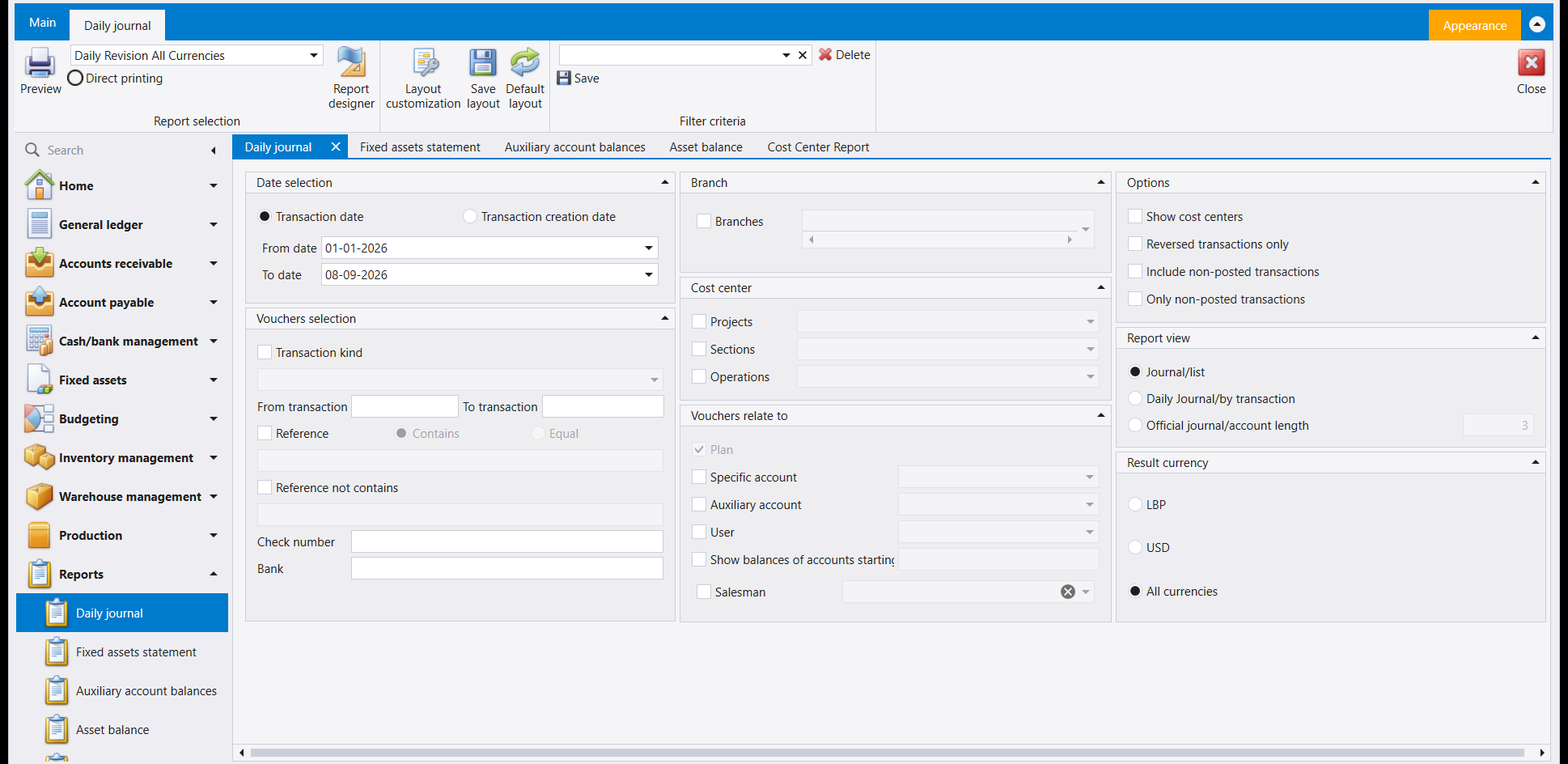
Four things on that ribbon are worth knowing before you use any of them:
- Preview shows the report on screen. Direct printing beside it sends it straight to the printer instead — leave it alone until you are sure of the output.
- Report selection is a dropdown, and it matters more than it looks. One menu entry can carry several layouts of the same report; the Daily journal in the picture is set to Daily Revision All Currencies. If a colleague's report looks different from yours, this is usually why.
- Filter criteria with Save and Delete lets you name and keep a set of filters you use often, so a monthly report becomes one click rather than a form filled in from memory.
- Layout customization, Save layout and Default layout arrange this screen, not the printout: the first lets you move the filter boxes around, Save layout keeps that arrangement for you alone, and Default layout puts the original back — see Libra remembers your screen. The printed page is changed in Report designer, which has a guide of its own.
Reports never change your data. You can open every screen here, press Preview as often as you like, and nothing is written. They are safe to explore.
Notice also that the reports opened as tabs across the top. Opening a second report does not close the first, so you can set up a comparison and move between them.
2. Daily journal — what happened, in date order
This is the workhorse: every entry in a date range, listed. The screen above is it.
The parts you will actually use:
- Date selection — and read the choice above the dates carefully. Transaction date is the date written on the voucher; Transaction creation date is when somebody typed it. They are usually different, and for an audit question ("what was entered last week?") the second one is the honest filter.
- Vouchers relate to narrows by account, auxiliary account, user or salesman, so you can ask "everything this one person entered" or "everything that touched this account".
- Report view changes the shape of the answer: Journal/list is a flat list, Daily Journal/by transaction groups the lines under their voucher, and Official journal is the numbered form.
- Result currency — All currencies is selected in the picture. Choose a single currency and every figure is converted into it.
The Check number and Bank boxes are there because those two details are what people actually remember. If someone asks about "the payment we made with cheque 4471", search on the cheque number rather than trying to recall the date.
3. Fixed assets statement — the movement on your assets
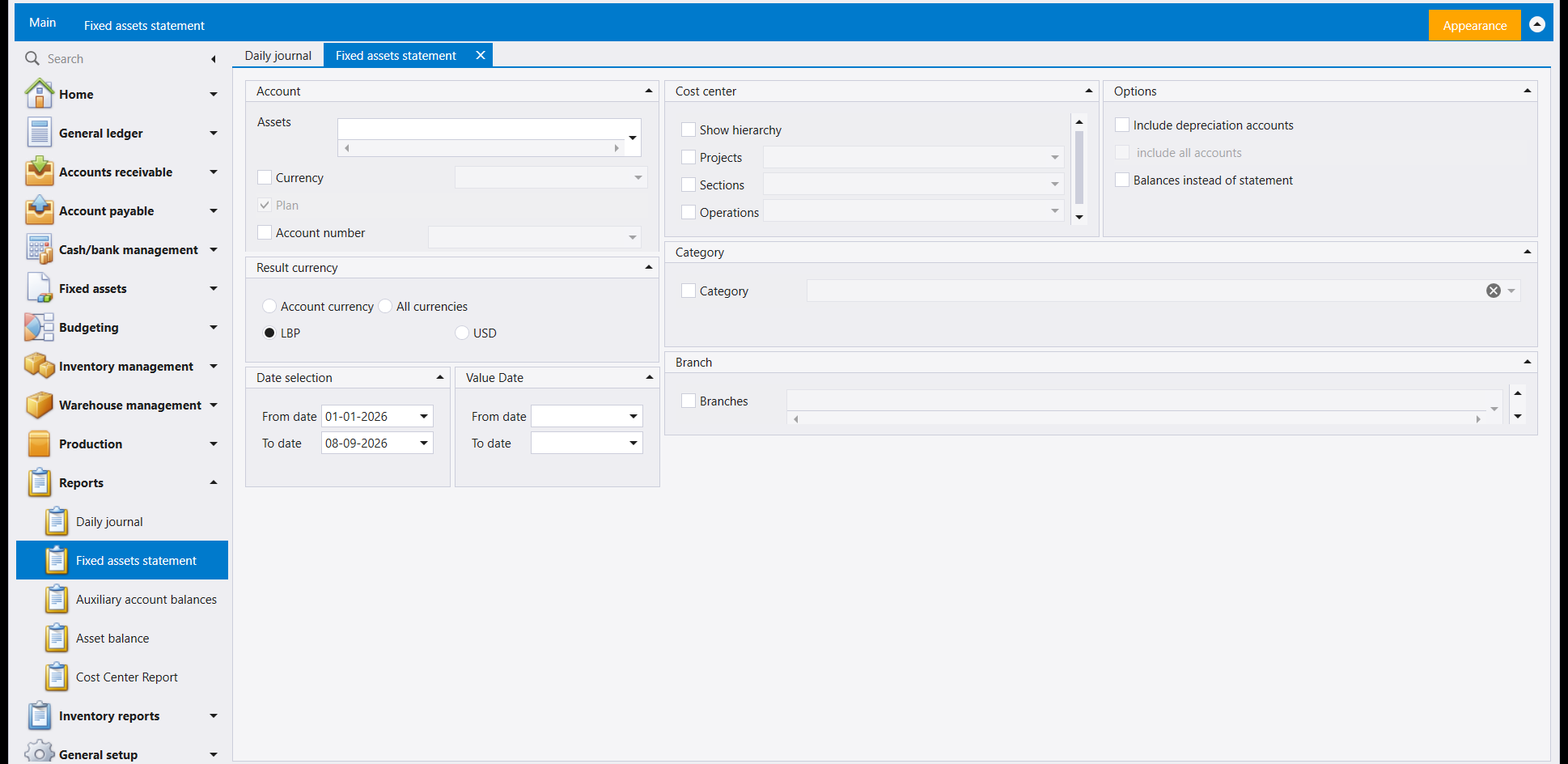
Two options carry the whole screen:
- Include depreciation accounts — with it off you see what the assets cost; with it on you also see what has been written off them. For a book-value question you want it on.
- Balances instead of statement turns the report from a list of movements into a single figure per asset. It is the difference between "what happened to this vehicle" and "what is this vehicle worth now".
There are two independent date ranges here — Date selection and Value Date — and that is not a duplicate. One is when the entry was made, the other the date it takes effect from. Fill in only the one you mean.
4. Auxiliary account balances — who owes you, and how long they have owed it
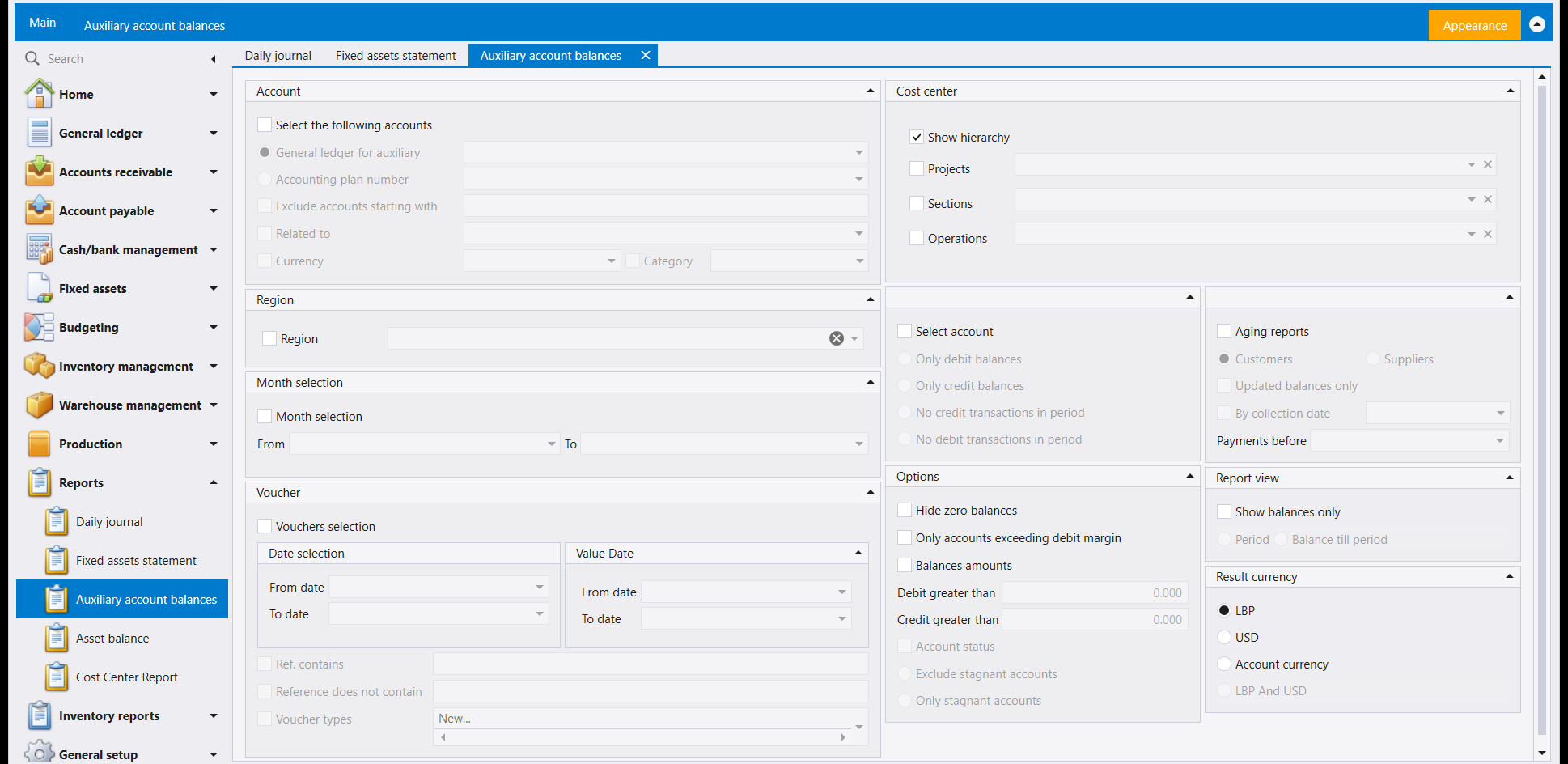
This is the customer and supplier balance report, and it is the one worth learning properly.
Aging reports is the reason it exists. Tick it, choose Customers or Suppliers, and instead of one balance per party you get that balance split by how old it is. That is the report you take to a collections meeting.
The filters underneath are for cutting a long list down to the part that needs action:
- Hide zero balances removes everyone who is settled. Use it always; the list is otherwise mostly noise.
- Debit greater than and Credit greater than set a floor, so small balances stop crowding out large ones.
- Only stagnant accounts and Exclude stagnant accounts are the two halves of the same question — accounts that have stopped moving. The first finds the ones to chase.
- Only debit balances / Only credit balances separate who owes you from whom you owe. A customer sitting on a credit balance has usually overpaid or been credited twice, and is worth looking at on its own.
Most of the Account panel is greyed until you tick Select the following accounts at the top. That is deliberate, not a fault: leave it unticked and the report covers everybody.
5. Asset balance — what your assets are worth now
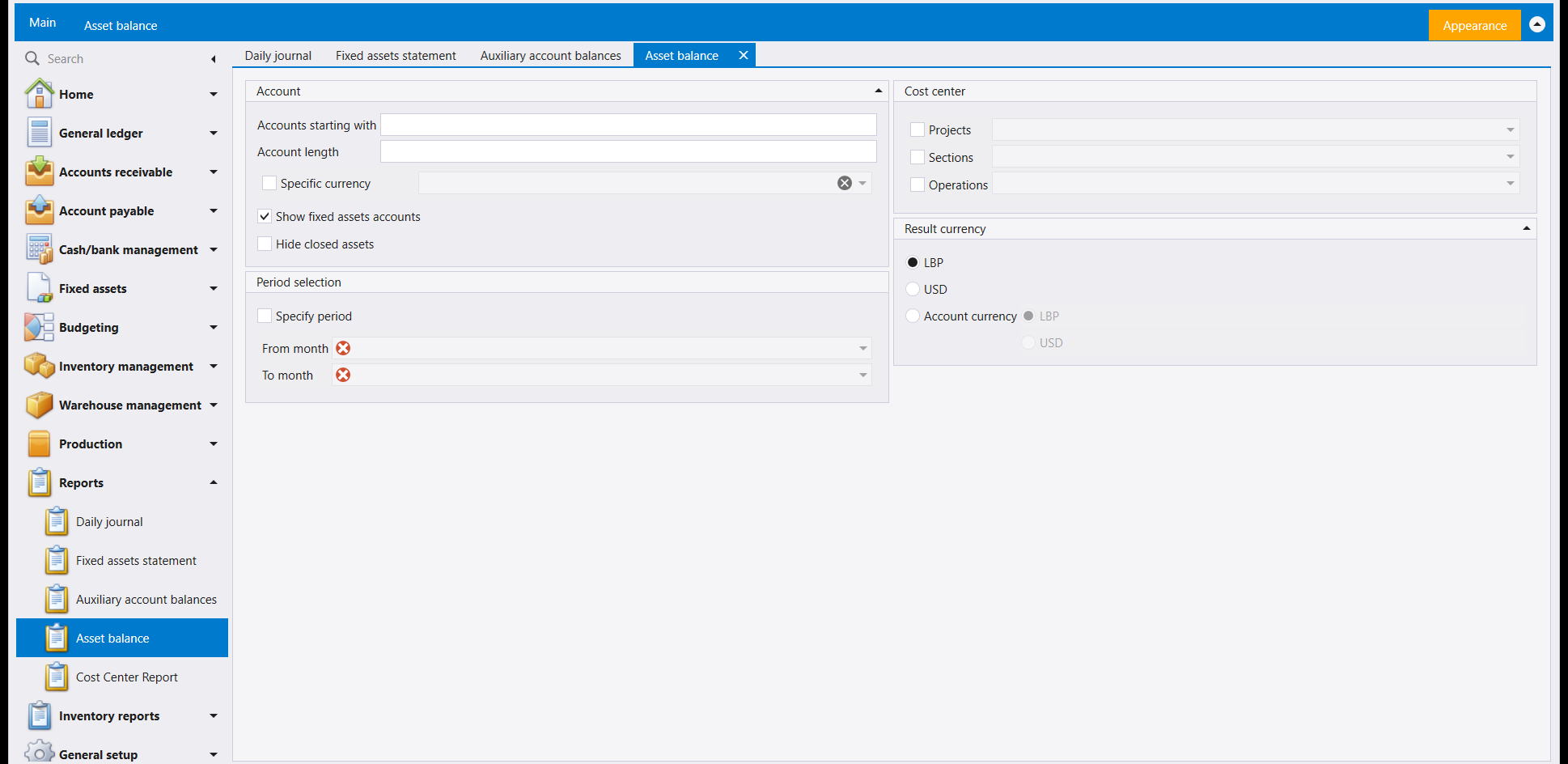
The short screen of the set, and it answers one question: the current value of each asset.
Accounts starting with and Account length are how you limit it to a part of the chart of accounts — type the leading digits of a group to get that group and everything under it. Hide closed assets takes out the ones you have already disposed of, which is what you want for a current valuation and not what you want for a full-year history.
6. Cost Center Report — the same money, grouped by what it was for
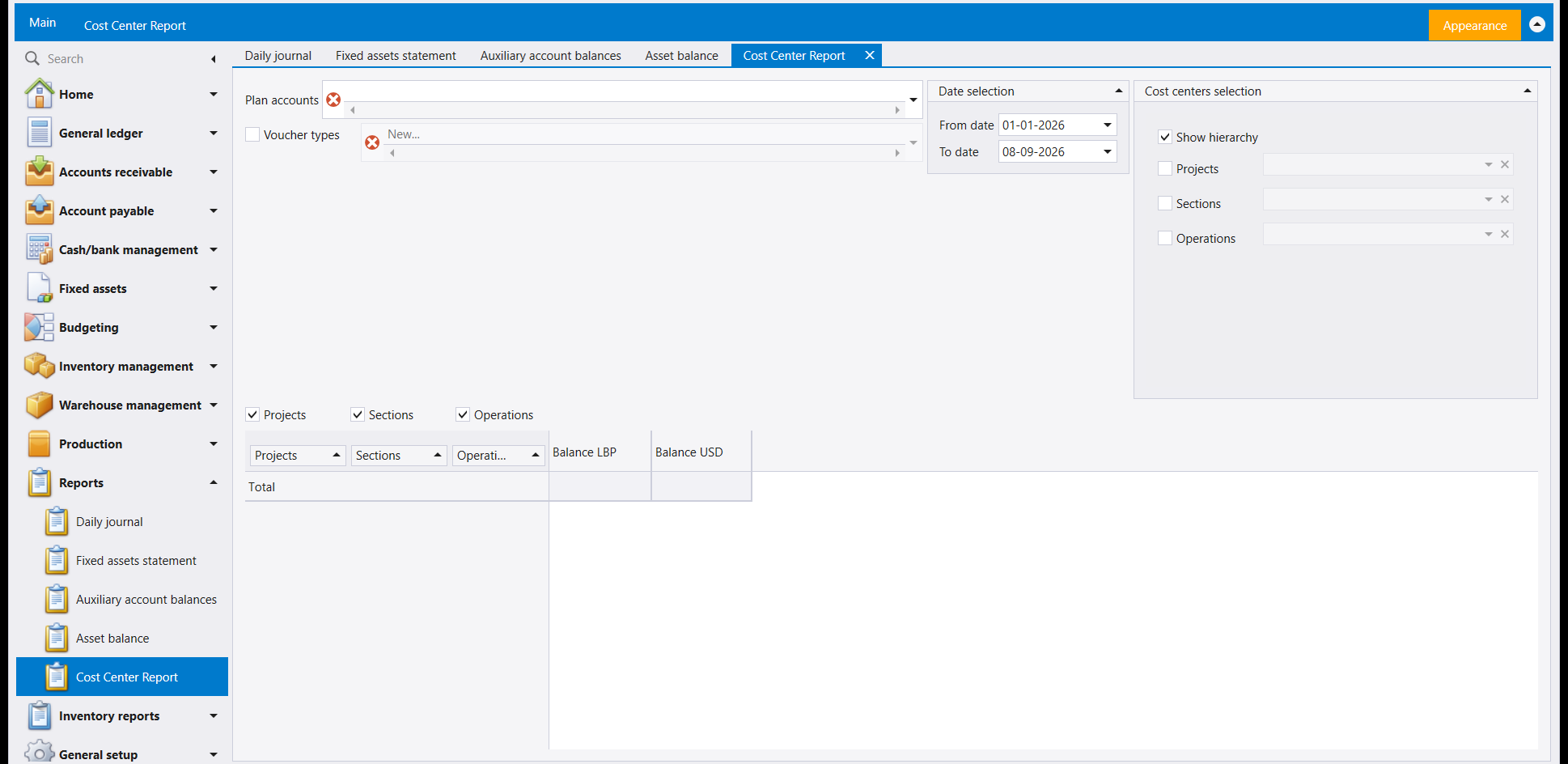
Cost centres are how you tag an entry with what it was for — a project, a branch, a job — and this report is the payoff for having done so. It shows the balance per cost centre rather than per account, in both currencies side by side, with a Total row underneath.
The three tick boxes above the grid — Projects, Sections, Operations — decide how deeply the answer is broken down. Untick the lower two and you get one line per project; tick all three and you get the full breakdown. Show hierarchy keeps the parent-and-child shape rather than flattening it.
This report is only ever as good as the tagging. If entries were saved without a cost centre they will not appear against one here, and the total will not match your accounts. That is a data-entry habit, not a report setting.
7. If your menu shows different reports
The Reports menu is not the same in every company. Some reports are switched on by what your company licensed, and any report can be moved onto your Home quick list, which takes it out of the Reports group and puts it at the top of the menu instead. So a report a colleague can see and you cannot is worth asking about rather than assuming it does not exist.
A report your Reports group does not list can also open from the navigation pane's Search box: type Financial, press Down and Enter, and Financial Statements opens - see Opening a screen from the Search box.
كل ما تُدخِله في ليبرا — قيود وفواتير وسندات — موجود ليطرح عليه أحدهم سؤالًا لاحقًا. وقائمة Reports هي حيث تُطرح الأسئلة.
تبدو هذه الشاشات مُربِكة لأنها كلها مُرشِّحات بلا نتيجة: تملأ نموذجًا، ثم يظهر التقرير بعده. وحين تعرف أن كل واحدة منها تعمل بالطريقة نفسها، تكفّ عن كونها خمس شاشات وتصير شاشة واحدة بخمسة أسئلة.
١. كل شاشات التقارير تعمل بالطريقة نفسها
اختر تقريرًا من القائمة، واضبط المرشِّحات في متن الشاشة، ثم اضغط Preview أعلى اليسار. ولا يحدث شيء قبل ذلك — فالشاشة وحدها لا تُنتج مخرجًا.
أربعة أشياء في ذلك الشريط تستحقّ المعرفة قبل استعمال أيٍّ منها:
- Preview يعرض التقرير على الشاشة. وDirect printing بجانبه يرسله إلى الطابعة مباشرةً بدلًا من ذلك — اتركه حتى تتأكّد من المخرج.
- Report selection قائمة منسدلة، وهي أهمّ ممّا تبدو. فمدخل واحد في القائمة قد يحمل عدّة تخطيطات للتقرير نفسه؛ و Daily journal في الصورة مضبوط على Daily Revision All Currencies. وإذا بدا تقرير زميلك مختلفًا عن تقريرك، فهذا هو السبب عادةً.
- Filter criteria مع Save و Delete يتيح لك تسمية مجموعة مرشِّحات تستعملها كثيرًا وحفظها، فيصير التقرير الشهري نقرةً واحدة بدل نموذج يُملأ من الذاكرة.
- Layout customization و Save layout و Default layout ترتّب هذه الشاشة لا الورقة المطبوعة: الأول يتيح لك نقل صناديق المرشِّحات من مكانها، وSave layout يحفظ هذا الترتيب لك وحدك، وDefault layout يعيد الترتيب الأصلي — راجع ليبرا يتذكّر شاشتك. أمّا الصفحة المطبوعة فتُغيَّر في Report designer، وله دليل خاصّ به.
التقارير لا تغيّر بياناتك أبدًا. يمكنك فتح كل شاشة هنا وضغط Preview كما تشاء، ولا يُكتب شيء. فهي آمنة للاستكشاف.
ولاحظ أيضًا أن التقارير فُتحت تبويباتٍ في الأعلى. ففتح تقرير ثانٍ لا يُغلق الأول، فيمكنك تجهيز مقارنة والتنقّل بينها.
٢. Daily journal — ما حدث، بترتيب التاريخ
هذا هو تقرير العمل اليومي: كل قيد في مدى زمني، مسرودًا. والشاشة أعلاه هي هو.
الأجزاء التي ستستعملها فعلًا:
- Date selection — واقرأ الخيار فوق التاريخين بتمعّن. فـ Transaction date هو التاريخ المكتوب على القيد؛ وTransaction creation date هو متى كتبه أحدهم. وهما مختلفان عادةً، ولسؤال تدقيقي («ما الذي أُدخِل الأسبوع الماضي؟») يكون الثاني هو المرشِّح الصادق.
- Vouchers relate to يضيّق بحسب الحساب أو الحساب المساعد أو المستخدم أو المندوب، فتستطيع أن تسأل «كل ما أدخله هذا الشخص» أو «كل ما مسّ هذا الحساب».
- Report view يغيّر شكل الجواب: فـ Journal/list لائحة مسطّحة، وDaily Journal/by transaction يجمع السطور تحت قيدها، وOfficial journal هو الشكل المرقّم.
- Result currency — All currencies مختار في الصورة. اختر عملة واحدة فيُحوَّل كل رقم إليها.
صندوقا Check number و Bank موجودان لأن هاتين التفصيلتين هما ما يتذكّره الناس فعلًا. فإن سأل أحدهم عن «الدفعة التي سدّدناها بالشيك ٤٤٧١»، ابحث برقم الشيك بدل محاولة تذكّر التاريخ.
٣. Fixed assets statement — الحركة على أصولك
خياران يحملان الشاشة كلها:
- Include depreciation accounts — بإطفائه ترى كم كلّفت الأصول؛ وبتشغيله ترى أيضًا ما استُهلك منها. ولسؤال القيمة الدفترية تريده مشغّلًا.
- Balances instead of statement يحوّل التقرير من لائحة حركات إلى رقم واحد لكل أصل. وهو الفرق بين «ماذا جرى لهذه السيارة» و«كم تساوي هذه السيارة الآن».
وهنا مدَيان زمنيّان مستقلّان — Date selection و Value Date — وليس ذلك تكرارًا. فأحدهما متى أُدخِل القيد، والآخر التاريخ الذي يسري منه. املأ ما تقصده فقط.
٤. Auxiliary account balances — من يدين لك، ومنذ متى
هذا تقرير أرصدة الزبائن والموردين، وهو الذي يستحقّ أن يُتعلَّم جيّدًا.
Aging reports هو سبب وجوده. أشِّره واختر Customers أو Suppliers، فبدل رصيد واحد لكل طرف تحصل على ذلك الرصيد موزّعًا بحسب قِدَمه. وهذا هو التقرير الذي تأخذه إلى اجتماع التحصيل.
والمرشِّحات تحته لتقليص لائحة طويلة إلى الجزء الذي يحتاج إلى إجراء:
- Hide zero balances يزيل كل من سدّد. استعمله دائمًا؛ فاللائحة بغيره ضجيج في معظمها.
- Debit greater than و Credit greater than يضعان حدًّا أدنى، فتكفّ الأرصدة الصغيرة عن إزاحة الكبيرة.
- Only stagnant accounts و Exclude stagnant accounts نصفا السؤال نفسه — الحسابات التي توقّفت عن الحركة. والأول يجد ما يجب متابعته.
- Only debit balances و Only credit balances يفصلان من يدين لك عمّن تدين له. والزبون الجالس على رصيد دائن يكون عادةً قد دفع زيادةً أو قُيِّد له مرّتين، ويستحقّ النظر على حدة.
معظم لوحة Account مطفأة حتى تؤشّر Select the following accounts في أعلاها. وذلك مقصود لا خلل: اتركه غير مؤشَّر فيغطّي التقرير الجميع.
٥. Asset balance — كم تساوي أصولك الآن
أقصر شاشات المجموعة، وتجيب عن سؤال واحد: القيمة الحالية لكل أصل.
وAccounts starting with و Account length هما كيف تحصره في جزء من دليل الحسابات — اكتب الأرقام الأولى لمجموعة لتحصل عليها وعلى كل ما تحتها. وHide closed assets يُخرج ما تفرّغت عنه سلفًا، وهو ما تريده لتقييم حالي لا لتاريخ سنة كاملة.
٦. Cost Center Report — المال نفسه، مجموعًا بحسب الغرض منه
المتحرّكات هي كيف تُعلِّم القيد بـما كان من أجله — مشروع أو فرع أو مهمّة — وهذا التقرير هو مردود فعل ذلك. فهو يعرض الرصيد لكل متحرّك بدل كل حساب، بالعملتين جنبًا إلى جنب، مع سطر Total تحته.
وصناديق التأشير الثلاثة فوق الشبكة — Projects و Sections و Operations — تقرّر عمق تفصيل الجواب. أزِل تأشير الأدنيين فتحصل على سطر لكل مشروع؛ وأشِّر الثلاثة فتحصل على التفصيل الكامل. وShow hierarchy يُبقي شكل الأب والابن بدل تسطيحه.
هذا التقرير بجودة التعليم لا أكثر. فإن حُفظت القيود بلا متحرّك فلن تظهر أمام واحد هنا، ولن يطابق المجموع حساباتك. وتلك عادة إدخال لا إعداد تقرير.
٧. إذا أظهرت قائمتك تقارير مختلفة
قائمة Reports ليست نفسها في كل شركة. فبعض التقارير يُشغَّل بحسب ما رخّصته شركتك، وأيّ تقرير يمكن نقله إلى لائحتك السريعة في Home، وهو ما يُخرجه من مجموعة Reports ويضعه في أعلى القائمة بدلًا من ذلك. فالتقرير الذي يراه زميلك ولا تراه أنت يستحقّ السؤال عنه بدل افتراض أنه غير موجود.
ويمكن أيضًا أن يفتح تقرير لا تُدرجه مجموعة Reports من صندوق Search في جزء التنقل: اكتب Financial واضغط Down ثم Enter، فتفتح Financial Statements - راجع فتح شاشة من صندوق Search.