
Companies, years and sessionsالشركات والسنوات والجلسات
The Main ribbon carries six buttons that act on the session rather than on any screen: which company you are in, which year, which user, which server, and whether you are taking or restoring a backup. Each opens a small window of its own first.
1. Select company
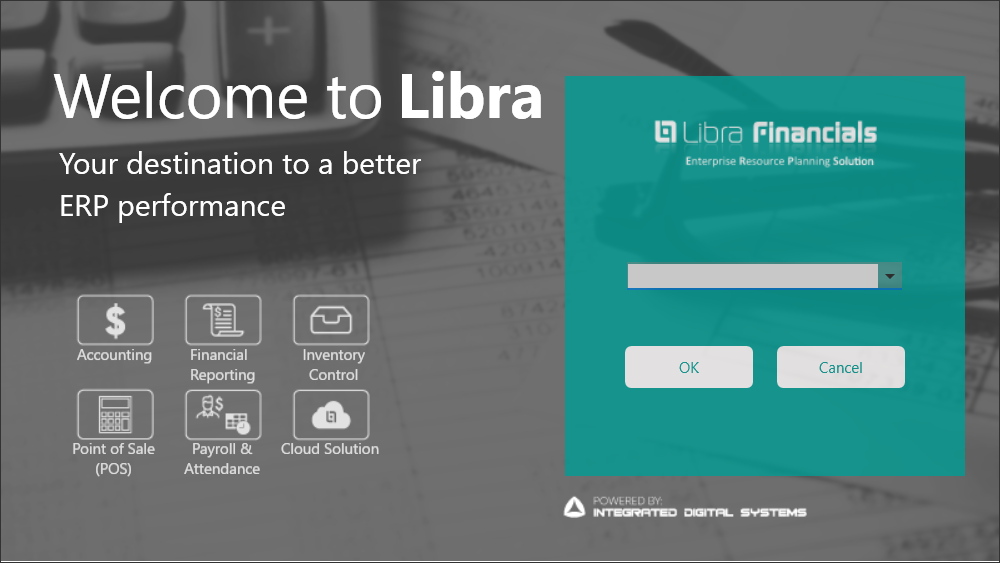
Select company opens a dropdown already set to the company you are currently working in, with OK and Cancel. Pick another company from the list and click OK to switch into it. See How to set up a company for what happens when the company you want does not exist yet.
2. Move to another year
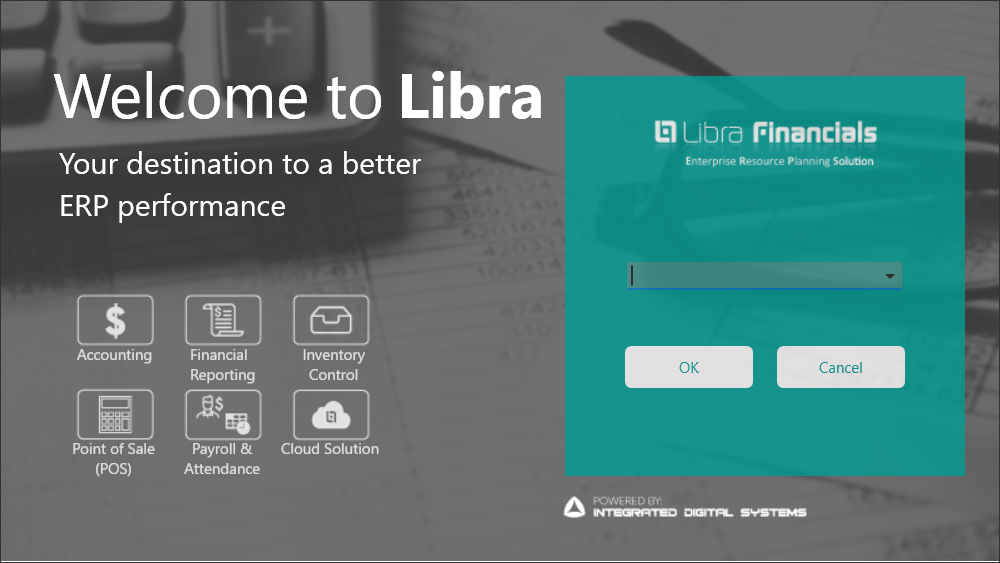
Move to another year opens the same style of window with the year list left blank. Choosing a year and clicking OK moves you into that year.
3. Change login
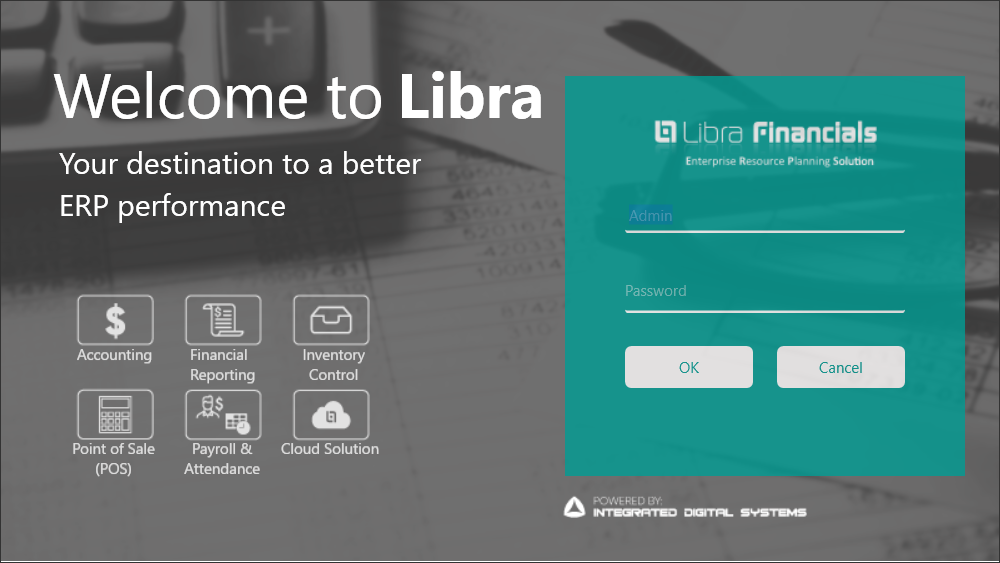
Change login signs you in as a different user without restarting Libra. It opens the same Welcome screen the program shows at startup, with a Username field (it starts on the name you are already signed in as) and a Password field below it, then OK and Cancel.
4. Switch server
Switch server opens a Server settings screen: a small grid listing every server this installation knows about, one row each, with an Active tick, a description, the server's own address, whether it uses Windows authentication, and the login it connects with. Its own ribbon carries Ok and Exit.
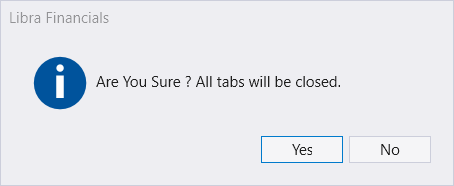
Switch server is also a row in the Administration group. From there it first asks «Are You Sure ? All tabs will be closed.», with Yes and No.
5. Restore
Restore opens a small window of its own: ServerName, UserName and Password fields above a Connect button, with Restore and Close on its ribbon. Close leaves the window.
6. Backup
Backup opens with a Backup Name already filled in for you and a Local Path field waiting for where to save it, under a ribbon carrying Backup and Cancel.
Restore replaces company data with the contents of a backup. Read what each window is asking before you go past its first screen.
7. Create company
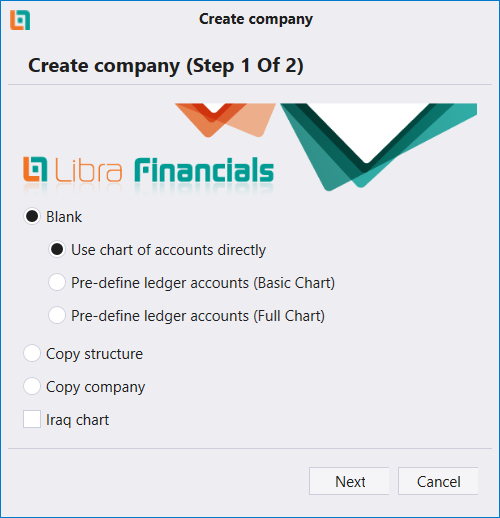
Create company, on the Main ribbon and in the Administration group, opens a two-step wizard. Step 1 offers:
- Blank, with Use chart of accounts directly, Pre-define ledger accounts (Basic Chart) or Pre-define ledger accounts (Full Chart) under it;
- Copy structure;
- Copy company;
- an Iraq chart box;
then Next or Cancel. How to set up a company walks through the rest.
Next: Users, roles and rights - who can do what once you are signed in.
يحمل الشريط الرئيسي ستة أزرار تعمل على الجلسة لا على شاشة بعينها: في أي شركة أنت، وأي سنة، وأي مستخدم، وأي خادم، وهل تأخذ نسخة احتياطية أم تستعيدها. يفتح كل زر أولًا نافذة صغيرة خاصة به.
١. اختيار شركة
يفتح اختيار شركة (Select company) قائمة منسدلة مضبوطة مسبقًا على الشركة التي تعمل فيها حاليًا، مع موافق (OK) وإلغاء (Cancel). اختر شركة أخرى من القائمة واضغط موافق للانتقال إليها. انظر كيفية إنشاء شركة لمعرفة ما يحدث حين لا تكون الشركة التي تريدها موجودة بعد.
٢. الانتقال إلى سنة أخرى
يفتح الانتقال إلى سنة أخرى (Move to another year) النافذة نفسها لكن قائمة السنة فيها فارغة. واختيار سنة ثم الضغط على موافق ينقلك إلى تلك السنة.
٣. تغيير المستخدم
يُدخلك تغيير المستخدم (Change login) بمستخدم آخر دون إعادة تشغيل ليبرا. يفتح شاشة الترحيب نفسها التي يعرضها البرنامج عند بدء التشغيل، وفيها حقل اسم المستخدم (Username) (يبدأ باسم المستخدم الذي دخلت به) وحقل كلمة المرور (Password) تحته، ثم موافق وإلغاء.
٤. تبديل الخادم
يفتح تبديل الخادم (Switch server) شاشة إعدادات الخادم (Server settings): جدول صغير يسرد كل خادم يعرفه هذا التركيب، صفًا لكل خادم، وفيه علامة نشِط (Active) ووصف وعنوان الخادم نفسه وهل يستخدم مصادقة ويندوز والمستخدم الذي يتصل به. ويحمل شريطه موافق (Ok) وخروج (Exit).
وSwitch server هو أيضًا صفّ في مجموعة Administration. ومن هناك يسأل أولًا «Are You Sure ? All tabs will be closed.» مع Yes وNo.
٥. الاستعادة
تفتح الاستعادة (Restore) نافذة صغيرة خاصة بها: حقول اسم الخادم (ServerName) واسم المستخدم (UserName) وكلمة المرور (Password) فوق زر اتصال (Connect)، مع استعادة (Restore) وإغلاق (Close) على شريطها. ويخرج إغلاق من النافذة.
٦. النسخ الاحتياطي
يفتح النسخ الاحتياطي (Backup) وفيه حقل اسم النسخة (Backup Name) معبّأ من قبله وحقل المسار المحلي (Local Path) بانتظار أن تحدد أين تُحفظ، تحت شريط يحمل نسخ احتياطي (Backup) وإلغاء (Cancel).
تستبدل الاستعادة بيانات الشركة بمحتوى نسخة احتياطية. اقرأ ما تطلبه كل نافذة قبل تجاوز شاشتها الأولى.
٧. تأسيس شركة (Create company)
يفتح Create company، على الشريط الرئيسي وفي مجموعة Administration، معالجًا من خطوتين. تعرض الخطوة الأولى:
- Blank، وتحته Use chart of accounts directly أو Pre-define ledger accounts (Basic Chart) أو Pre-define ledger accounts (Full Chart)؛
- Copy structure؛
- Copy company؛
- خانة Iraq chart؛
ثم Next أو Cancel. ويشرح كيفية تأسيس شركة بقية الخطوات.
التالي: المستخدمون والأدوار والصلاحيات - من يستطيع فعل ماذا بعد الدخول.