
From screen to paper: how a Libra report runsمن الشاشة إلى الورق: كيف يعمل التقرير في ليبرا
Every report in Libra passes through the same three stages on its way to paper. Knowing which stage you are looking at explains most of the surprises: a report that looks different on a colleague's computer, a file format one user can save and another cannot, a page that prints right-to-left.
1. Three parts: the criteria, the preview and the layout
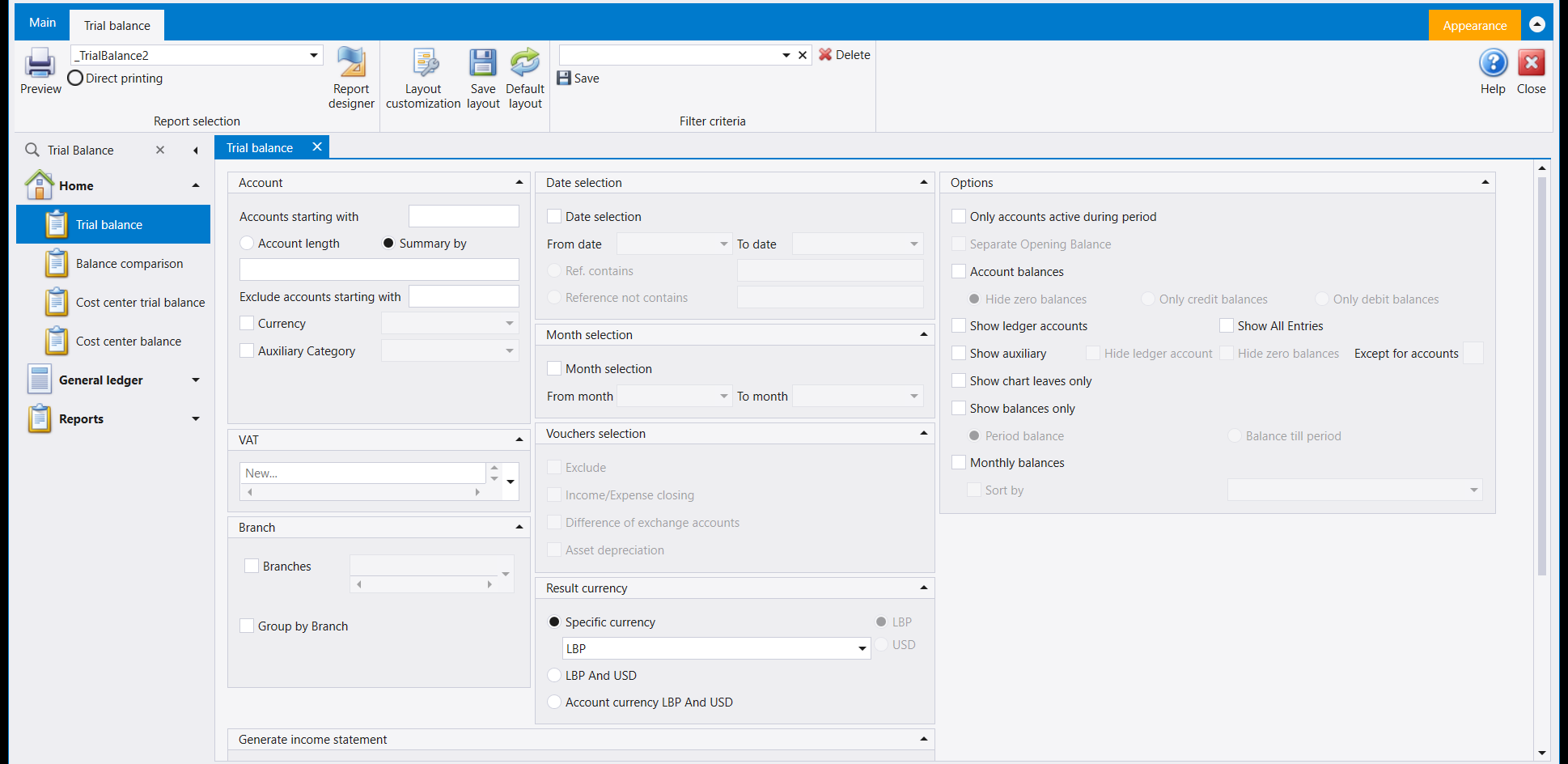
- The criteria screen is what opens from the navigation pane: panels of filters, and a ribbon with Preview at the far left. This is where you decide which figures the report shows. Nothing runs until you press Preview.
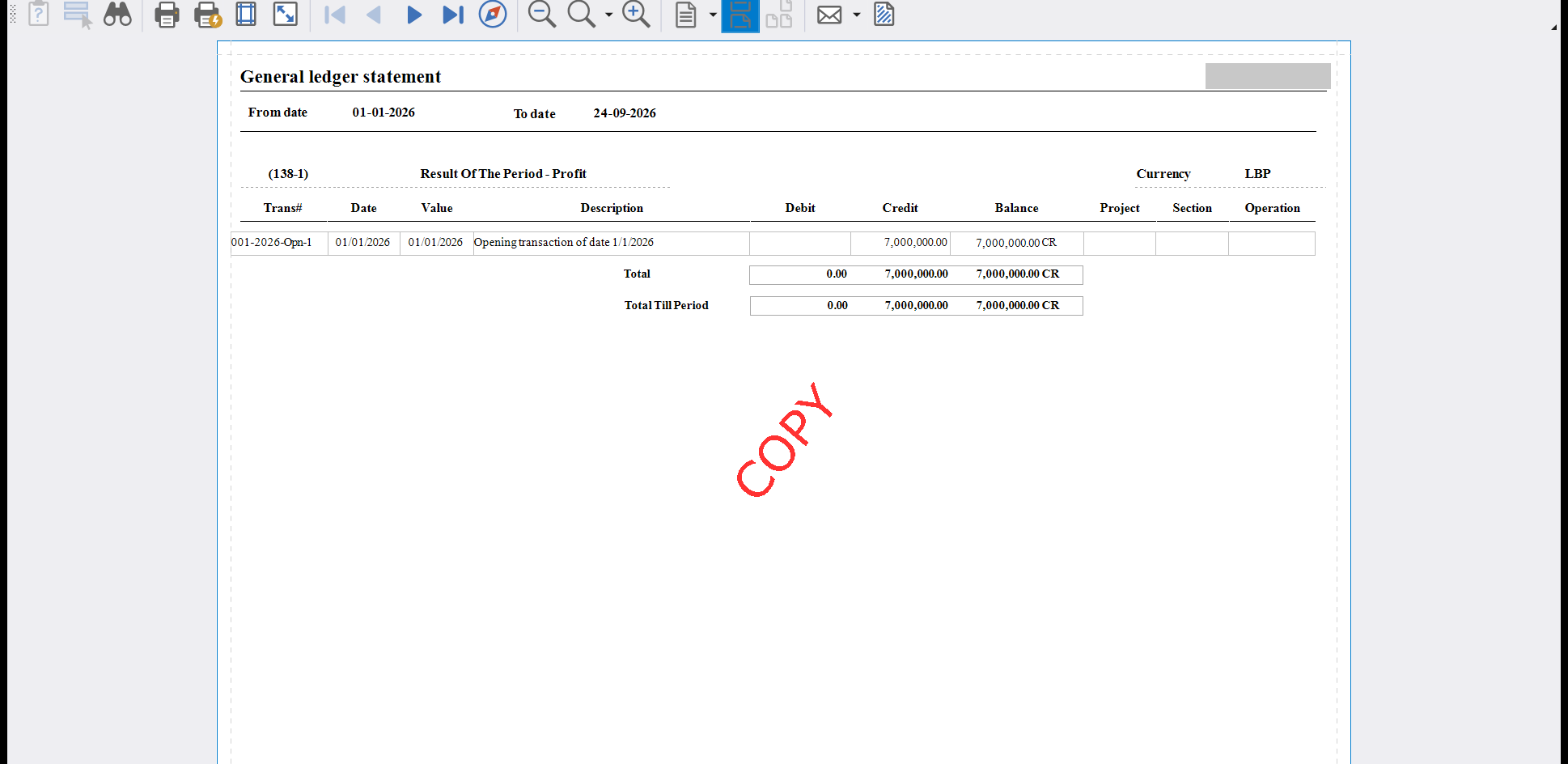
- The Preview window is where the result appears, page by page, as it will print. From there you print it, or send it on as a file.
- The printed layout is the design of the page itself: the title, the columns, the fonts, the totals. You choose it in Report selection. It decides how the figures look, never which figures they are.
Reports never change your data. Opening a criteria screen, pressing Preview, printing and sending all read your figures. None of them writes an entry, so you can explore freely.
2. Report selection: choosing the printed layout
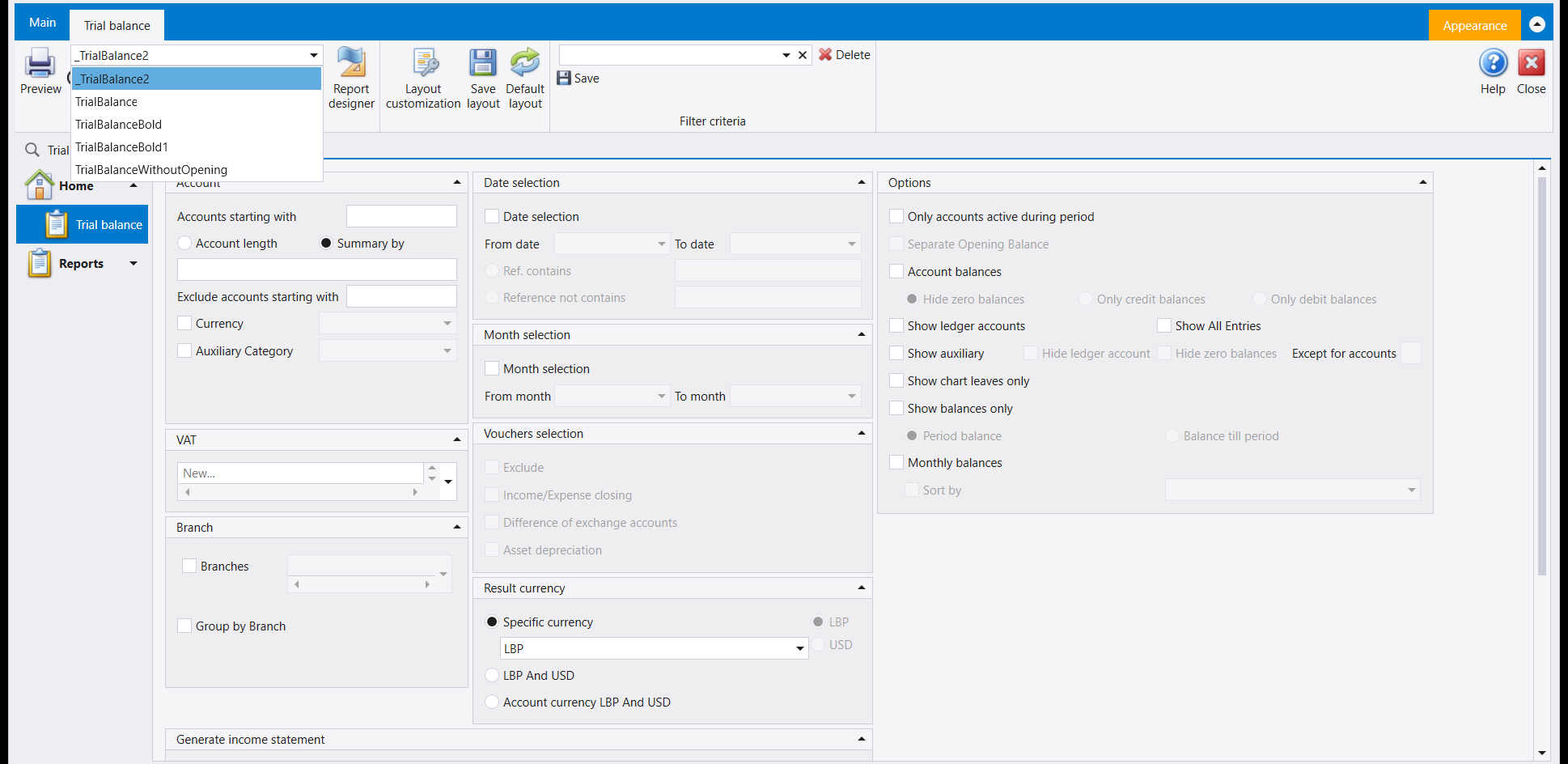
The dropdown in the Report selection group lists the printed layouts for this report, by the names they were saved under. Some reports have one layout. Others carry several designs of the same figures: the Trial balance lists _TrialBalance2, TrialBalance, TrialBalanceBold, TrialBalanceBold1 and TrialBalanceWithoutOpening. When the screen opens, the first layout in the list is selected (_TrialBalance2 here). Pick another before you press Preview.
The list shows the layouts available for this company and for the language you logged in with, so a company can have its own designs in place of the standard ones. Some options on the criteria screen also switch to a different set of layouts: a trial balance in two currencies has its own list.
If a colleague's copy of the same report looks different from yours, check three things in this order:
- A different layout is picked in Report selection. This is the usual answer.
- They logged in with the other language. Arabic and English logins can be offered different lists (see section 5).
- Their computer reads layouts from a different folder. Each computer can use its own layouts or be pointed at a shared network folder, so two computers set up differently can show different lists for the same company. Special reports: a printed layout for one company explains how company-specific layouts are organised.
3. Preview or Direct printing
Preview runs the report and opens the result on screen. Direct printing is the option under the Report selection dropdown, for sending the report to the printer without looking at it first.
Use Preview whenever the criteria are new to you. It costs nothing, and it shows you the page count before any paper does. Keep Direct printing for a report you print the same way every time, such as the daily journal at the end of each day.
4. The Preview window
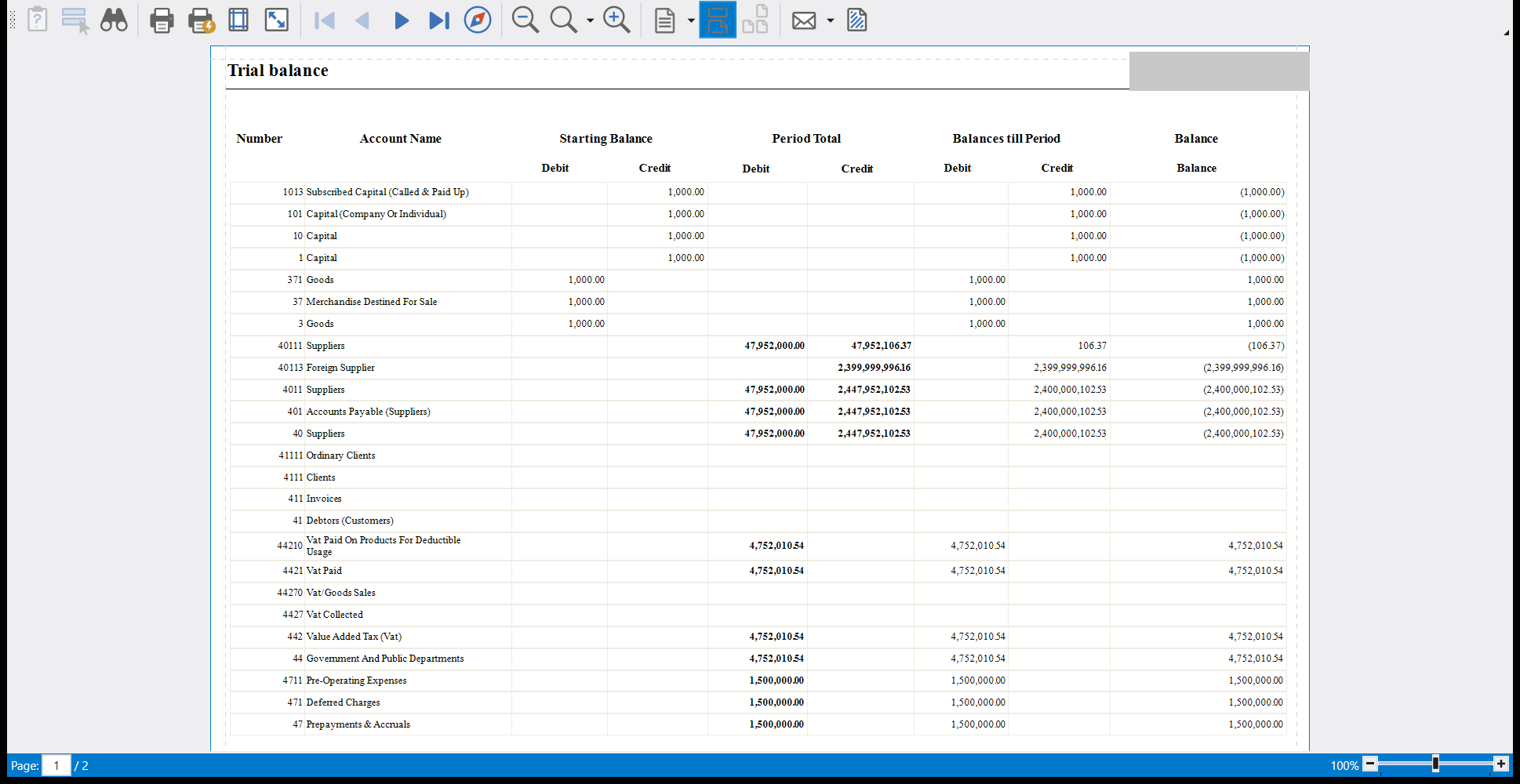
The preview opens full screen. Its title carries the report's name and the date and time it was run. The toolbar reads, from left to right: Parameters, Editing Fields, Search, Print…, Quick Print, Page Setup…, Scale, the four page buttons, Navigation Pane, Zoom Out, Zoom, Zoom In, Page Layout, Continuous Scrolling, Cover Page, Send… and Watermark. The page box and the zoom slider sit in the bar at the bottom.
- Pages and zoom. Move to the first, previous, next or last page, type a page number in the page box, and zoom in or out for a wide report on a small screen.
- Search. Find a word or a number anywhere in the report, which beats scrolling a sixty-page ledger.
- Print and page setup. Print… lets you choose the printer and the copies; Quick Print prints straight away; Page Setup… sets the paper size, the margins and the orientation for this printout.
- Watermark. Stamp a text such as COPY or CONFIDENTIAL diagonally across every page, on screen and on paper. A draft sent out for comment is then visibly a draft. See A review routine.
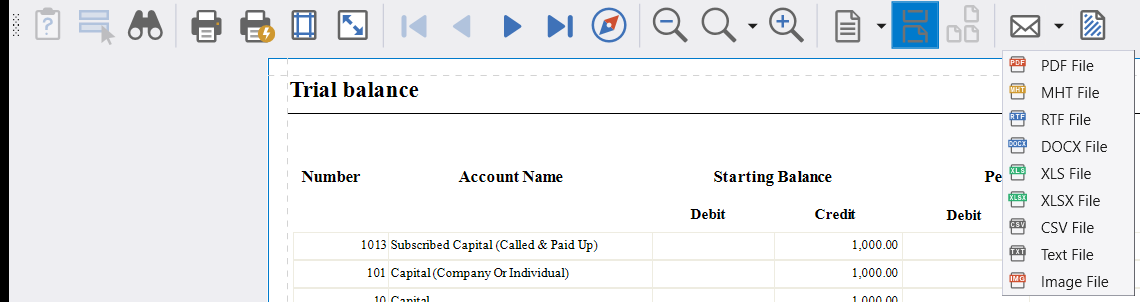
- Send…. Attach the report to an e-mail as a file. The arrow beside it chooses the format: PDF File, MHT File, RTF File, DOCX File, XLS File, XLSX File, CSV File, Text File or Image File. XLSX or CSV is the one to pick for a schedule someone will rework in a spreadsheet.
Saving the report to a file. Send… is the way to get the report out as a file, in any of the formats above. Some Libra licences also add an Export button to this toolbar, for saving the file straight to a folder. Where a licence includes it, the administrator can still switch it off with Forbid export to file upon printing in Setup system parameters (see System parameters). The designer's own Preview tab also carries Export…: see Changing how a printed page looks: the Report designer.
From a line to its document. On reports that list vouchers or stock documents, double-clicking a document's line in the preview opens that document on its own tab. It is the quickest way from a figure that looks wrong to the entry that made it.
5. Arabic and English logins
The language you choose at login is also the language of the page. With an Arabic login, a standard layout prints right-to-left with its labels in Arabic. With an English login, the same report prints left-to-right in English. Where a report keeps separate layouts for each language, each login lists its own.
Company-specific layouts are made for one language at a time. A design added for English logins leaves Arabic logins on the standard list until an Arabic version is added as well. This is the usual reason an Arabic user and an English user of the same company see different names in Report selection.
6. Where to go next
- The criteria screen. A set of filters you use every month can be saved under a name in Filter criteria. Layout customization, Save layout and Default layout rearrange the criteria screen itself, not the printout. Both are covered in Libra remembers your screen: columns, layouts and saved filters.
- The printed page. To change a layout, or build a new one, use Report designer: see Changing how a printed page looks: the Report designer.
- Any list, printed. Voucher lists, item lists and the other list screens have a Reports menu of their own: see Printing any list: the Reports menu. Ready-made queries shown as a grid are covered in Ad hoc reports: ready-made queries in a grid.
- Which report to run. Reports: one screen, twenty-two answers and Reading your accounts map each report to the question it answers.
يمرّ كل تقرير في ليبرا بالمراحل الثلاث نفسها في طريقه إلى الورق. ومعرفة المرحلة التي تنظر إليها تفسّر معظم المفاجآت: تقرير يبدو مختلفًا على حاسوب زميل، وصيغة ملف يستطيع مستخدم حفظها ولا يستطيعها آخر، وصفحة تُطبع من اليمين إلى اليسار.
١. ثلاثة أجزاء: المعايير والمعاينة والتصميم
- شاشة المعايير هي ما يُفتح من لوحة التنقل: لوحات من المرشِّحات، وشريط في أقصى يساره Preview. هنا تقرّر أيّ الأرقام يعرضها التقرير. ولا يعمل شيء حتى تضغط Preview.
- نافذة المعاينة هي حيث تظهر النتيجة صفحةً صفحة، كما ستُطبع. ومنها تطبعها، أو ترسلها ملفًّا.
- تصميم الطباعة هو تصميم الصفحة نفسها: العنوان والأعمدة والخطوط والمجاميع. وتختاره من Report selection. وهو يقرّر كيف تبدو الأرقام، لا أيّ الأرقام هي.
التقارير لا تغيّر بياناتك أبدًا. فتح شاشة المعايير وضغط Preview والطباعة والإرسال كلّها تقرأ أرقامك. ولا يكتب أيٌّ منها قيدًا، فاستكشف بحرّية.
٢. Report selection: اختيار تصميم الطباعة
تسرد القائمة في مجموعة Report selection تصاميم الطباعة المتاحة لهذا التقرير، بالأسماء التي حُفظت بها. لبعض التقارير تصميم واحد. ولبعضها الآخر عدّة تصاميم للأرقام نفسها: فتسرد Trial balance _TrialBalance2 وTrialBalance وTrialBalanceBold وTrialBalanceBold1 و TrialBalanceWithoutOpening. وحين تُفتح الشاشة يكون التصميم الأول في اللائحة هو المختار (_TrialBalance2 هنا). فاختر غيره قبل أن تضغط Preview.
تعرض اللائحة التصاميم المتاحة لهذه الشركة وللغة التي دخلت بها، فقد يكون لشركة تصاميمها الخاصة مكان التصاميم القياسية. وبعض الخيارات في شاشة المعايير تنتقل أيضًا إلى مجموعة أخرى من التصاميم: فلميزان المراجعة بعملتين لائحته الخاصة.
إن بدت نسخة زميلك من التقرير نفسه مختلفة عن نسختك، فتحقّق من ثلاثة أمور بهذا الترتيب:
- اختير تصميم آخر في Report selection. وهذا هو الجواب في الغالب.
- دخل باللغة الأخرى. فقد يُعرض على الدخول بالعربية والدخول بالإنجليزية لائحتان مختلفتان (راجع القسم ٥).
- حاسوبه يقرأ التصاميم من مجلّد آخر. فكل حاسوب قد يستعمل تصاميمه الخاصة أو يُوجَّه إلى مجلّد مشترك على الشبكة، فيعرض حاسوبان مُعدّان بشكل مختلف لائحتين مختلفتين للشركة نفسها. ويشرح التقارير الخاصة: تصميم مطبوع لشركة واحدة كيف تُنظَّم التصاميم الخاصة بكل شركة.
٣. Preview أو Direct printing
يشغّل Preview التقرير ويفتح النتيجة على الشاشة. أما Direct printing فهو الخيار تحت قائمة Report selection، لإرسال التقرير إلى الطابعة من دون أن تنظر إليه أولًا.
استعمل Preview كلّما كانت المعايير جديدة عليك. فهو لا يكلّف شيئًا، ويُريك عدد الصفحات قبل أن يُريك إياه الورق. واحتفظ بـDirect printing للتقرير الذي تطبعه بالطريقة نفسها كل مرة، كاليومية العامة في نهاية كل يوم.
٤. نافذة المعاينة
تُفتح المعاينة بملء الشاشة. ويحمل عنوانها اسم التقرير وتاريخ تشغيله ووقته. ويُقرأ شريط أدواتها من اليسار إلى اليمين: Parameters وEditing Fields وSearch وPrint… وQuick Print وPage Setup… وScale، ثم أزرار الصفحات الأربعة، وNavigation Pane، وZoom Out وZoom وZoom In، وPage Layout وContinuous Scrolling وCover Page، ثم Send… وWatermark. وتقع خانة الصفحة وشريط التكبير في الشريط السفلي.
- الصفحات والتكبير. انتقل إلى الصفحة الأولى أو السابقة أو التالية أو الأخيرة، واكتب رقم صفحة في خانة الصفحة، وكبّر أو صغّر لتقرير عريض على شاشة صغيرة.
- البحث. ابحث عن كلمة أو رقم في أي مكان من التقرير، وهذا أفضل من تمرير دفتر أستاذ من ستين صفحة.
- الطباعة وإعداد الصفحة. يتيح لك Print… اختيار الطابعة وعدد النسخ؛ ويطبع Quick Print فورًا؛ ويضبط Page Setup… حجم الورق والهوامش والاتجاه لهذه الطبعة.
- العلامة المائية. اختم نصًّا مثل COPY أو CONFIDENTIAL قطريًّا على كل صفحة، على الشاشة وعلى الورق. فتصير المسوّدة المرسلة لإبداء الرأي مسوّدةً ظاهرة. راجع روتين المراجعة.
- Send…. أرفق التقرير ملفًّا برسالة بريد إلكتروني. والسهم بجانبه يختار الصيغة: PDF File أو MHT File أو RTF File أو DOCX File أو XLS File أو XLSX File أو CSV File أو Text File أو Image File. واختر XLSX أو CSV لجدول سيعيد أحدٌ العمل عليه في جدول بيانات.
حفظ التقرير في ملف. Send… هو الطريق لإخراج التقرير ملفًّا، بأيّ من الصيغ أعلاه. وبعض تراخيص ليبرا تضيف أيضًا زر Export إلى هذا الشريط، لحفظ الملف مباشرةً في مجلّد. وحيث يشمله الترخيص، يستطيع مسؤول النظام إيقافه بإعداد Forbid export to file upon printing في Setup system parameters (راجع معايير النظام). ويحمل تبويب Preview الخاص بالمصمّم أيضًا Export…: راجع تغيير شكل الصفحة المطبوعة: مصمّم التقارير.
من السطر إلى مستنده. في التقارير التي تسرد قيودًا أو مستندات مخزون، يفتح النقر المزدوج على سطر المستند في المعاينة ذلك المستند في تبويب خاص به. وهو أسرع طريق من رقم يبدو خاطئًا إلى القيد الذي صنعه.
٥. الدخول بالعربية والدخول بالإنجليزية
اللغة التي تختارها عند الدخول هي أيضًا لغة الصفحة. فمع الدخول بالعربية يُطبع التصميم القياسي من اليمين إلى اليسار وتسمياته بالعربية. ومع الدخول بالإنجليزية يُطبع التقرير نفسه من اليسار إلى اليمين بالإنجليزية. وحيث يحتفظ التقرير بتصاميم منفصلة لكل لغة، يعرض كل دخول تصاميمه.
وتُصنع التصاميم الخاصة بالشركة للغة واحدة في كل مرة. فالتصميم المضاف للدخول بالإنجليزية يترك الدخول بالعربية على اللائحة القياسية حتى تُضاف نسخة عربية أيضًا. وهذا هو السبب المعتاد لرؤية مستخدم بالعربية ومستخدم بالإنجليزية في الشركة نفسها أسماءً مختلفة في Report selection.
٦. إلى أين بعد ذلك
- شاشة المعايير. يمكن حفظ مجموعة المرشِّحات التي تستعملها كل شهر باسمٍ في Filter criteria. أما Layout customization وSave layout وDefault layout فتعيد ترتيب شاشة المعايير نفسها، لا الطبعة. وكلاهما في ليبرا يتذكّر شاشتك: الأعمدة والتصاميم والفلاتر المحفوظة.
- الصفحة المطبوعة. لتغيير تصميم أو بناء تصميم جديد استعمل Report designer: راجع تغيير شكل الصفحة المطبوعة: مصمّم التقارير.
- طباعة أي لائحة. للوائح القيود ولوائح الأصناف وسائر شاشات اللوائح قائمة Reports خاصة بها: راجع طباعة أي قائمة: قائمة Reports. أما الاستعلامات الجاهزة المعروضة في جدول فشرحها في التقارير حسب الطلب: استعلامات جاهزة في جدول.
- أي تقرير تشغّل. يربط التقارير: شاشة واحدة واثنتان وعشرون إجابة و قراءة حساباتك كل تقرير بالسؤال الذي يجيب عنه.