
A review routine: reading a client's books from the top downروتين المراجعة: قراءة دفاتر العميل من الأعلى إلى الأسفل
Once a client's entries are in, the work changes from typing to looking. Four screens, taken in this order, carry a review from the whole period down to the single entry sitting behind a figure that looks wrong: Trial balance, then General ledger statement, then Audit, and finally the print preview a result leaves the office through. Each of those screens has a guide of its own. This one is the order you take them in, and what to ask of each.
1. Start wide: the trial balance for the period
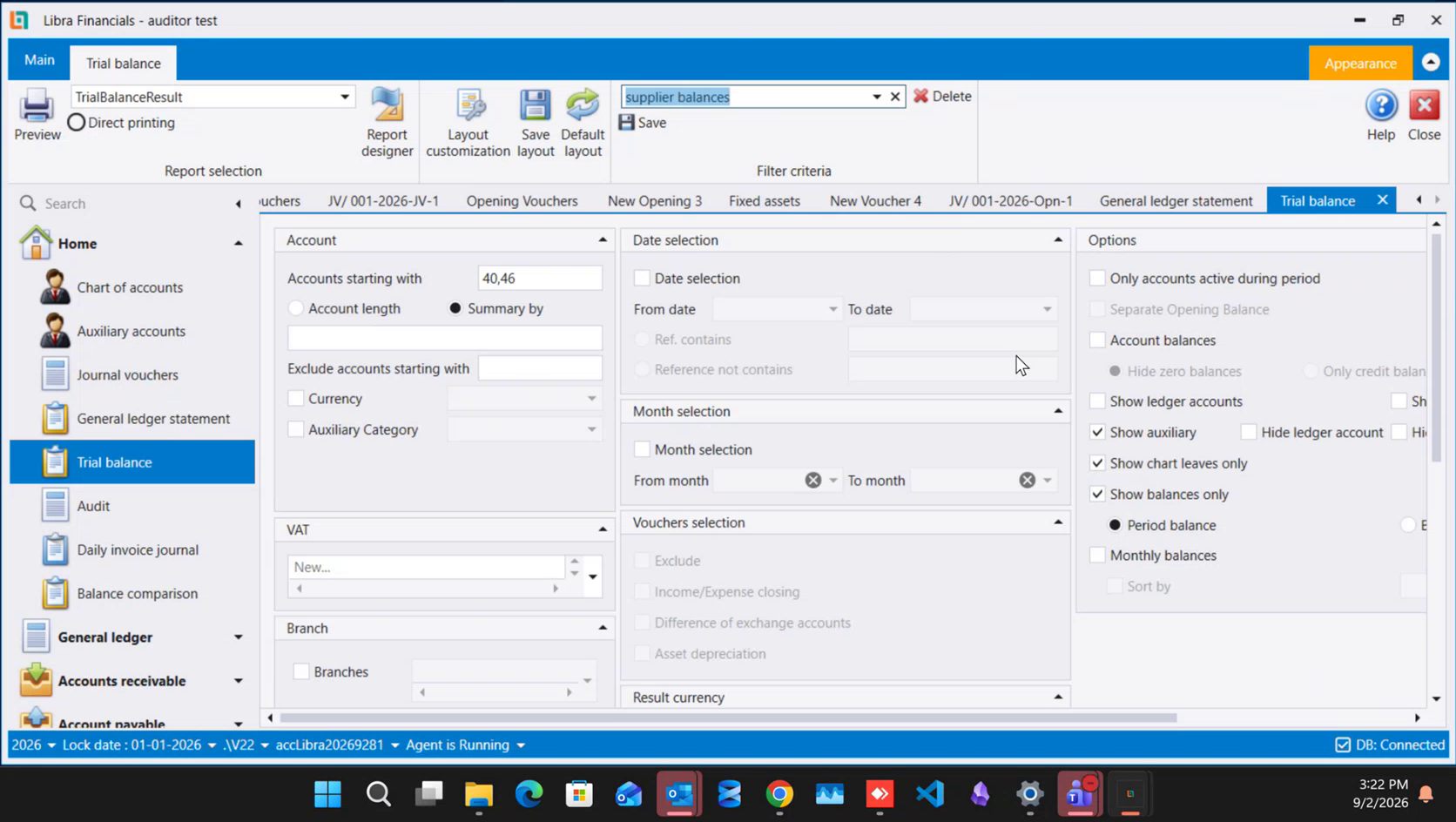
Open Trial balance, set the period first, then narrow. Four choices do most of the work of a review:
- Accounts starting with takes a comma-separated list, so one run covers two ranges at once, and Exclude accounts starting with drops a narrower range sitting inside them. One report instead of three.
- Show chart leaves only together with Show balances only gives one line per account that can actually be posted to - the list you work down.
- Separate Opening Balance keeps what was brought forward apart from the period's own movement, which is the difference between what the client did this year and what they were handed.
- Monthly balances in place of Period balance spreads the same run across the months, so a figure that arrived in one lump shows itself without a second report.
Currency, Branch, Auxiliary Category and Result currency narrow it further, and Vouchers selection sets aside closing and depreciation entries when you want the client's own trading picture. The panels themselves are explained once in Reports: one screen, twenty-two answers, and the reports they belong to in Reading your accounts: the reporting screens.
2. Then one range of accounts: the General ledger statement
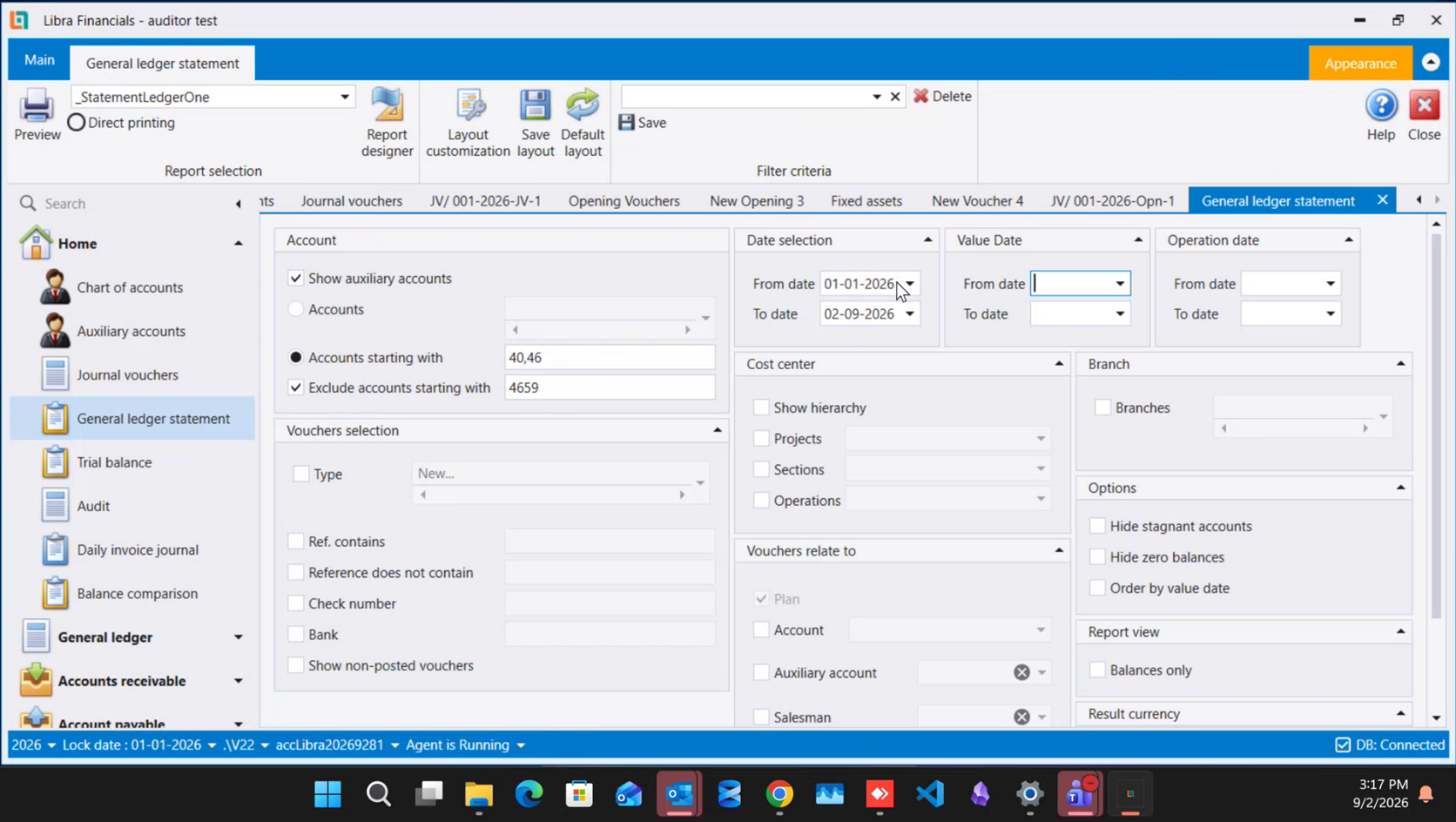
General ledger statement answers what happened inside these accounts. It takes the same comma-separated prefixes and the same exclusion, so a whole family of suppliers comes out in one run with one branch of that family dropped from it.
Its Date selection, Value Date and Operation date panels are three different questions, and a review uses all three:
- Date selection is the entry's own date, the period it belongs to.
- Value Date is the date the money is treated as having moved.
- Operation date is when the entry was actually keyed in. Ask for today on this one and you see what was entered today, whatever period it was dated into - a look at the work rather than at the period, which is what you want when you are reviewing a day of somebody's data entry.
Tick Show non-posted vouchers in Vouchers selection so anything still in progress appears alongside the rest; what posted means is set out in Posted: when an entry actually reaches the ledger.
Then drill. Close the print preview, and double-click the line on the statement grid underneath it: the voucher behind that figure opens on its own tab, fully filled in. Getting from a figure to its source document is one gesture, which is what lets you settle a question during the review instead of writing it down for later.
3. Sweep for what cannot be right: the Audit screen
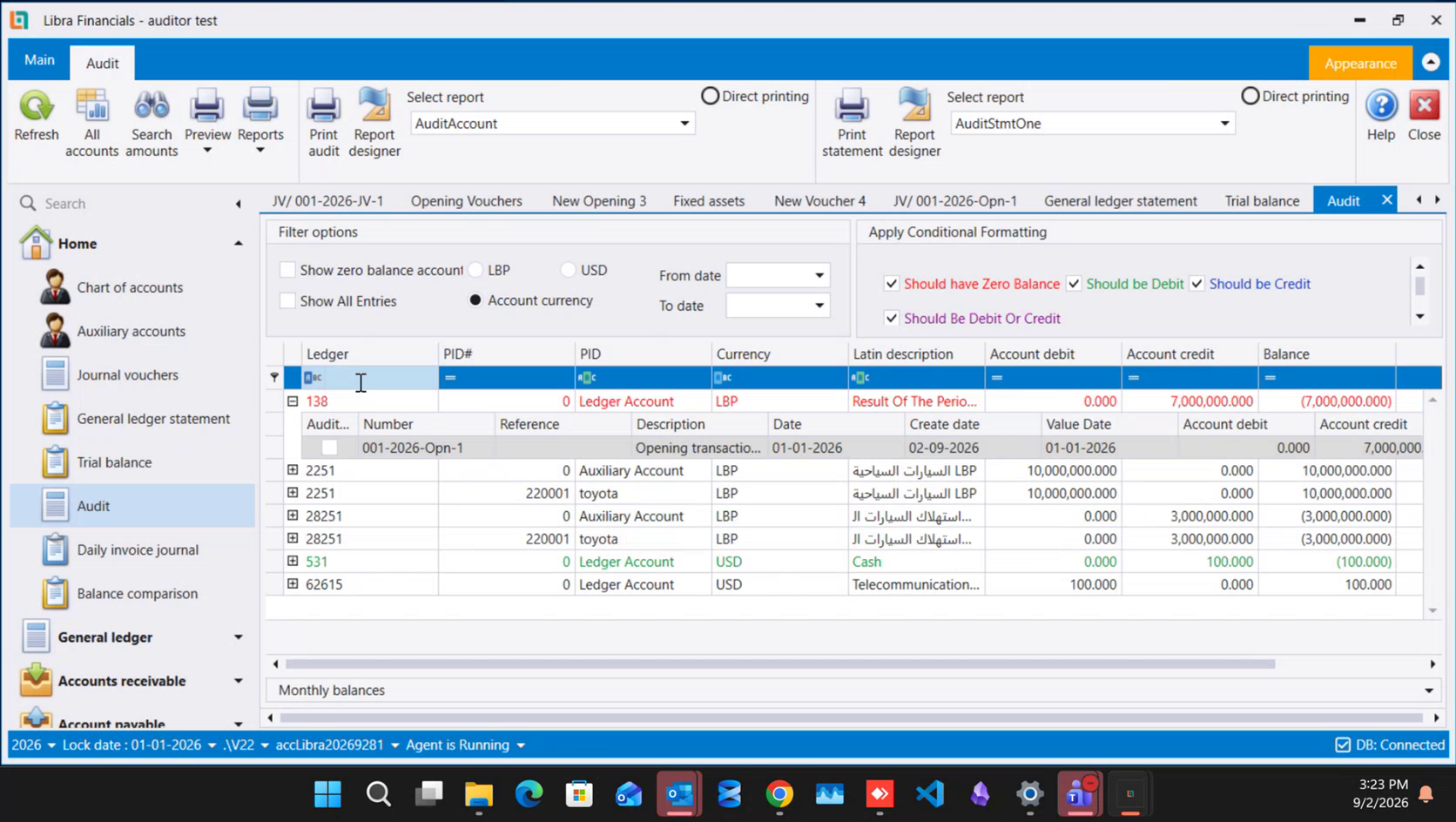
Audit is the pass that catches what a period total hides. It lists every account carrying a balance, and Apply Conditional Formatting paints the ones leaning the wrong way: Should have Zero Balance, Should be Debit, Should be Credit and Should Be Debit Or Credit, each in its own colour. A cash box sitting in credit says more went out of it than ever came in, which a real cash box cannot do - and it is coloured before you go looking for it. Read the coloured lines, not every line.
Expand a coloured row and the entries behind it appear beneath it, each carrying its own Audited box. Tick them off as you satisfy yourself about them, and the screen becomes the working paper for the engagement: what is still unticked is what is still to check. Rows split by auxiliary record carry that record in the PID column, so a shared account can be reviewed party by party - see Structuring a client's chart for audit work. The screen's own columns, colours and filters are covered in Checking your books: Audit and Advanced search.
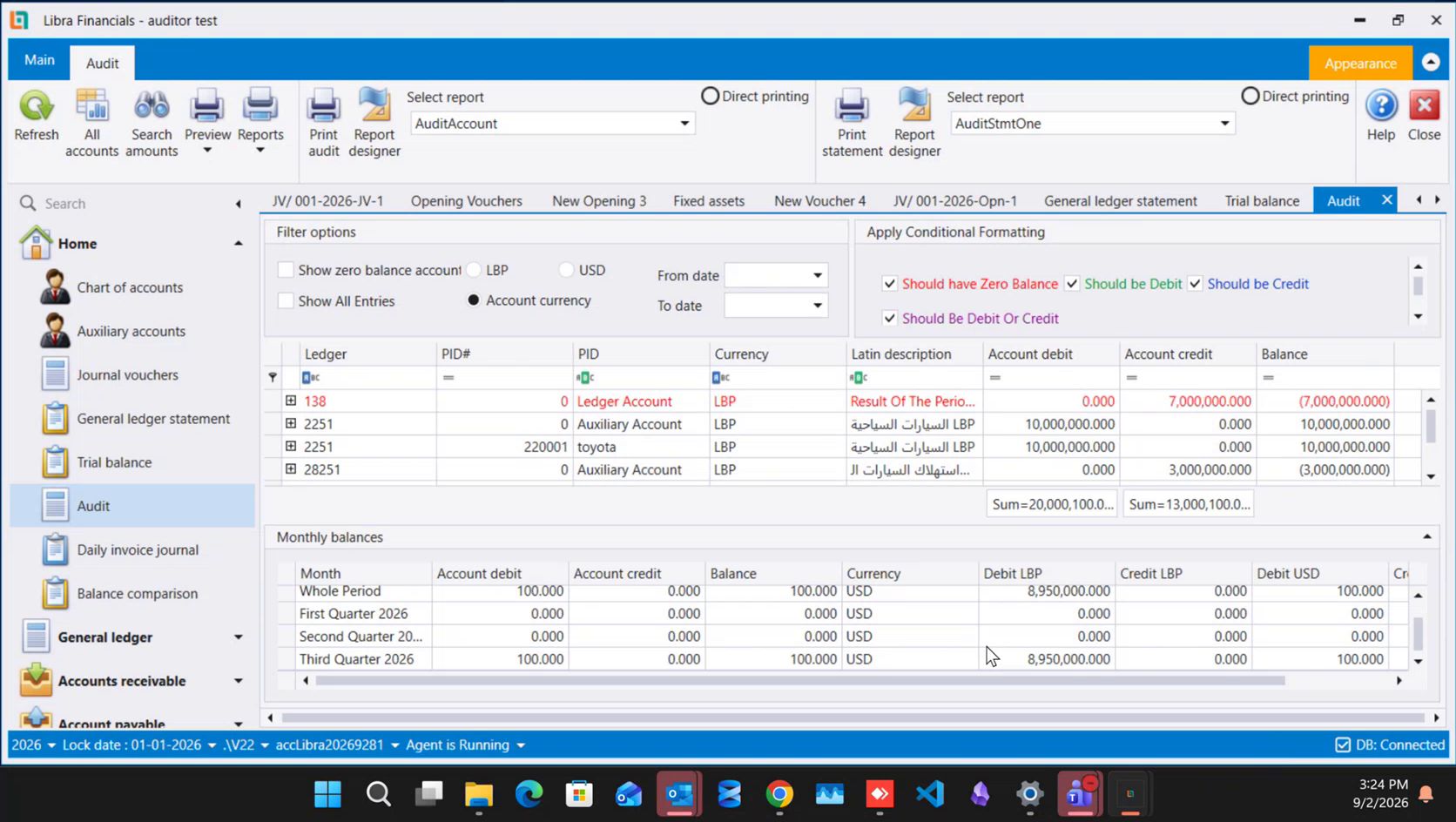
Monthly balances, at the foot of the screen, answers the follow-up question. Select an account and it breaks that one balance out over time - and alongside the individual months it carries First Quarter, Second Quarter and Third Quarter rollups and a Whole Period line, which is the shape a quarterly review cycle asks for. The grid tells you this account looks wrong; this panel tells you when it went wrong.
4. Handing the result out
Every one of these screens ends at Preview, and the preview is where a result leaves the office. Its Send... button e-mails the report as an attachment in the format you pick - PDF, Word (DOCX, RTF), Excel (XLS, XLSX), CSV and a few others - so a schedule can be worked on further, attached to a file, or sent on to whoever asked for it. On licences that include it, an Export button saves the same formats straight to a file (see From screen to paper).
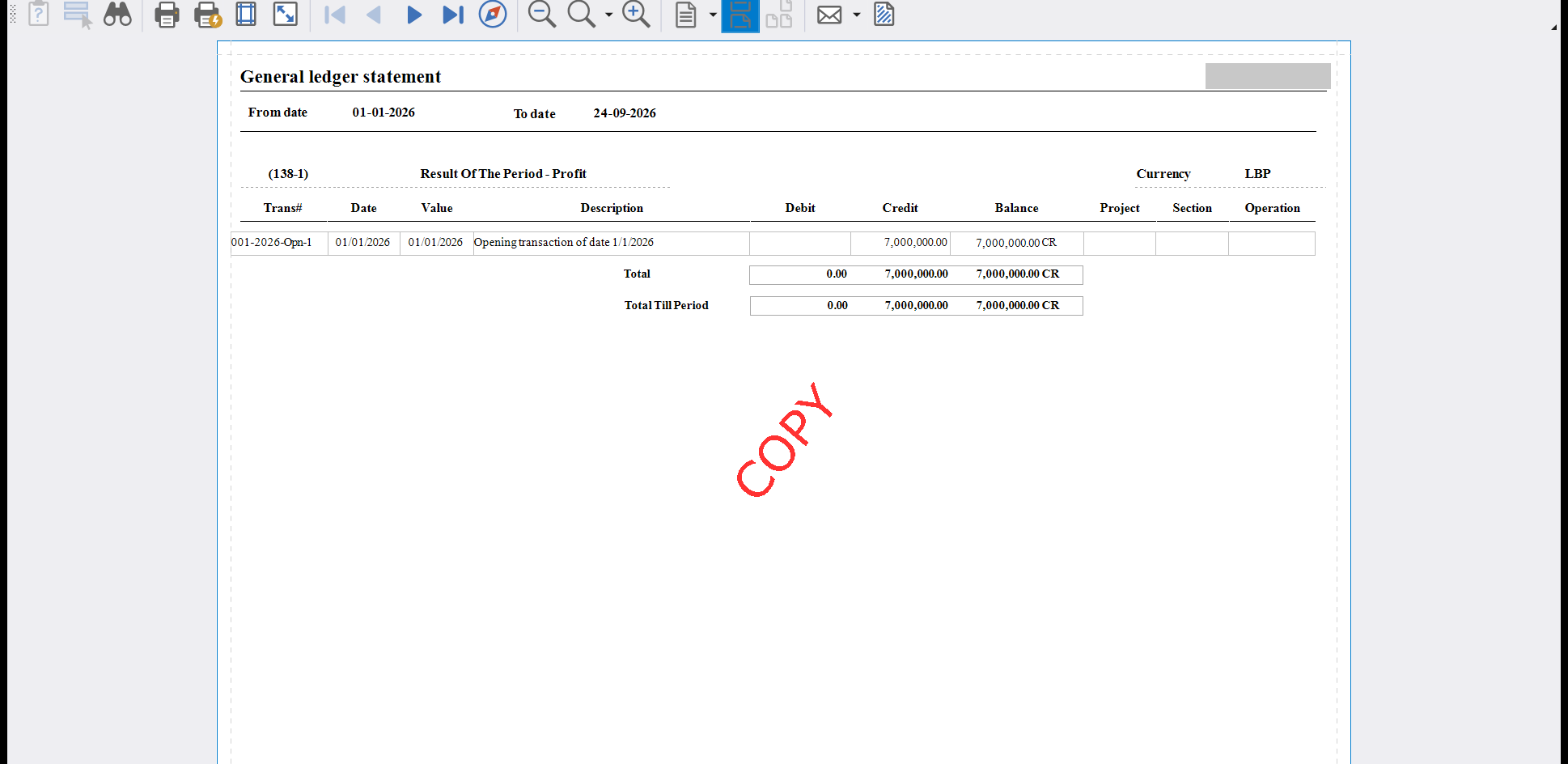
Before it goes, the preview can stamp the page. A text watermark - COPY and CONFIDENTIAL are the usual two - is typed once and then appears diagonally across the report itself, both on the preview in front of you and on what you hand over. A draft circulated for comment is then visibly a draft on every page, and cannot be filed later as though it were the final one.
5. Standard filters belong to whoever saved them
Beside Save on every one of these report ribbons sits a Filter criteria box. It holds a set of criteria under a name of your choosing, so next month you pick the name instead of filling the page in again - which also closes the gap where this month's report and last month's were not asked quite the same question.
A saved set stays with the user who saved it, so a colleague building their own criteria works from theirs rather than from yours. A firm that wants every engagement to start from the same standard filters therefore builds them once in the company its new client companies are copied from, where they travel outward with every copy - see Working across many client companies.
ما إن تُدخَل قيود العميل حتى يتحوّل العمل من الكتابة إلى النظر. وأربع شاشات، مأخوذة بهذا الترتيب، تحمل المراجعة من الفترة كلها نزولًا إلى القيد الواحد القابع خلف رقم يبدو خاطئًا: Trial balance، ثم General ledger statement، ثم Audit، وأخيرًا معاينة الطباعة التي تخرج منها النتيجة من المكتب. ولكلٍّ من هذه الشاشات دليلها الخاص. أما هذا الدليل فهو الترتيب الذي تأخذها به، وما تسأله كلًّا منها.
١. ابدأ واسعًا: ميزان المراجعة للفترة
افتح Trial balance، واضبط الفترة أولًا، ثم ضيّق. وأربعة خيارات تؤدي معظم عمل المراجعة:
- Accounts starting with يأخذ لائحة مفصولة بفواصل، فيغطي التشغيل الواحد نطاقين معًا، وExclude accounts starting with يُسقط نطاقًا أضيق واقعًا داخلهما. تقرير واحد بدل ثلاثة.
- Show chart leaves only مع Show balances only يعطي سطرًا واحدًا لكل حساب يمكن الترحيل إليه فعلًا - وهي اللائحة التي تعمل عليها سطرًا سطرًا.
- Separate Opening Balance يفصل ما رُحِّل من الفترة السابقة عن حركة الفترة نفسها، وهو الفرق بين ما فعله العميل هذه السنة وما تسلّمه.
- Monthly balances بدل Period balance يوزّع التشغيل نفسه على الأشهر، فيُظهر الرقم الذي وصل دفعةً واحدة بلا حاجة إلى تقرير ثانٍ.
وCurrency وBranch وAuxiliary Category وResult currency تضيّق أكثر، وVouchers selection ينحّي قيود الإقفال والاستهلاك حين تريد صورة نشاط العميل وحده. وشرح اللوحات نفسها يرد مرة واحدة في التقارير: شاشة واحدة واثنتان وعشرون إجابة، والتقارير التي تنتمي إليها في قراءة حساباتك: شاشات التقارير.
٢. ثم نطاق حسابات واحد: كشف الأستاذ العام
يجيب General ledger statement عن سؤال ماذا جرى داخل هذه الحسابات. وهو يأخذ البادئات نفسها المفصولة بفواصل والاستثناء نفسه، فتخرج عائلة موردين كاملة في تشغيل واحد وقد أُسقط منها فرع واحد من فروعها.
ولوحاته Date selection وValue Date وOperation date ثلاثة أسئلة مختلفة، والمراجعة تستعملها جميعًا:
- Date selection هو تاريخ القيد نفسه، أي الفترة التي يعود إليها.
- Value Date هو التاريخ الذي يُعامَل المال على أنه تحرّك فيه.
- Operation date هو متى أُدخل القيد فعلًا. اطلب تاريخ اليوم هنا فترى ما أُدخل اليوم مهما كانت الفترة التي أُرِّخ إليها - نظرة إلى العمل لا إلى الفترة، وهو ما تريده حين تراجع يومًا من إدخال بيانات أحدهم.
وأشِّر Show non-posted vouchers في Vouchers selection كي يظهر كل ما لا يزال قيد الإنجاز مع سائر القيود؛ ومعنى الترحيل مبسوط في الترحيل: متى يصل القيد إلى الأستاذ فعلًا.
ثم انزل إلى المصدر. أغلق معاينة الطباعة، وانقر نقرًا مزدوجًا على السطر في شبكة الكشف تحتها: فيُفتح القيد القابع خلف ذلك الرقم في تبويب خاص به، معبّأً بالكامل. والانتقال من الرقم إلى مستنده المصدر حركة واحدة، وهو ما يتيح لك حسم السؤال أثناء المراجعة بدل تدوينه لوقت لاحق.
٣. امسح ما لا يمكن أن يكون صحيحًا: شاشة التدقيق
Audit هي الجولة التي تلتقط ما يخفيه مجموع الفترة. فهي تسرد كل حساب يحمل رصيدًا، ويلوّن Apply Conditional Formatting الحسابات المائلة في الاتجاه الخطأ: Should have Zero Balance وShould be Debit وShould be Credit وShould Be Debit Or Credit، كلٌّ بلونه. وصندوق نقدية يجلس دائنًا يقول إن ما خرج منه أكثر مما دخله يومًا، وهو ما لا يستطيعه صندوق نقد حقيقي - وقد لُوِّن قبل أن تبحث عنه. اقرأ السطور الملوّنة، لا كل سطر.
وسّع سطرًا ملوّنًا فتظهر تحته القيود التي وراءه، ويحمل كلٌّ منها مربع Audited الخاص به. أشِّرها كلما اطمأننت إليها، فتصير الشاشة ورقة عملك في المهمة: فما بقي بلا تأشير هو ما بقي للفحص. والسطور المقسّمة بحسب السجل المساعد تحمل ذلك السجل في عمود PID، فيمكن مراجعة حساب مشترك طرفًا طرفًا - انظر تنظيم شجرة حسابات العميل لعمل التدقيق. أما أعمدة الشاشة وألوانها ومرشّحاتها فمشروحة في مراجعة دفاترك: التدقيق والبحث المتطوّر.
وتجيب Monthly balances في أسفل الشاشة عن السؤال التالي. اختر حسابًا فتفكّك ذلك الرصيد الواحد عبر الزمن - وإلى جانب الأشهر المفردة تحمل تجميعات First Quarter وSecond Quarter وThird Quarter وسطر Whole Period، وهو الشكل الذي تطلبه دورة مراجعة ربعية. فالشبكة تقول لك هذا الحساب يبدو خاطئًا، وهذه اللوحة تقول لك متى اختلّ.
٤. تسليم النتيجة
كل واحدة من هذه الشاشات تنتهي عند Preview، والمعاينة هي المكان الذي تخرج منه النتيجة من المكتب. فزرّ Send... فيها يرسل التقرير بالبريد مرفقًا بالصيغة التي تختارها - PDF، وWord (DOCX وRTF)، وExcel (XLS وXLSX)، وCSV وغيرها - فيمكن متابعة العمل على الجدول، أو ضمّه إلى ملف، أو إرساله إلى من طلبه. وفي الرخص التي تشمله، يحفظ زرّ Export الصيغ نفسها في ملف مباشرةً (انظر من الشاشة إلى الورق).
وقبل أن يخرج، تستطيع المعاينة أن تختم الصفحة. فعلامة مائية نصية - وCOPY وCONFIDENTIAL هما الأشيع - تُكتب مرة واحدة ثم تظهر مائلة عبر التقرير نفسه، على المعاينة أمامك وعلى ما تسلّمه. فتكون المسودّة المتداولة للملاحظات مسودّةً ظاهرةً على كل صفحة، ولا يمكن حفظها لاحقًا كأنها النسخة النهائية.
٥. الفلاتر القياسية تخصّ من حفظها
بجانب Save في شريط كل واحد من هذه التقارير يجلس صندوق Filter criteria. وهو يحفظ مجموعة معايير باسم تختاره، فتختار الاسم في الشهر التالي بدل ملء الصفحة من جديد - وهو ما يُقفل أيضًا الثغرة التي لا يكون فيها تقرير هذا الشهر وتقرير الشهر الماضي قد سُئلا السؤال نفسه تمامًا.
والمجموعة المحفوظة تبقى مع المستخدم الذي حفظها، فالزميل الذي يبني معاييره الخاصة يعمل من معاييره هو لا من معاييرك. لذلك فالمكتب الذي يريد أن تبدأ كل مهمة من الفلاتر القياسية نفسها يبنيها مرة واحدة في الشركة التي تُنسخ منها شركات عملائه الجديدة، فتنتقل معها في كل نسخة - انظر العمل مع شركات عملاء كثيرة.